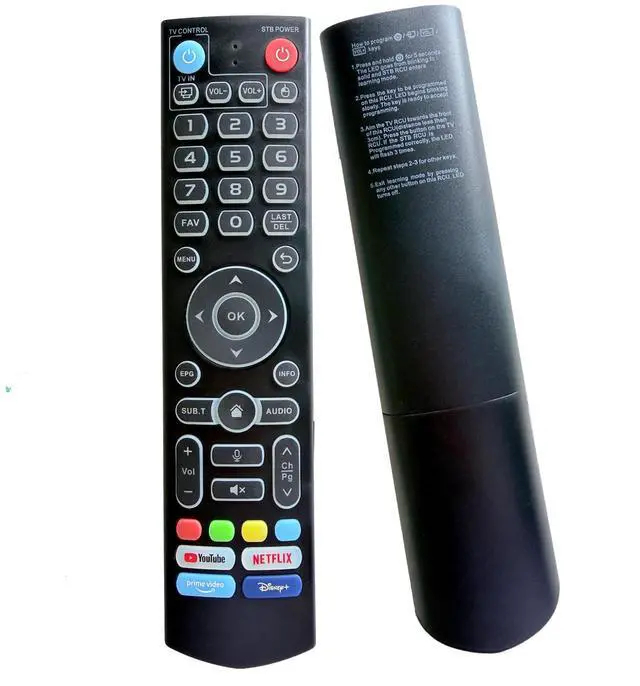
Learning Mode Programming Instructions: Press and hold the POWER key for 5 seconds until the LED changes from blinking to solid and the STB RCU enters Learning Mode. Press the key to be programmed on this RCU and the LED begins blinking slowly. Aim the TV RCU towards the front of this RCU (distance less than 5cm) and press the button on the TV RCU. If the STB RCU is programmed correctly, the LED will flash 3 times. Repeat steps for other keys and exit learning mode by pressing any other button on this RCU until the LED turns off. Wide Compatibility with
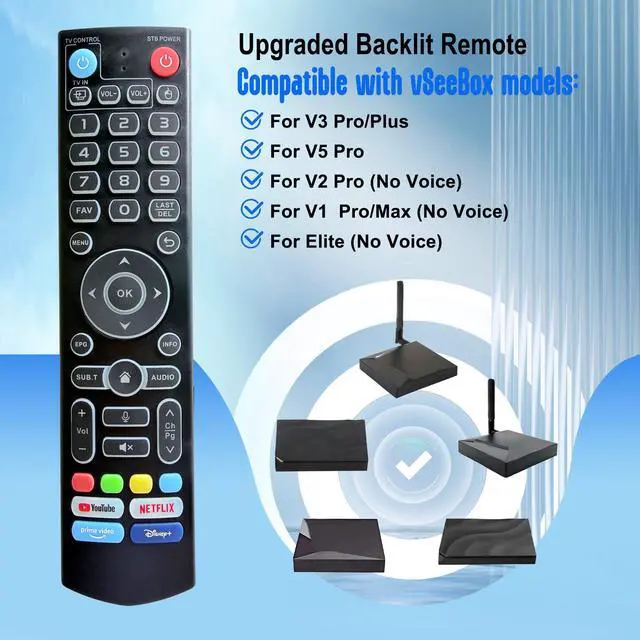
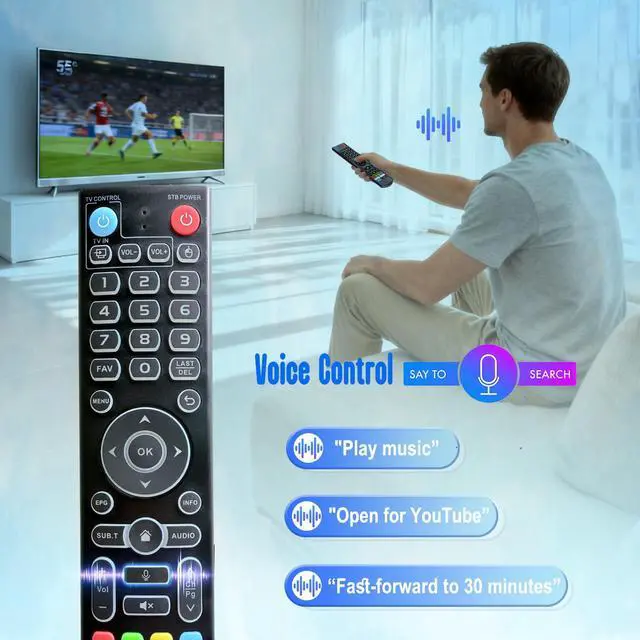
VSeeBox Models: The V3 Pro remote control offers backlight and voice command function and is compatible with vSeeBox V5 Pro, V3 Plus, V3 Pro, V2 Pro, V1 Pro, V1 Max, Elite, and Max models.
Dual Working Mode Functionality: vSeeBox V3-V5 Pro has two working modes - V3 working mode and V2 working mode. Press and hold the number 5 key for more than 10 seconds until the indicator light flashes, indicating a successful mode switch. The V3 Pro working mode is applicable to V3 Pro while the V2 Pro working mode is applicable to V1 Pro, V2 Pro, Max, and Elite models. The Vseebox V3 remote control defaults to V3 working mode.
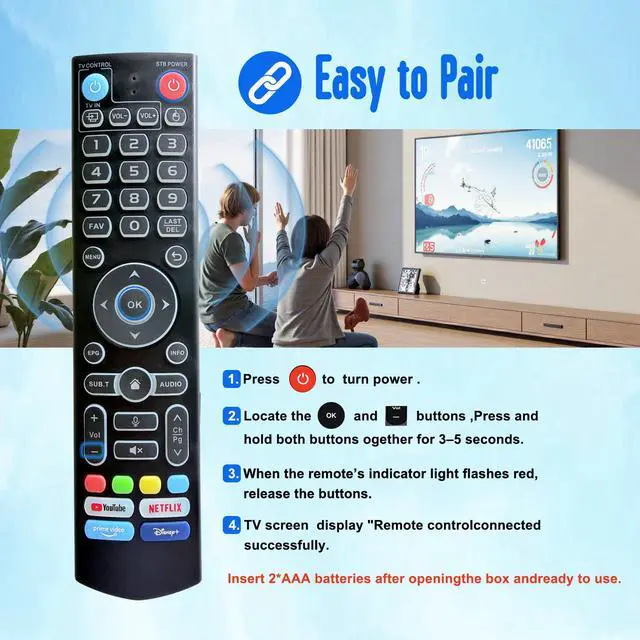
Bluetooth Pairing Process: To use the V3 remote control on V1 Pro and V2 Pro/Max/Elite, press and hold the OK key and vol- key simultaneously for about 3 to 5 seconds until the indicator light keeps flashing, indicating that the Bluetooth function has been enabled. Under System Settings - Bluetooth - Pair New Device, find and connect the vseebox remote control. If not found, press and hold the OK key and vol- key simultaneously again to turn on Bluetooth.
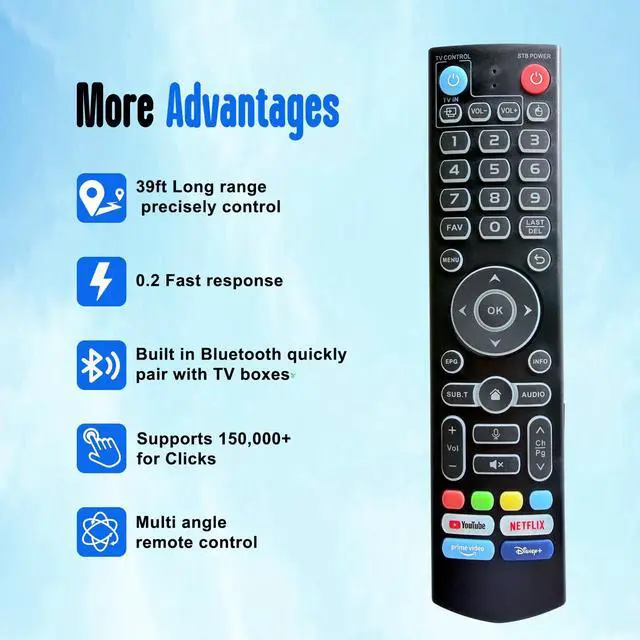
Advanced Performance Features: Equipped with advanced infrared technology providing the strongest signal with transmission distance up to 10 meters or 32 feet. The keys are sensitive with response time not exceeding 0.23 seconds and have been tested to support over 100, 000 clicks, ensuring solid and durable operation.
Easy Installation Process: Just insert 2 AAA batteries (not included) after opening the box and you can immediately start the pairing process with your device





 here!
here!