• $26.99
  • Free 30-day Returns
  • Price alert
    Shop it at NeweggBusiness.

    Meet Your Seller

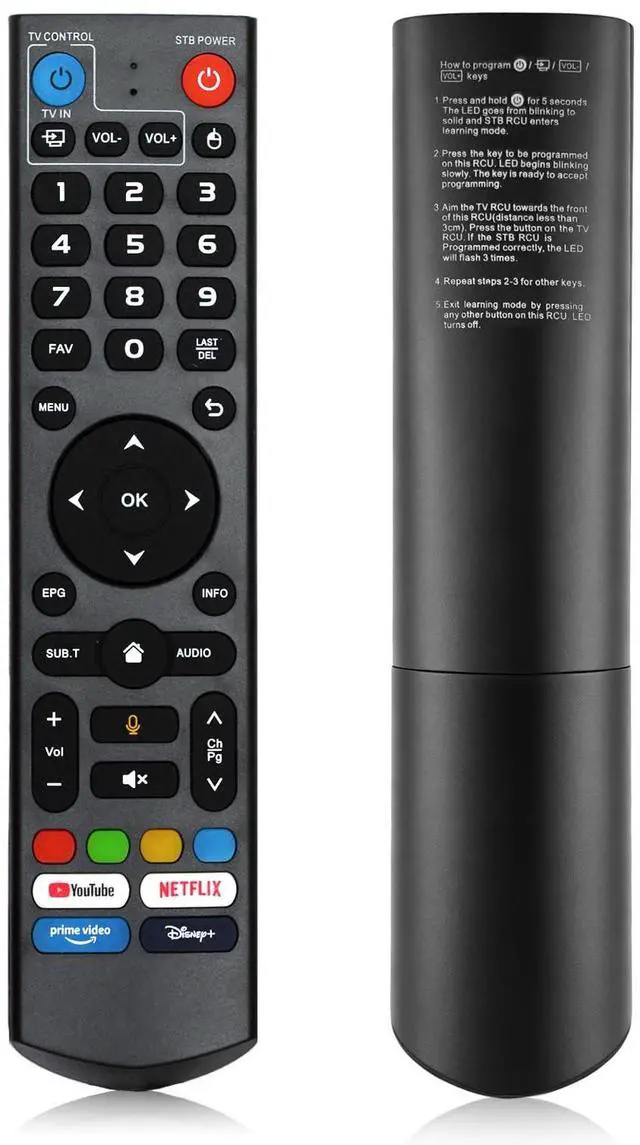
    Replacement V3 Pro Voice Remote Control Compatible with vSeeBox V5 Pro / V3 Plus/V3 / V2 / V1 Pro/V1 Max/Elite/Max(Without Backlight Function)

    Limited time offer, ends 10/16 By MiniJoyBelle Tech

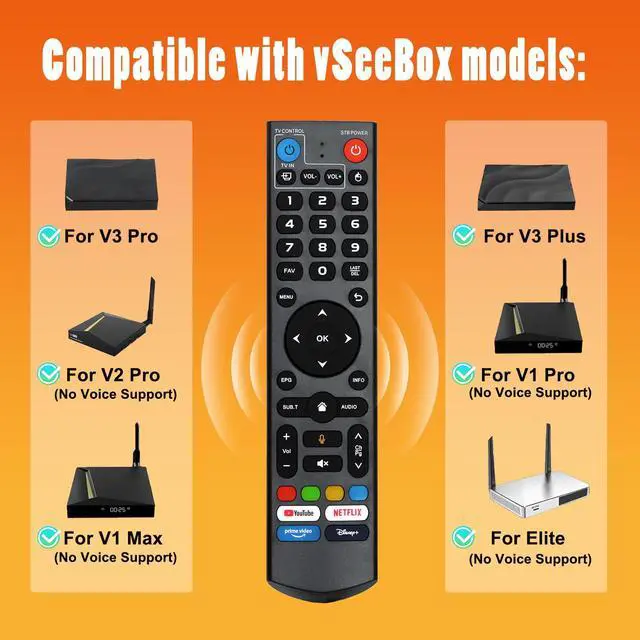
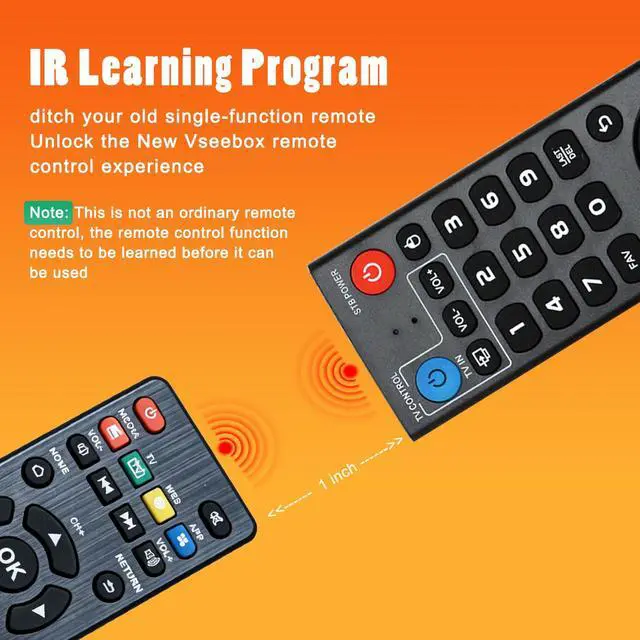
    • Please make sure your machine model is on the following list. This V3 Pro voice remote control is compatible with some vSeeBox models, including vSeeBox V5 Pro / V3 Plus / V3 Pro / V2 Pro / V1 Pro / V1 Max / Elite / Max. Warm reminder: The models without voice command function are V1 Max, V1 Pro and V2 Pro. Please follow these steps: 1. Press and hold the [POWER] key for 5 seconds. The LED light changes from flashing to constant on, and the set-top box RCU enters the learning mode. 2. Press the key on this RCU that requires programming. The LED begins to flash slowly. The key is ready for programming. 3. Point the TV RCU in front of the RCU (less than 3cm away) and press the button on the TV RCU. If the STB RCU is programmed correctly, the LED will flash three times. 4. Repeat the other keys in steps 2-3 and press any other buttons on the RCU to exit the learning mode. The LED goes out. Super strong connection technology: Utilizing cutting-edge technology, the pairing is lightning-fast, with continuous stability and an extended range, making the connection process more convenient. This remote control has two working modes: V3 working mode and V2 working mode. Press and hold the "5" number key for more than 10 seconds. The indicator light will flash, indicating that the mode switch has been successful. The V3 Pro working mode is applicable to V3 Pro; the V2 Pro working mode is applicable to V1 Pro / V2 Pro / Max / Elite. (Note: The Vseebox V3 remote control is set to V3 work
    +
    +
    Overview
    Specs
    Reviews
    avatar

    Any questions? Our AI mode will help you find out quickly.

    Please make sure your machine model is on the following list. This V3 Pro voice remote control is compatible with some vSeeBox models, including vSeeBox V5 Pro / V3 Plus / V3 Pro / V2 Pro / V1 Pro / V1 Max / Elite / Max.
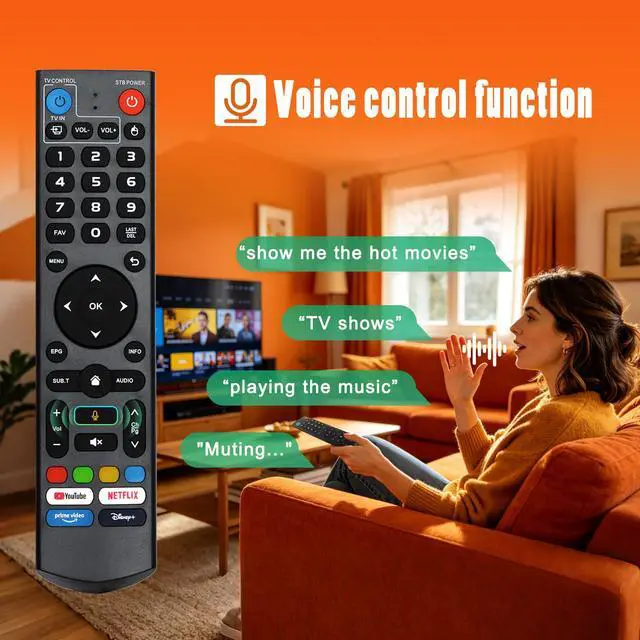
    Warm reminder: The models without voice command function are V1 Max, V1 Pro and V2 Pro.
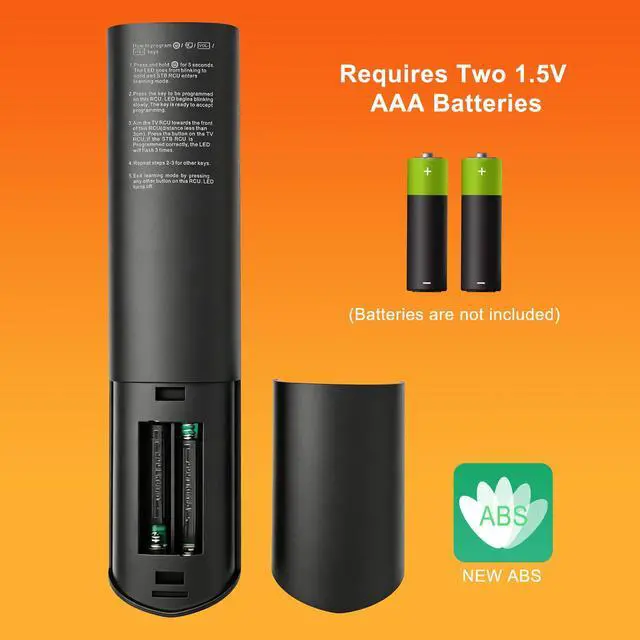
    Please follow these steps: 1. Press and hold the [POWER] key for 5 seconds. The LED light changes from flashing to constant on, and the set-top box RCU enters the learning mode. 2. Press the key on this RCU that requires programming. The LED begins to flash slowly. The key is ready for programming. 3. Point the TV RCU in front of the RCU (less than 3cm away) and press the button on the TV RCU. If the STB RCU is programmed correctly, the LED will flash three times. 4. Repeat the other keys in steps 2-3 and press any other buttons on the RCU to exit the learning mode. The LED goes out.
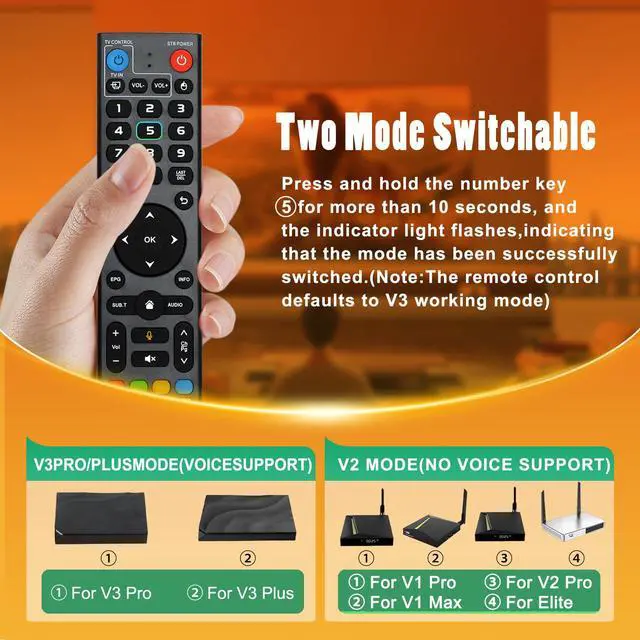
    Super strong connection technology: Utilizing cutting-edge technology, the pairing is lightning-fast, with continuous stability and an extended range, making the connection process more convenient. This remote control has two working modes: V3 working mode and V2 working mode. Press and hold the "5" number key for more than 10 seconds. The indicator light will flash, indicating that the mode switch has been successful. The V3 Pro working mode is applicable to V3 Pro; the V2 Pro working mode is applicable to V1 Pro / V2 Pro / Max / Elite.
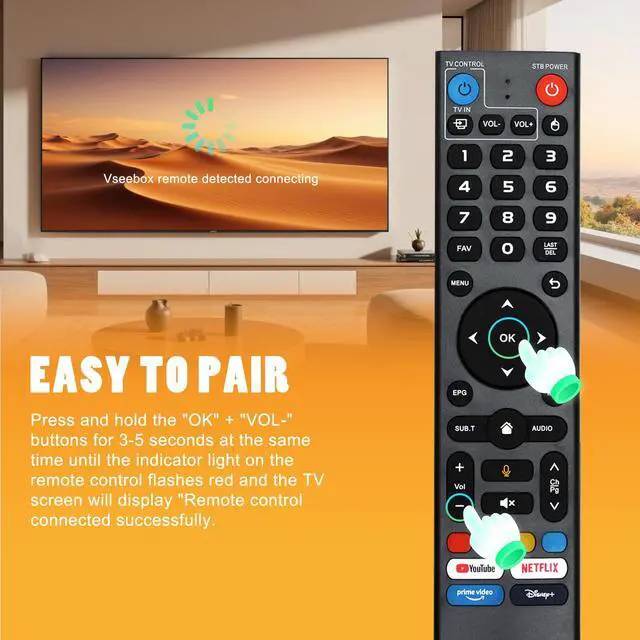
    (Note: The Vseebox V3 remote control is set to V3 working mode by default. ) Next, how to use the V3 remote control on V1 Pro / V2 Pro / Max / Elite? Press and hold the OK key and the vol- key simultaneously for about 5 seconds until the indicator light on the remote control keeps flashing, indicating that the Bluetooth function of the V3 remote control is enabled. Under "System Settings - Bluetooth - Pair New Device", pair the remote control, find the vseebox remote control, and connect vseebox. If not found, it might be that Bluetooth is not turned on. Please press and hold the OK key and vol- key on the remote control simultaneously to turn on the Bluetooth and you can operate it

    Warranty & Returns

    Warranty, Returns, And Additional Information

    Warranty

    • Please contact the Seller directly for warranty information. Warranty information may also be found on the Manufacturer's website.
    • CONTACT

    Return Policies

    Manufacturer Contact Info

    LOADING...