Your Browsing History
Meet Your Seller
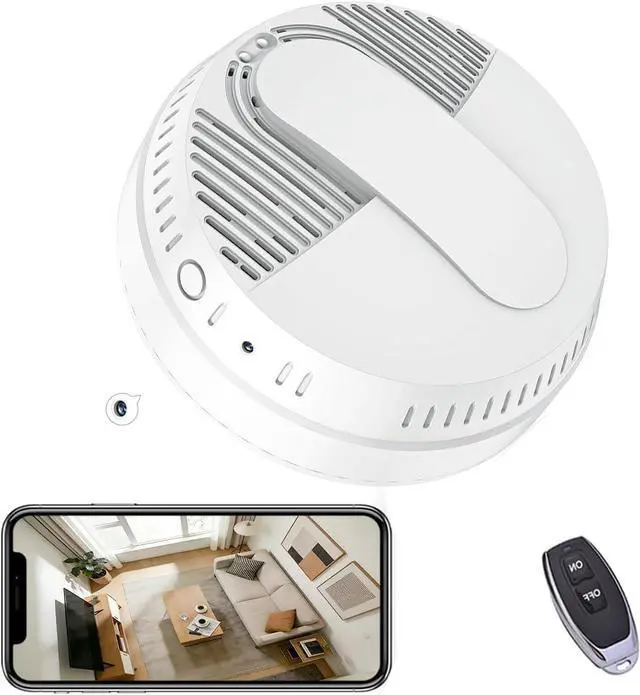
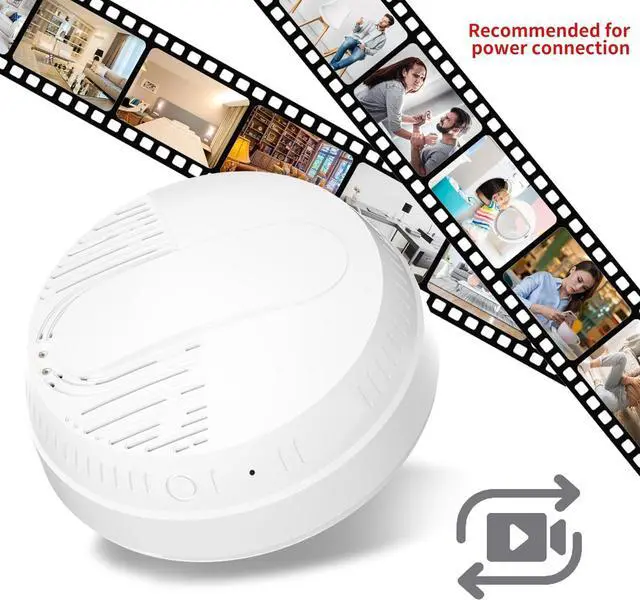
Smoke Detector Hidden Camera, 10000mAh Backup Power with Motion Detection/SD Storage/Night Vision/Motion Detection/APP Control/2.4G WiFi for Home Security.
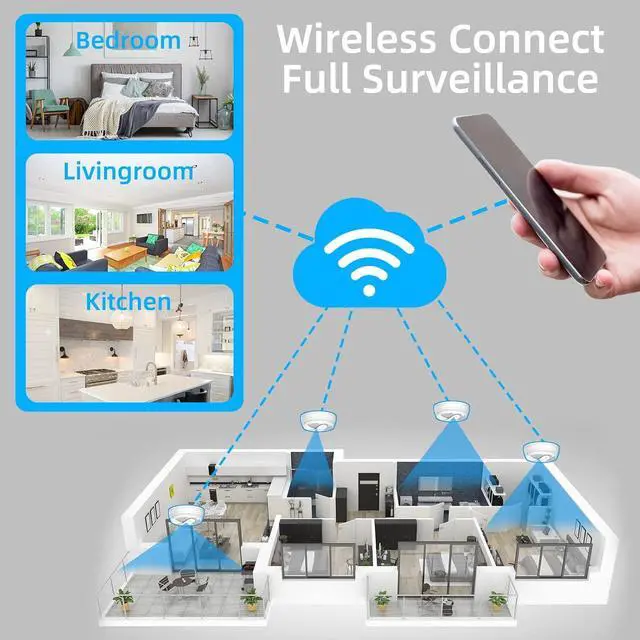
- Security CameraThis hidden camera uses the newest chips and APPs. Once connected to the 2.4G Wi-Fi network, users can remotely access live streaming video via an app on phone or other gadgets, providing convenience and stealth for real-time surveillance from anywhere. Supports simultaneous viewing on multiple devices.
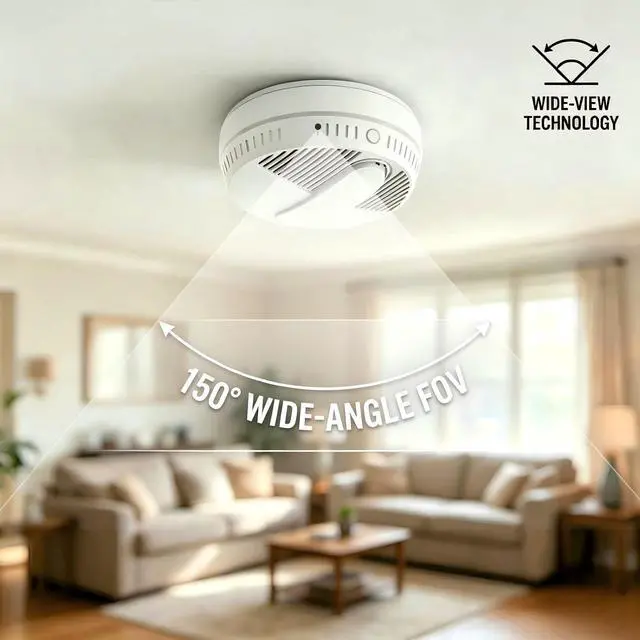
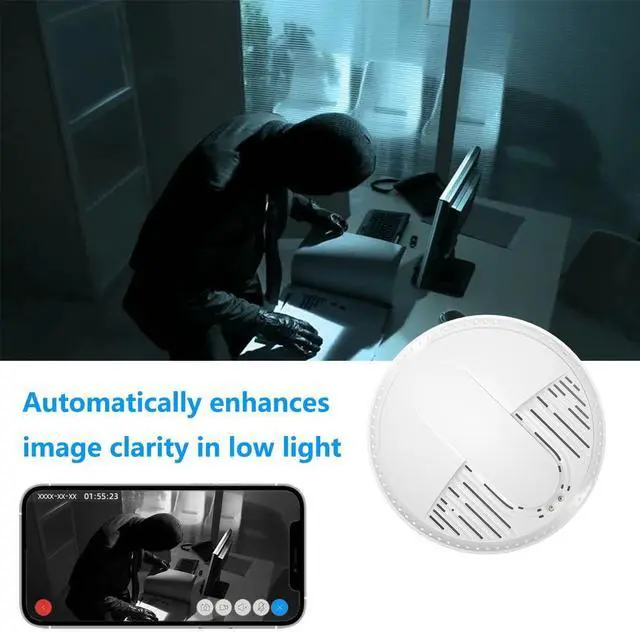
- Adaptive Night VisionWith 5 built-in invisible infrared lights, this smoke detector camera can film high quality in the dark. Whenever the lights are turned on or off, it can almost instantly adapt to the changes in light and always provide you with clear images. It provides clear and wide of any area you wish to monitor during both the day and night. Includes automatic IR-cut filter for true color reproduction in daytime.
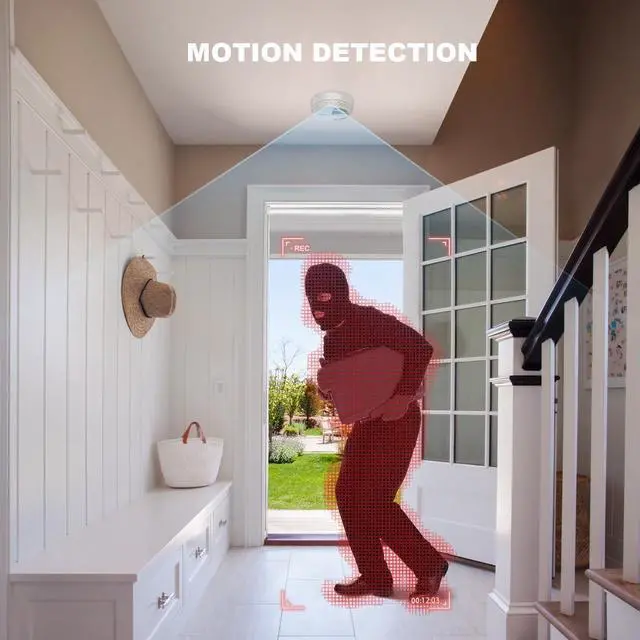
- Smart Motion AlertsThis smoke detector camera for home security adopts Smart Perceive Technology to detect movements. You will receive an immediate alert on the phone when motion is detected. Simply open the APPLizvieproto have a quick check
+
+
Overview
Specs
Reviews
Any questions? Our AI beta will help you find out quickly.
Try me now
Step 1: Power On the Device
Plug the device into a 110V outlet and wait 3060 seconds for it to start. The device will create a WiFi signal named BLink-XXXX.
Step 2: Connect via Phones WiFi Settings
On your phone, go to WiFi settings, find and connect to BLink-XXXX.
Default password: 0123456789
Its normal if you see No Internet just confirm the connection is successful.
Step 3: Open the App
Launch the Lizvie Pro app. Your device will appear and automatically open the live view page.
Step 4: Link to Home WiFi
Wait about 10 seconds for a prompt. Select your 2.4GHz home WiFi, enter your password, and complete the connection.
(If no prompt appears, go to Settings > Network Information inside the app.)
Step 5: Setup Complete
You can now check the live view remotely, receive motion alerts, and customize settings from your phone.
How to Use (Quick Setup Guide)

Plug the device into a 110V outlet and wait 3060 seconds for it to start. The device will create a WiFi signal named BLink-XXXX.
Step 2: Connect via Phones WiFi Settings
On your phone, go to WiFi settings, find and connect to BLink-XXXX.
Default password: 0123456789
Its normal if you see No Internet just confirm the connection is successful.
Step 3: Open the App
Launch the Lizvie Pro app. Your device will appear and automatically open the live view page.
Step 4: Link to Home WiFi
Wait about 10 seconds for a prompt. Select your 2.4GHz home WiFi, enter your password, and complete the connection.
(If no prompt appears, go to Settings > Network Information inside the app.)
Step 5: Setup Complete
You can now check the live view remotely, receive motion alerts, and customize settings from your phone.
How to Use (Quick Setup Guide)
Warranty & Returns
Warranty, Returns, And Additional Information
Warranty
- Please contact the Seller directly for warranty information. Warranty information may also be found on the Manufacturer's website.
- CONTACT
Return Policies
- Return for refund within: 30 days
- Return for replacement within: 30 days
- This item is covered by Cloud Sail Return Policy
Manufacturer Contact Info
- For a directory of all our manufacturers, please click below.
- Manufacturers Directory
LOADING...