Your Browsing History
Meet Your Seller
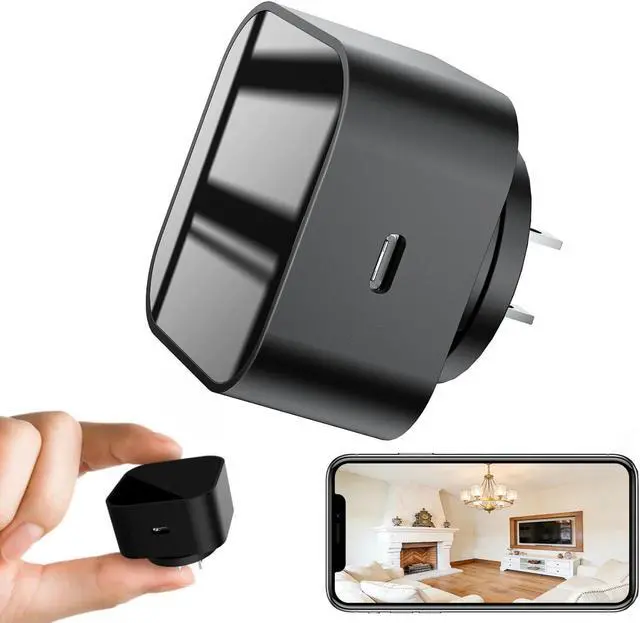
Phone Charger Camera - USB-C Port WiFi Smart Charger Camera - Motion Detection/170° Wide-Angle/SD Storage for Indoor Home/Office/Pets Safe.
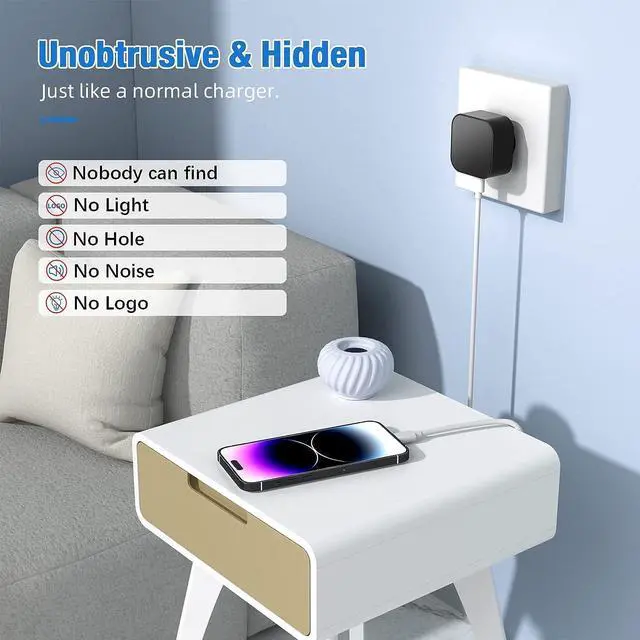
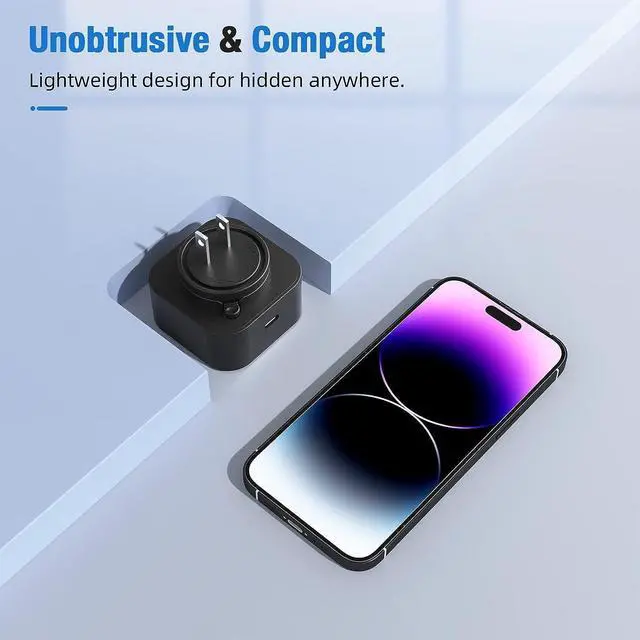
- Specific Transparent Glass PanelThe charging plug appearance of the transparent glass panel, you can watch the video clearly visible, will not affect the observation effect, and LED indicators, SD card slot and lens are invisible design, will not scare the pets or damage the aesthetic.
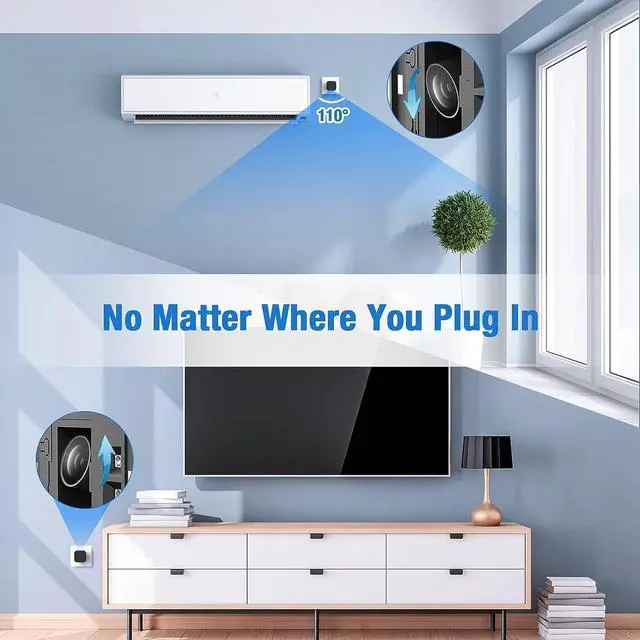
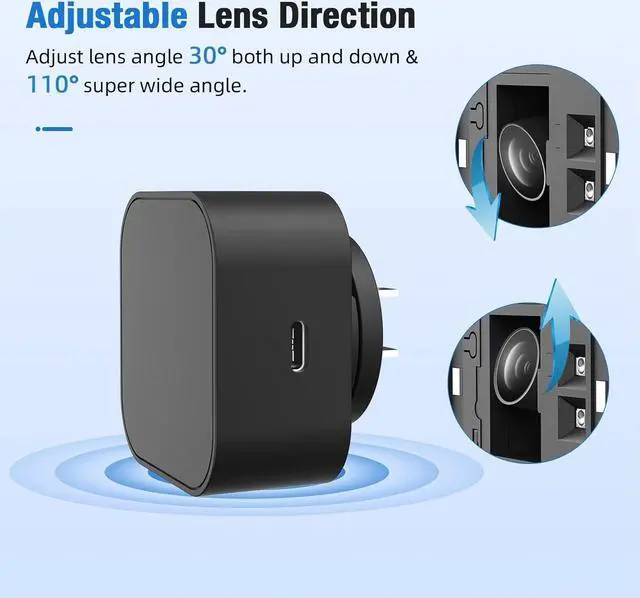
- Adjustable 170° Viewing AngleThe hidden camera charger adjustable lens allows you to freely adjust the viewing angle (170° = 110° + 30° up + 30° down, covering 110° in width) to capture more active areas.
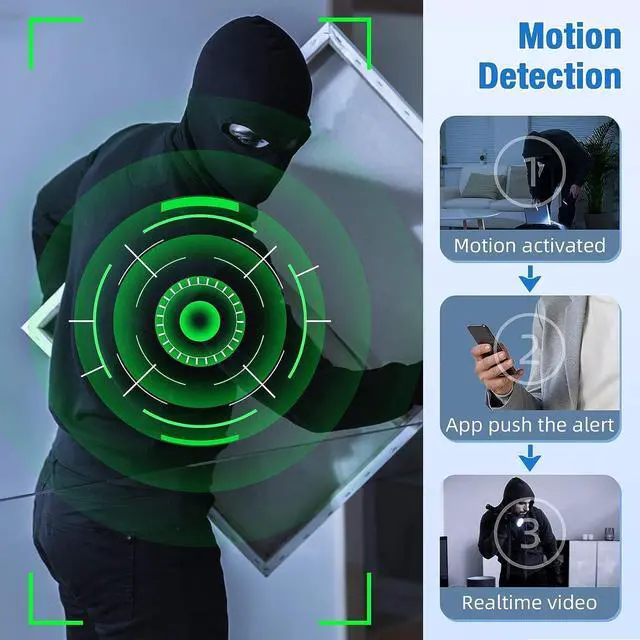
- 2.4GHz WiFi Setup + Motion AlertsThis phone charger camera detects movement and sends instant app alerts. It has an automatic low-light activation function to ensure clear visual effects 24 hours a day.
- Loop StorageHidden camera charger supports microSD cards up to 256GB (not included). Auto loop saves files.
- Password Lock & Tech SupportThe hidden camera supports setting an exclusive password to protect data privacy. For any technical issues, you can contact our technical team to help yo
+
+
Overview
Specs
Reviews
Any questions? Our AI beta will help you find out quickly.
Try me now
Step 1: Remove the Protective Film
Before use, gently peel off the protective film covering the lens to ensure a clear image.
Step 2: Power On the Device
Plug the device into a 110V outlet and wait 3060 seconds for it to boot up. The device will broadcast a WiFi signal named BLink-XXXX.
Step 3: Connect via Phones WiFi Settings
On your phone, open WiFi settings, find and connect to BLink-XXXX.
Default password: 0123456789
No Internet message is normal just ensure the connection is successful.
Step 4: Open the App
Launch the Lizvie Pro app. The device will appear automatically and take you to the viewing screen.
Step 5: Connect to Home WiFi
After about 10 seconds, a prompt will appear. Select your 2.4GHz home WiFi, enter the password, and complete the setup.
Important: Pairing with your home router is required for remote viewing functionality.(If no prompt appears, go to Settings > Network Information in the app.)
Step 6: Ready to Use
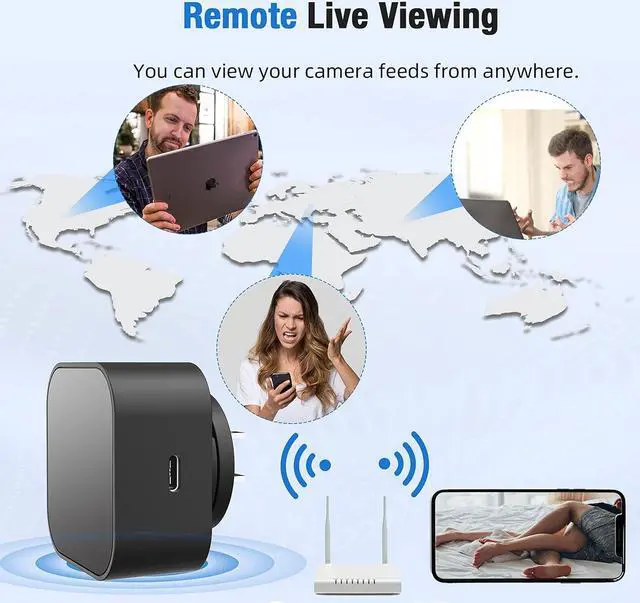
You can now access the device remotely, receive motion alerts, and manage settings via your phone.
How to Use (Quick Setup Guide)

Before use, gently peel off the protective film covering the lens to ensure a clear image.
Step 2: Power On the Device
Plug the device into a 110V outlet and wait 3060 seconds for it to boot up. The device will broadcast a WiFi signal named BLink-XXXX.
Step 3: Connect via Phones WiFi Settings
On your phone, open WiFi settings, find and connect to BLink-XXXX.
Default password: 0123456789
No Internet message is normal just ensure the connection is successful.
Step 4: Open the App
Launch the Lizvie Pro app. The device will appear automatically and take you to the viewing screen.
Step 5: Connect to Home WiFi
After about 10 seconds, a prompt will appear. Select your 2.4GHz home WiFi, enter the password, and complete the setup.
Important: Pairing with your home router is required for remote viewing functionality.(If no prompt appears, go to Settings > Network Information in the app.)
Step 6: Ready to Use
You can now access the device remotely, receive motion alerts, and manage settings via your phone.
How to Use (Quick Setup Guide)
Warranty & Returns
Warranty, Returns, And Additional Information
Warranty
- Please contact the Seller directly for warranty information. Warranty information may also be found on the Manufacturer's website.
- CONTACT
Return Policies
- Return for refund within: 30 days
- Return for replacement within: 30 days
- This item is covered by Cloud Sail Return Policy
Manufacturer Contact Info
- For a directory of all our manufacturers, please click below.
- Manufacturers Directory
LOADING...