• $135.99
  • Free 30-day Returns
  • Sold by Cloud Sail

    Shipped by Cloud Sail

    Price alert
    Shop it at NeweggBusiness.

    Meet Your Seller

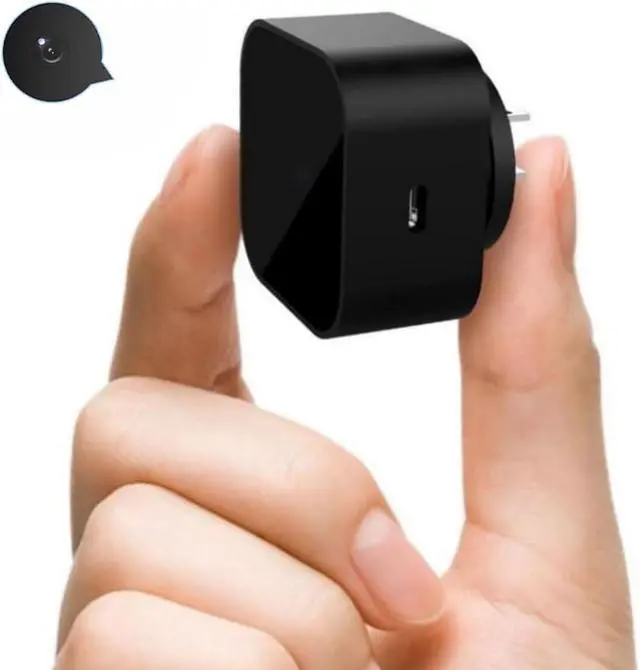
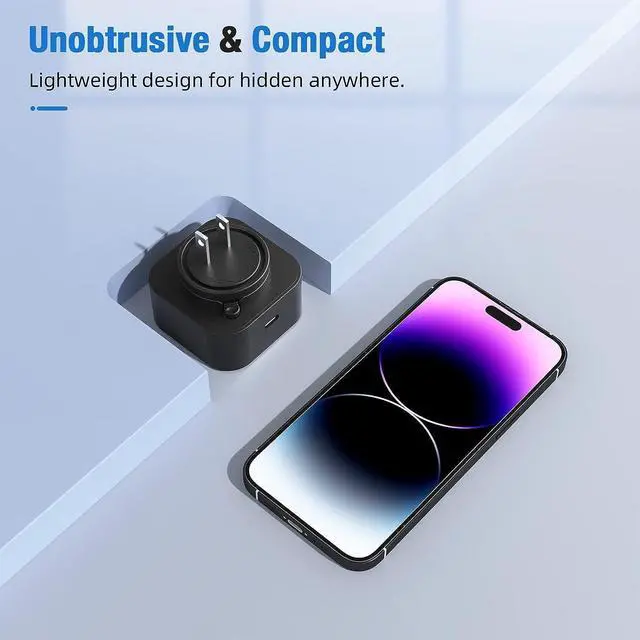
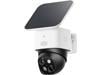
    Wireless Hidden Camera Charger, Smart USB Charger Camera, Home Baby Monitor & Nanny Cam with 2.4G WiFi, Motion Detection & Remote View & Night Version

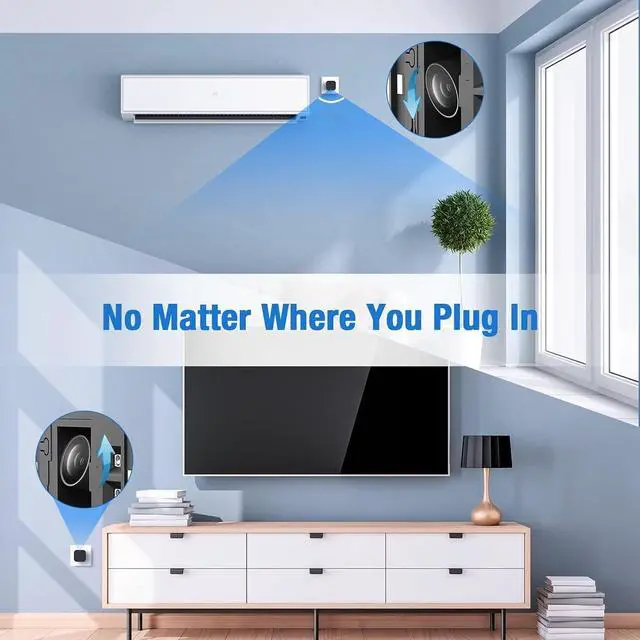
    • 1080PD and 170° Wide View: This hidden cam charger features clear 1080P resolution and a 170° wide viewing angle, capturing detailed visuals across a broad area to cover more space in your home or office.
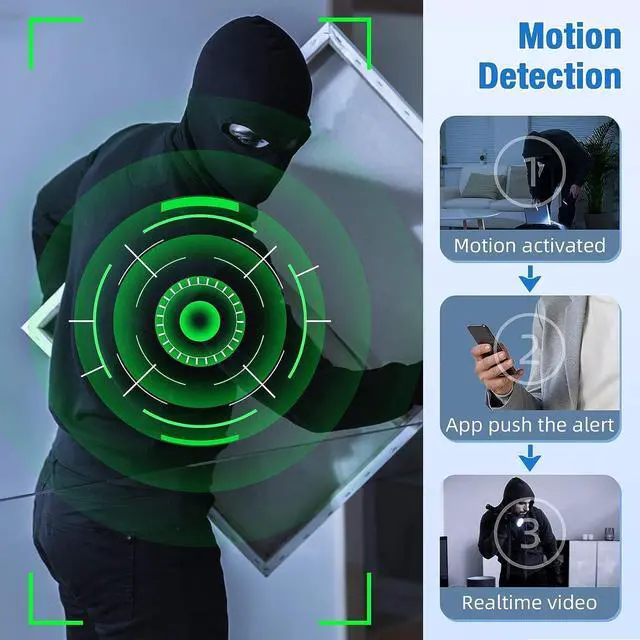
    • Motion Detection: Spy charger cam equipped with motion detection, camera charge sends instant notifications to your phone when activity is detected, keeping you informed of what's happening as it occurs.
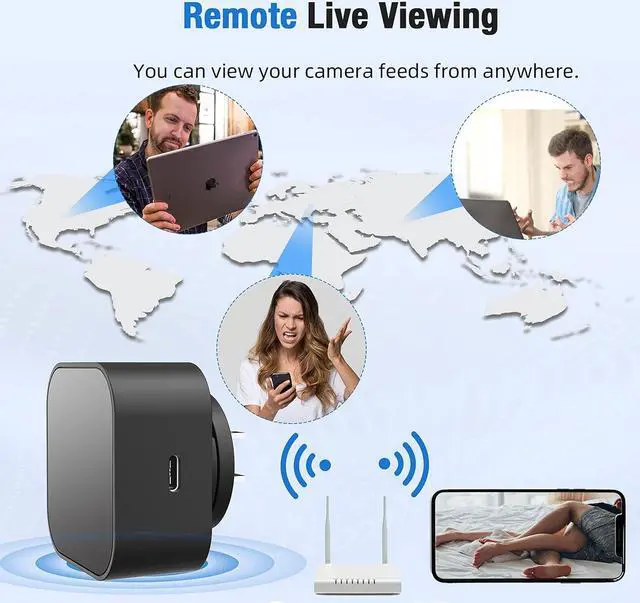
    • Remote View via App: Connects to 2.4G WiFi, allowing you to check the live feed anytime, anywhere through the dedicated app, ensuring you stay connected to your space even when away.
    • Large Storage and Long-Lasting Use: Camera charge supports up to 256G SD card (not included) for ample storage. Boasts 24 hours of loop operation, capturing content continuously without the need for frequent manual checks.
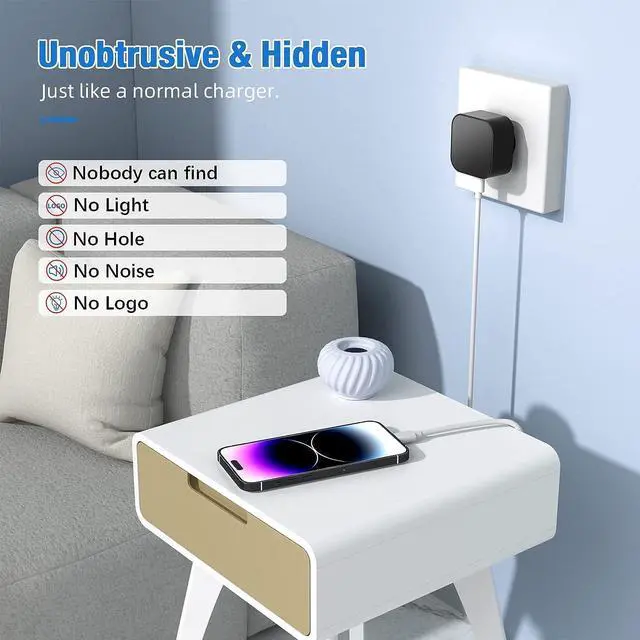
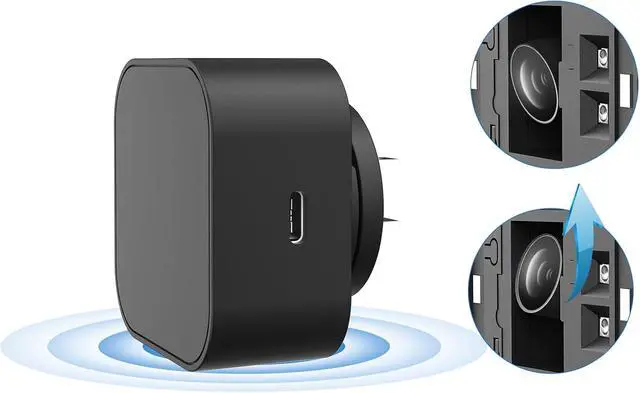
    • Discreet Design with Night Vision: Features a glass flip cover to hide the lens of the spy camera with audio/video, blending seamlessly into any environment. Built-in night vision
    +
    +
    Overview
    Specs
    Reviews
    avatar

    Any questions? Our AI beta will help you find out quickly.

    Step 1: Remove the Protective Film
    Before use, gently peel off the protective film covering the lens to ensure a clear image.
    Step 2: Power On the Device
    Plug the device into a outlet and wait 3060 seconds for it to boot up. The device will emit a wireless network signal named BLink-XXXX.
    Step 3: Connect via Phones WiFi Settings
    On your phone, open WiFi settings, find and connect to BLink-XXXX. Default password: 0123456789. No Internet message is normal just ensure the connection is successful.
    Step 4: Open the App
    Launch the Lizvie Pro app. The device will appear automatically and take you to the viewing screen.
    Step 5: Connect to Home WiFi
    After about 10 seconds, a prompt will appear. Select your 2.4GHz home WiFi, enter the password, and complete the setup.
    Important: Pairing with your home router is required for remote viewing functionality.(If no prompt appears, go to Settings > Network Information in the app.)
    Step 6: Ready to Use
    You can now access the device remotely, receive motion alerts, and manage settings via your phone.

    Warranty & Returns

    Warranty, Returns, And Additional Information

    Warranty

    • Please contact the Seller directly for warranty information. Warranty information may also be found on the Manufacturer's website.
    • CONTACT

    Return Policies

    • Return for refund within: 30 days
    • Return for replacement within: 30 days
    • This item is covered by Cloud Sail Return Policy

    Manufacturer Contact Info

    LOADING...