Your Browsing History
Meet Your Seller
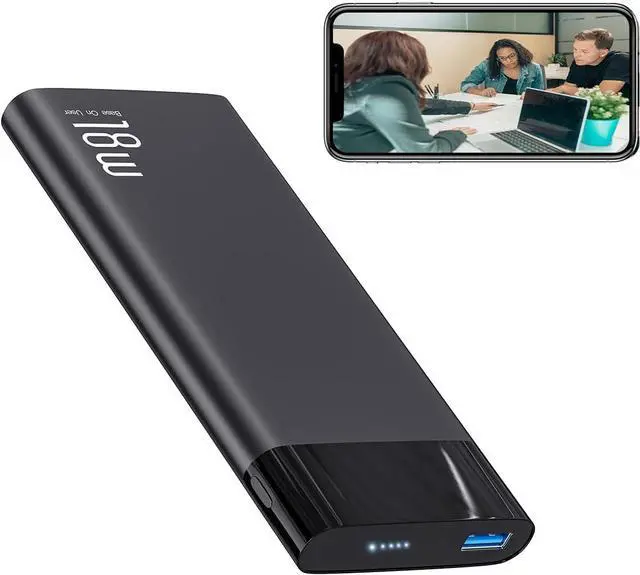
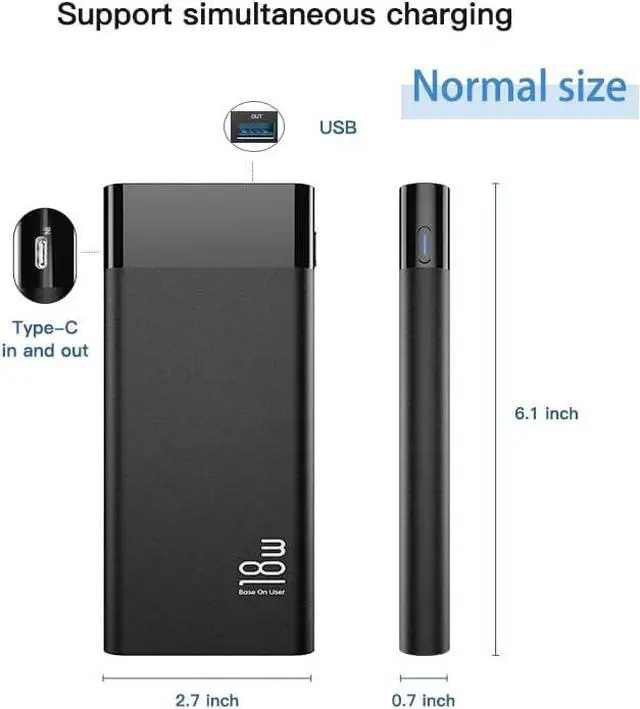
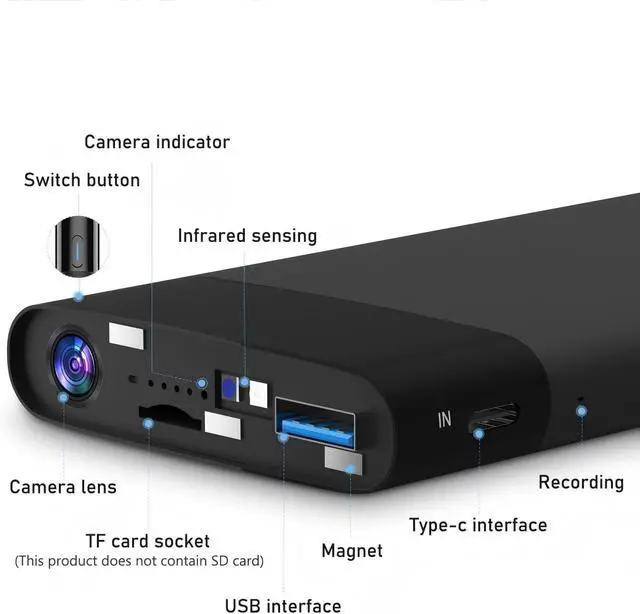
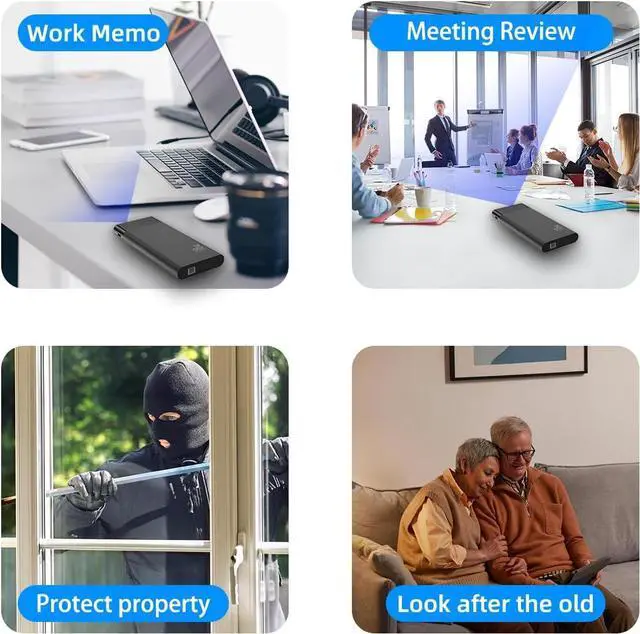
Spy Camera Charger 2.4G WiFi Motion Detection Night Vision Free App Compact USB Cam for Simple, Reliable Indoor Use for Pets/Baby Nanny Home Safe
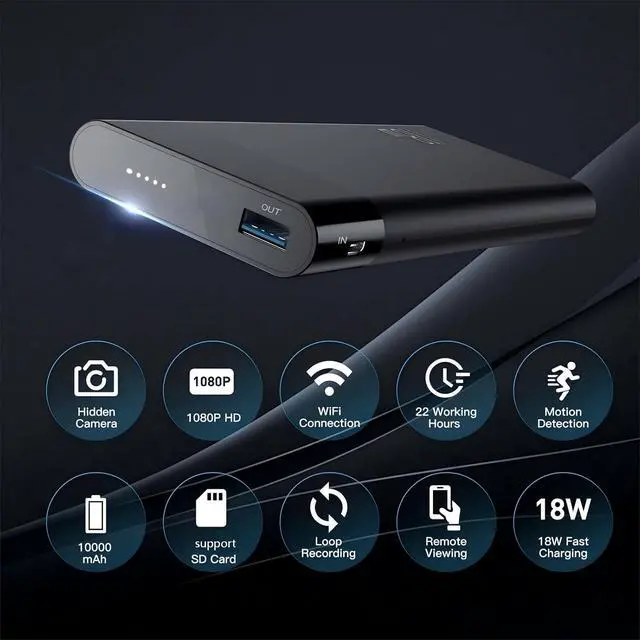
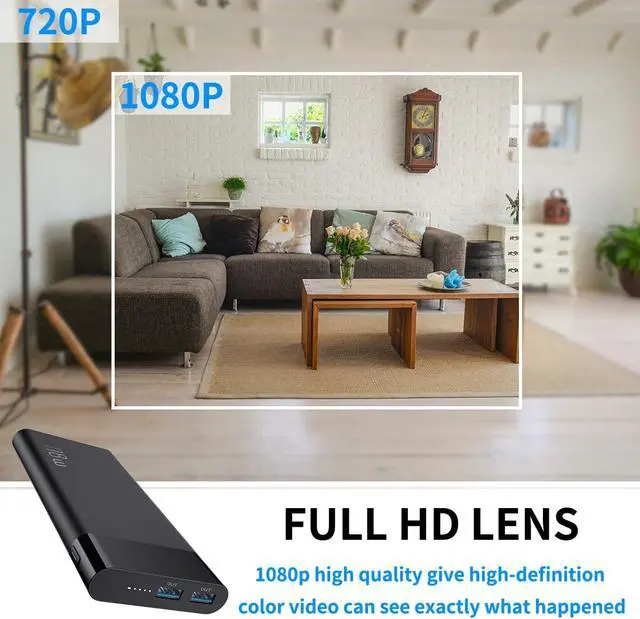
- 1080P Clear Video & Wide CoverageDelivers 1080P HD video with a 110° wide-angle view, providing reliable coverage for everyday indoor use. Easily access live footage through the LIZVIE PRO app via 2.4GHz WiFi.
- Reliable Night VisibilityEquipped with infrared capability to maintain clear black-and-white video in low-light conditions, ensuring visibility around the clock.
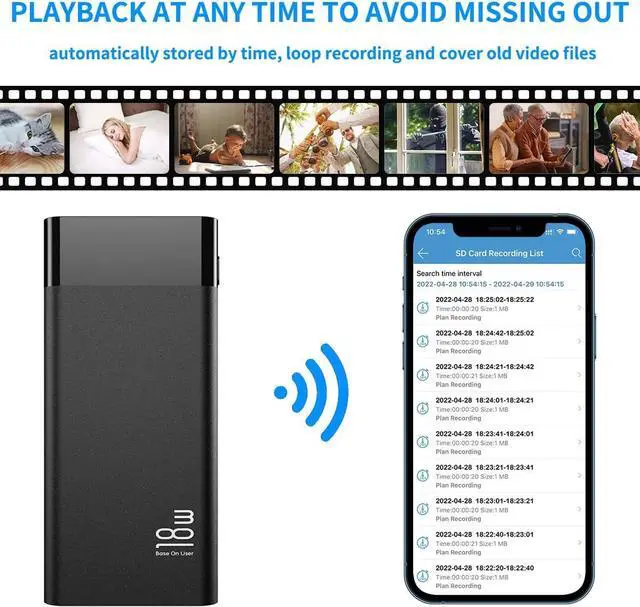
- Continuous Recording SupportWorks with microSD cards up to 256GB (not included). Automatically overwrites older files to keep recording without interruption.
- Instant Motion AlertsStay informed with real-time motion notifications sent directly to your phone. Adjust detection zones to monitor the areas that matter most.
- Magnetic Detachable Lens CoverFeatures a removable magnetic lens cover for added flexibility and protection. The easy-to-attach design allows convenient adjustment while maintaining a clean and minimal appearance.
+
+
Overview
Specs
Reviews
Any questions? Our AI beta will help you find out quickly.
Try me now
Turn on the device: Power button press x 1
Turn on the camera: Press the power button x 1.5s-3s (USB port, the fifth indicator light can be on), wait 40 seconds and the indicator light flashes to connect.
Turn off Camera: Power button Press x 3s
Reset:quick press power button over 6 times
Step 1: Charge Fully charge it before first use.Step 2: Turn On the device
Press and hold the power button for 3-5 seconds to turn on the device. Wait 30-60 seconds for the device to start. The device will create a WiFi signal named "BLink-XXXX".Important: The camera only activates when the 5th indicator light turns on.
Step 3: Connect via Phone's WiFi Settings
On your phone, go to WiFi settings, find and connect to "BLink-XXXX".Default password: 0123456789. It's normal if you see "No Internet" Just confirm to maintain the network connection of blinkxxx.
Step 4: Open the App
Launch the Lizvie Pro app. Your device will appear and automatically open the live view page. If it does not appear, you will need to add it manually.
Step 5: Link to Home WiFi
Wait about 10 seconds for a prompt. Select your 2.4GHz home WiFi, enter your password, and complete the connection.(If no prompt appears, go to Settings > Network Information inside the app.)
Step 6: Setup Complete
You can now check the live view remotely, receive motion alerts, and customize settings from your phone.
How to turn on/off the camera

Warranty & Returns
Warranty, Returns, And Additional Information
Warranty
- Please contact the Seller directly for warranty information. Warranty information may also be found on the Manufacturer's website.
- CONTACT
Return Policies
- Return for refund within: 30 days
- Return for replacement within: 30 days
- This item is covered by Cloud Sail Return Policy
Manufacturer Contact Info
- For a directory of all our manufacturers, please click below.
- Manufacturers Directory
LOADING...