Your Browsing History
Meet Your Seller
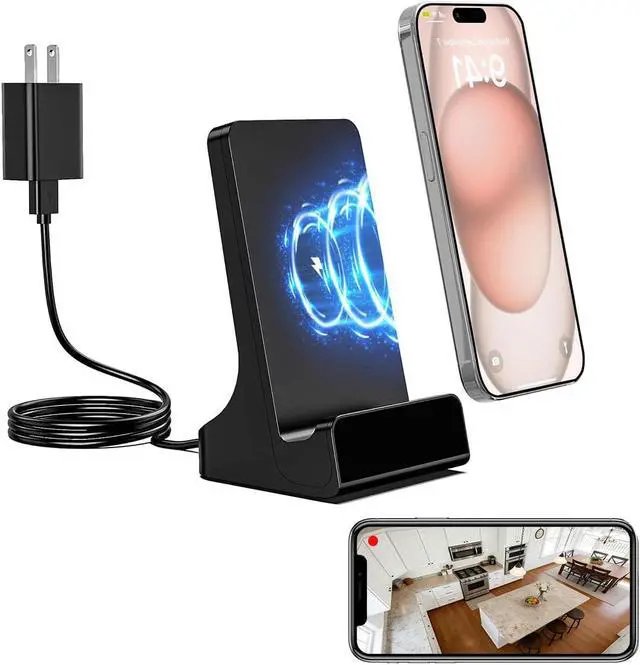
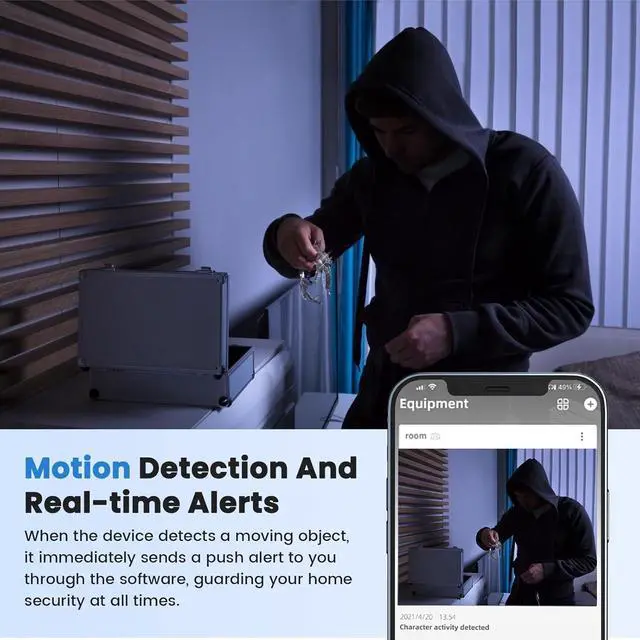
Wireless 2K Phone Charger Camera, 2.4G & 5G - Removable 160° Wide-Angle Lens/Night Vision Motion Detection Alarm App Control SD Storage for Home Security Indoor.
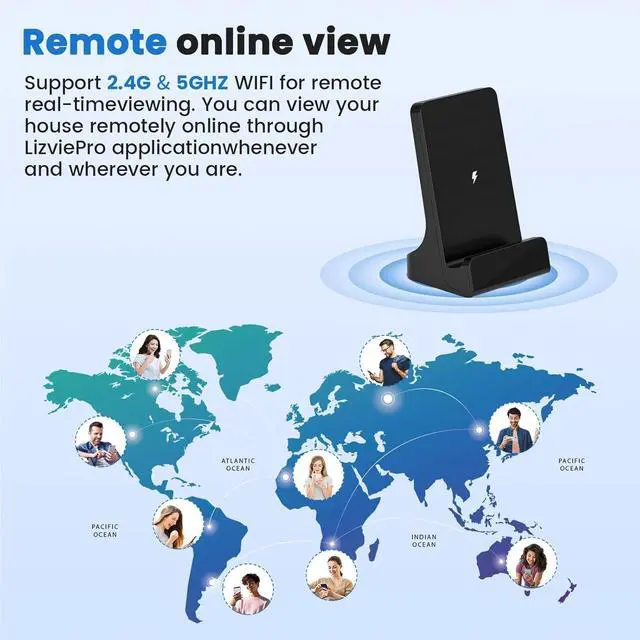
- Dual-Band 2.4GHz & 5GHz WiFi Connection Supports both 2.4GHz and 5GHz WiFi networks for faster setup, smoother video streaming, and more stable connections. The camera can automatically reconnect when the network is restored, ensuring continuous operation without repeated pairing.
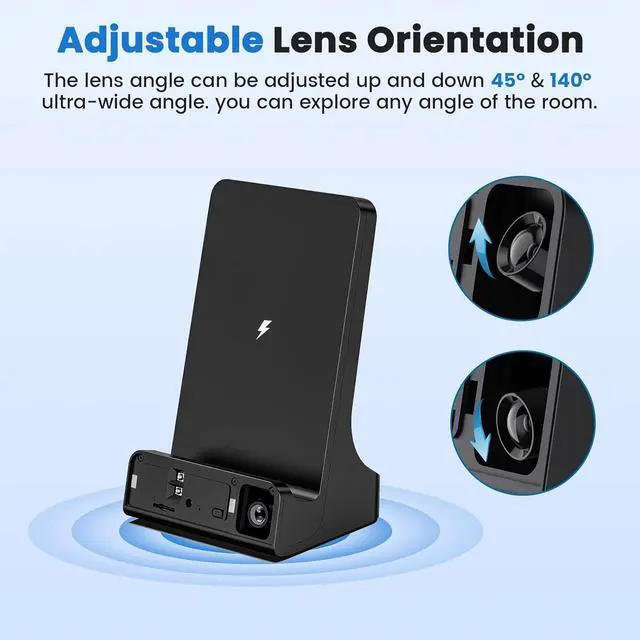
- 2K Ultra HD Resolution & 160° Adjustable Viewing Angle This camera charging stand delivers true 2K ultra-HD video quality, capturing clearer details than standard 1080P cameras. The internal camera lens supports up to 160° vertical angle adjustment, allowing you to fine-tune the viewing direction from top to bottom. The removable lens cover makes angle adjustment easy while maintaining a clean, everyday appearance.
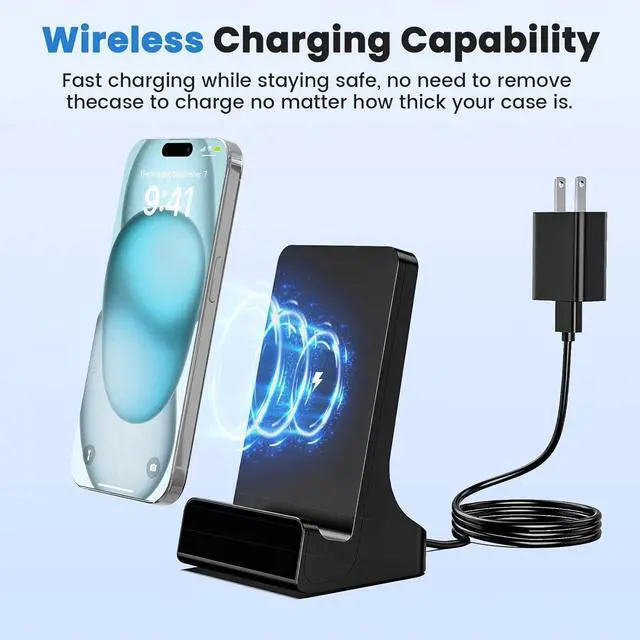
- Functions as a regular phone charging stand Designed to support phone charging during everyday use, allowing the device to operate while your phone is placed on the stand. The no-hole exterior, magnetic front cover, and concealed lens help it blend seamlessly into home or office settings.^
+
+
Overview
Specs
Reviews
Any questions? Our AI beta will help you find out quickly.
Try me now
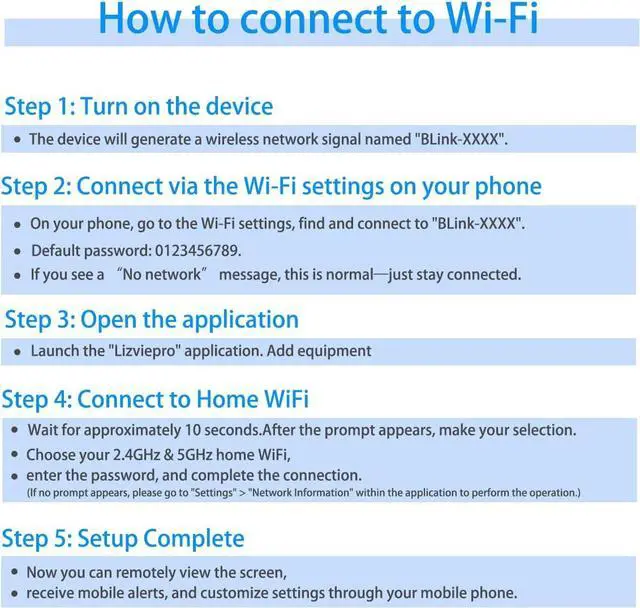
If the software does not automatically configure the device, do the following to configure it:
1.Configure DeviceDownload APP >> Plug in >> Tap "+" in the upper right corner inside the APP >> Add for the first time >> Select your device >> Tab Step 1 - Connect Camera Wifi (blinking - ***** ) >> Default Password: 0123456789 (Confirm to use this WiFi and keep it connected) >> Return to APP >> Tab Step 2 - "List Camera to APP".
2.Remotely Control
Setting >> network information >> Select the router SSID you need to add support 2.4G / 5G WIFI
1. watch and download videos directly on the LizviePro App (note that the device will automatically loop);
2. Setting the time zone can be more accurate to ensure more complete video data recording;
3. videos can be downloaded directly from the APP to your phone or played in your APP;
4. To play the video on your computer, you need to use H.264 video converter to extract the SD card video file.
5. We recommend changing the default password of your device to ensure security. If someone visits your home and connects to your home WIFI with LizviePro on their phone, it will automatically synchronize the devices connected to the same WIFI within the APP.
PS: Please remove the lens protection film before use.

1.Configure DeviceDownload APP >> Plug in >> Tap "+" in the upper right corner inside the APP >> Add for the first time >> Select your device >> Tab Step 1 - Connect Camera Wifi (blinking - ***** ) >> Default Password: 0123456789 (Confirm to use this WiFi and keep it connected) >> Return to APP >> Tab Step 2 - "List Camera to APP".
2.Remotely Control
Setting >> network information >> Select the router SSID you need to add support 2.4G / 5G WIFI
1. watch and download videos directly on the LizviePro App (note that the device will automatically loop);
2. Setting the time zone can be more accurate to ensure more complete video data recording;
3. videos can be downloaded directly from the APP to your phone or played in your APP;
4. To play the video on your computer, you need to use H.264 video converter to extract the SD card video file.
5. We recommend changing the default password of your device to ensure security. If someone visits your home and connects to your home WIFI with LizviePro on their phone, it will automatically synchronize the devices connected to the same WIFI within the APP.
PS: Please remove the lens protection film before use.
Warranty & Returns
Warranty, Returns, And Additional Information
Warranty
- Please contact the Seller directly for warranty information. Warranty information may also be found on the Manufacturer's website.
- CONTACT
Return Policies
- Return for refund within: 30 days
- Return for replacement within: 30 days
- This item is covered by Cloud Sail Return Policy
Manufacturer Contact Info
- For a directory of all our manufacturers, please click below.
- Manufacturers Directory
LOADING...