Security Camera Frequently Asked Questions:
Q: How do I charge the camera? How long does it take to charge? How long can it record on battery power?
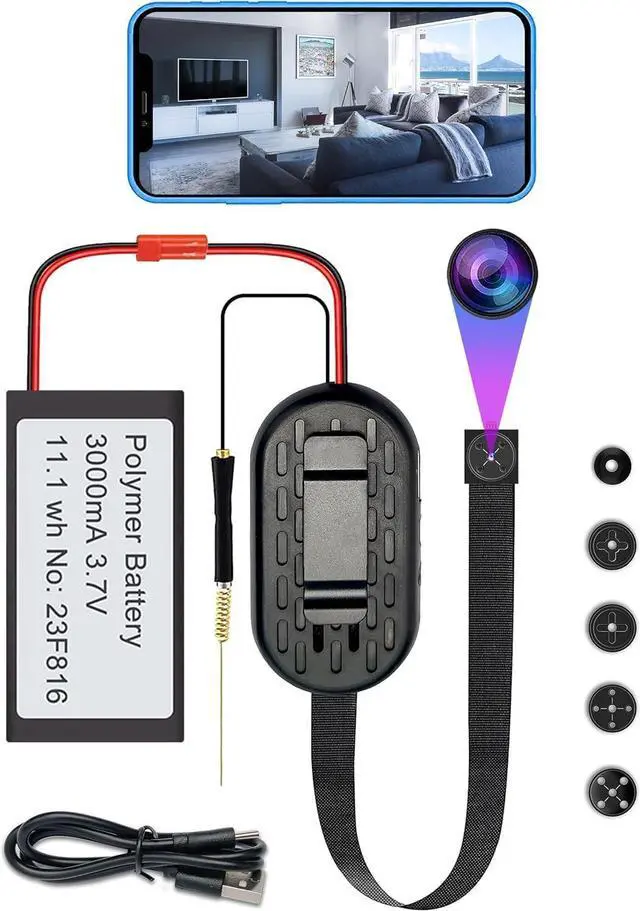
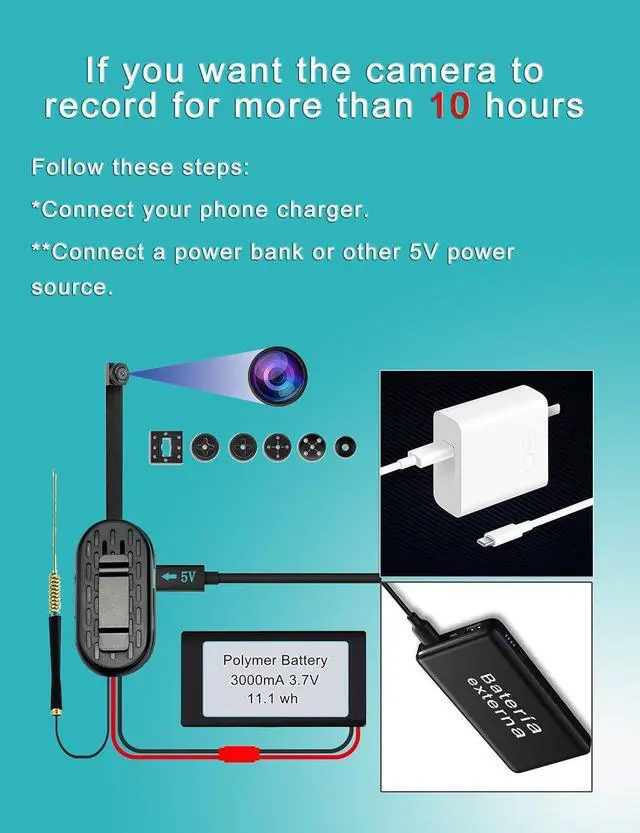
A: You can connect the camera to your phone charger to charge the battery. A 9-hour charge provides 10 hours of recording time.
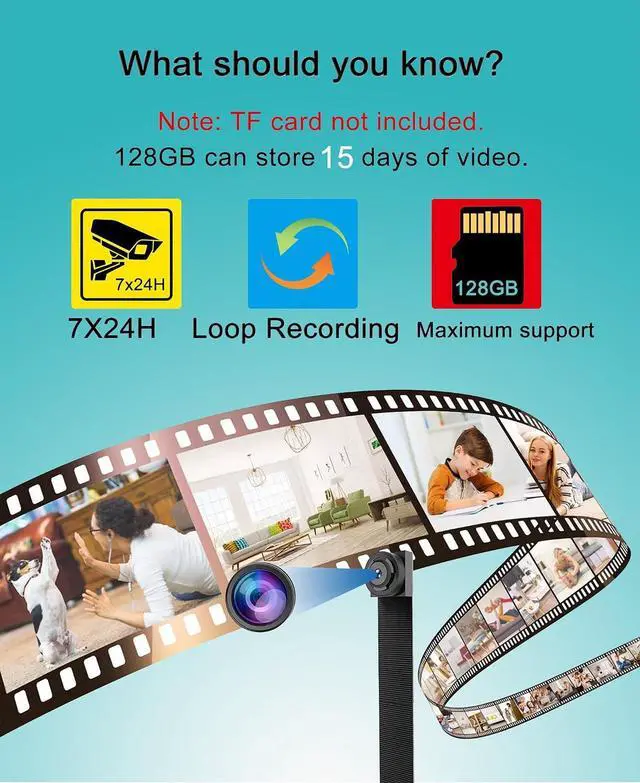
Q: Does the camera support long-term recording?
A: Yes. Simply connect the camera to your phone charger for 365 days of continuous recording. If the battery is also connected, it will continue to power the camera during power outages, ensuring uninterrupted recording.
Q: Why can't the camera connect to the network during setup?
A: The camera may not be in network setup mode, or you may not have followed the steps in the user manual correctly. Additionally, the phone and camera may be too far from the Wi-Fi router during setup; we recommend keeping them within 3 meters. An incorrect Wi-Fi password can also cause connection failure.
Q: How do I check if the camera is in network setup mode? Q: How do I set up the network?
A: Connect the camera to a power source and wait 2 minutes; a solid red indicator light indicates the camera is ready for network setup.
Q: When should I restore the camera to factory settings?
A: Connect the camera to a power source and wait 2 minutes; if the blue indicator light continues to flash, you need to restore the camera to factory settings.
Q: How do I restore the camera to factory settings? How do I confirm a successful reset?
A: If the blue indicator light continues to flash, use a pin to locate the reset button inside the round hole below the letter "R" on the camera's main casing. Press and hold the button for about 5 seconds until both the red and blue indicator lights illuminate, then release. Wait 2 minutes; when the status indicator light turns solid red, the factory reset is complete. You can now connect the camera to the network.
Q: Can I use the camera on a different network?
A: Yes, but you must restore the camera to factory settings and reconfigure it for the new network.
Q: Can the camera be used without a network connection?
A: This camera does not support direct peer-to-peer (P2P) connections; therefore, an internet connection is required for recording. However, if the camera is online and recording while the network connection is interrupted (e.g., the Wi-Fi router is off or the camera is out of signal range), it will continue recording until the battery runs out. During this time, you will not be able to view the live feed.
Q: Can I turn off the camera's status indicator? What if the video image is upside down?
A: Yes. When the camera is connected to the network, you can open the camera app on your phone, go to Settings > Image Settings, and turn off the status indicator. You can also configure image rotation here.
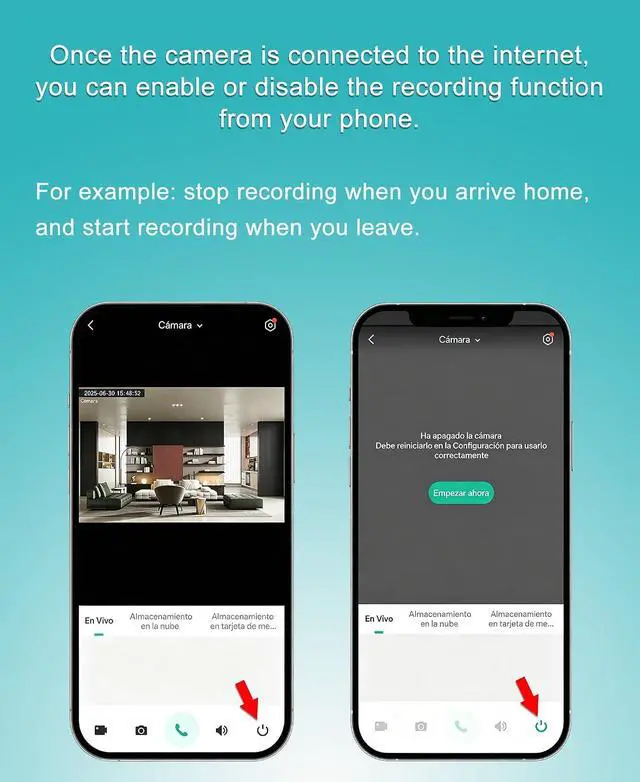
Q: Can I remotely view the camera when I'm not home?
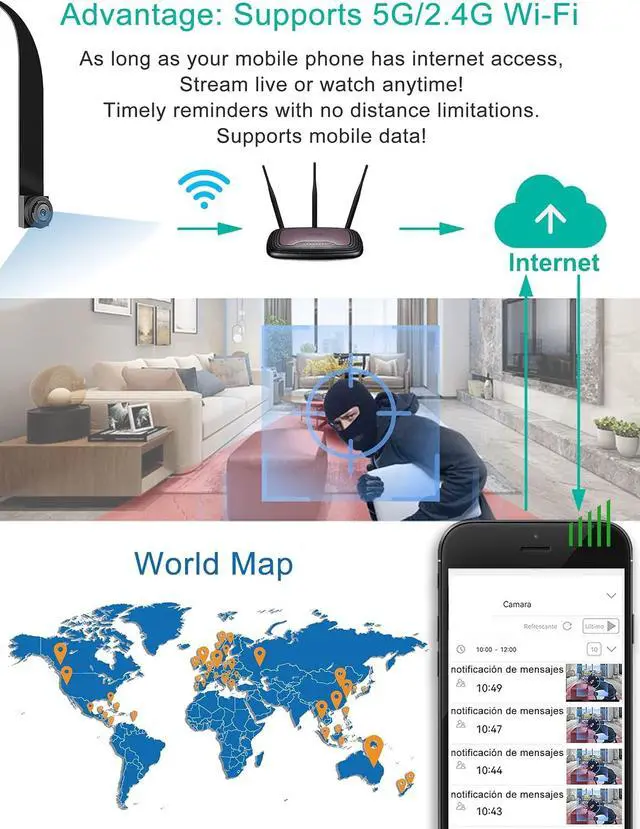
A: When you are out and not connected to Wi-Fi, remember to enable mobile data on your phone. You need at least 4 bars of signal strength to remotely view the camera.
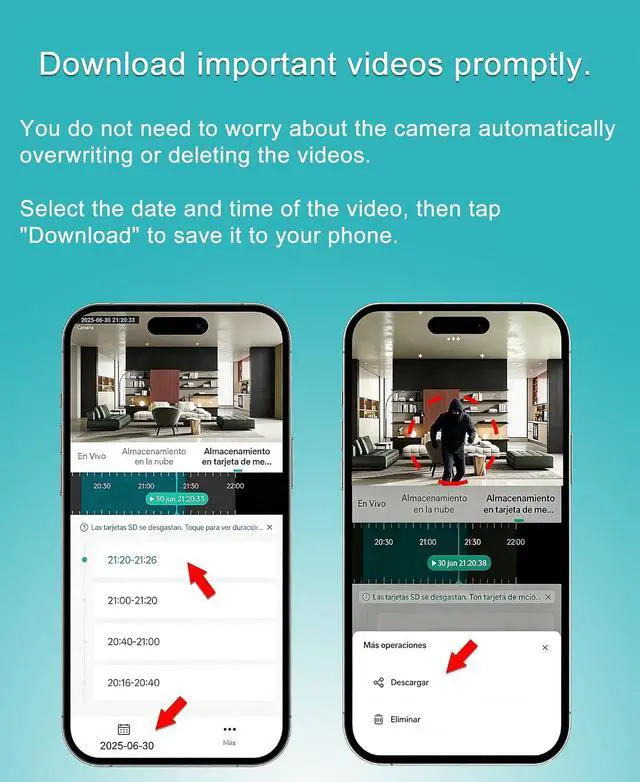
Q: Can I remotely download videos from the camera if my phone is not with me?
A: Yes; as long as the camera is connected to the internet and your phone has a 4G/5G signal or can access the internet, you can view the camera feed from anywhere in the world. You can also remotely download videos or take photos in real time, and you can also select a specific date and time to download videos stored on your memory card.





 here!
here!