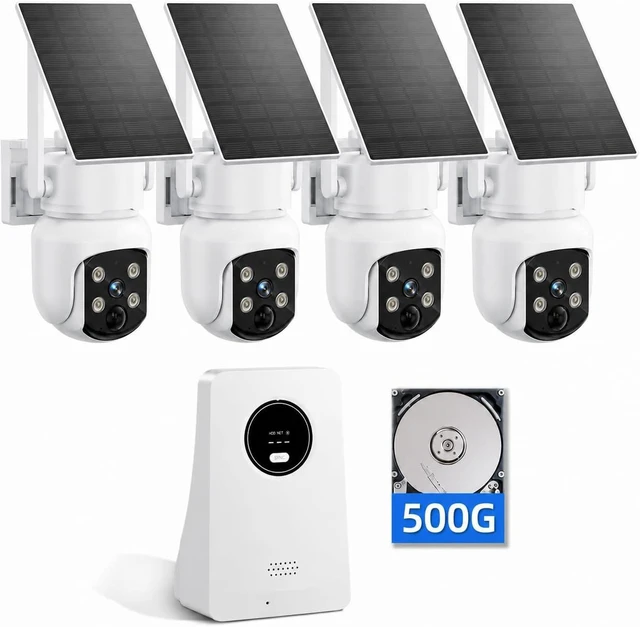
1Wi-Fi 6 2Protect Your Privacy3Dual Band WiFi4APP Sharing5Durable Performance1Add on Phone App2Syn Kits on PC Software3Connect Kits with Monitor Camera disconnect problem for Dual WIFI?
If using dual-band Wi-Fi, please switch from 5G to 2.4G. 5G has a shorter range and suffers more from wall attenuation, while 2.4G offers wider coverage. Please select the correct Wi-Fi band for a stable connection.
How to Add the Camera on Phone app?
1. Reset the camera
2. Press the SYNC button on the base station for 3-5 seconds
3. The camera will beep"Matching code Succeed"
4. The base station will also beep "WiFi Matching Succeed"
5. Use the Esee cloud app to scan the code on base station
How to Add the Camera on Monitor?
1. Connect the base to the power adapter and power it on
2. Base connects the monitor via HDMI cable
3. Connect the USB port on the Base to a mouse and use the mouse to operate the Base system on the monitor.( kits package with a mouse)
Does the Solar Camera System need buy Cloud to Recording? Does the Solar Camera System need insert SD card?
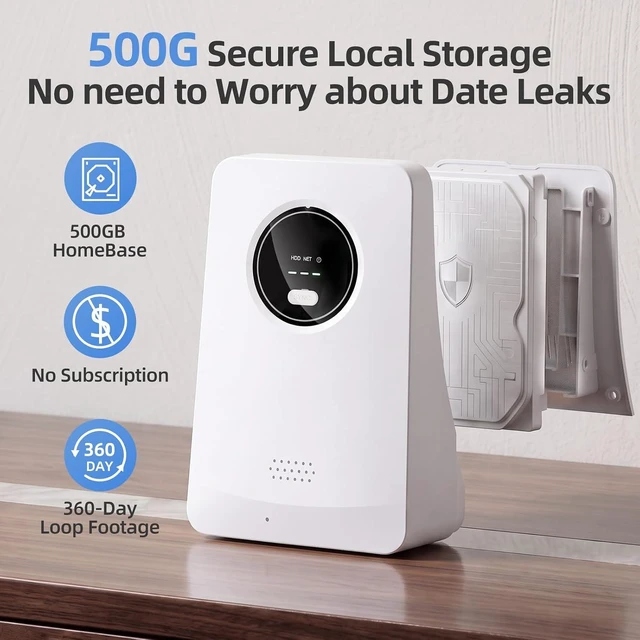
No, after set the motion detection and all day recording, the recordings will be auto save on base station. Do not need additional subscription.
The motion detection recording and 24/7 recording can save on Base Station, No need to insert SD card.
How to view recordings on the Base station? and how to turn off the Sleep mode?
Esee Cloud app-LIVE screen-Playback-Choose SD to View recordings(not the Cloud)
the camera can not directly turn off the sleeping mode.
If you need the camera work whole day, set all day recording. ( camera battery need more than 80% power)
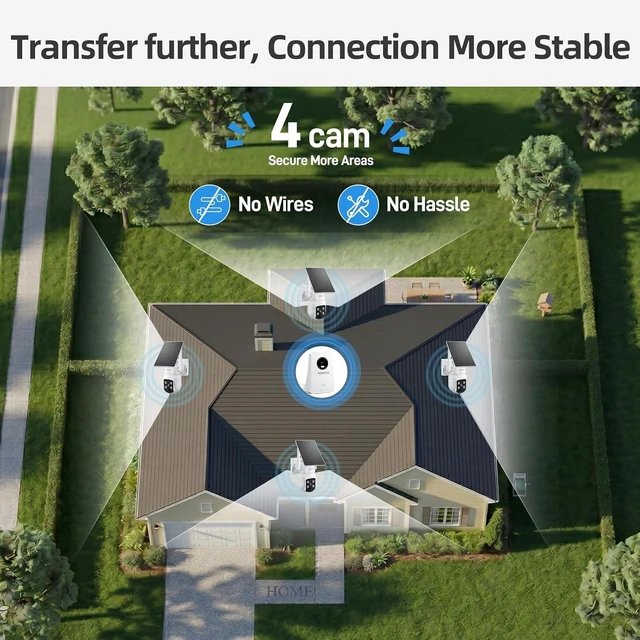
Base Station That Does More Stronger Signal, Wider Coverage Two Way Installation Camera disconnect problem for Dual WIFI?
How to Add the Camera on Phone app?
How to Add the Camera on Monitor?
Does the Solar Camera System need buy Cloud to Recording? Does the Solar Camera System need insert SD card?
How to view recordings on the Base station? and how to turn off the Sleep mode?




 here!