



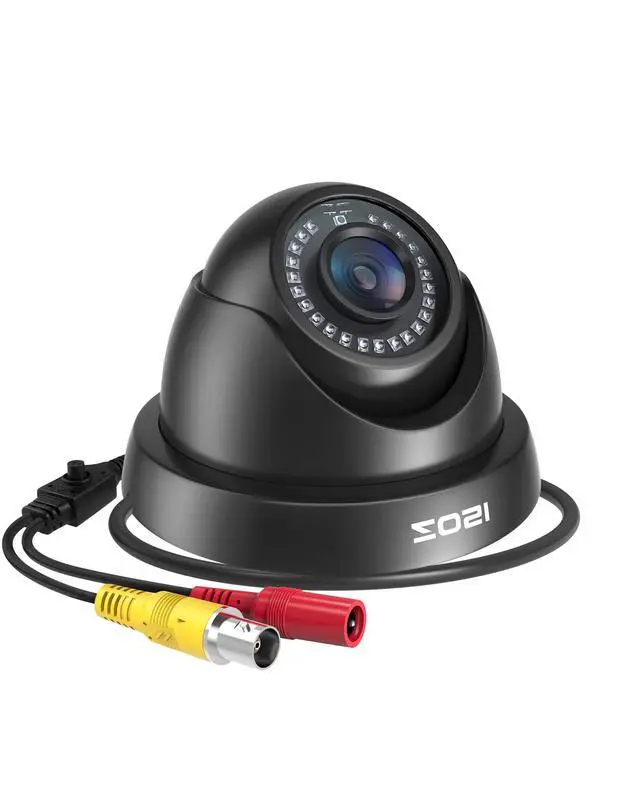
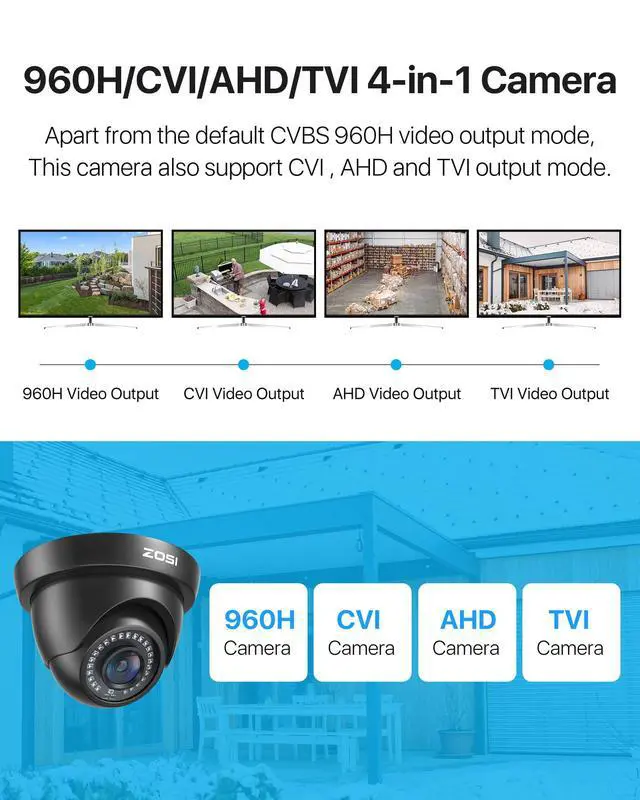


When the camera and ZOSI DVR are utilized in conjunction (DVR not included), motion detection triggers the camera to capture pictures and send them to our mobile phones via the ZOSI Smart App.
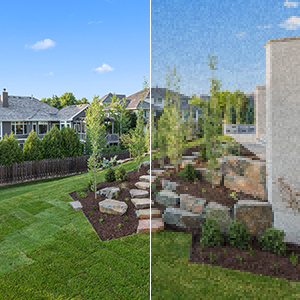
Advanced DWDR Technology
DWDR technology adjusts the picture's brightness automatically, allowing you to see and capture more details in a wide range of light conditions.
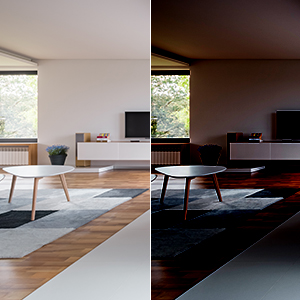
Enhanced Clarity with 3D-DNR
3D-DNR technology filters out digital noise in low-light scenes and delivers smoother images by eliminating graininess.
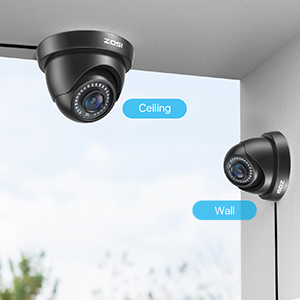
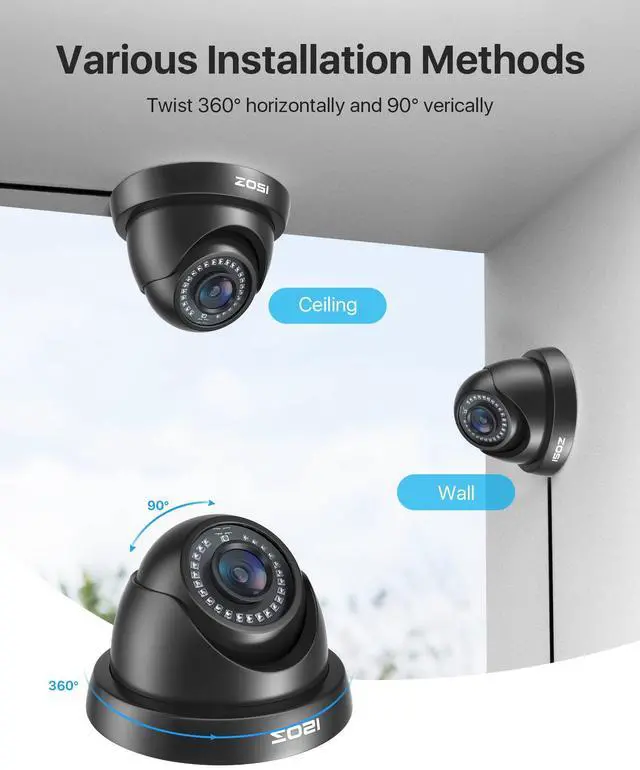
Flexible Installation
Supports various installation methods and flexible manual adjustment of the angle.
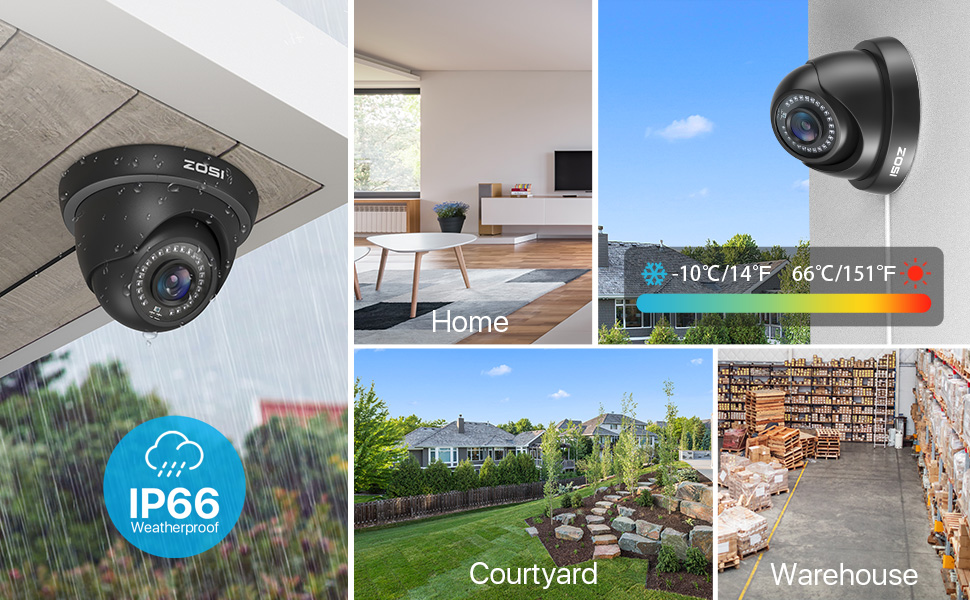
Troubleshooting
- Question: Video Loss appears where the image from my camera should be displaying on my DVR?
- Answer:
- Check the extension cable (power and video) is securely connected to the camera.
- Check the video output from the camera is securely connected to a video input channel on the DVR.
- Check the power from the camera is securely connected to a power supply.
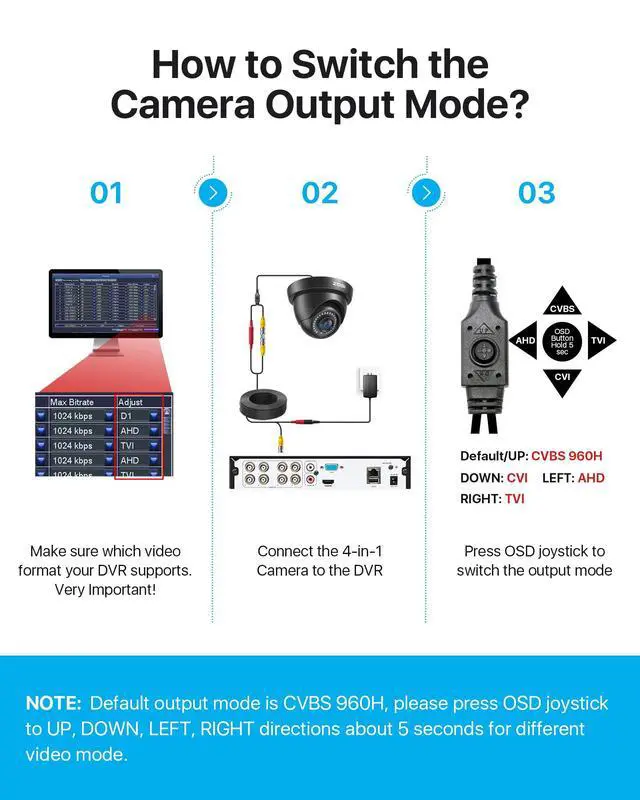
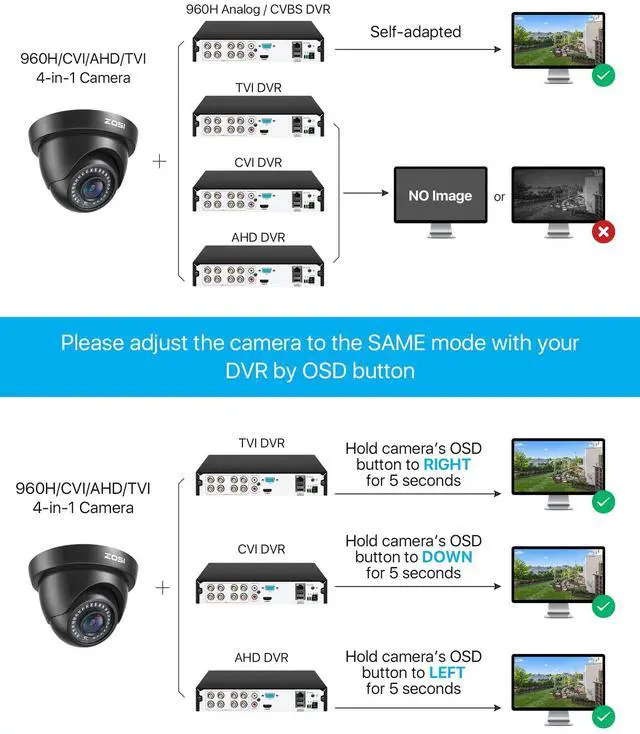
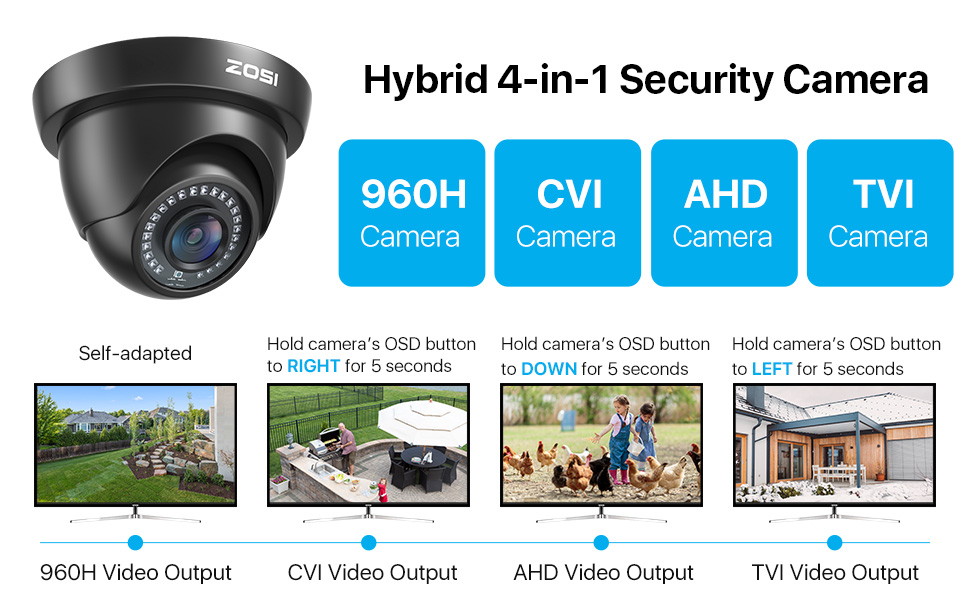
- If the camera mode do not match your DVR, there is 2 ways to setup :
(1) Press OSD Joystick “DOWN” 5 seconds,if still no picture come, try to press “LEFT” “RIGHT””UP” for 5 second, till the signal matching your DVR. (2) Make sure the signal of your DVR, Use OSD Joystick to change the mode of the camera according to your DVRs video Mode

Founded in 2012, ZOSI is a top-tier company specializing in security cameras and solutions, serving millions of customers in 60+ countries. We offer comprehensive after-sales support worldwide.
With integrated operations in product design, R&D, manufacturing, sales, and service, ZOSI ensures round-the-clock, all-encompassing protection for our customers, wherever they may be.
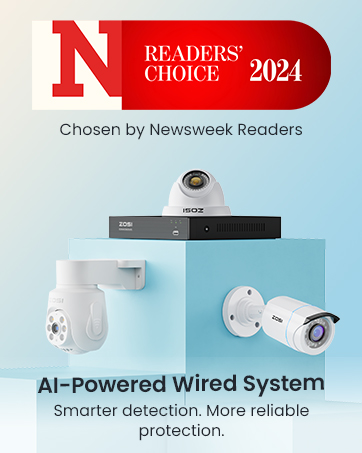

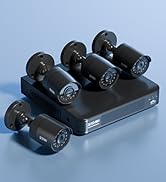
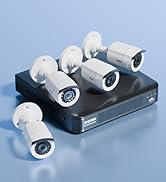
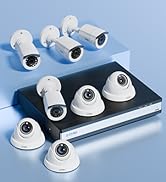
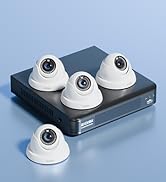
Trusted Security Camera System
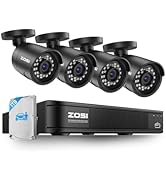
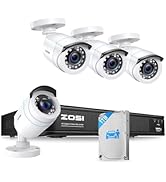
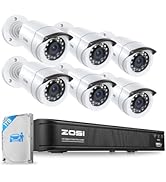
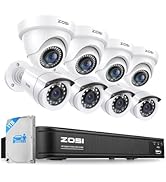
8 Channel
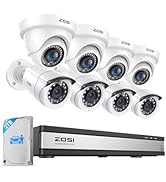
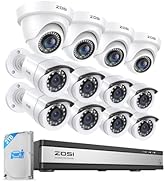
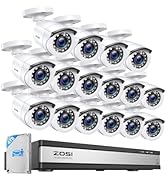
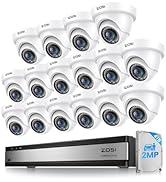
16 Channel

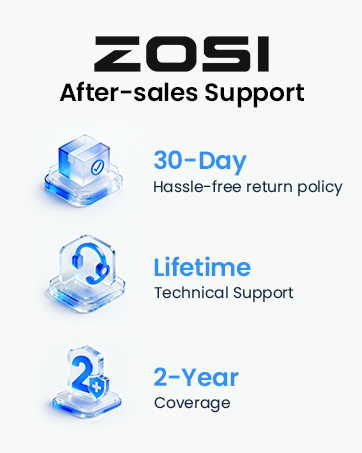
Founded in 2012, ZOSI is a top-tier company specializing in security cameras and solutions, serving millions of customers in 60+ countries. We offer comprehensive after-sales support worldwide.
With integrated operations in product design, R&D, manufacturing, sales, and service, ZOSI ensures round-the-clock, all-encompassing protection for our customers, wherever they may be.
Trusted Security Camera System
8 Channel
16 Channel
When the camera and ZOSI DVR are utilized in conjunction (DVR not included), motion detection triggers the camera to capture pictures and send them to our mobile phones via the ZOSI Smart App.
Advanced DWDR Technology
DWDR technology adjusts the picture's brightness automatically, allowing you to see and capture more details in a wide range of light conditions.
Enhanced Clarity with 3D-DNR
3D-DNR technology filters out digital noise in low-light scenes and delivers smoother images by eliminating graininess.
Flexible Installation
Supports various installation methods and flexible manual adjustment of the angle.
Troubleshooting
- Question: Video Loss appears where the image from my camera should be displaying on my DVR?
- Answer:
- Check the extension cable (power and video) is securely connected to the camera.
- Check the video output from the camera is securely connected to a video input channel on the DVR.
- Check the power from the camera is securely connected to a power supply.
- If the camera mode do not match your DVR, there is 2 ways to setup :
(1) Press OSD Joystick “DOWN” 5 seconds,if still no picture come, try to press “LEFT” “RIGHT””UP” for 5 second, till the signal matching your DVR. (2) Make sure the signal of your DVR, Use OSD Joystick to change the mode of the camera according to your DVRs video Mode