

Your Browsing History

Meet Your Seller


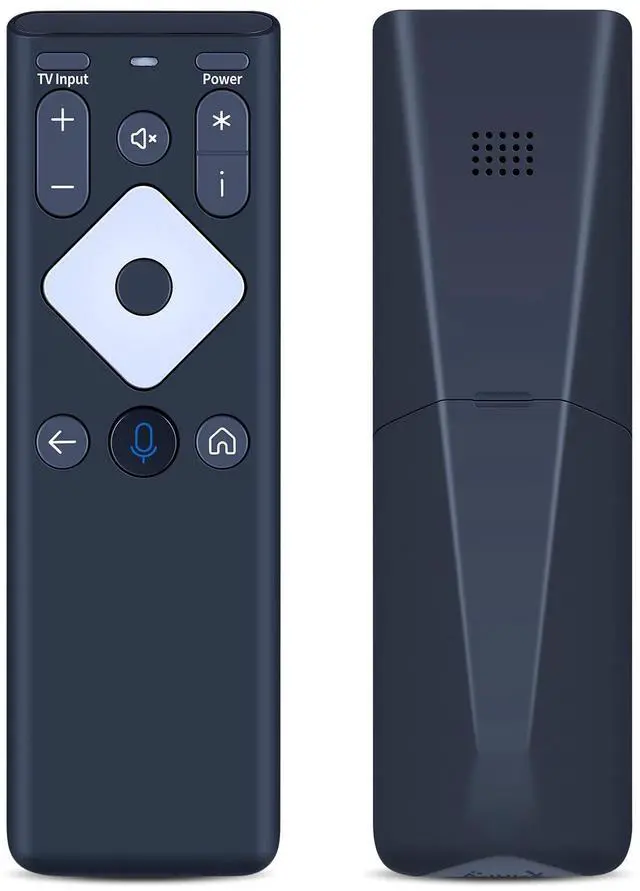
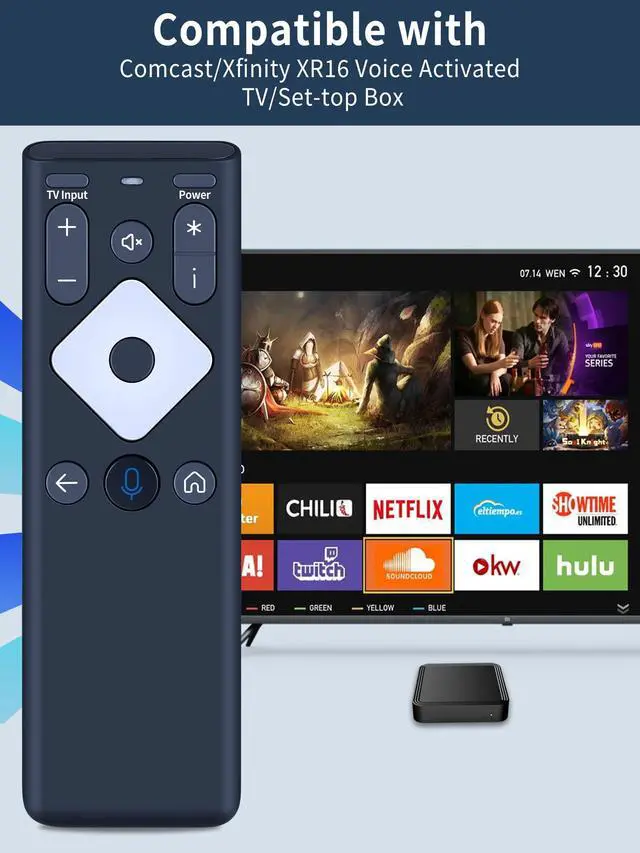
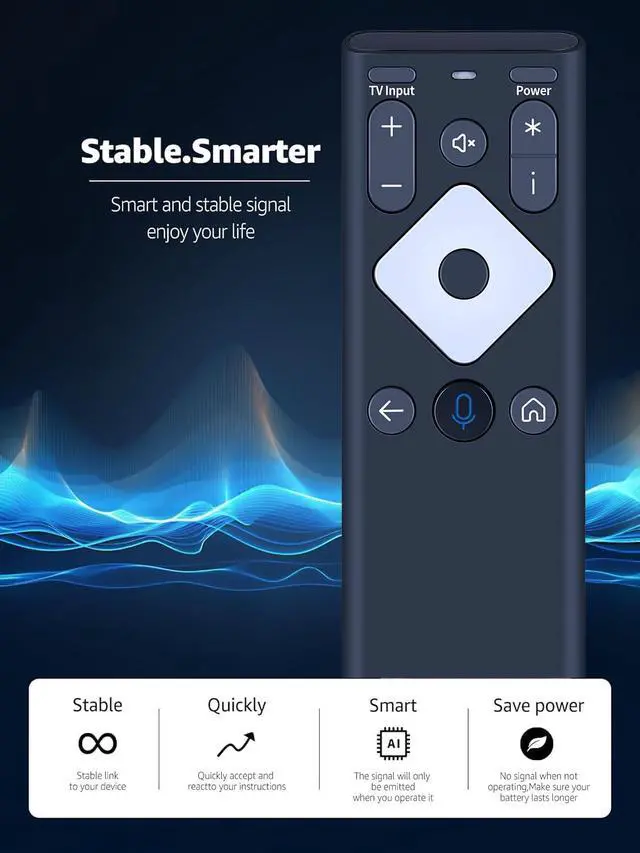
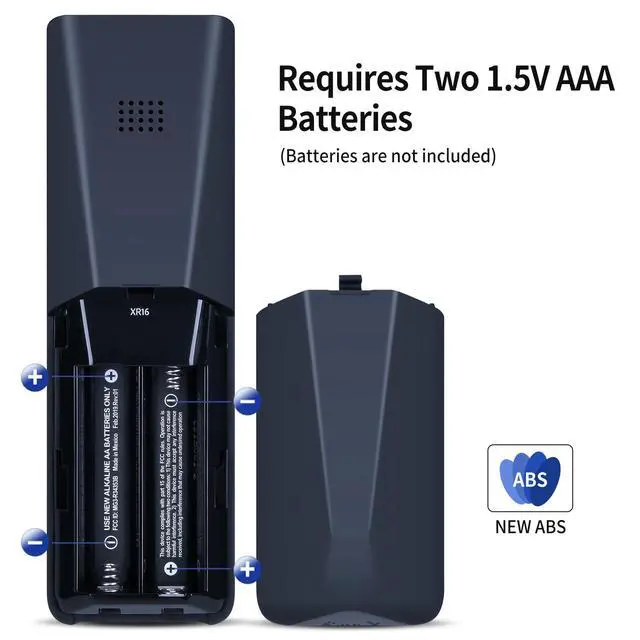
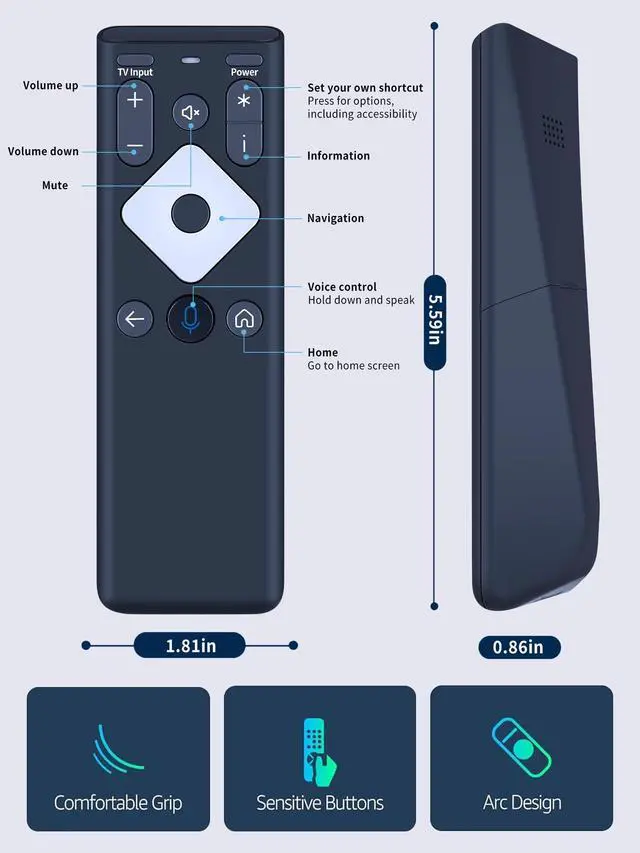


XR16 Replacement Voice Remote Control for Xfinity Comcast TV Box Compatible with Flex Streaming Device Only
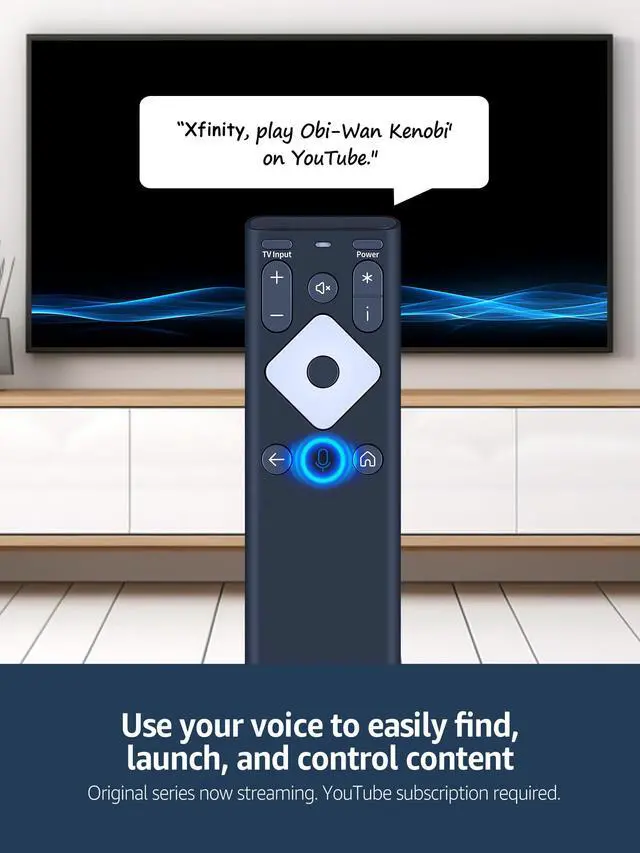
- Compatible ModelsNew XR16 Voice Remote Control for Xfinity Comcast TV Box, compatible with the Flex Streaming Device only. Voice Search FeaturesPress and hold the microphone button on the voice remote control and speak your command to conveniently search for your preferred TV shows, launch apps, and more on Comcast/Xfinity TV. The voice search feature simplifies navigation. Pair the XR16 Remote to Control an Xfinity Flex TV Box Aim the remote at your TV Box and press the Voice button one time. Follow the on-screen instructions to pair your remote for voice control. After your remote is paired, follow the on-screen prompts to configure power, volume, and input control for your TV. (Note: Ensure the TV and Xfinity Flex TV box are powered on and set the TV input to match the Xfinity Flex TV box.) Pair the XR16 Remote to Control a TV or Audio Device Hold down the Voice button and say the command "program remote". You can also access this by going to the Settings page, selecting "Remote Settings", and then "Voice remote pairing." Follow the on-screen directions to choose your TV and audio devices for power, volume, and input control. Point the remote at the TV and press the Power button. If the TV switches off, turn it back on and check that the Volume and Mute buttons function. Perform Factory ResetPress and hold the "i" button and the "Home button [house icon]" at the same time until the status light on the remote flashes. This requires about 5 seconds. Pre
+
+
Overview
Specs
Reviews

Any questions? Our AI mode will help you find out quickly.
Try me now
Compatible ModelsNew XR16 Voice Remote Control for Xfinity Comcast TV Box, compatible with the Flex Streaming Device only. Voice Search FeaturesPress and hold the microphone button on the voice remote control and speak your command to conveniently search for your preferred TV shows, launch apps, and more on Comcast/Xfinity TV. The voice search feature simplifies navigation. Pair the XR16 Remote to Control an Xfinity Flex TV Box Aim the remote at your TV Box and press the Voice button one time. Follow the on-screen instructions to pair your remote for voice control.
After your remote is paired, follow the on-screen prompts to configure power, volume, and input control for your TV.
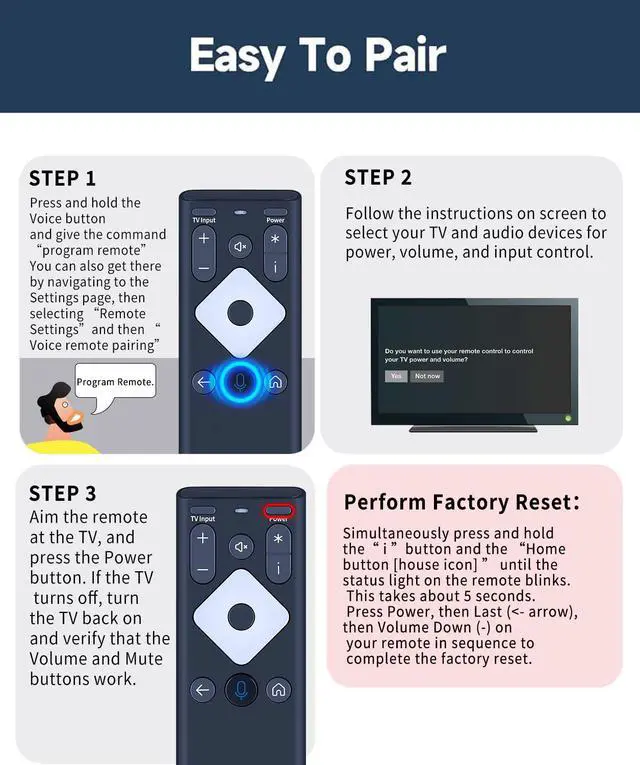
(Note: Ensure the TV and Xfinity Flex TV box are powered on and set the TV input to match the Xfinity Flex TV box. ) Pair the XR16 Remote to Control a TV or Audio Device Hold down the Voice button and say the command "program remote". You can also access this by going to the Settings page, selecting "Remote Settings", and then "Voice remote pairing. " Follow the on-screen directions to choose your TV and audio devices for power, volume, and input control. Point the remote at the TV and press the Power button. If the TV switches off, turn it back on and check that the Volume and Mute buttons function. Perform Factory ResetPress and hold the "i" button and the "Home button [house icon]" at the same time until the status light on the remote flashes. This requires about 5 seconds. Press Power, then Last (<- arrow), then Volume Down (-) on your remote in order to finish the factory reset. Once done, you can attempt pairing your XR16 remote again
After your remote is paired, follow the on-screen prompts to configure power, volume, and input control for your TV.
(Note: Ensure the TV and Xfinity Flex TV box are powered on and set the TV input to match the Xfinity Flex TV box. ) Pair the XR16 Remote to Control a TV or Audio Device Hold down the Voice button and say the command "program remote". You can also access this by going to the Settings page, selecting "Remote Settings", and then "Voice remote pairing. " Follow the on-screen directions to choose your TV and audio devices for power, volume, and input control. Point the remote at the TV and press the Power button. If the TV switches off, turn it back on and check that the Volume and Mute buttons function. Perform Factory ResetPress and hold the "i" button and the "Home button [house icon]" at the same time until the status light on the remote flashes. This requires about 5 seconds. Press Power, then Last (<- arrow), then Volume Down (-) on your remote in order to finish the factory reset. Once done, you can attempt pairing your XR16 remote again
Warranty & Returns
Warranty, Returns, And Additional Information
Warranty
- Please contact the Seller directly for warranty information. Warranty information may also be found on the Manufacturer's website.
- CONTACT
Return Policies
- Return for refund within: 30 days
- Return for replacement within: 30 days
- This item is covered by WanJin World Shop Return Policy
Manufacturer Contact Info
- For a directory of all our manufacturers, please click below.
- Manufacturers Directory
LOADING...