

Your Browsing History

Meet Your Seller

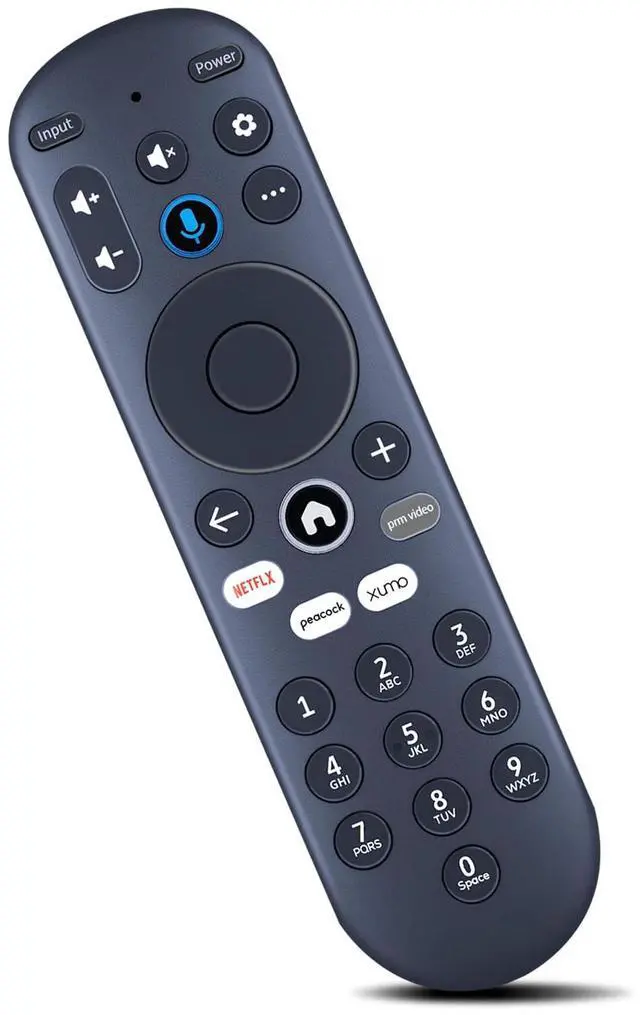
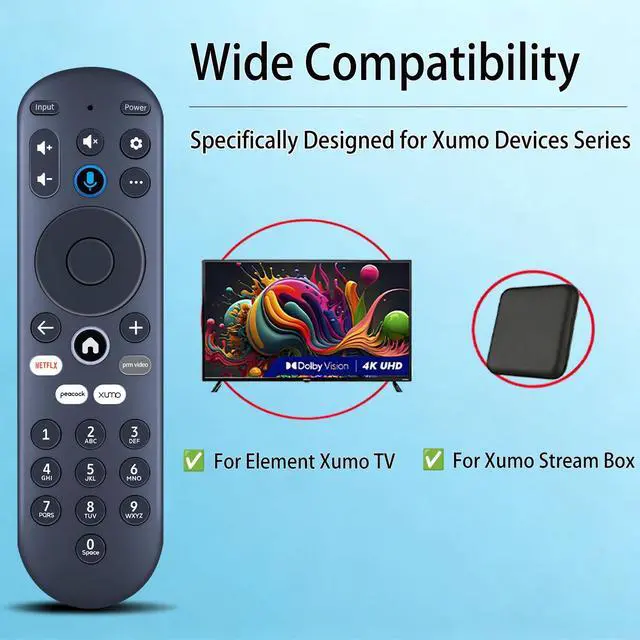
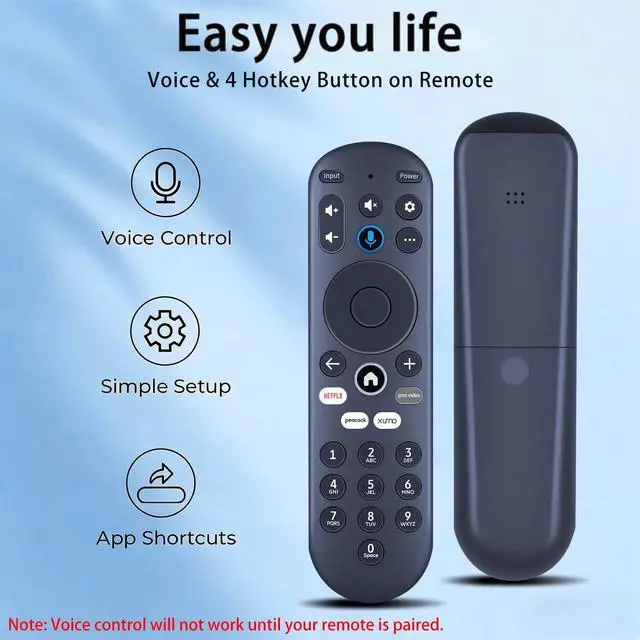


Replacement Voice Remote Control for Element Xumo TV Stream Box | Compatible with Element 4K UHD HDR Xumo TV E500AC65C E500AC43C E500AC55C E500AC50C E500AE98C E300AE24C E550AE55C E550AE75C
Limited time offer, ends 09/18 By WanJin World Shop
- Compatible with Xumo TV Stream Box SCXI11BEI and Element Xumo TV, including models: 43", 50", 55", 65", 98" 4K UHD HDR TV E500AC43C, E500AC50C, E500AC55C, E500AC65C, E500AE98C; 24", 32" 720P HD TV E300AE24C, E300AE32C; 40" 1080P FHD TV E300AE40C; 43", 50", 55", 65", 75", 86" 4K UHD HDR Frameless TV E550AE43C, E550AE50C, E550AE55C, E550AE65C, E550AE75C, E550AE86C. Pairing your remote to an existing Xumo TV: Before using your remote, you will need to pair it with your TV. If you install batteries in your remote within 15 minutes of initially plugging in your TV, your remote will automatically pair to your TV. If not paired, please follow the instructions below: Step 1: Press the Setting button. Step 2: Select Remote > Pair your remote to your TV. Step 3: Follow the on-screen instructions. Step 4: If pairing is unsuccessful, turn off your TV and disconnect it from the power source. Plug the TV back in, turn it on, and attempt steps 1-3 again. Note: Voice control will not function until your remote is paired. Pairing your remote to a sound system: Step 1: Press the Setting button. Step 2: Select Remote > Pair your remote and sound system. Step 3: Follow the on-screen instructions. How to reset your remote: Step 1: Hold the "" and "+" buttons for 3 seconds until the light at the top of the remote becomes solid green. Step 2: Press 9, then 8, then 4 (the light will blink red several times). Step 3: Hold the "" and "+" buttons for 3 seconds again. Step 4: Press 9, then 8, then 1
+
+
Overview
Specs
Reviews

Any questions? Our AI mode will help you find out quickly.
Try me now
Compatible with Xumo TV Stream Box SCXI11BEI and Element Xumo TV, including
models: 43", 50", 55", 65", 98" 4K UHD HDR TV E500AC43C, E500AC50C, E500AC55C, E500AC65C, E500AE98C; 24", 32" 720P HD TV E300AE24C, E300AE32C; 40" 1080P FHD TV E300AE40C; 43", 50", 55", 65", 75", 86" 4K UHD HDR Frameless TV E550AE43C, E550AE50C, E550AE55C, E550AE65C, E550AE75C, E550AE86C. Pairing your remote to an existing
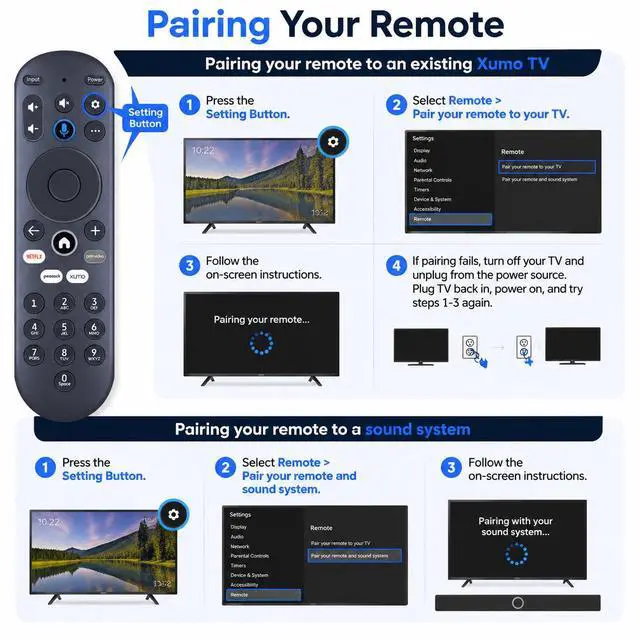
Xumo TV: Before using your remote, you will need to pair it with your TV. If you install batteries in your remote within 15 minutes of initially plugging in your TV, your remote will automatically pair to your TV. If not paired, please
follow the instructions below: Step
1: Press the Setting button.
Step 2: Select Remote > Pair your remote to your TV.
Step 3: Follow the on-screen instructions.
Step 4: If pairing is unsuccessful, turn off your TV and disconnect it from the power source. Plug the TV back in, turn it on, and attempt steps 1-3 again.
Note: Voice control will not function until your remote is paired. Pairing your remote to a sound system: Step
1: Press the Setting button.
Step 2: Select Remote > Pair your remote and sound system.
Step 3: Follow the on-screen instructions.
How to reset your remote: Step
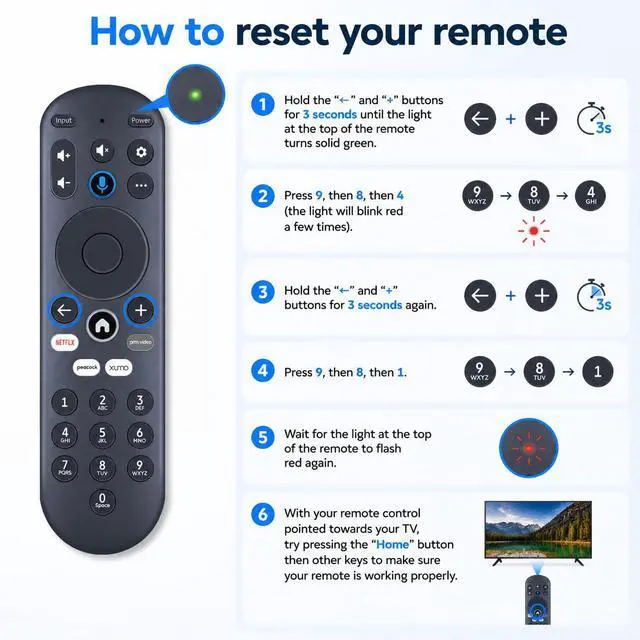
1: Hold the "" and "+" buttons for 3 seconds until the light at the top of the remote becomes solid green.
Step 2: Press 9, then 8, then 4 (the light will blink red several times).
Step 3: Hold the "" and "+" buttons for 3 seconds again.
Step 4: Press 9, then 8, then
1.
Step 5: Wait for the light at the top of the remote to flash red again.
Step 6: With your remote control aimed at your TV, try pressing the "Home" button, then other keys to verify your remote is operating correctly
models: 43", 50", 55", 65", 98" 4K UHD HDR TV E500AC43C, E500AC50C, E500AC55C, E500AC65C, E500AE98C; 24", 32" 720P HD TV E300AE24C, E300AE32C; 40" 1080P FHD TV E300AE40C; 43", 50", 55", 65", 75", 86" 4K UHD HDR Frameless TV E550AE43C, E550AE50C, E550AE55C, E550AE65C, E550AE75C, E550AE86C. Pairing your remote to an existing
Xumo TV: Before using your remote, you will need to pair it with your TV. If you install batteries in your remote within 15 minutes of initially plugging in your TV, your remote will automatically pair to your TV. If not paired, please
follow the instructions below: Step
1: Press the Setting button.
Step 2: Select Remote > Pair your remote to your TV.
Step 3: Follow the on-screen instructions.
Step 4: If pairing is unsuccessful, turn off your TV and disconnect it from the power source. Plug the TV back in, turn it on, and attempt steps 1-3 again.
Note: Voice control will not function until your remote is paired. Pairing your remote to a sound system: Step
1: Press the Setting button.
Step 2: Select Remote > Pair your remote and sound system.
Step 3: Follow the on-screen instructions.
How to reset your remote: Step
1: Hold the "" and "+" buttons for 3 seconds until the light at the top of the remote becomes solid green.
Step 2: Press 9, then 8, then 4 (the light will blink red several times).
Step 3: Hold the "" and "+" buttons for 3 seconds again.
Step 4: Press 9, then 8, then
1.
Step 5: Wait for the light at the top of the remote to flash red again.
Step 6: With your remote control aimed at your TV, try pressing the "Home" button, then other keys to verify your remote is operating correctly
Warranty & Returns
Warranty, Returns, And Additional Information
Warranty
- Please contact the Seller directly for warranty information. Warranty information may also be found on the Manufacturer's website.
- CONTACT
Return Policies
- Return for refund within: 30 days
- Return for replacement within: 30 days
- This item is covered by WanJin World Shop Return Policy
Manufacturer Contact Info
- For a directory of all our manufacturers, please click below.
- Manufacturers Directory
LOADING...