

Your Browsing History

Meet Your Seller


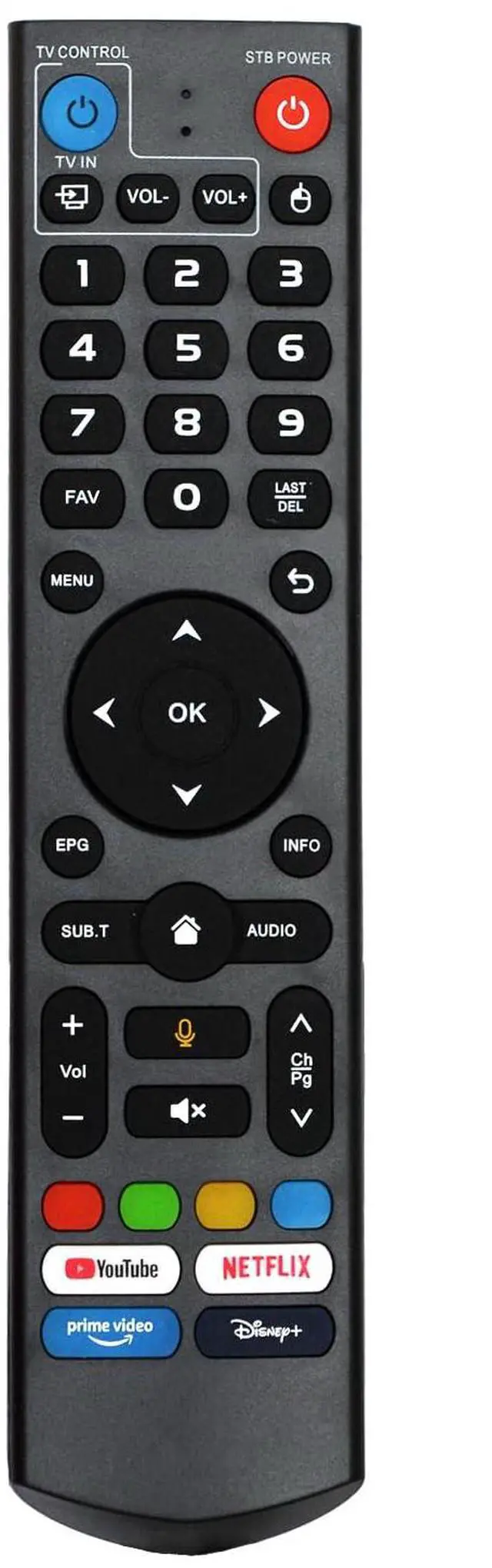
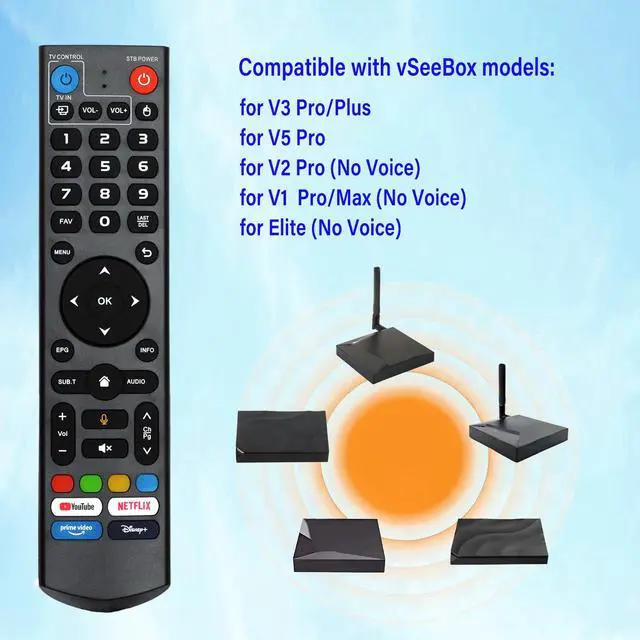
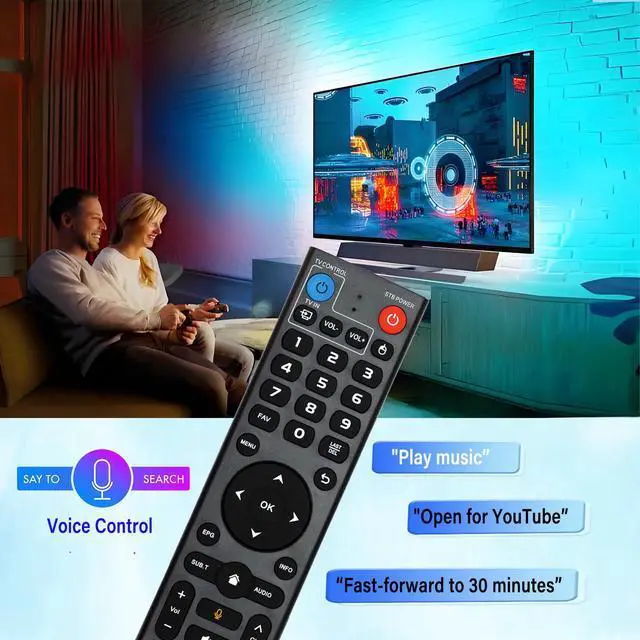
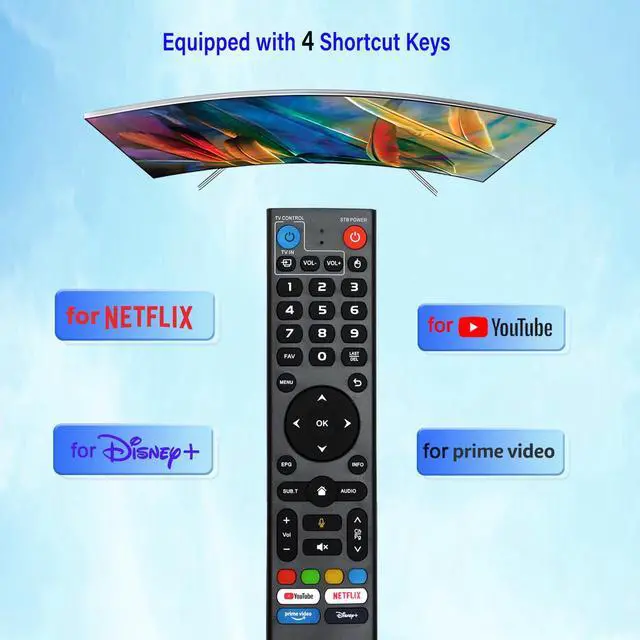


V3 Pro Voice Remote Control Replacement for VSeeBox V5/ V3/ V2/ V1 ProV3 PlusV1 Max/Elite Models
Limited time offer, ends 08/26 By FiveMacro Store
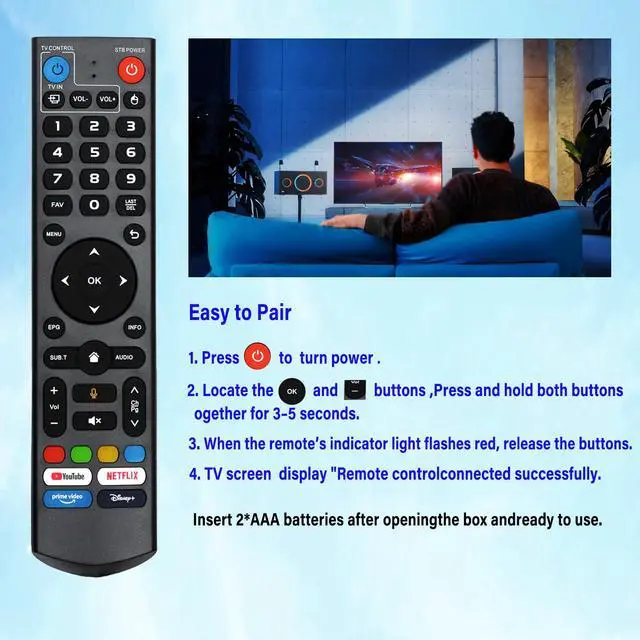
- How to operate the remote control: 1. Hold the [POWER] button for 5 seconds. The LED changes from blinking to solid and the STB RCU enters Learning Mode. 2. Press the key you to program on this RCU. The LED starts to blink slowly. The key is ready to receive programming. 3. Point the TV RCU towards the front of this RCU (distance under 5cm) and press the button on the TV RCU. If the STB RCU is programmed correctly, the LED will flash 3 times. 4. Repeat steps 2-3 for other keys. Exit learning mode by pressing any other button on this RCU. The LED switches off. (Voice command function) This is the V3 Pro model. It works with the following models: vSeeBox V5 Pro, V3 Plus, V3 Pro, V2 Pro, V1 Pro, V1 Max, Elite, and Max. This dual-function learning remote control with light is suitable for vSeeBox V3 to V5 Pro models. There are two operating modes: V3 working mode and V2 working mode. Press and hold the "5" number key for over 10 seconds. The indicator light will flash, showing that the mode switch is complete. The V3 Pro working mode is for V3 Pro; the V2 Pro working mode is for V1 Pro, V2 Pro, Max, and Elite. (Special Note: The vSeeBox V3 remote control defaults to V3 working mode.) How to use the V3 remote control on V1 Pro and V2 Pro/Max/Elite models: Press and hold the OK key and the volume- key together (for about 5 seconds) until the indicator light on the remote control keeps flashing, showing that the Bluetooth function is active. Under "System Settings - Bluetooth - Pa
+
+
Overview
Specs
Reviews

Any questions? Our AI mode will help you find out quickly.
Try me now
How to operate the remote control:
1. Hold the [POWER] button for 5 seconds. The LED changes from blinking to solid and the STB RCU enters Learning Mode.
2. Press the key you to program on this RCU. The LED starts to blink slowly. The key is ready to receive programming.
3. Point the TV RCU towards the front of this RCU (distance under 5cm) and press the button on the TV RCU. If the STB RCU is programmed correctly, the LED will flash 3 times.
4. Repeat steps 2-3 for other keys. Exit learning mode by pressing any other button on this RCU. The LED switches off. (Voice command function) This is the V3 Pro model. It works with the following models: vSeeBox V5 Pro, V3 Plus, V3 Pro, V2 Pro, V1 Pro, V1 Max, Elite, and Max. This dual-function learning remote control with light is suitable for vSeeBox V3 to V5 Pro models.
There are two operating modes: V3 working mode and V2 working mode. Press and hold the "5" number key for over 10 seconds. The indicator light will flash, showing that the mode switch is complete. The V3 Pro working mode is for V3 Pro; the V2 Pro working mode is for V1 Pro, V2 Pro, Max, and Elite.
(Special Note: The vSeeBox V3 remote control defaults to V3 working mode. ) How to use the V3 remote control on V1 Pro and
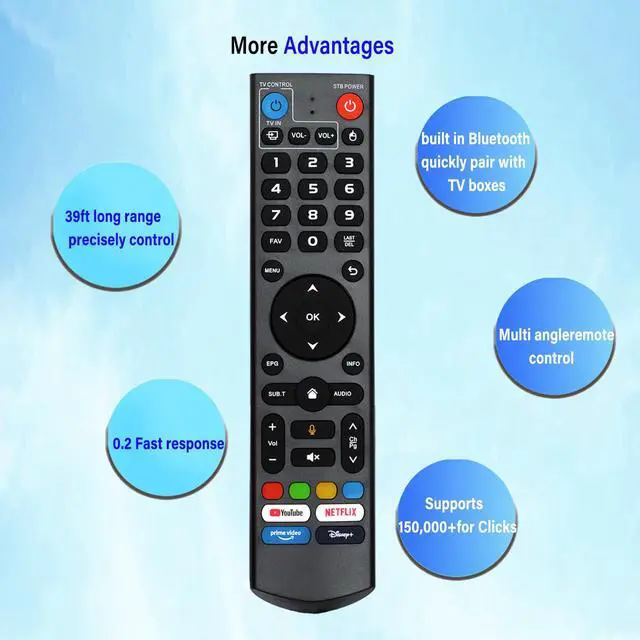
V2 Pro/Max/Elite models: Press and hold the OK key and the volume- key together (for about 5 seconds) until the indicator light on the remote control keeps flashing, showing that the Bluetooth function is active. Under "System Settings - Bluetooth - Pair New Device", pair the remote control. Find the vSeeBox remote control and connect it. If not found, Bluetooth may not be turned on. Press and hold the OK key and volume- key on the remote control together to activate Bluetooth, and then try again. Extended working range and quick response: It uses infrared technology with a powerful signal. The remote control has a transmission range of up to 10 meters (32 feet). The keys are responsive and the reaction is fast, not more than 0.2 seconds. These buttons have been tested to withstand over 100, 000 presses. They have a pleasant feel and are durable
1. Hold the [POWER] button for 5 seconds. The LED changes from blinking to solid and the STB RCU enters Learning Mode.
2. Press the key you to program on this RCU. The LED starts to blink slowly. The key is ready to receive programming.
3. Point the TV RCU towards the front of this RCU (distance under 5cm) and press the button on the TV RCU. If the STB RCU is programmed correctly, the LED will flash 3 times.
4. Repeat steps 2-3 for other keys. Exit learning mode by pressing any other button on this RCU. The LED switches off. (Voice command function) This is the V3 Pro model. It works with the following models: vSeeBox V5 Pro, V3 Plus, V3 Pro, V2 Pro, V1 Pro, V1 Max, Elite, and Max. This dual-function learning remote control with light is suitable for vSeeBox V3 to V5 Pro models.
There are two operating modes: V3 working mode and V2 working mode. Press and hold the "5" number key for over 10 seconds. The indicator light will flash, showing that the mode switch is complete. The V3 Pro working mode is for V3 Pro; the V2 Pro working mode is for V1 Pro, V2 Pro, Max, and Elite.
(Special Note: The vSeeBox V3 remote control defaults to V3 working mode. ) How to use the V3 remote control on V1 Pro and
V2 Pro/Max/Elite models: Press and hold the OK key and the volume- key together (for about 5 seconds) until the indicator light on the remote control keeps flashing, showing that the Bluetooth function is active. Under "System Settings - Bluetooth - Pair New Device", pair the remote control. Find the vSeeBox remote control and connect it. If not found, Bluetooth may not be turned on. Press and hold the OK key and volume- key on the remote control together to activate Bluetooth, and then try again. Extended working range and quick response: It uses infrared technology with a powerful signal. The remote control has a transmission range of up to 10 meters (32 feet). The keys are responsive and the reaction is fast, not more than 0.2 seconds. These buttons have been tested to withstand over 100, 000 presses. They have a pleasant feel and are durable
Warranty & Returns
Warranty, Returns, And Additional Information
Warranty
- Please contact the Seller directly for warranty information. Warranty information may also be found on the Manufacturer's website.
- CONTACT
Return Policies
- Return for refund within: 30 days
- Return for replacement within: 30 days
- This item is covered by FiveMacro Store Return Policy
Manufacturer Contact Info
- For a directory of all our manufacturers, please click below.
- Manufacturers Directory
LOADING...