

Your Browsing History

Meet Your Seller


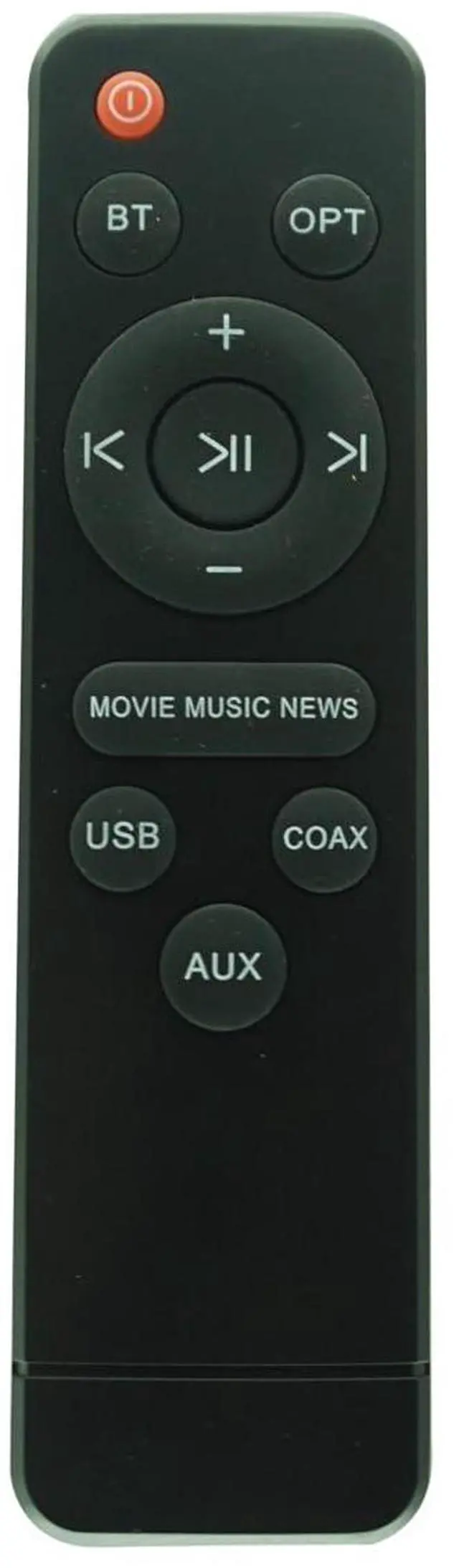
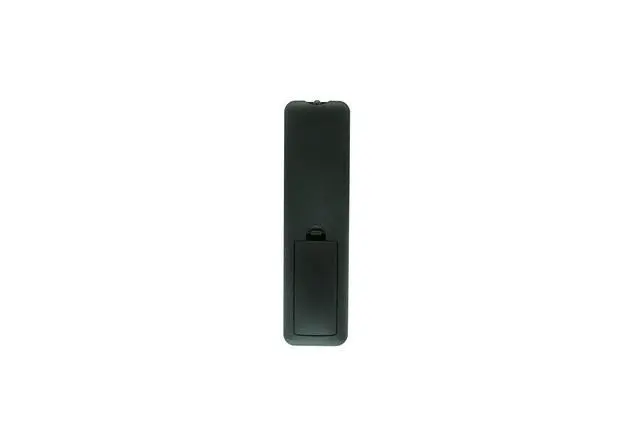
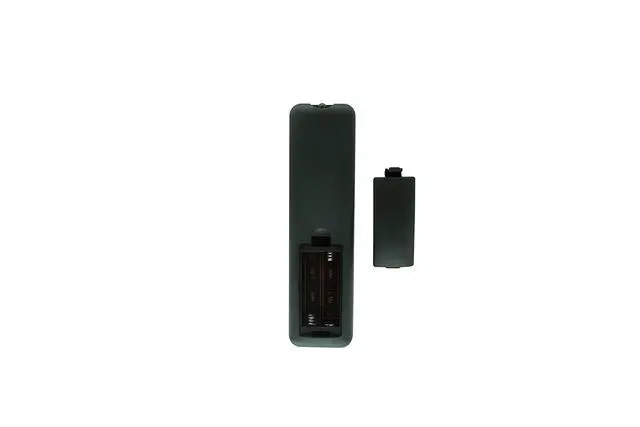


Replacement Remote Control for OXS S3 2.0ch TV Soundbar
- Troubleshooting - If The Remote Doesn't Work: 1. Check Batteries: Reinstall the batteries, making sure the contacts are clean and the polarity is correct. 2. Check Device: Confirm your device is powered on and functional. Try using the physical buttons on the device's panel to ensure it operates properly. 3. Check for Obstructions: Make sure there are no objects blocking the path between the remote and the device's IR sensor. 4. Test the Remote: Use your smartphone camera for a quick test: Open your phone's camera app, point the front (LED end) of the remote directly at the phone's lens, and hold down any button. If you see a faint white or purple light flashing on your phone's screen, the remote is emitting an IR signal and is likely working. If you see no light, there may be an issue with the batteries or the remote itself
+
+
Overview
Specs
Reviews

Any questions? Our AI mode will help you find out quickly.
Try me now
Troubleshooting - If The
Remote Doesn't Work:
1.
Check Batteries: Reinstall the batteries, making sure the contacts are clean and the polarity is correct.
2.
Check Device: Confirm your device is powered on and functional. Try using the physical buttons on the device's panel to ensure it operates properly.
3.
Check for Obstructions: Make sure there are no objects blocking the path between the remote and the device's IR sensor.
4.
Test the Remote: Use your smartphone camera for a quick test: Open your phone's camera app, point the front (LED end) of the remote directly at the phone's lens, and hold down any button. If you see a faint white or purple light flashing on your phone's screen, the remote is emitting an IR signal and is likely working. If you see no light, there may be an issue with the batteries or the remote itself
Remote Doesn't Work:
1.
Check Batteries: Reinstall the batteries, making sure the contacts are clean and the polarity is correct.
2.
Check Device: Confirm your device is powered on and functional. Try using the physical buttons on the device's panel to ensure it operates properly.
3.
Check for Obstructions: Make sure there are no objects blocking the path between the remote and the device's IR sensor.
4.
Test the Remote: Use your smartphone camera for a quick test: Open your phone's camera app, point the front (LED end) of the remote directly at the phone's lens, and hold down any button. If you see a faint white or purple light flashing on your phone's screen, the remote is emitting an IR signal and is likely working. If you see no light, there may be an issue with the batteries or the remote itself
Warranty & Returns
Warranty, Returns, And Additional Information
Warranty
- Please contact the Seller directly for warranty information. Warranty information may also be found on the Manufacturer's website.
- CONTACT
Return Policies
- Return for refund within: 30 days
- Return for replacement within: 30 days
- This item is covered by QiPing Global Store Return Policy
Manufacturer Contact Info
- For a directory of all our manufacturers, please click below.
- Manufacturers Directory
LOADING...