Your Browsing History
Meet Your Seller
MacBook Docking Station Dual Monitor 4K@60Hz, PD100W, Audio for Home Office Vertical Laptop Stand with 2 HDMI, 10Gbps USB-C/A, Ethernet, SD/TF, USB C Dock for MacBook Pro/Air M4/M5 Midnight
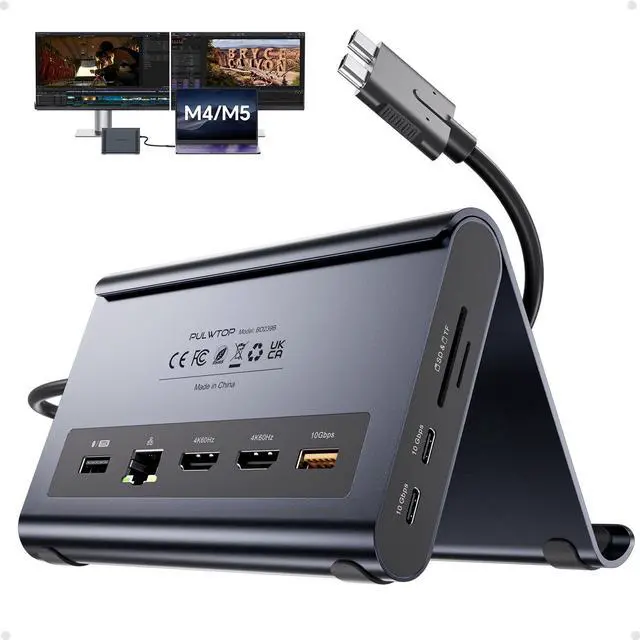
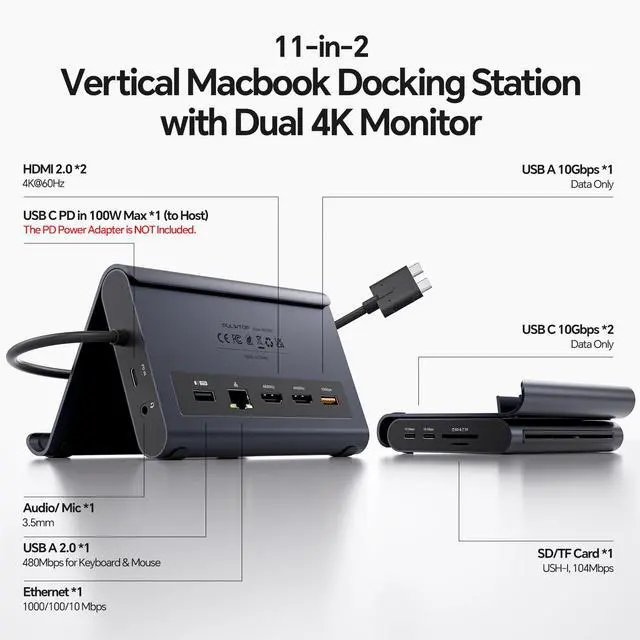
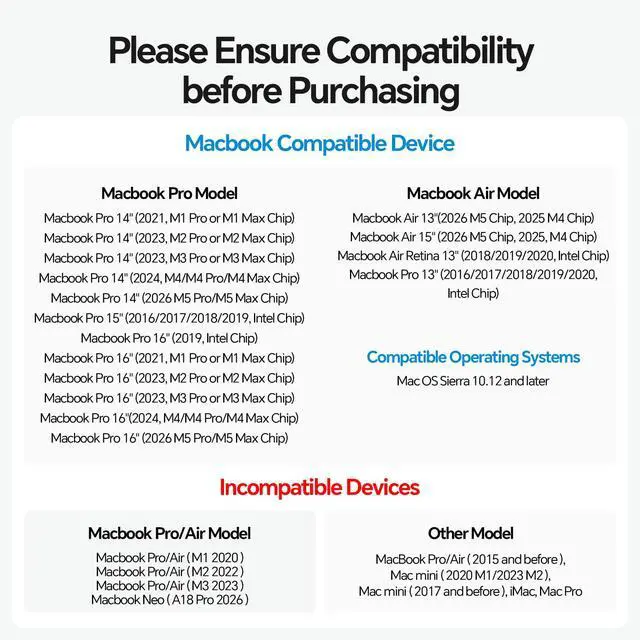
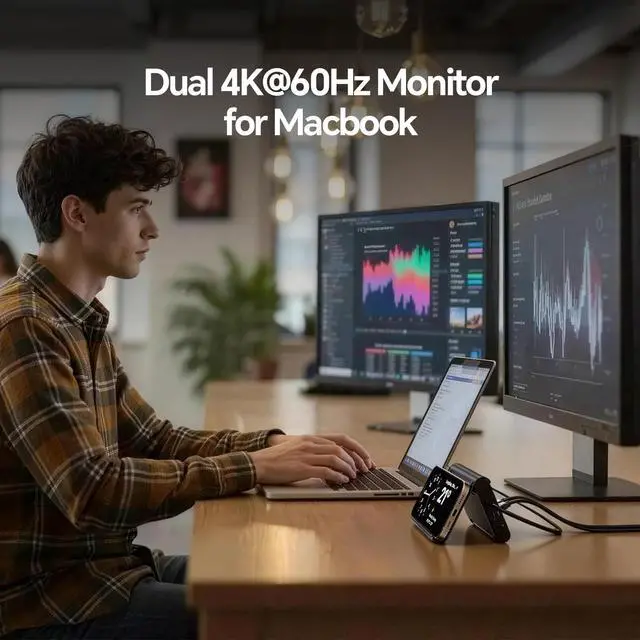
- [2-in-1 MacBook Dock & Vertical Stand] This MacBook docking station stand combines a MacBook Air dock with a sturdy laptop stand. Hold your MacBook in the stand; it also works as a holder for tablets and phones. The MacBook Pro dock features 2x 4K@60Hz HDMI, 2x USB-C 10Gbps, 1x USB-A 10Gbps, 1x USB-A 2.0, SD/TF, 3.5mm Audio, and Gigabit Ethernet (RJ45) & 100W PD input (PD adapter not included). [Dual 4K@60Hz for MacBook Pro/Air] This MacBook docking station dual monitor delivers stunning 4K@60Hz video output via dual HDMI ports ideal for video editing and creative workflows. Transform your MacBook into a powerful dual-monitor workstation for mirroring or extending, and enjoy ultra-smooth visuals and seamless multitasking for your laptop dock. [Precision Compatibility - MacBook Only] This MacBook Pro docking station dual monitor is precision-engineered for MacBook Pro/Air 20162026 (Intel chips, M1 Pro/Max, M2 Pro/Max, M3 Pro/Max, M4 Base Chip, M4 Pro/Max, m5 Base Chip, M5 Pro/Max). NOT compatible with M1, M2, or M3 Base chips. Also incompatible with Windows laptops and MacBook Neo. Please verify your model before purchase. [10Gbps Ultra-Fast Data Transfer] This MacBook Air docking station delivers 2×10Gbps USB-C and 1×10Gbps USB-A (Data Only no video & charging). Move massive 4K videos, photo libraries, or backups in seconds. Perfect for video editors and designers; a USB-C docking station dual monitor companion for your MacBook workflows. A dedicated USB-A 2.0 port ke
+
+
Overview
Specs
Reviews
Any questions? Our AI mode will help you find out quickly.
Try me now
[2-in-1 MacBook Dock & Vertical Stand] This MacBook docking station stand combines a MacBook Air dock with a sturdy laptop stand. Hold your MacBook in the stand; it also works as a holder for tablets and phones. The MacBook Pro dock features 2x 4K@60Hz HDMI, 2x USB-C 10Gbps, 1x USB-A 10Gbps, 1x USB-A 2.0, SD/TF, 3.5 mm Audio, and Gigabit Ethernet (RJ45) & 100W PD input (PD adapter not included). [Dual 4K@60Hz for MacBook Pro/Air] This MacBook docking station dual monitor delivers stunning 4K@60Hz video output via dual HDMI ports ideal for video editing and creative workflows.
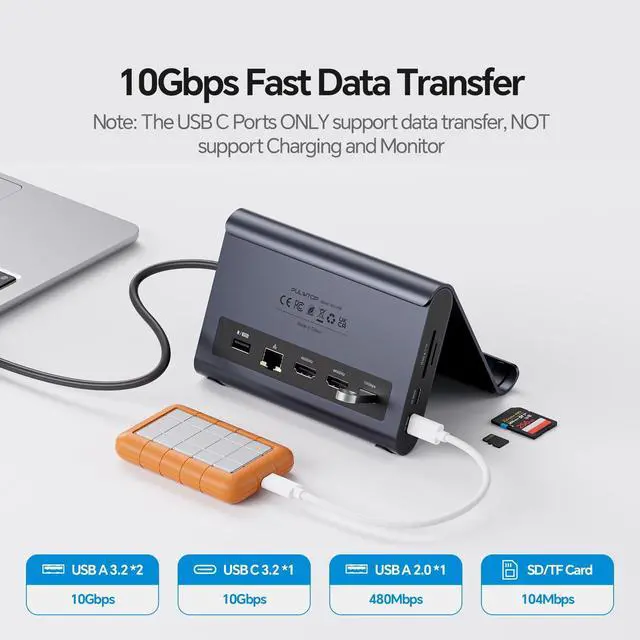
Transform your MacBook into a powerful dual-monitor workstation for mirroring or extending, and enjoy ultra-smooth visuals and seamless multitasking for your laptop dock. [Precision Compatibility - MacBook Only] This MacBook Pro docking station dual monitor is precision-engineered for MacBook Pro/Air 20162026 (Intel chips, M1 Pro/Max, M2 Pro/Max, M3 Pro/Max, M4 Base Chip, M4 Pro/Max, m5 Base Chip, M5 Pro/Max). NOT compatible with M1, M2, or M3 Base chips. Also incompatible with Windows laptops and MacBook Neo. Please verify your model before purchase. [10Gbps Ultra-Fast Data Transfer] This MacBook Air docking station delivers 2×10Gbps USB-C and 1×10Gbps USB-A (Data Only no video & charging).
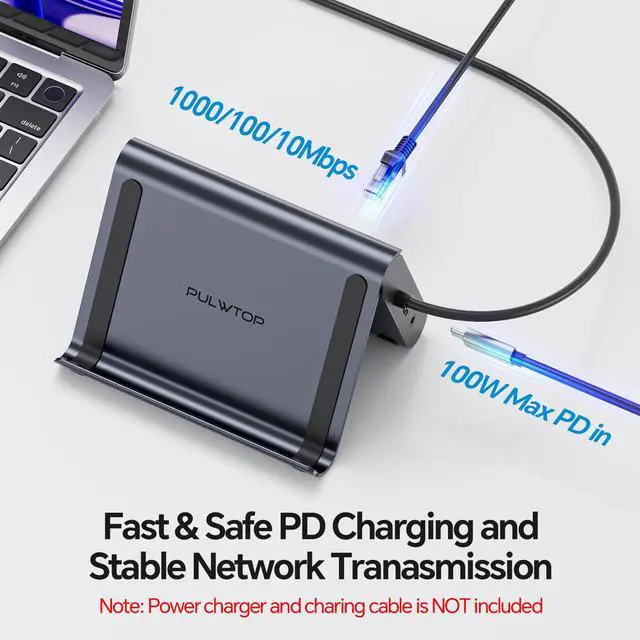
Move massive 4K videos, photo libraries, or backups in seconds. Perfect for video editors and designers; a USB-C docking station dual monitor companion for your MacBook workflows. A dedicated USB-A 2.0 port keeps your mouse and keyboard lag-free with smooth precision. [100W PD + Gigabit Ethernet] This MacBook Pro M5 docking station supports Max 100W PD input and 95W output to charge MacBook Pro or Air at full speed even under Final Cut Pro or dual monitors. Built-in Gigabit Ethernet ensures lag-free Zoom calls. No battery anxiety, no Wi-Fi drops.
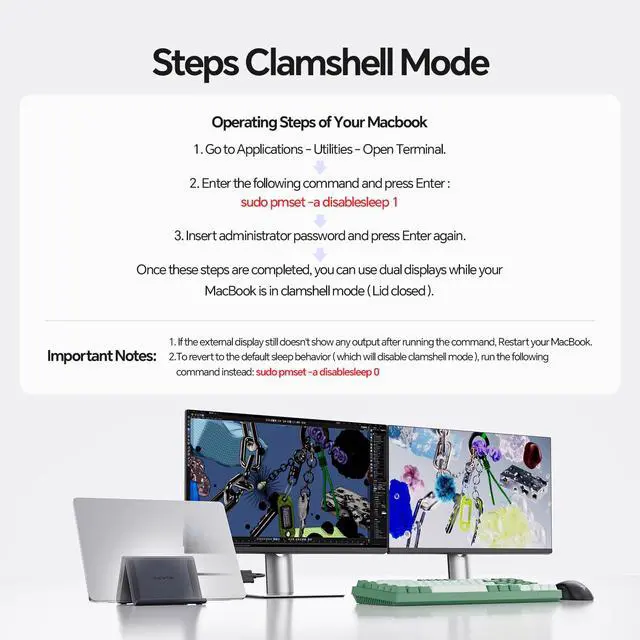
A true docking station for MacBook Pro that keeps you productive all day. [Steps of Clamshell Mode] Go to Applications Utilities and open Terminal. Enter the following command and press
Enter: sudo pmset -a disablesleep 1 Insert administrator password and press Enter again. Once these steps are completed, you can use dual displays while your MacBook is in clamshell mode (lid closed).
Important Notes: If the external display still doesn't show any output after running the command, restart your MacBook. To revert to the default sleep behavior (which will disable clamshell mode), run
the following command instead: sudo pmset -a disablesleep 0

Transform your MacBook into a powerful dual-monitor workstation for mirroring or extending, and enjoy ultra-smooth visuals and seamless multitasking for your laptop dock. [Precision Compatibility - MacBook Only] This MacBook Pro docking station dual monitor is precision-engineered for MacBook Pro/Air 20162026 (Intel chips, M1 Pro/Max, M2 Pro/Max, M3 Pro/Max, M4 Base Chip, M4 Pro/Max, m5 Base Chip, M5 Pro/Max). NOT compatible with M1, M2, or M3 Base chips. Also incompatible with Windows laptops and MacBook Neo. Please verify your model before purchase. [10Gbps Ultra-Fast Data Transfer] This MacBook Air docking station delivers 2×10Gbps USB-C and 1×10Gbps USB-A (Data Only no video & charging).
Move massive 4K videos, photo libraries, or backups in seconds. Perfect for video editors and designers; a USB-C docking station dual monitor companion for your MacBook workflows. A dedicated USB-A 2.0 port keeps your mouse and keyboard lag-free with smooth precision. [100W PD + Gigabit Ethernet] This MacBook Pro M5 docking station supports Max 100W PD input and 95W output to charge MacBook Pro or Air at full speed even under Final Cut Pro or dual monitors. Built-in Gigabit Ethernet ensures lag-free Zoom calls. No battery anxiety, no Wi-Fi drops.
A true docking station for MacBook Pro that keeps you productive all day. [Steps of Clamshell Mode] Go to Applications Utilities and open Terminal. Enter the following command and press
Enter: sudo pmset -a disablesleep 1 Insert administrator password and press Enter again. Once these steps are completed, you can use dual displays while your MacBook is in clamshell mode (lid closed).
Important Notes: If the external display still doesn't show any output after running the command, restart your MacBook. To revert to the default sleep behavior (which will disable clamshell mode), run
the following command instead: sudo pmset -a disablesleep 0
Warranty & Returns
Warranty, Returns, And Additional Information
Warranty
- Please contact the Seller directly for warranty information. Warranty information may also be found on the Manufacturer's website.
- CONTACT
Return Policies
- Return for refund within: 30 days
- Return for replacement within: 30 days
- This item is covered by Lu Sincere Store Return Policy
Manufacturer Contact Info
- For a directory of all our manufacturers, please click below.
- Manufacturers Directory
LOADING...