• $20.99
  • Free 30-day Returns
  • Sold by Vast Sun Tech

    Shipped by Vast Sun Tech

    Price alert
    Shop it at NeweggBusiness.

    Meet Your Seller

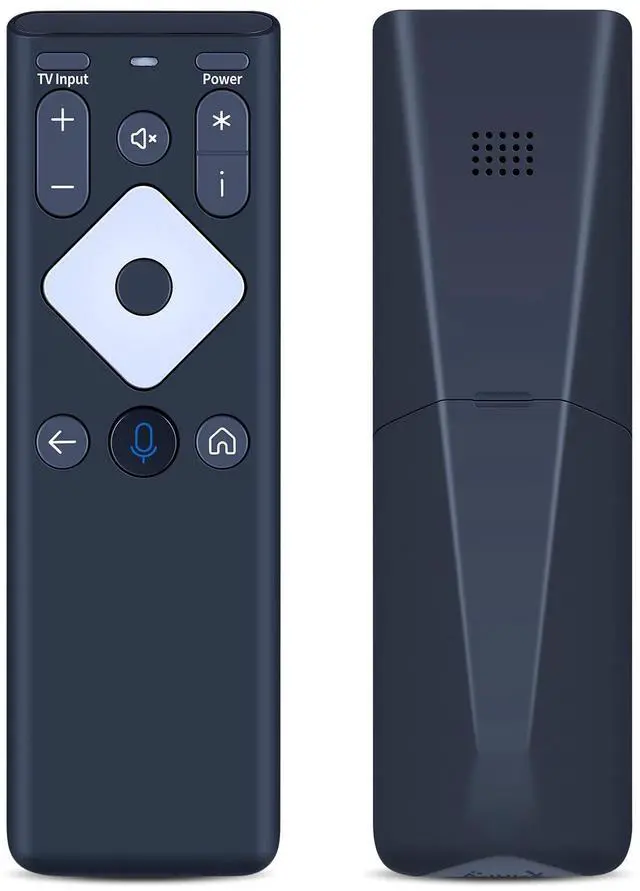
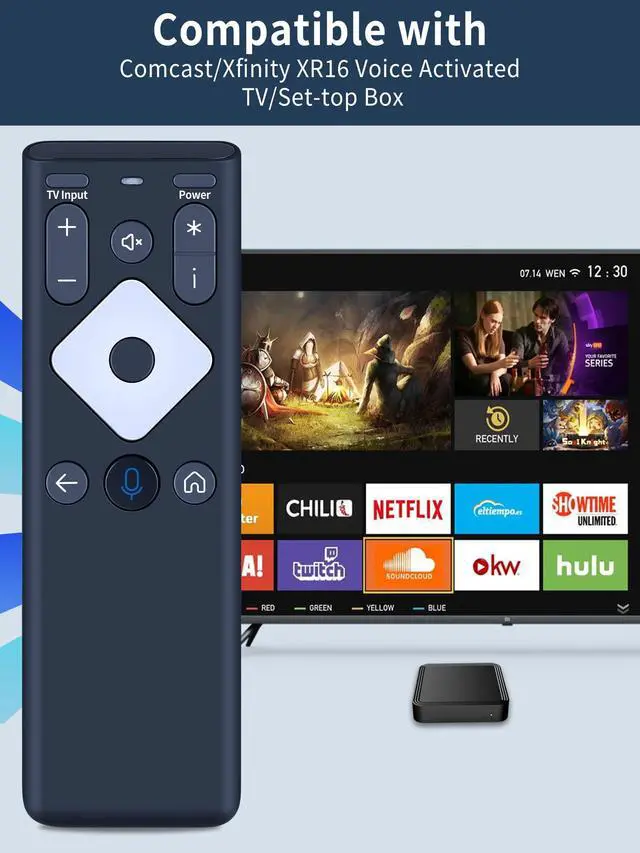
    Replacement Voice Remote Control for Xfinity Comcast TV Box XR16 Compatible with Flex Streaming Device Only, Voice Search Easy Pairing

    Limited time offer, ends 10/16 By Vast Sun Tech

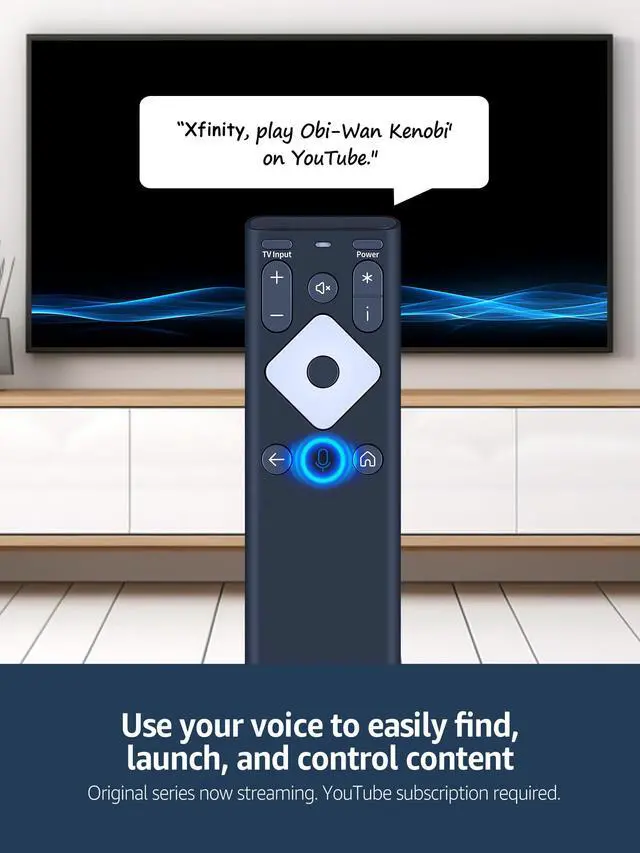
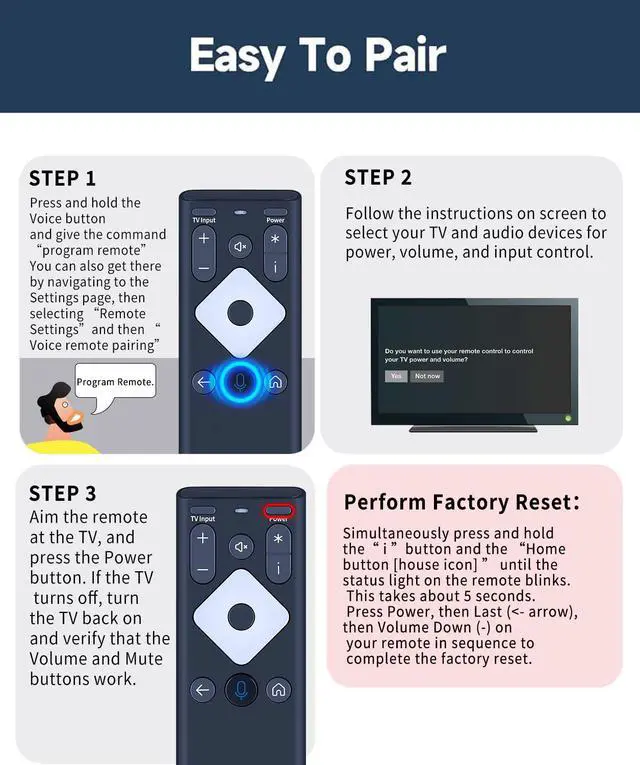
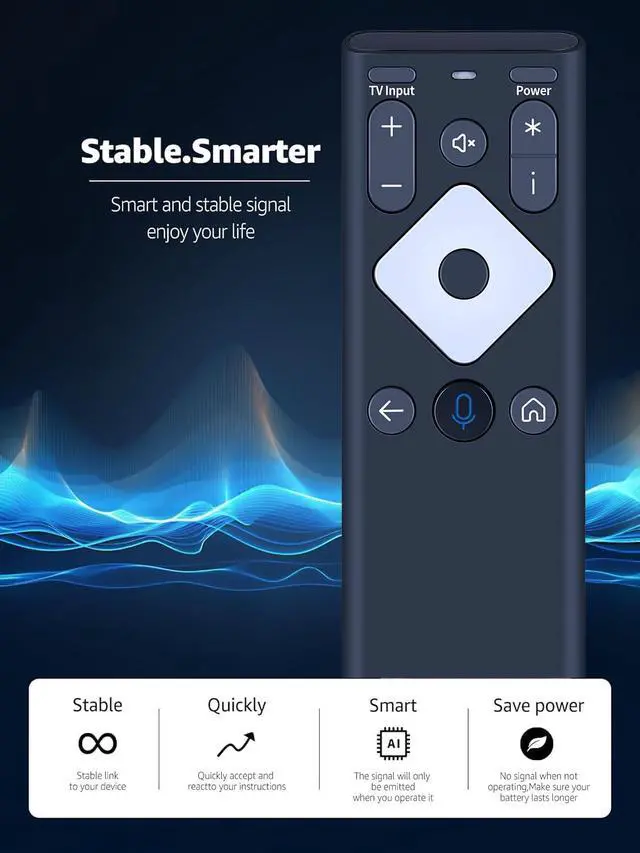
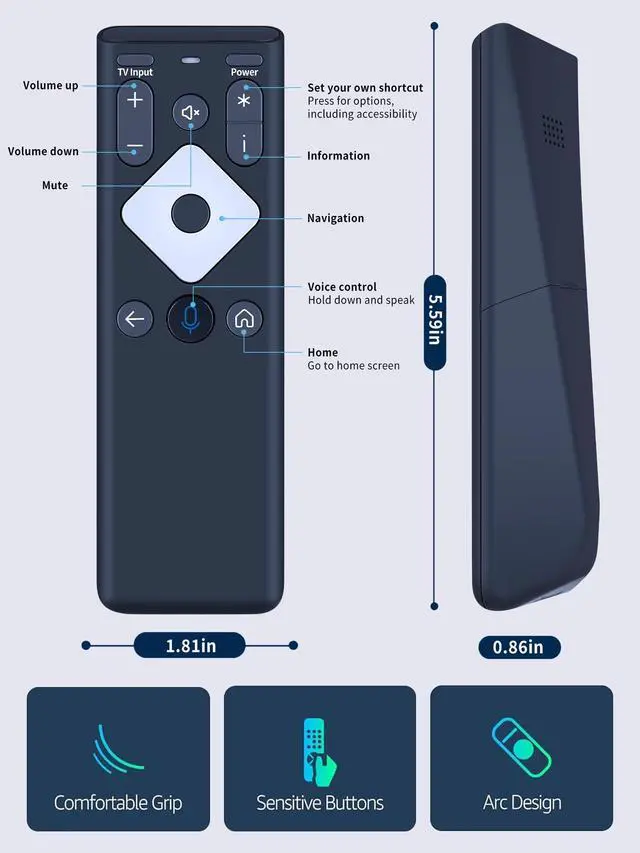
    • [Compatible Models] New XR16 Voice Remote Control for Xfinity Comcast TV Box, compatible with Flex Streaming Device only. [Voice Search Features] Long press the microphone button on the voice remote control and speak your command to easily search for your favorite TV shows, launch applications, and more on Comcast/Xfinity TV. The voice search function makes navigation a breeze. [Pair the XR16 Remote to Control an Xfinity Flex TV Box] 1. Point the remote at your TV Box and press the Voice button once. 2. Follow the instructions on screen to pair your remote for voice control. 3. Once your remote is paired, follow the on-screen instructions to set up power, volume and input control for your TV. (Note: Please make sure the TV and Xfinity Flex TV box are turned on and set the TV input to correspond with the Xfinity Flex TV box.) [Pair the XR16 Remote to Control a TV or Audio Device] 1. Press and hold the Voice button and give the command "program remote". You can also get there by navigating to the Settings page, then selecting "Remote Settings" and then "Voice remote pairing." 2. Follow the instructions on screen to select your TV and audio devices for power, volume, and input control. 3. Aim the remote at the TV, and press the Power button. If the TV turns off, turn the TV back on and verify that the Volume and Mute buttons work. [Perform Factory Reset] Simultaneously press and hold the "i" button and the "Home button [house icon]" until the status light on the remote blinks.
    +
    +
    Overview
    Specs
    Reviews
    avatar

    Any questions? Our AI mode will help you find out quickly.

    [Compatible Models] New XR16 Voice Remote Control for Xfinity Comcast TV Box, compatible with Flex Streaming Device only. [Voice Search Features] Long press the microphone button on the voice remote control and speak your command to easily search for your favorite TV shows, launch applications, and more on Comcast/Xfinity TV. The voice search function makes navigation a breeze. [Pair the XR16 Remote to Control an Xfinity Flex TV Box] 1. Point the remote at your TV Box and press the Voice button once. 2. Follow the instructions on screen to pair your remote for voice control.

    3. Once your remote is paired, follow the on-screen instructions to set up power, volume and input control for your TV.
    (Note: Please make sure the TV and Xfinity Flex TV box are turned on and set the TV input to correspond with the Xfinity Flex TV box. ) [Pair the XR16 Remote to Control a TV or Audio Device] 1. Press and hold the Voice button and give the command "program remote". You can also get there by navigating to the Settings page, then selecting "Remote Settings" and then "Voice remote pairing. " 2. Follow the instructions on screen to select your TV and audio devices for power, volume, and input control. 3. Aim the remote at the TV, and press the Power button. If the TV turns off, turn the TV back on and verify that the Volume and Mute buttons work. [Perform Factory Reset] Simultaneously press and hold the "i" button and the "Home button [house icon]" until the status light on the remote blinks. This takes about 5 seconds. Press Power, then Last (<- arrow), then Volume Down (-) on your remote in sequence to complete the factory reset. Once this is complete you can retry pairing your XR16 remote

    Warranty & Returns

    Warranty, Returns, And Additional Information

    Warranty

    • Please contact the Seller directly for warranty information. Warranty information may also be found on the Manufacturer's website.
    • CONTACT

    Return Policies

    Manufacturer Contact Info

    LOADING...