Origin:CN(Origin)
Condition:
Type:Voltage Regulator
Application:Mobile Phone
Package:TQFP
is_customized:Yes
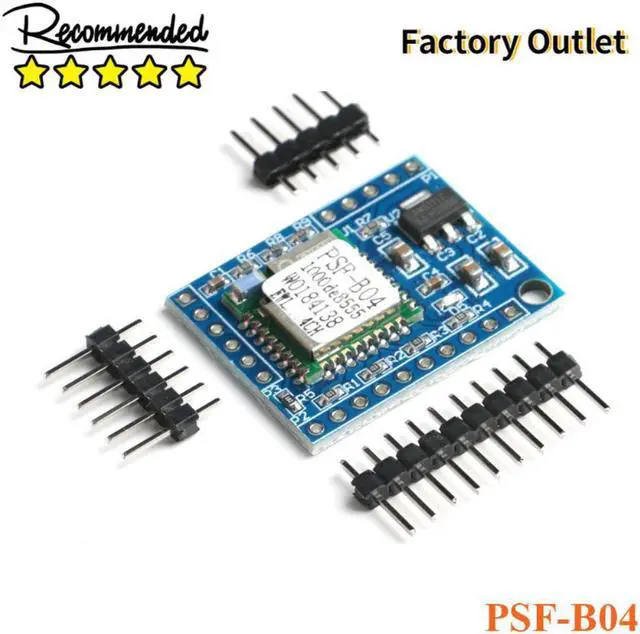
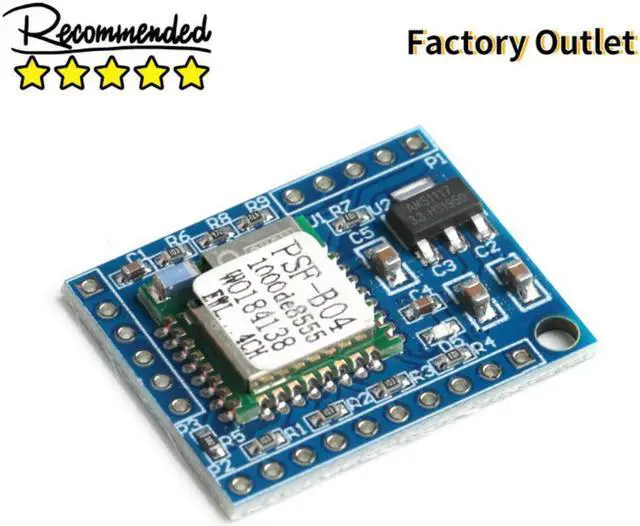
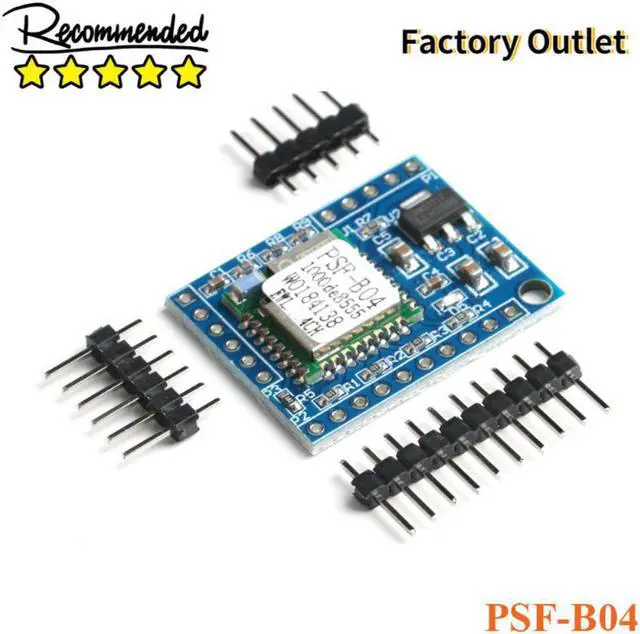
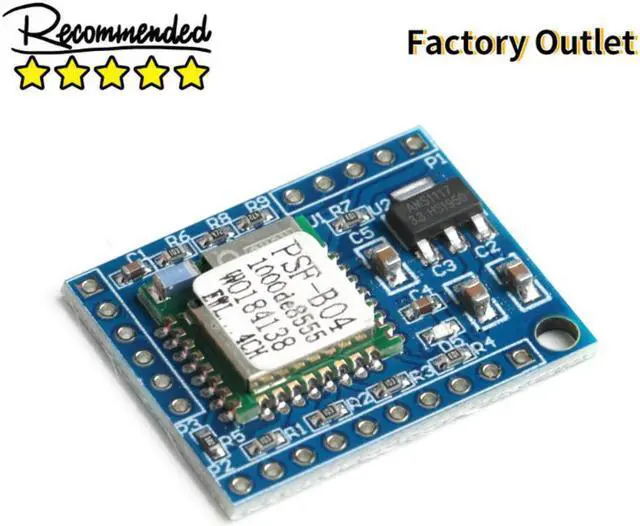
Model Number:PSF-B04 Remote Control Board Module
Operating Temperature:-
Supply Voltage:-
Dissipation Power:-
PSF-B04 Remote Control Board Module 4-way Switch Module Microcontroller Development Board DIY for Phone
Power supply instructions:
This module uses 5V DC power supply and can be used with USB power supply devices such as mobile phone chargers, power banks, and computers.
Enter Description
It can be controlled by external four-way "mechanical button" or "wet contact signal" for control (the voltage cannot exceed 3.3V, press the switch once to open, and then press it again to close (note that the "button" is not a "switch"); Each "KEY" is a combination of an input pin and GND. In the bottom view, the right pin of each "KEY" is GND.
Output Description
Output 4 high-level signals, high-level when open, low-level when closed, so it is recommended to use a high-level relay module.
Distribution network description
Connect the mobile phone to the router, download the eWelink APP, power on the module, long press any button (ie: short-circuit any key in KEY1-KEY4 with GND) for about 5 seconds, and the indicator will flash quickly, and the module will enter the distribution network. Mode, open the Yiweilian APP and press the "+" key to add the device, after the addition is successful, the phone can be remotely controlled.
For specific network configuration steps, please follow the instructions on the eWelink APP.
The flashing feature of the WI-FI status light takes 2 seconds as a cycle, the low level light is on and the high level light is off. Detailed explanation of each state
A. NORMAL: The device is working normally and the connection to the cloud server is normal. At this time, the device can be controlled through APP. In any other mode, the device cannot be controlled through the APP.
B. NO WIFI: The device cannot connect to the wireless router.
C. NO SERVER: The device has been connected to the wireless router, but it cannot connect to the server (it means "cannot access the Internet" under the common understanding)
D. UNREGISTERED: indicates that the device has not been bound to any account. Generally, the device needs to be linked to eWeilink
COOLKIT
Only the account binding can communicate with the cloud server. The binding operation can be completed by "Add Device" in eWelink APP.
E. UPGRADE: indicates that the device is firmware upgrade
F. SETTING G1: Indicates that the device is in AP mode. The configuration mode is used for the device to obtain the necessary information provided by the mobile terminal APP to join the service network, including the router SSID, PASSWORD and server IP, port number, etc.
G. SETTING G2: Indicates that the device is in ESPTOUCH mode. The configuration mode is used for the device to obtain the necessary information provided by the mobile terminal APP to join the service network, including router SSID, PASSWORD, server IP, port number, etc.