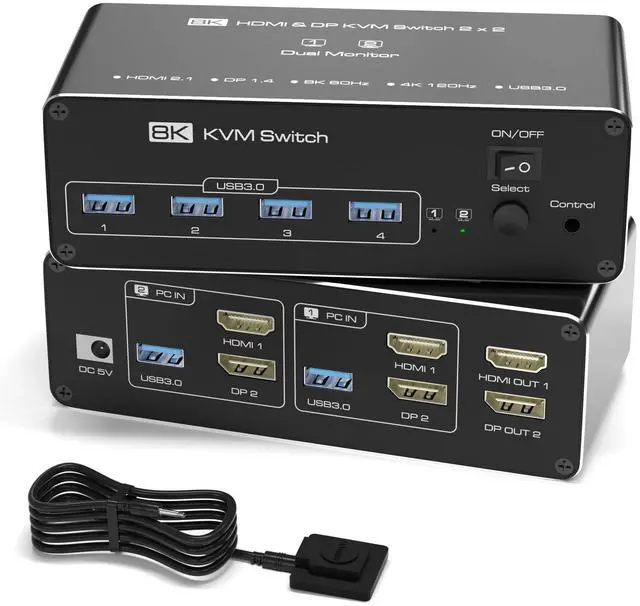
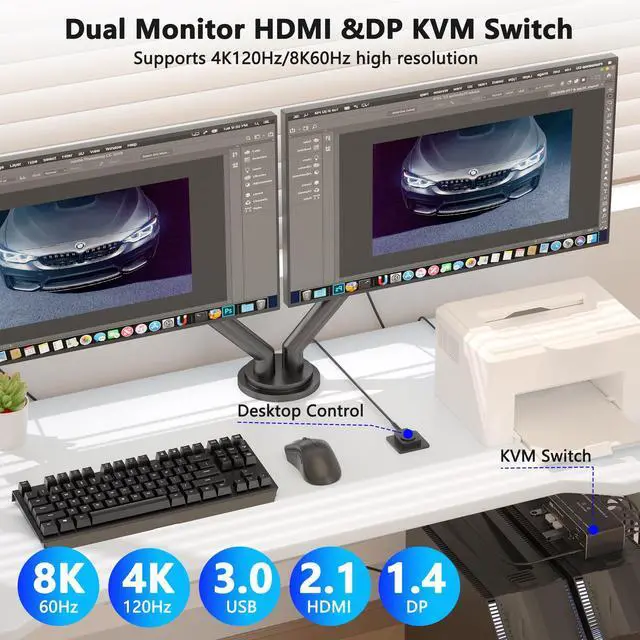
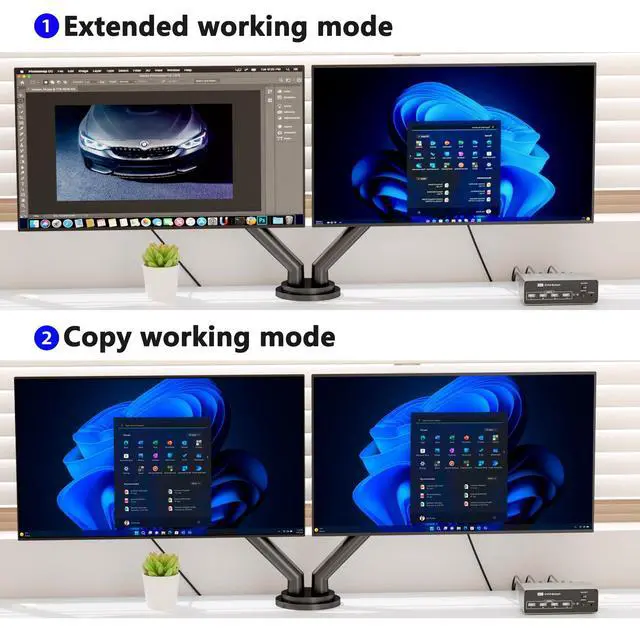
Dual Monitor KVM Switch for 2 Computers (HDMI + DP)Easily control two computers with one keyboard, mouse, and dual monitors (1x HDMI + 1x DisplayPort). Supports Extended & Mirror Mode for flexible workspace setups.
Important: Your PCs/laptops must have both HDMI + DP ports (no signal conversion between inputs). HDMI and DP ports must connect to the same computer (e. g., HDMI 1 + DP 1 PC 1). ^^ Ultra HD 4K@120Hz (DP) & 8K@60Hz (HDMI) SupportEnjoy crisp visuals with 4K@120Hz (DisplayPort 1.4 ) or 8K@60Hz (HDMI 2.1 )ideal for gaming, design, and multitasking.
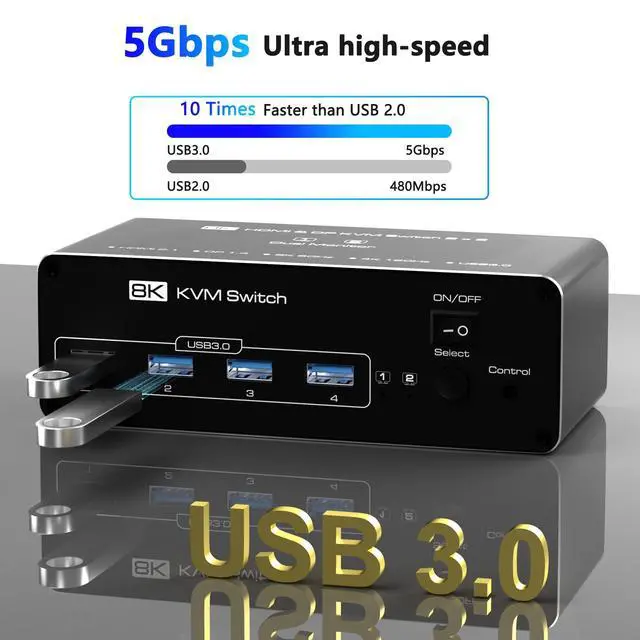
Note: Requires 4K/8K-compatible source, monitor, and cables, otherwise, flickering may occur. ^^ USB 3.0 KVM SwitcherThis HDMI KVM switch 2 port is equipped with 4 USB 3.0 ports that can reach a USB 3.0 Hub (5Gbps) with 4 PortsrShare keyboard, mouse, printers, and USB drives across both PCs. Backward compatible with USB 2.0 / 1.1 devices.
Note: Adapters are not supportedconnect USB devices directly to avoid recognition issues. ^^ Two Easy Switching MethodsPress the KVMs button or use the included desktop controller (LED indicators show active PC). Works with Windows, macOS, Linux, and Unix. No keyboard hotkeysphysical switching only.
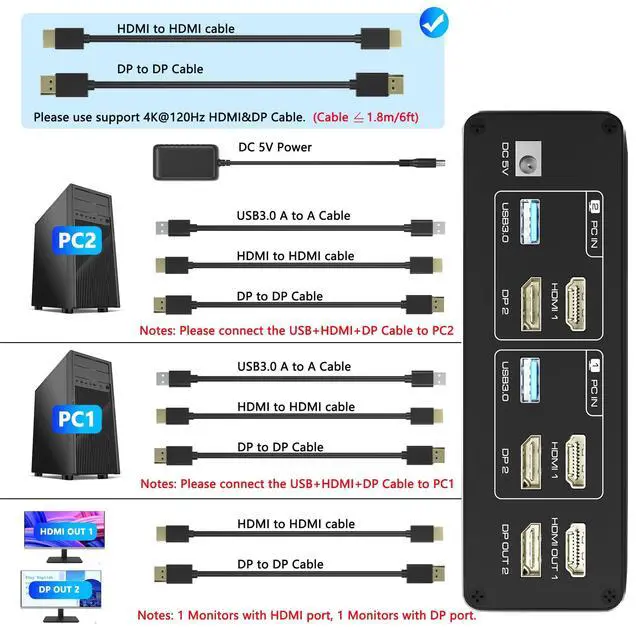
^^ Connection StepsStep 1: Connect the supplied 5V/2A power supply unit to ensure stable operation of the KVM Switch 2 PC 2 monitors.
Step 2: Connect the HDMI 1+DP 2 and USB-A ports of PC 1/PC 2 to the ports of PC 1 IN/PC 2 IN on the back of the KVM switch.
Step 3: Connect OUT 1/2 on the back of the KVM switch to the display device; OUT 1 displays video from HDMI 1, and OUT 2 displays video from DP
2.
Step 4: Connect devices such as mouse and keyboards to the front USB ports. 2 computers can share 2 monitors and 4 USB 3.0 ports. ^^ Packing Listkvm switch dual monitor kit includes: KVM Switchx1, 1.5 m desktop controllerx1, 1m USB 3.0 cablesx2, 5V power adapterx1, and user manualx1. If there is any problem with usage, please contact us via order number.
Note: Users are required to provide their own HDMI and DP cables. ^^ Note When connecting two monitors, both HDMI and DP inputs need to be connected to the ports of the independent graphics card so that both monitors can work. If one of the monitors does not work, you can consider replacing the HDMI cable or DP cable to solve the problem.