
Your Browsing History

Any questions? Our AI beta will help you find out quickly.
Try me now
Quick View
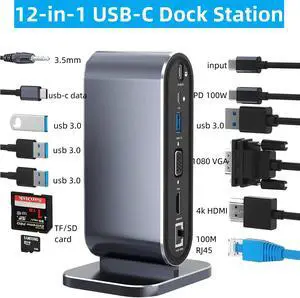
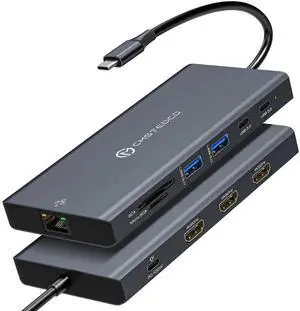
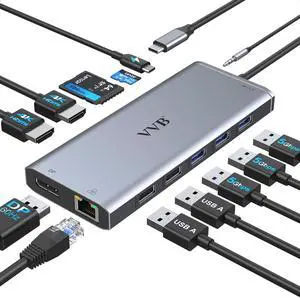
Vertical USB C Laptop Docking Station, 12 in 1 Type C Hub Multiport Adapter Dongle with4k HDMI, VGA, 100w PD, Ethernet, SD/TF, 4*USB A Ports, Mic/Audio, USB-C data port Compatible with Laptops
Limited time offer, ends 02/13
- Compatibility: Smartphones, Tablets, Keyboards, Laptops, Card Readers, Televisions, Desktops
- Ports Spec: 12-in-1 Type-C Port: 4K HDMI,VGA,4 USB 3.0,100W PD,USB-C data port, 100M Ethernet,TF/SD and 3.5mm audio port
- Dimension: 6.77 x 3.66 x 0.91 inches
- Weight: 89g/124g
- Model #: W-BYL-2201-4

Quick View
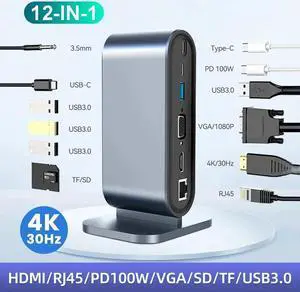
Vertical Laptop Docking Station, 12 in 1 USB C to HDMI Adapter with 1080P VGA, 4*USB A 3.0, 100W PD, Ethernet,SD/TF,Audio Port, USB-C Data for MacBook Laptop
- Compatibility: Smartphones, Tablets, Keyboards, Laptops, Card Readers, Televisions, Desktops
- Ports Spec: 12-in-1 Type-C Port: 4K HDMI,VGA,4 USB 3.0,100W PD,USB-C data port, 100M Ethernet,TF/SD and 3.5mm audio port
- Dimension: 6.77 x 3.66 x 0.91 inches
- Weight: 89g/124g
- Model #: J-BYL-2201-4
- $54.99 –
- Free Shipping
Quick View
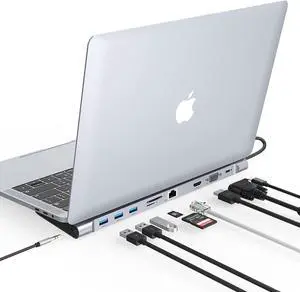
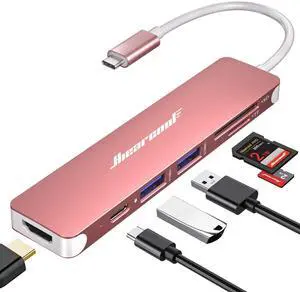
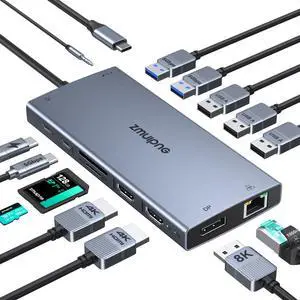
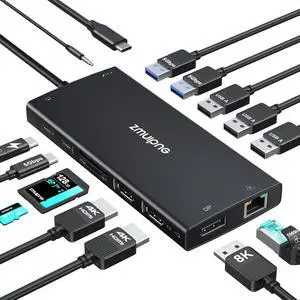
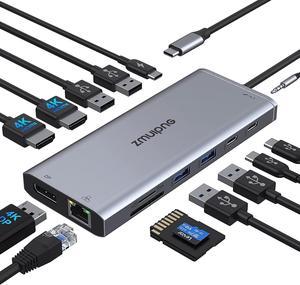
USB C Laptop Docking Station with 2 HDMI 4K@60Hz+DP 8K@30Hz for Dell HP 15 in 1 USB C Hub Triple Display Multiple Adapter Dongle with USB A Port+Button+PD+Ethernet+SD/TF+Audio for Thinkpad Surface
- Brand: ZMUIPNG
- Color: Grey 15 IN 1 Docking Station
- Compatibility: Compatible with all laptops with thunderbolt3,4,USB C 3.1 Gen 1,Gen2 and USB-C 3.2 Gen1,Gen 2 with Power Delivery DisplayPort functions: Dell XPS 17 Laptop 9730 9710, XPS 16 Laptop 9640, XPS 15 Laptop 9530 9550 9560, Dell Latitude 3540 Laptop, Latitude 3440 3450 3550 5450 5550 7440 7640 7650 E7470 Laptop, Inspiron 15 7580; HP Spectre Laptop 13-af001TU, Spectre x360 13t, HP EliteBook 860 G9 G10 16 inch, EliteBook 1040 G9 G10 14inch, ThinkPad E15 Gen 4, ThinkPad E16 Gen 1, etc. Note: if your laptop has HDMI port, it is not compatible even if it meets the above conditions
- Thunderbolt 3: usb2.0
- Model #: 208181250136
- $69.99 –
- Free Shipping
Quick View
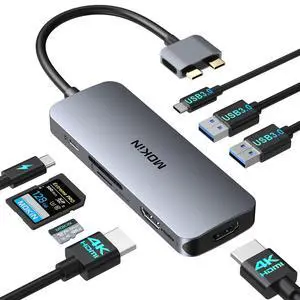
KEHIPI Docking Station for MacBook Pro Air,USB C Docking Station Dual Monitor,Dual HDMI Adapter Hub for Mac MacBook Pro with 2 HDMI(4K @60Hz), 3 USB3.0,SD TF Card Reader and 100W PD USB C Port
- Brand: KEHIPI
- Part Number: MOUC0423
- Color: 8-IN-2 (2 HDMI) for MacBook
- Ports Spec: 8
- Model #: MOUC0423
Quick View
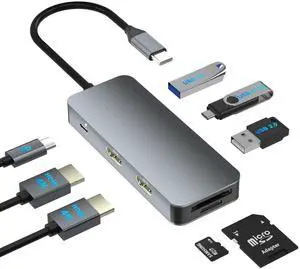
Docking Station Dual Monitor for Dell/HP/Lenovo/Mac Laptop, USB C Laptop Docking Station Dual Monitor, Dual HDMI Adapter for 2 Monitors, 8 in 1 USB C Hub Multiport Adapter with HDMI/USB/PD/SD/TF
- Brand: Aibilangose
- Part Number: Hx202
- Color: Gray
- Compatibility: Laptop with a fully function(support charging, data transfer and video output) USB-C port or Thunderbolt 3 portLaptop with a fully function(support charging, data transfer and video output) USB-C port or Thunderbolt 3 port
- Model #: 722180101980
- $39.99 –
- Free Shipping

Quick View
USB C Docking Station Dual Monitor for Dell XPS/HP/Lenovo/Surface, 15 in 1 USB C Hub 3 Monitor Adapter, Dock with 8K DisplayPort, 2 HDMI 4K@60Hz, 6 USB A/C, 100W PD, Ethernet, SD/MicroSD
- Brand: ABIWAZY
- Color: Grey
- Compatibility: Laptop, phone(thunderbolt 3/4 Full-featured usb c port)iPhone 15 Series/HP Envy x360; HP Elitebook 630/640/645/650/655 G9; Elitebook 840/850 G6/G7/G8/G9; Elitebook 845/Elitebook 830 G7/G8/G9/G10; EliteBook x360 830 G9/G10; EliteBook x360 1030 G2/G3/G4/G7/G8; HP EliteBook x360 1040 G5/G6/G7/G8/G9/G10; Elitebook X2; Probook 440 G8/G9; Probook 450/455 G9/G10; Probook 650 G5; ZBook Fury 15/17 G8; OMEN 16/17; Dell XPS 13/15/17; Dell Latitude 5540/5440/7340/7440/5340/3520/7280/ Latitude 5310 2-in-1/9330 2in1; New Inspiron 14/16 Plus/13/16 ; Precision 7730/ Precision 7750; Lenovo ThinkPad X1 Carbon; ThinkPad t14/t480/t490s;Thinkpad Yoga 900/920/720/730/C930/C940/C740/ C730; Surface Pro 9/8/7; Microsoft Surface Book 2/ Surface Go/ Surface Laptop 4/3; Huawei MateBook X/ MateBook X Pro/Switch Alpha 12/Chromebook Plus/Go...
- Model #: 893630872936
- $79.99 –
- Free Shipping
Quick View
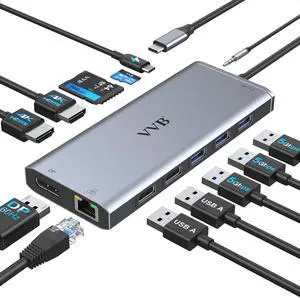
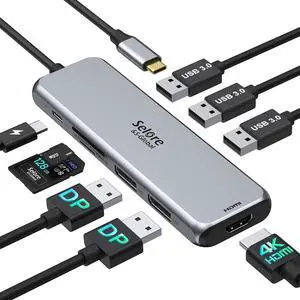
Docking Station Dual DisplayPort, Selore USB c hub with 2 displayport, HDMI, 3*USB 3.0,100W PD,SD & TF Slot, 9 in 1 2 dp Multiport Adapter for MacBook/Dell XPS/HP/Lenovo/Microsoft Surface
- Model #: ilepo396239563998QI
- $77.98 –
- Free Shipping
Quick View
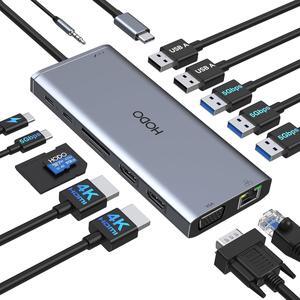
USB C Docking Station Dual Monitor HDMI for Dell HP, Laptop Docking Station USB Type C Hub Multiport Adapter Dongle Thunderbolt 3 USB C to 2 HDMI,Ethernet,VGA,5 USB A,PD,SD TF,Audio for Lenovo,Surface
Limited time offer, ends 01/24
- Model #: SOYE620852080335WEI
- $135.59 –
- More options from $135.59
- Free Shipping
Quick View
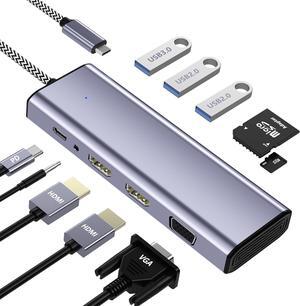
Docking Station Dual Monitor, USB C to Dual HDMI Adapter, Laptop Docking Station, USB C Docking Station, USB C Hub 10 in 1 Docking Station 3 Monitors with HDMI/VGA/PD/USB/SD/TF/3.5mm Audio
Limited time offer, ends 01/22
- Model #: VINIUSIKI880118317159NIU
- $67.94 –
- More options from $59.02 - $67.94
- Free Shipping
Quick View
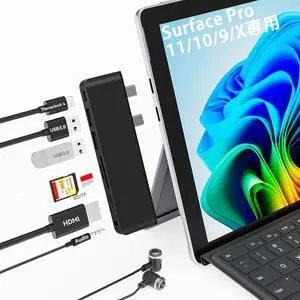
Surface Pro 11 USB C Hub, Surface Pro 9 Hub Docking Station with 4K HDMI, Thunerbolt 4 (8K Video+Data+100W PD), 2*USB 3.0, 3.5mm Audio, SD/TF, Adapter for Surface Pro 11/10/9/X
- Model #: STARWELL961141211352Lan
- $59.98 –
- Free Shipping
Quick View
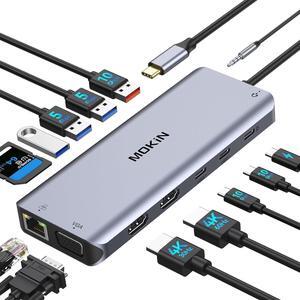
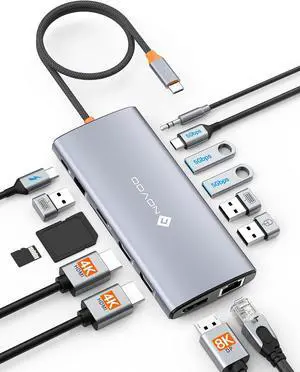
USB C Laptop Docking Station Dual Monitor, 14 in 1 USB C Hub Multiport Adapter with 2 HDMI 4K, VGA, RJ45 Ethernet, 10 Gbps USB C/A, 100W PD, SD/TF, 3.5MM Audio&Mic for Dell HP Lenovo Surface
Limited time offer, ends 01/23
- Model #: VINIUSIKI880118317388NIU
- $94.09 –
- More options from $92.58 - $94.23
- Free Shipping
Quick View
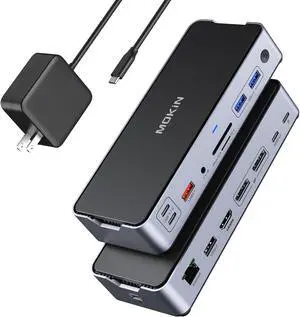
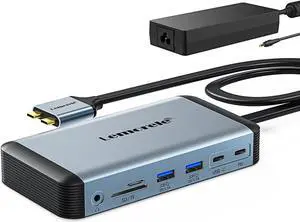
8K USB C Laptop Docking Station Dual Monitor,MOKiN Docking Station 3 Monitors with 2*DisplayPort,HDMI,15 in 1 USB C Dock 100W PD,6*USB Ports,Ethernet,SD&TF,for /HP/MacBook (Include Power Adapter)
- Model #: STARWELL961141211277Lan
- $199.98 –
- Free Shipping
Quick View
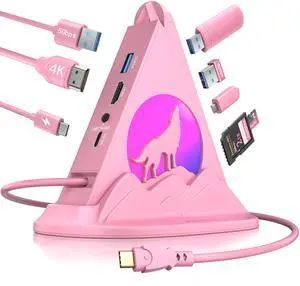
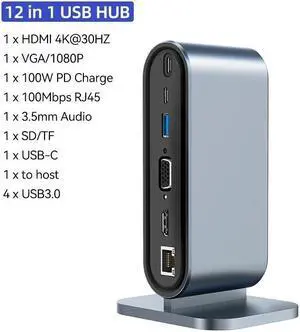
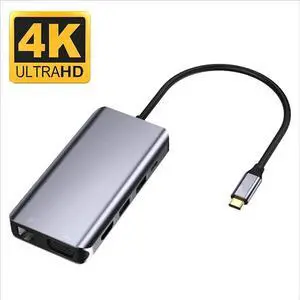
Vertical Docking Station Dual Monitor, ESTONE 12 in 1 USB C Docking Station USB C to HDMI Adapter with 4K HDMI, 100W PD, 4 USB3.0, Ethernet, SD/TF Adapter for MacBook Laptops Notebook
Limited time offer, ends 02/13
- Compatibility: Smartphones, Tablets, Keyboards, Laptops, Card Readers, Televisions, Desktops
- Ports Spec: 12-in-1 Type-C Port: 4K HDMI,VGA,4 USB 3.0,100W PD,USB-C data port, 100M Ethernet,TF/SD and 3.5mm audio port
- Dimension: 6.77 x 3.66 x 0.91 inches
- Weight: 89g/124g
- Model #: E-BYL-2201-3
- $49.99 –
- Free Shipping
Quick View
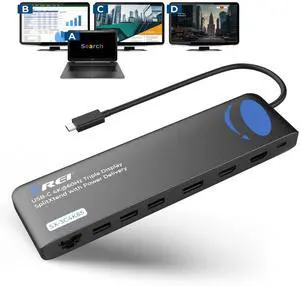
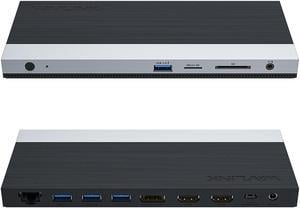
WAVLINK USB C 4K Laptop Docking Station Triple Display With 100W PD3.0 Charging (65W for PC), Dual HDMI, 1 Displayport, 4xUSB-A 3.0 , Gigabit Ethernet, SD&TF Card Slot Audio Jack For Windows, Mac

Limited time offer, ends 01/25
- Compatibility: Installation Before using this dock, please make sure that the latest PC/laptop drivers are installed (including USB, graphics card etc) because the network port needs specific drivers. For Windows 10, the system detects and automatically installs them after the dock is connected to the network. If drivers cannot be automatically installed, the network port can’t perform properly. Please install them manually. For MAC OS system, you need to install the network port driver manually, please visit www.wavlink.com > Support > Driver > PC peripherals > USB Docking. 1. The dock is driver free, therefore you don’t need to install any driver before using it. 2. Plug the power adapter of the dock in a power outlet. 3. Connect the USB-C connector of the dock to your host laptop/PC, the LED light on the dock will turn blue. 4. Connect your monitor(s) to video ports of ...
- Model #: WL-UMD05
Quick View
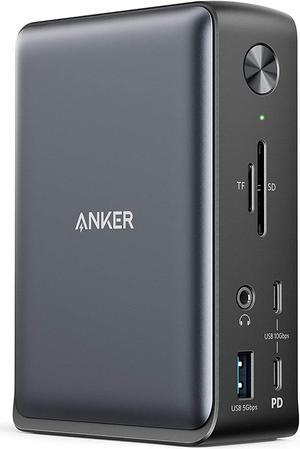
Anker Docking Station, PowerExpand 13-in-1 USB-C Dock for USB-C Laptops, 85W Charging for Laptop, 18W Charging for Phone, 4K HDMI, 1Gbps Ethernet, Audio, USB-A Gen 1, USB-C Gen 2, SD 3.0
off w/ promo code SABYF43, limited offer
- Dimension: 4.95 x 3.49 x 1.64 inches
- Weight: 0.82lb
- Labor: 18 Months
- Model #: A83921A1