You’re seeing this ad based on the product’s relevance to your search query. If you are a seller and want to participate in this program click here to learn more.
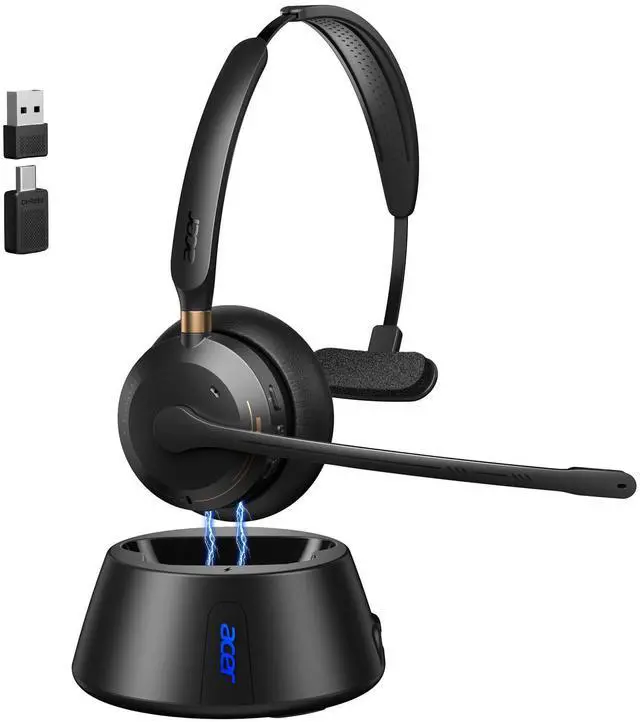
Wireless Headset with Mic for Work, AI ENC Noise Cancelling for Clear Call & Meeting, Single Ear Work Headset with Charge Stand for Remote & Office. Bluetooth 5.3 & USB 2.4G Dongle for Zoom & Teams
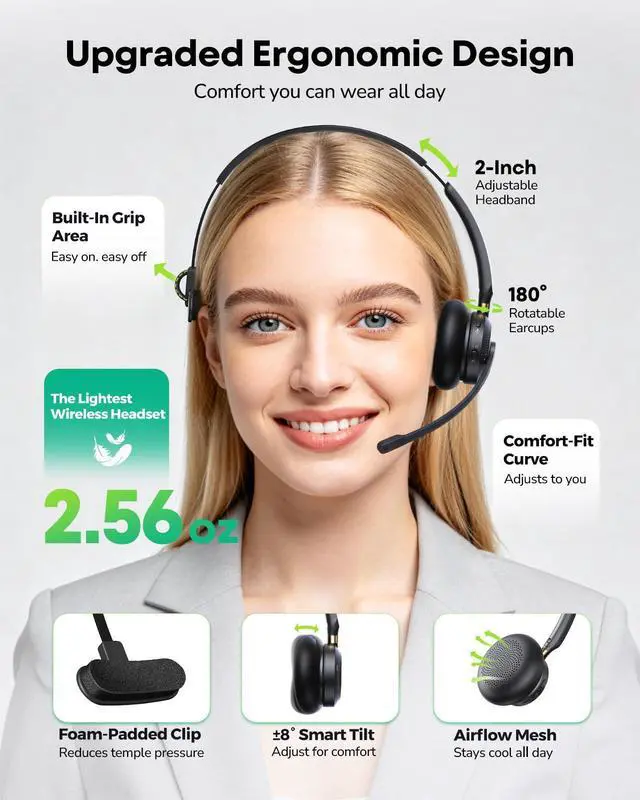
ALL-DAY COMFORT WITH ERGONOMIC DESIGNAcer OHR690 wireless headset with mic for work has undergone hundreds of head-form evaluations and thousands of comfort tests to ensure optimal ergonomic support. Weighing just 2.56 oz, one of the lightest in its class, it minimizes pressure for all-day wear. The ±8° smart tilt ear cups naturally conform to your ear shape, making it ideal for long shifts, customer service, and back-to-back virtual meetings.
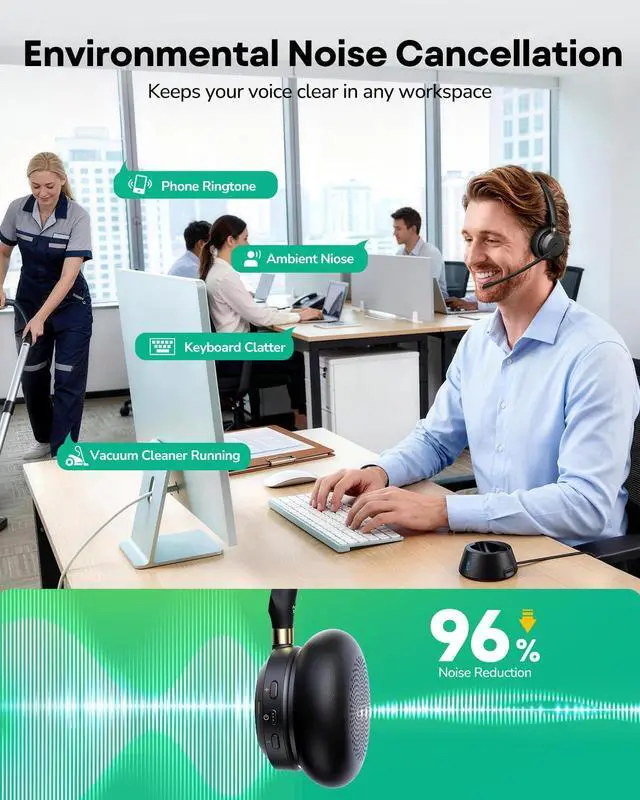
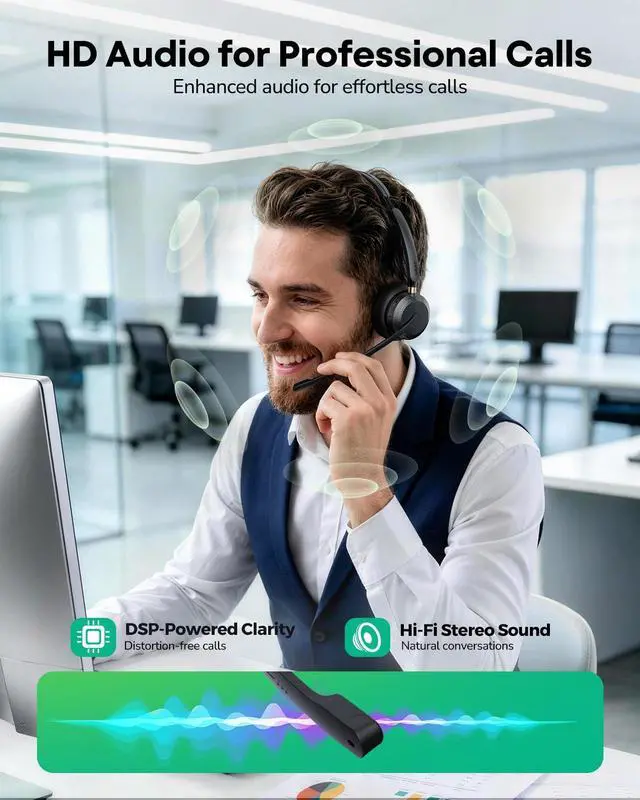
CRYSTAL-CLEAR SOUNDThe headset with microphone for pc combines advanced AI and ENC dual noise cancellation with a Hi-Fi audio codec, delivering customizable sound and crystal-clear voice qualityperfect for immersive music and distraction-free calls, meetings, or online classes.
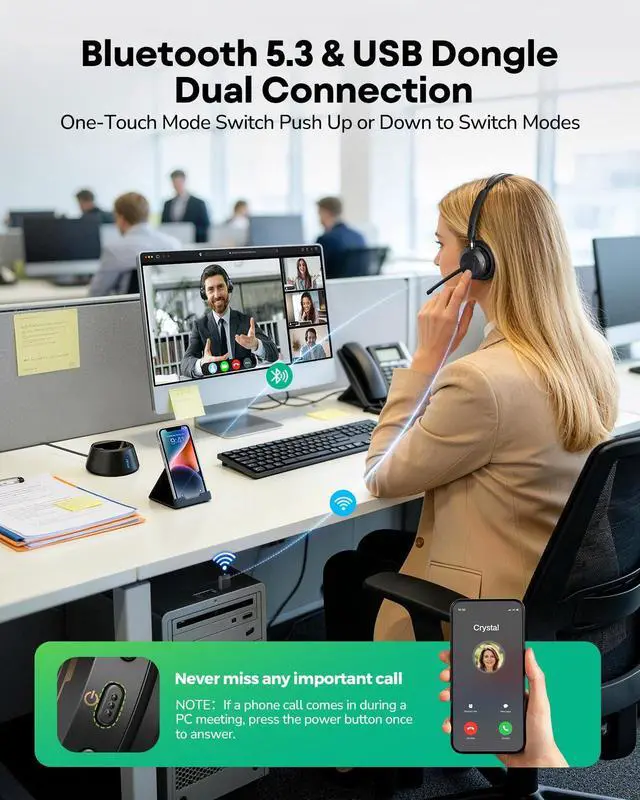
DUAL CONNECTIVITY & STABILITY This bluetooth headset features Bluetooth 5.3 and a 2.4G USB receiver. Push the button to switch modes effortlessly. When you are in a video meeting on your PC and receive an important call on your phone, just press the power button to answer instantly, so you never miss a call.
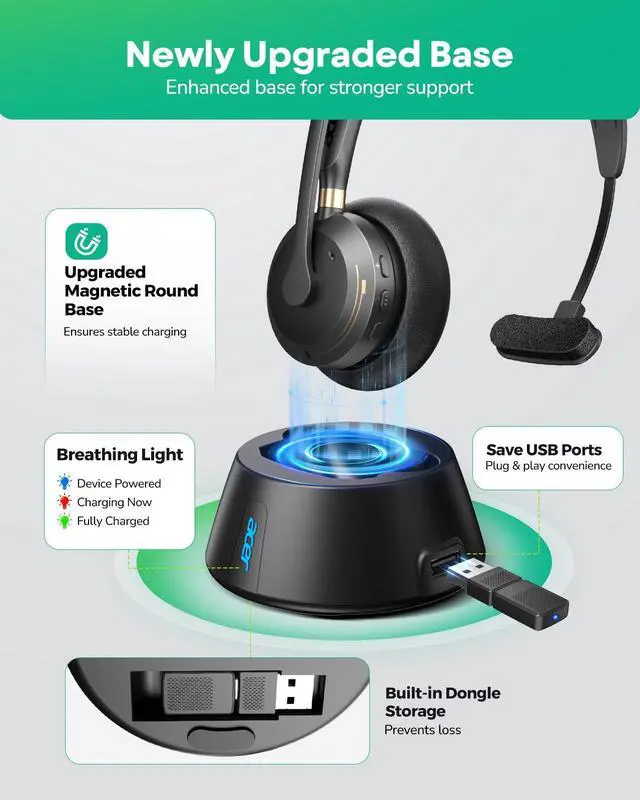
UPGRADED CHARGING STAND DESIGNThe upgraded magnetic charging stand lets you place the headset for fast, stable charging and pick it up anytime. Built-in dongle storage prevents loss and saves USB ports, while plug-and-play ensures instant connection.
Sponsored
You’re seeing this ad based on the product’s relevance to your search query. If you are a seller and want to participate in this program click here to learn more.
Step1:Check if the headset is successfully connected. Once connected, you should hear a “Connected” voice prompt.
Step2:Play music from your connected device. This helps confirm whether audio is transmitting properly to the headset. If you can hear the music, the audio connection is working.
Step3:Check your sound settings during calls or meetings. When using conference software, make sure OHR688 is selected as the default input (microphone) and output (speaker/headset) device on both your computer and the app.
Step4:Make sure the headset is not muted. You can press the mute button to check—there will be a voice prompt indicating the mute status.
How to connect via dongle?
Hold the Power button for 3 seconds to power the headset ON.Then insert the USB dongle into your laptop or PC. The USB dongle LED will flash blue. Move the connectivity mode slider to 2.4GHz, and you will hear the voice prompt “USB mode”. The headset and USB dongle are pre-paired, and you will hear “USB Connected”. Once connected, the headset LED will flash blue every 10 seconds, and the USB dongle LED will stay solid blue.
How to connect via Bluetooth?
Hold the power button for 3 seconds to turn on the headset. Move the connectivity mode slider to BT (Bluetooth) and you will hear the voice prompt “Bluetooth mode”.The headset LED will flash blue and red alternately and you will hear the voice prompt “Pairing”.Turn on Bluetooth on your phone, then find and select “OHR690” from the device list to connect. Once paired, you will hear “Bluetooth Connected”. The headset LED will flash blue every 10 seconds.
Sleep Mode
The headset enters sleep mode after 10 minutes of inactivity (phone or PC). It stays connected and usable, with the LED off. After 50 more minutes in sleep (60 minutes total), it powers off completely (LED off). To exit sleep mode, just press the multi-function button once, or simply answer an incoming call or join a meeting.
When to re-pair the headset?
If the headset still doesn’t work after troubleshooting, please try re-pairing it. Method:To connect another device or re-enter pairing mode, turn off the headset, switch to Bluetooth mode, and hold the Multi-Function Button/ for 7 seconds Headset LED.
Dongle is missing
We carefully check every shipment. If the dongle is missing, please let us know – we will resend or replace it.
Regarding low volume
When using the microphone, position it close to your mouth for an optimal experience.
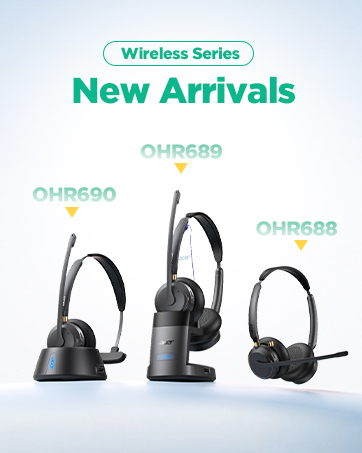
Wireless Series
wireless headset with mic for work
Merchant Video
Support & Troubleshooting
The microphone is not working
Step1:Check if the headset is successfully connected. Once connected, you should hear a “Connected” voice prompt.
Step2:Play music from your connected device. This helps confirm whether audio is transmitting properly to the headset. If you can hear the music, the audio connection is working.
Step3:Check your sound settings during calls or meetings. When using conference software, make sure OHR688 is selected as the default input (microphone) and output (speaker/headset) device on both your computer and the app.
Step4:Make sure the headset is not muted. You can press the mute button to check—there will be a voice prompt indicating the mute status.
How to connect via dongle?
Hold the Power button for 3 seconds to power the headset ON.Then insert the USB dongle into your laptop or PC. The USB dongle LED will flash blue. Move the connectivity mode slider to 2.4GHz, and you will hear the voice prompt “USB mode”. The headset and USB dongle are pre-paired, and you will hear “USB Connected”. Once connected, the headset LED will flash blue every 10 seconds, and the USB dongle LED will stay solid blue.
How to connect via Bluetooth?
Hold the power button for 3 seconds to turn on the headset. Move the connectivity mode slider to BT (Bluetooth) and you will hear the voice prompt “Bluetooth mode”.The headset LED will flash blue and red alternately and you will hear the voice prompt “Pairing”.Turn on Bluetooth on your phone, then find and select “OHR690” from the device list to connect. Once paired, you will hear “Bluetooth Connected”. The headset LED will flash blue every 10 seconds.
Sleep Mode
The headset enters sleep mode after 10 minutes of inactivity (phone or PC). It stays connected and usable, with the LED off. After 50 more minutes in sleep (60 minutes total), it powers off completely (LED off). To exit sleep mode, just press the multi-function button once, or simply answer an incoming call or join a meeting.
When to re-pair the headset?
If the headset still doesn’t work after troubleshooting, please try re-pairing it. Method:To connect another device or re-enter pairing mode, turn off the headset, switch to Bluetooth mode, and hold the Multi-Function Button/ for 7 seconds Headset LED.
Dongle is missing
We carefully check every shipment. If the dongle is missing, please let us know – we will resend or replace it.
Regarding low volume
When using the microphone, position it close to your mouth for an optimal experience.
Wireless Series
Wireless Headset with Mic for Work, AI ENC Noise Cancelling for Clear Call & Meeting, Single Ear Work Headset with Charge Stand for Remote & Office. Bluetooth 5.3 & USB 2.4G Dongle for Zoom & Teams
Learn more about the Generic Brand WFL900/H
Model
Brand
PHILIPS
Model
WFL900/H
Details
Type
On-Ear
Color
White
Power Supply
battery, true
Connector
3.5mm
Ear Coupling
Earbud
Noise Cancelling
Passive
Wireless Type
Bluetooth
Features
Compatibility
Universal
Features
environmental_noise_cancellation, 5.3, 45 hours, Button Control, push_button, Wireless, On Ear, 15 feet, 1* Wireless Headset with Mic for Work
Windows Vista
Certified for Windows Vista
Package Contents
Package Contents
1* Wireless Headset with Mic for Work, 1* USB A/C Dongle and USB-C Cable, 1* Charging Stand, User Manual
Additional Information
First Listed on Newegg
May 27, 2026
Customer Reviews of the Generic Brand WFL900/H
There are no reviews yet.
Do you own this product?
Warranty & Returns
Warranty, Returns, And Additional Information
Warranty
Please contact the Seller directly for warranty information. Warranty information may also be found on the Manufacturer's website.