You’re seeing this ad based on the product’s relevance to your search query. If you are a seller and want to participate in this program click here to learn more.
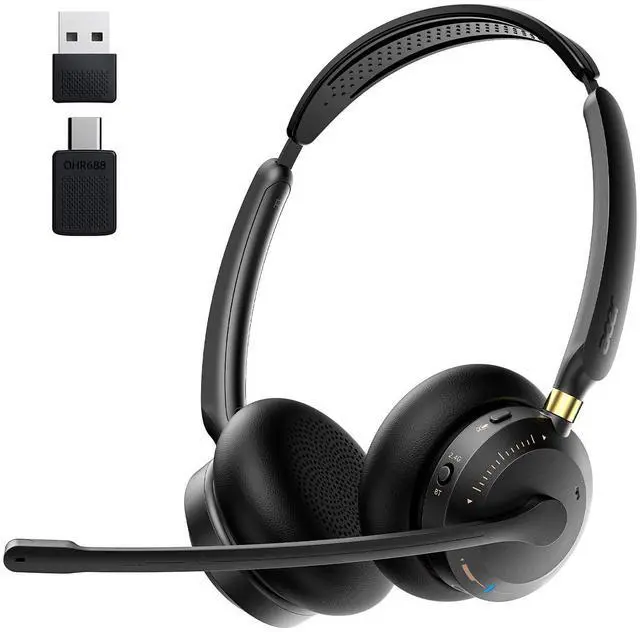
Wireless Headset with Mic for Work, AI ENC Noise Cancelling for Clear Call & Meeting, Bluetooth 5.3 & USB Dongle for Laptop, PC, iPhone & Android, Office & Call Center Headset for Remote Hybrid Worker
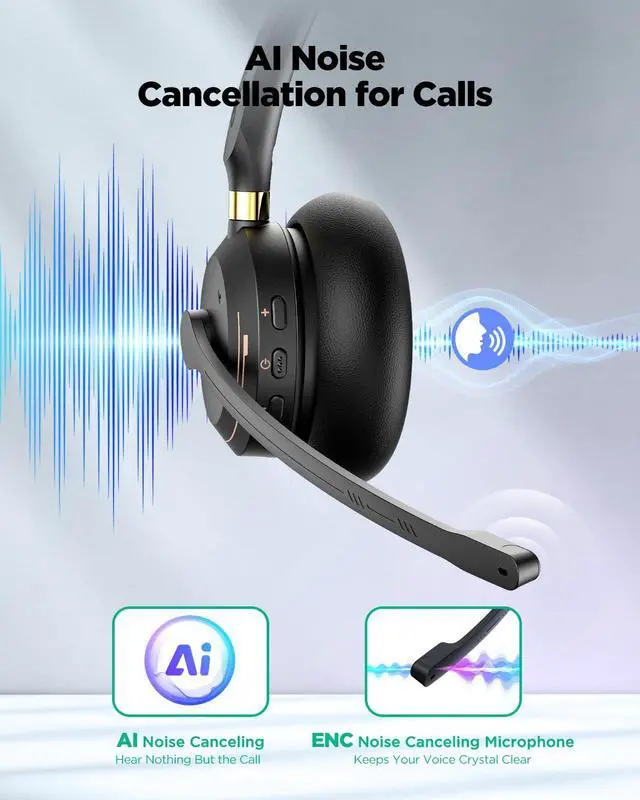
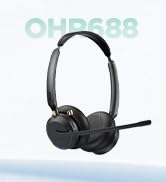
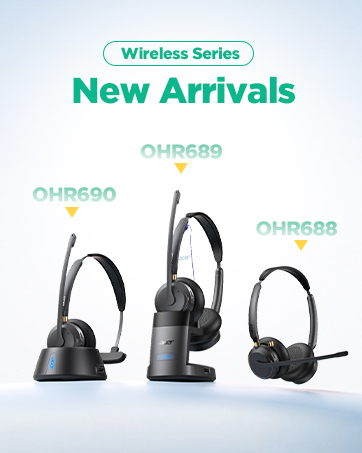
CRYSTAL CLEAR CALLSAcer OHR688 headset Equipped with advanced AI & ENC dual noise-canceling microphone that filters out 90% of background chatterfrom office keyboard clicks to cafe buzz or noisy home offices. Whether youre on Microsoft Teams, Zoom, Skype, Cisco, or Google Meet, your voice remains professional and steady, standing out from basic single-mic noise cancellation headsets.
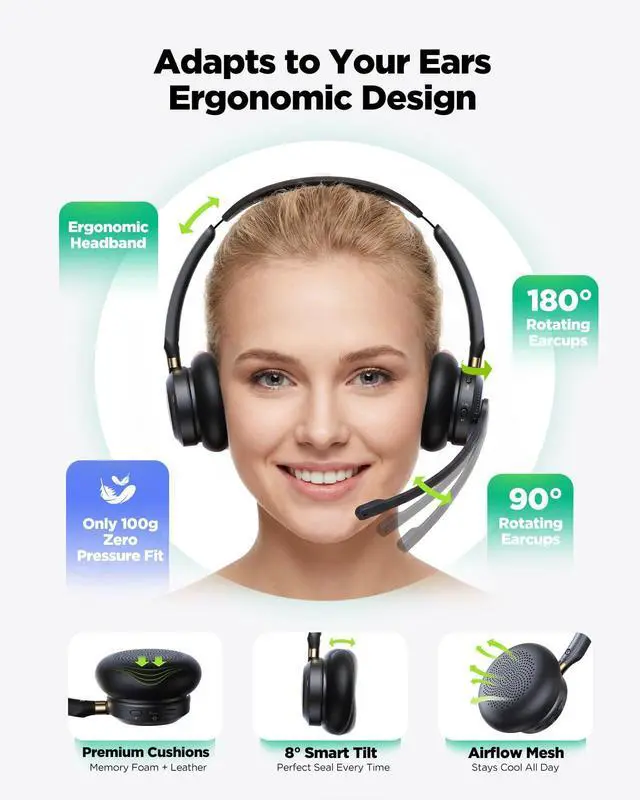
ALL-DAY WEARING COMFORTAcer work headset Featuring ultra-soft protein memory foam ear pads, an adjustable headband, and an ultra-lightweight 3.53 oz design that prevents ear pressure. The ear cups also have an ±8° Smart Tilt design that adapts naturally to your ear shape, making it the ideal choice for long shifts, customer service agents, back-to-back virtual consultations, and remote workers who wear headsets all day.
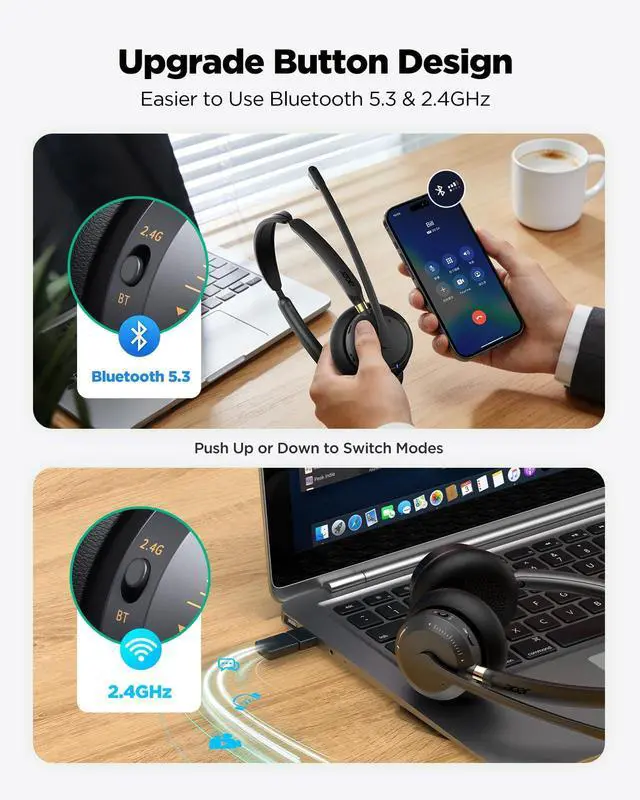
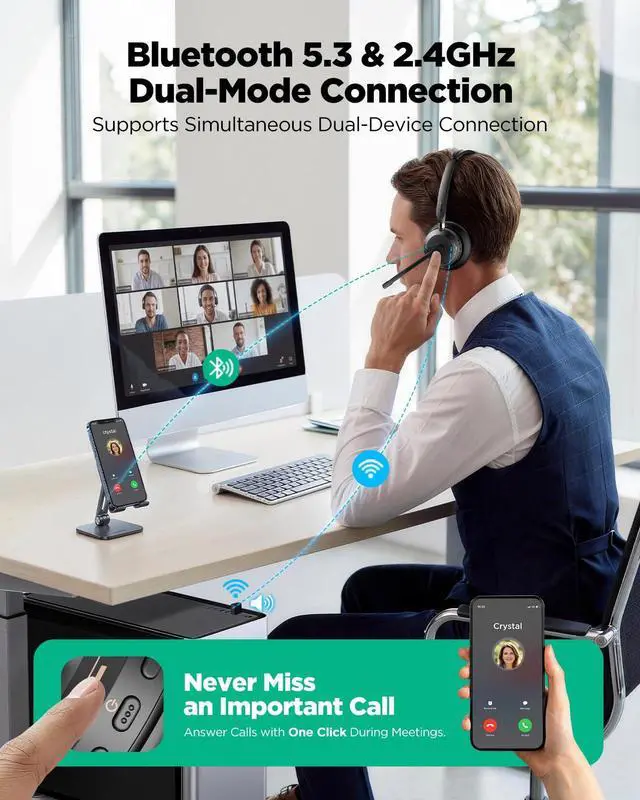
STABLE DUAL CONNECTIVITYAcer Bluetooth headset Advanced Bluetooth 5.3 technology ensures a skip-free range of up to 49 feet (15m)far more flexible than standard 33ft headsets. Supporting multipoint connection and a 2-in-1 plug-and-play USB transmitter, you can seamlessly switch from a webinar on your PC to an incoming call on your smartphone with one button, never missing a beat.
Sponsored
You’re seeing this ad based on the product’s relevance to your search query. If you are a seller and want to participate in this program click here to learn more.
Step1:Check if the headset is successfully connected. Once connected, you should hear a “Connected” voice prompt.
Step2:Play music from your connected device. This helps confirm whether audio is transmitting properly to the headset. If you can hear the music, the audio connection is working.
Step3:Check your sound settings during calls or meetings. When using conference software, make sure OHR688 is selected as the default input (microphone) and output (speaker/headset) device on both your computer and the app.
Step4:Make sure the headset is not muted. You can press the mute button to check—there will be a voice prompt indicating the mute status.
How to connect via dongle?
Insert the USB dongle (blue light flashes). Hold the power button for 3 seconds until the light flashes red and blue. Switch to USB mode. Solid blue light means paired. Then select "OHR688" as audio output on your computer.
How to connect via Bluetooth?
Press and hold the Power button for 3 seconds; the Power button indicator will flash blue. Then, switch the mode to Bluetooth mode. Enable Bluetooth on your mobile phone and pair it with "OHR688".
Sleep Mode
The headset enters sleep mode after 10 minutes of inactivity (phone or PC). It stays connected and usable, with the LED off. After 50 more minutes in sleep (60 minutes total), it powers off completely (LED off). To exit sleep mode, just press the multi-function button once, or simply answer an incoming call or join a meeting.
When to re-pair the headset?
If the headset still doesn’t work after troubleshooting, please try re-pairing it. Method:To connect another device or re-enter pairing mode, turn off the headset, switch to Bluetooth mode, and hold the Multi-Function Button/ for 7 seconds Headset LED.
Wireless Series
Wireless Headset with Mic for Work
Support & Troubleshooting
The microphone is not working
Step1:Check if the headset is successfully connected. Once connected, you should hear a “Connected” voice prompt.
Step2:Play music from your connected device. This helps confirm whether audio is transmitting properly to the headset. If you can hear the music, the audio connection is working.
Step3:Check your sound settings during calls or meetings. When using conference software, make sure OHR688 is selected as the default input (microphone) and output (speaker/headset) device on both your computer and the app.
Step4:Make sure the headset is not muted. You can press the mute button to check—there will be a voice prompt indicating the mute status.
How to connect via dongle?
Insert the USB dongle (blue light flashes). Hold the power button for 3 seconds until the light flashes red and blue. Switch to USB mode. Solid blue light means paired. Then select "OHR688" as audio output on your computer.
How to connect via Bluetooth?
Press and hold the Power button for 3 seconds; the Power button indicator will flash blue. Then, switch the mode to Bluetooth mode. Enable Bluetooth on your mobile phone and pair it with "OHR688".
Sleep Mode
The headset enters sleep mode after 10 minutes of inactivity (phone or PC). It stays connected and usable, with the LED off. After 50 more minutes in sleep (60 minutes total), it powers off completely (LED off). To exit sleep mode, just press the multi-function button once, or simply answer an incoming call or join a meeting.
When to re-pair the headset?
If the headset still doesn’t work after troubleshooting, please try re-pairing it. Method:To connect another device or re-enter pairing mode, turn off the headset, switch to Bluetooth mode, and hold the Multi-Function Button/ for 7 seconds Headset LED.
Wireless Series
Wireless Headset with Mic for Work, AI ENC Noise Cancelling for Clear Call & Meeting, Bluetooth 5.3 & USB Dongle for Laptop, PC, iPhone & Android, Office & Call Center Headset for Remote Hybrid Worker
Learn more about the Generic Brand WFL900/H
Model
Brand
PHILIPS
Model
WFL900/H
Details
Type
On-Ear
Color
White
Power Supply
battery, true
Connector
3.5mm
Ear Coupling
Earbud
Noise Cancelling
Passive
Wireless Type
Bluetooth
Features
Compatibility
Universal
Features
environmental_noise_cancellation, Button Control, Wireless, On Ear, 15 feet, 1* Wireless Headset with Mic for Work
Windows Vista
Certified for Windows Vista
Package Contents
Package Contents
1* Wireless Headset with Mic for Work, 1* USB A/C Dongle, User Manual
Additional Information
First Listed on Newegg
May 29, 2026
Customer Reviews of the Generic Brand WFL900/H
There are no reviews yet.
Do you own this product?
Warranty & Returns
Warranty, Returns, And Additional Information
Warranty
Please contact the Seller directly for warranty information. Warranty information may also be found on the Manufacturer's website.