




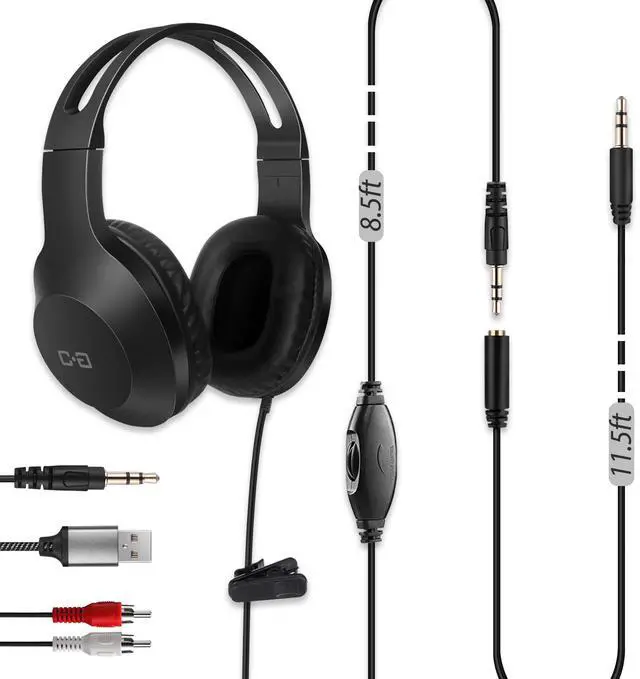
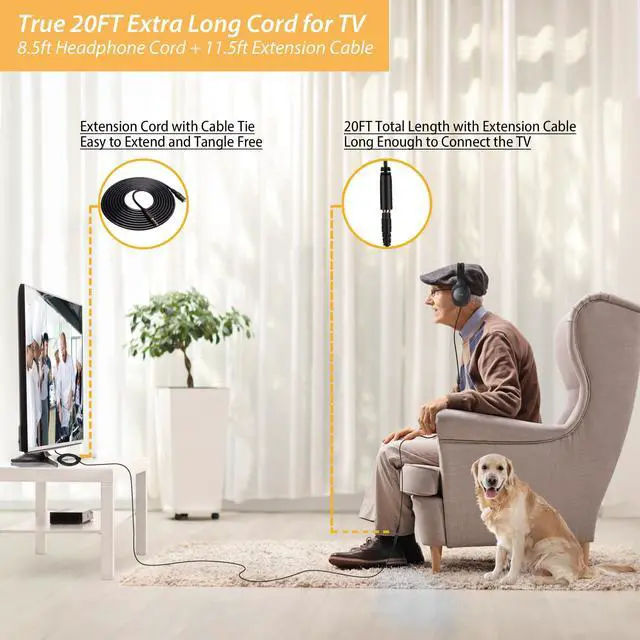



Plenty of Peaceful Space - 20FT Extra Long Cord Headphones for TV


Straight Simplicity for Hassle-free Entertaiment without Pulling Force

Please Note: Not Compatible with All TVs

Troubleshooting - What to Do if Volume Too Low or No Sound in Headphones?
How can I route the sound solely to the headphones and mute the TV's internal speaker?
Go to audio settings and look for a setting like “TV Speaker: Off”
Why can't I use these headphones for phone calls?
These headphones do not have a built-in microphone, so they cannot be used for phone calls. They are designed for audio playback only, not voice communication.
Will there be audio delay when using the USB connection?
Typically no—USB connections use ?direct digital audio streaming, which minimizes latency.
Why is the volume still low even when the volume wheel is set to MAX?
1. Check if the headphone plug is fully inserted into the device port.
2. The headphone volume wheel cannot adjust the TV's audio output volume. Use the TV remote control to set the TV's audio output volume to an appropriate level.
How can I check if these headphones are compatible with my TV?
If you’re unsure about compatibility, please reach us before purchasing. Simply share your TV model, and our team will confirm it for you within 12 hours.
TV Headphone(Aux USB RCA)
DUNGZDUZ TV Headphones
3.5mm Aux, USB & RCA | Connection | 3.5mm Aux & Optical |
2 Adapters: USB+RCA | Adapter Included | A DAC Converter |
20 ft Total | Cord Length | 20 ft Total |
8.5 ft | Headset Cord Length | 8.5 ft |
11.5 ft | Extenison Cord | 11.5 ft |
Scroll Wheel | Volume Control | Scroll Wheel |
3.5mm Aux, USB & RCA | Connection | 3.5mm Aux & Optical |
2 Adapters: USB+RCA | Adapter Included | A DAC Converter |
20 ft Total | Cord Length | 20 ft Total |
8.5 ft | Headset Cord Length | 8.5 ft |
11.5 ft | Extenison Cord | 11.5 ft |
Scroll Wheel | Volume Control | Scroll Wheel |



Our Story
We offer a range of high-quality microphones, headphones, and earbuds. Committed to our product and service improvement, we aim to deliver gear that satisfies users, boosts work efficiency, and enhances communication. At the same time, we create warm, enjoyable listening experiences for watching, gaming, and calling.
We value the feedback from every user—if you have any questions, suggestions, or feedback, please feel free to reach us.




Long Cord Headphone for TV



TV Headphones with DAC Adapter



USB-C & USB-A Earbuds with Mic
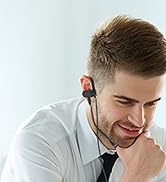

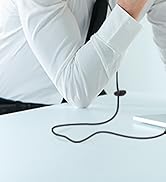

USB One-Side Earbud with Mic

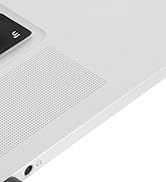
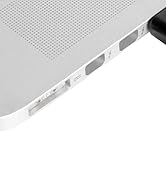
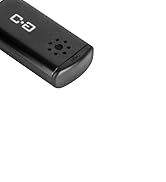
USB Microphone for Laptop
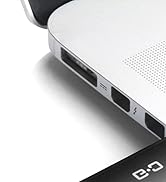
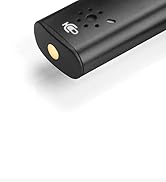
USB Microphone with Mute

USB C Mic for Mac Mini M4




Lavalier Mic & Cable Boom Mic
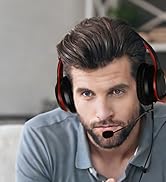

Cable Boom Mic for Headsets


2 Pack Lav Mic for DJI/RODE
Dual Mode Mini Speaker
Plenty of Peaceful Space - 20FT Extra Long Cord Headphones for TV

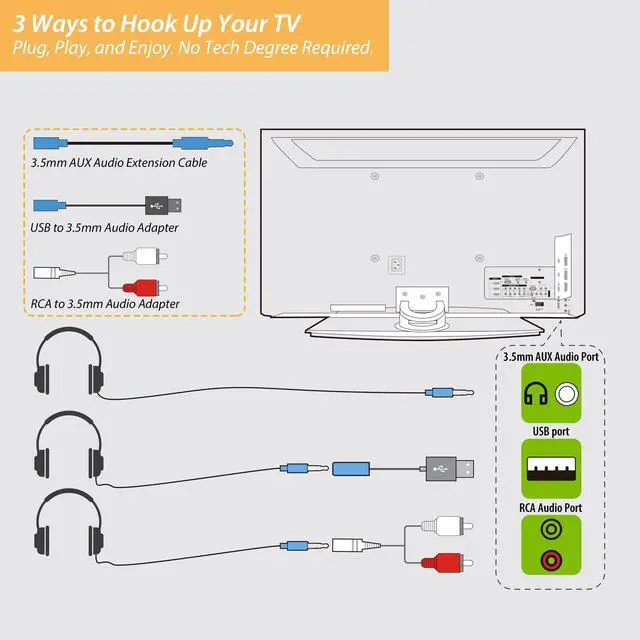
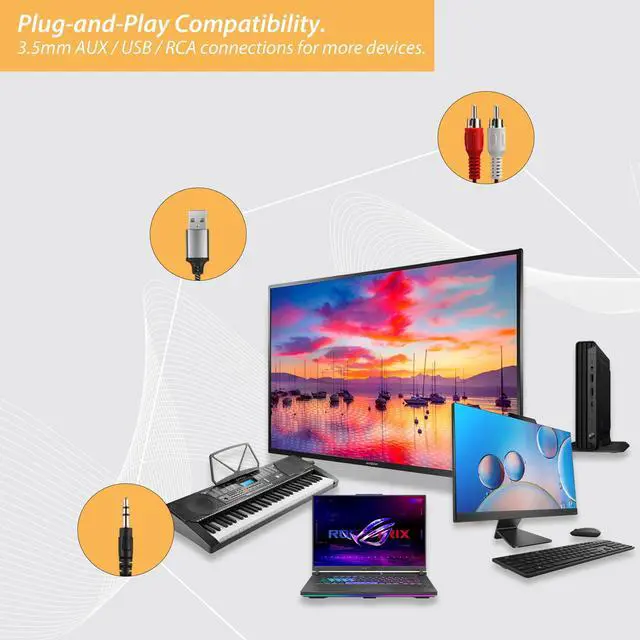
3 Ways Input
Broader Compatibilities for Smart TVs and Old TVs.
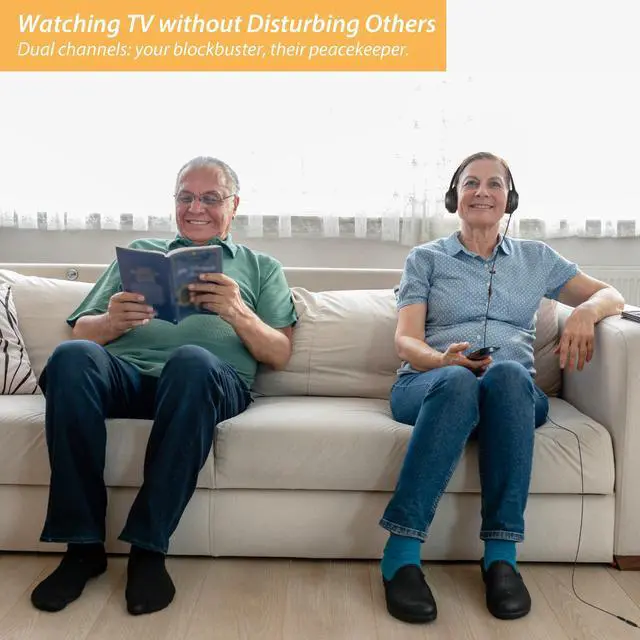
Love Tunes Out Noise
Quiet Love, Clear Sound. Balance Peaceful Moments with Shared Joy.
Not Only for TV
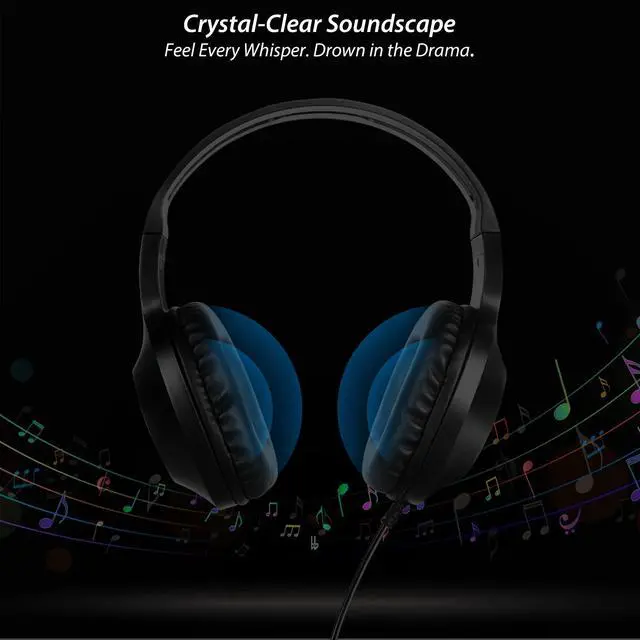
Enhanced Audio for Clear Hearing
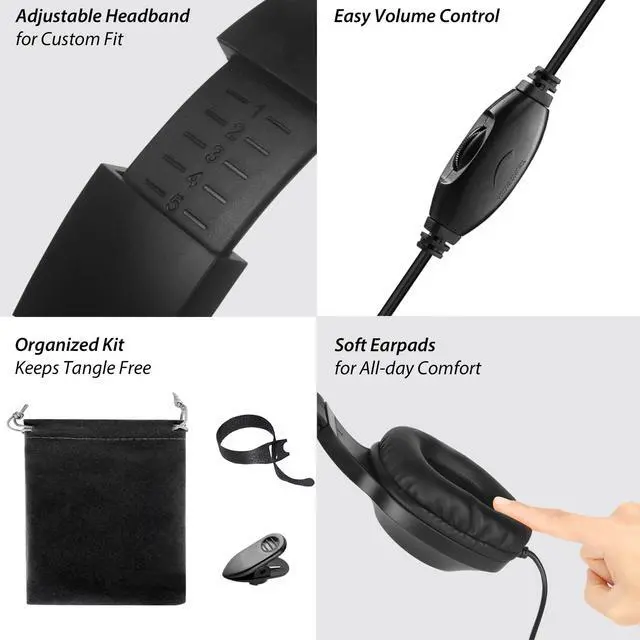
Loud Speaker and Volume Control. Adapt to Your Hearing Needs.


Straight Simplicity for Hassle-free Entertaiment without Pulling Force

Please Note: Not Compatible with All TVs

Troubleshooting - What to Do if Volume Too Low or No Sound in Headphones?
| 3.5mm Aux | Check TV’s auido settings and change the sound output to HEADPHONES / AUDIO OUT / LINE OUT / EXTERNAL SPEAKER / ANALOG AUDIO OUT or a similar option |
|---|---|
| RCA | 1. Check TV’s auido settings and change the sound output to AUDIO OUT / LINE OUT / EXTERNAL SPEAKER / ANALOG AUDIO OUT or a similar option |
| RCA | 2. Some TVs only enable RCA Audio Out when TV internal speakers are turned off |
| RCA | 3. Look for an option like “Audio Out Mode” “Fixed / Variable” “Line Out Control” , Select “Variable”. This allows the TV remote to control volume sent through the RCA ports |
| RCA | 4. If you only see “Fixed” or no option, please choose other audio outout port or use a RCA-to-3.5mm-Compatible Headphone Amplifier to boost the RCA signal |
| USB | 1. Not all TVs support USB audio output. If Your TV Supports USB Audio, audio output will switch automatically or after setting change. If unsupported, nothing will play. |
| USB | 2. Use alternatives audio output ports if USB audio doesn’t work, such as 3.5mm AUX or RCA |
How can I route the sound solely to the headphones and mute the TV's internal speaker?
Go to audio settings and look for a setting like “TV Speaker: Off”
Why can't I use these headphones for phone calls?
These headphones do not have a built-in microphone, so they cannot be used for phone calls. They are designed for audio playback only, not voice communication.
Will there be audio delay when using the USB connection?
Typically no—USB connections use ?direct digital audio streaming, which minimizes latency.
Why is the volume still low even when the volume wheel is set to MAX?
1. Check if the headphone plug is fully inserted into the device port.
2. The headphone volume wheel cannot adjust the TV's audio output volume. Use the TV remote control to set the TV's audio output volume to an appropriate level.
How can I check if these headphones are compatible with my TV?
If you’re unsure about compatibility, please reach us before purchasing. Simply share your TV model, and our team will confirm it for you within 12 hours.
DUNGZDUZ TV Headphones
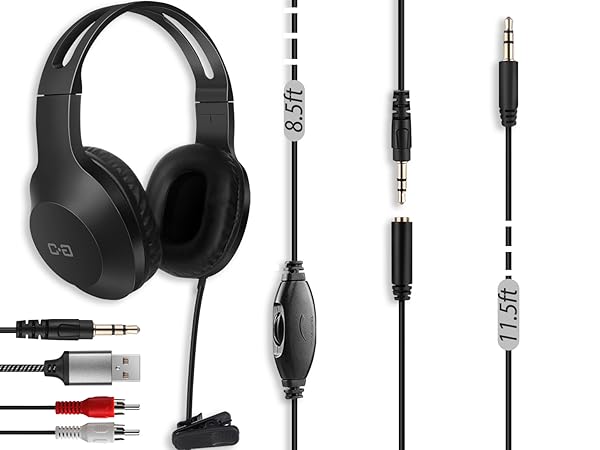
TV Headphone(Aux USB RCA)
Connection
3.5mm Aux, USB & RCA
Adapter Included
2 Adapters: USB+RCA
Cord Length
20 ft Total
Headset Cord Length
8.5 ft
Extenison Cord
11.5 ft
Volume Control
Scroll Wheel
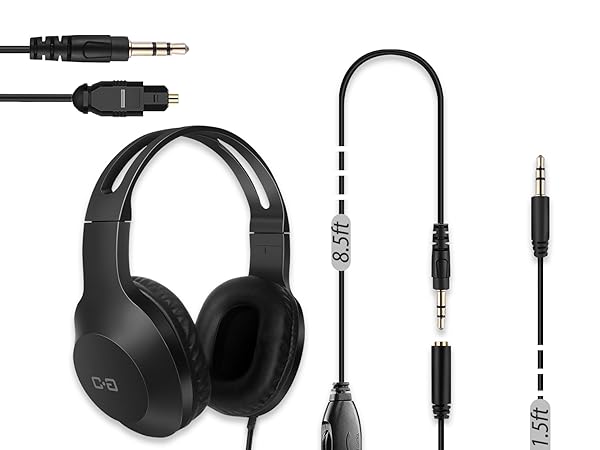
TV Headphones(Aux & DAC)
Connection
3.5mm Aux & Optical
Adapter Included
A DAC Converter
Cord Length
20 ft Total
Headset Cord Length
8.5 ft
Extenison Cord
11.5 ft
Volume Control
Scroll Wheel
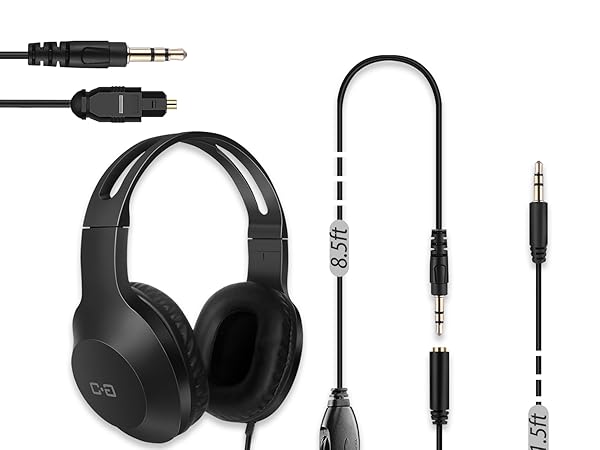
TV Headphones(Aux & DAC)
Connection
3.5mm Aux & Optical
Adapter Included
A DAC Converter
Cord Length
20 ft Total
Headset Cord Length
8.5 ft
Extenison Cord
11.5 ft
Volume Control
Scroll Wheel
Our Story
We offer a range of high-quality microphones, headphones, and earbuds. Committed to our product and service improvement, we aim to deliver gear that satisfies users, boosts work efficiency, and enhances communication. At the same time, we create warm, enjoyable listening experiences for watching, gaming, and calling.
We value the feedback from every user—if you have any questions, suggestions, or feedback, please feel free to reach us.
Long Cord Headphone for TV
TV Headphones with DAC Adapter
USB-C & USB-A Earbuds with Mic
USB One-Side Earbud with Mic
USB Microphone for Laptop
USB Microphone with Mute
USB C Mic for Mac Mini M4
Lavalier Mic & Cable Boom Mic
Cable Boom Mic for Headsets
2 Pack Lav Mic for DJI/RODE
Dual Mode Mini Speaker