
 here!
I’m your shopping assistant for PC builds, upgrades, and everything tech.
Got questions? Ask away!
Start a conversation
here!
I’m your shopping assistant for PC builds, upgrades, and everything tech.
Got questions? Ask away!
Start a conversation




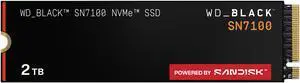

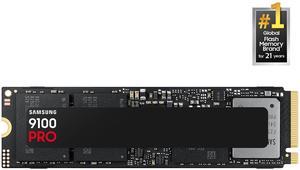

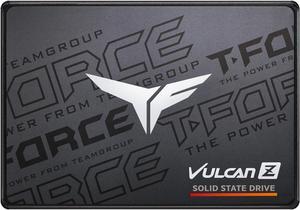
+ $15 off w/ promo code BNWF253, limited offer
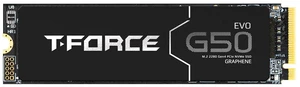
+ $50 off w/ promo code BNWF256, limited offer

+ $5 off w/ promo code BNWF254, limited offer



+ $30 off w/ promo code BNWF255, limited offer
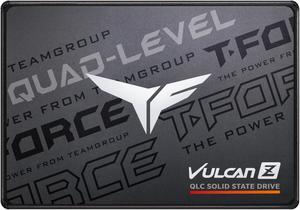
Internal SSDs deliver faster boot times and reliable storage for PCs and laptops, using SATA 3 and NVMe technology to enhance performance. Find the right internal SSD drive for your setup and take advantage of Black November deals and Black Friday deals to upgrade your system storage.
Choosing the right internal SSD involves understanding several core elements that affect performance, reliability, and compatibility:
During the holiday season, keep an eye out for Black November deals and Black Friday deals on Internal SSDs to maximize value without compromising on quality.
For internal SSDs, the switch from SATA to NVMe technology represents the biggest leap in speed and efficiency. NVMe drives connect via the PCIe bus, allowing multiple command queues and much higher bandwidth compared to SATA’s limited interface.
For most users upgrading from a traditional hard drive or SATA SSD, NVMe delivers noticeable speed improvements, minimizing boot times and accelerating application loading. If you want to explore the latest technology options, browse the selection of SSD offerings on Newegg this holiday season.
Tech pros, developers, and content creators seeking robust internal SSDs will gravitate toward drives with high endurance, large capacity, and enterprise-level reliability. For instance, capacities around 3.84TB offer ideal balance for data-intensive workflows without reaching enterprise pricing tiers.
Developers handling multiple virtual machines, databases, or advanced simulation environments will benefit from drives specified for endurance and consistent performance under sustained heavy loads. Look for NVMe drives with enhanced thermal management and firmware optimized for stable I/O operations.
For extensive local datasets or multimedia projects, the range from 4TB to 7.9TB enables fast, reliable access without frequent offloading. This allows professionals to seamlessly integrate internal SSDs into workstations and server builds while capitalizing on Black November deals or Black Friday deals for upgrading hardware.
Newegg shopping tip: When choosing an internal SSD, compare the interface type—SATA or NVMe—as it affects speed and compatibility with your system. Also, check the drive’s capacity and read/write speeds to ensure it matches your performance needs. Keep an eye on Black November deals and Black Friday deals for more options.
Blazing NVMe SSDs designed for rapid boot-ups and game loads, leveraging PCIe Gen 4 to slice transfer times dramatically.
Massive 8TB+ SSDs built on QLC or TLC NAND, ideal for bulk storage and video editing without sacrificing decent speeds.
High-capacity 4TB–7.9TB drives balance endurance and speed, often using TLC NAND with advanced controllers for consistent workflows.
Stepping up from traditional hard drives to an internal SSD can transform your PC or laptop experience with snappier boot times, quicker file transfers, and more reliable storage. New to this upgrade? Internal SSDs come in two main types: SATA and NVMe. SATA SSDs are generally easier to install and compatible with most systems, offering solid performance for everyday use. NVMe SSDs, on the other hand, connect via the PCIe interface and deliver blazing speeds, making them ideal if you want top-tier responsiveness for gaming or content creation. Whether you’re refreshing an old computer or building a new rig, browse Newegg’s wide range of SSD options to find the perfect match for your needs and budget during the Black November deals this holiday season.
Gamers and power users demand the quickest load times and lag-free multitasking, which internal SSDs easily deliver. NVMe drives with PCIe Gen 4 support offer the ultimate acceleration for game installations and asset streaming, letting you dive into your favorite titles faster than ever. Storage capacities between 4TB to 7.9TB make a great choice for those who juggle multiple AAA games, large mods, and streaming setups simultaneously. Black Friday deals on Internal SSDs bring an ideal opportunity to upgrade your rig with a high-speed, high-capacity drive that can keep up with your gaming marathon.
Video editors, photographers, and creative professionals rely heavily on storage that’s fast and reliable. Internal SSDs with capacities around 3.2TB to 8TB & Up allow you to store large project files, raw footage, and high-res images without choking your workflow. NVMe drives equipped with latest-generation controllers ensure consistently fast read/write speeds, crucial for efficient editing and rendering. Take advantage of Black November deals on Internal SSDs to equip your workstation with storage that supports demanding creative tasks.
Research more: When choosing an internal SSD, consider whether SATA or NVMe drives best fit your system’s speed and compatibility needs. For deeper insights and detailed comparisons, Newegg Insider buying guides are a great resource to help you navigate Black November deals and Black Friday deals on internal SSDs.
Last Updated: November 2026 | Newegg Internal SSDs Buying Guide
NVMe SSDs are generally much faster than SATA drives because they use the PCIe interface, but they usually cost more per gigabyte. If you want quick boot times or faster file transfers and don't mind spending extra, NVMe is the way to go.
Both brands offer reliable SSDs, but Samsung tends to lead in speed and durability, especially with their EVO and PRO lines. Western Digital provides good value and solid performance too, so it depends on whether you prioritize top speed or budget.
NVMe stands for Non-Volatile Memory Express, a protocol that lets SSDs communicate with your computer much faster than older interfaces like SATA, resulting in quicker boot times and file transfers.
Check your device’s specifications for supported SSD form factors, such as 2.5-inch SATA, M.2, or PCIe slots, since the drive’s physical size and connector type need to match your system to work properly.
First, check your motherboard’s compatibility with SSD types like SATA or NVMe. Then consider your storage needs and budget—NVMe drives are faster but cost more, while SATA SSDs offer good performance at a lower price.
If you work with large files or want plenty of space for games and apps, bigger SSDs can save you headaches. But if you mostly use your PC for everyday tasks, a smaller, more affordable drive might do just fine.
Look for reviews that mention consistent performance over time and low failure rates. User feedback on endurance and real-world speed is more valuable than just specs.
Many users report problems like slow write speeds after extended use or firmware glitches. Checking reviews for reported issues and manufacturer support can help avoid these hassles.
First, power down your computer and unplug it. Open the case, locate the SSD slot (usually SATA or M.2), carefully insert the drive, secure it, then reconnect everything before powering back on to format and use the new drive.
Make sure to enable AHCI mode in your BIOS for faster speeds, update your motherboard’s drivers, and use the manufacturer’s SSD utility software to optimize and monitor the drive.
“ This drive is so very much faster than the old drives I often smile at its speed of execution. ”
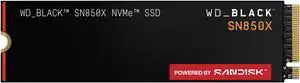
WD_BLACK 1TB SN850X NVMe Internal Gaming Solid State Drive with Heatsink - Works with Playstation 5, Gen4 PCIe, M.2 2280, Up to 7,300 MB/s - WDS100T2XHE“ Installation was simple, and both drives have performed flawlessly. ”
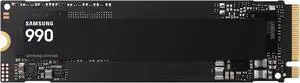
SAMSUNG SSD 990 PRO 4TB, PCIe Gen4 M.2 2280, Seq. Read Speeds Up-to 7,450MB/s for High End Computing, Gaming, and Heavy Duty Workstations (MZ-V9P4T0B/AM) Non-Heatsink“ These are the only drives I purchase. ”
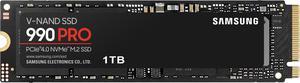
SAMSUNG 990 PRO SSD 1TB PCIe 4.0 M.2 2280 Internal Solid State Hard Drive, Seq. Read Speeds Up to 7,450 MB/s for High End Computing, Gaming, and Heavy Duty Workstations, MZ-V9P1T0B/AM