

Your Browsing History



Featured Brands









Motherboard Featured Items
Shop all products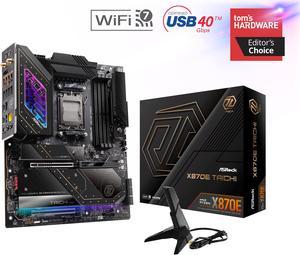
ASRock X870E TAICHI AM5 Extended ATX Motherboard
- Brand: ASRock
- CPU Socket Type: AM5
- Chipset: AMD X870E
- Serial ATA (SATA): 6 x SATA 6Gb/s
- Model #: X870E Taichi
- Item #: N82E16813162161
- Return Policy: 30-Day Return Policy
- $349.99 –
- More options from $299.99 - $920.84
- Free Shipping
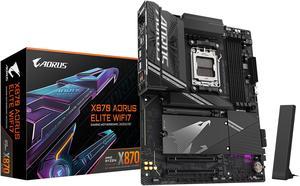
GIGABYTE X870 AORUS ELITE WIFI7 AM5 LGA 1718, ATX, DDR5, 4x M.2, PCIe 5.0, USB4, Wi-Fi 7, 2.5GbE LAN, EZ-Latch, 5-Year Warranty
- Brand: GIGABYTE
- CPU Socket Type: AM5
- Chipset: AMD X870
- Serial ATA (SATA): 4 x SATA 6Gb/s
- Model #: X870 AORUS ELITE WIFI7
- Item #: N82E16813145519
- Return Policy: 30-Day Return Policy
- $319.99
- $229.99 –
- Save: 28%
- More options from $219.99 - $532.55
- Free Shipping
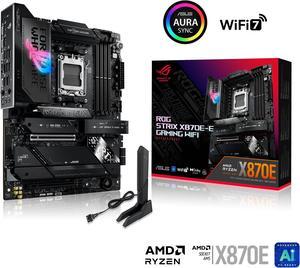
ASUS ROG STRIX X870E-E GAMING WIFI AMD AM5 X870 ATX motherboard 18+2+2 power stages, Dynamic OC Switcher, Core Flex, DDR5 AEMP, WiFi 7, 5x M.2, PCIe 5.0, Q-Release Slim, USB4, AI OCing & Networking
$50 promotional gift card w/ purchase, limited offer
- Brand: ASUS
- CPU Socket Type: AM5
- Chipset: AMD X870E
- Serial ATA (SATA): 4 x SATA 6Gb/s
- Model #: ROG STRIX X870E-E GAMING WIFI
- Item #: N82E16813119682
- Return Policy: 30-Day Return Policy
- $434.99
- $399.99 –
- Save: 8%
- More options from $369.00 - $999.60
- Free Shipping
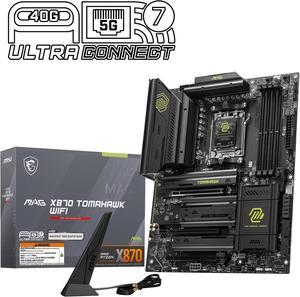
MSI MAG X870 TOMAHAWK WIFI Motherboard, ATX - Supports AMD Ryzen 9000 / 8000 / 7000 Processors, AM5 - 80A SPS VRM, DDR5 Memory Boost 8400+MT/s (OC), PCIe 5.0 x16 & 4.0 x16, M.2 Gen5, Wi-Fi 7, 5G LAN
- Brand: MSI
- CPU Socket Type: AM5
- Chipset: AMD X870
- Serial ATA (SATA): 4 x SATA 6Gb/s
- Model #: MAG X870 TOMAHAWK WIFI
- Item #: N82E16813144667
- Return Policy: 30-Day Return Policy
- $259.99
- $229.99 –
- Save: 11%
- More options from $179.00 - $899.00
- Free Shipping
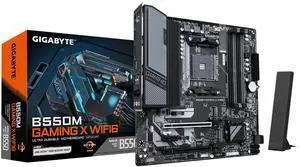
GIGABYTE B550M GAMING X WIFI6 AM4 Micro ATX Motherboard
- Brand: GIGABYTE
- CPU Socket Type: AM4
- Chipset: AMD B550
- Serial ATA (SATA): 4 x SATA 6Gb/s
- Model #: B550M GAMING X WIFI6
- Item #: N82E16813145586
- Return Policy: 30-Day Return Policy
- $154.99 –
- More options from $69.31 - $292.71
- Free Shipping
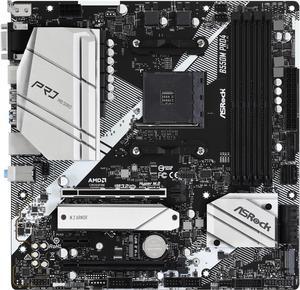
ASRock B550M PRO4 AM4 Micro ATX AMD Motherboard
- Brand: ASRock
- Model: B550M PRO4
- CPU Socket Type: AM4
- Chipset: AMD B550
- Model #: B550M PRO4
- Item #: N82E16813157939
- Return Policy: 30-Day Return Policy
- $114.99
- $79.99 –
- Save: 30%
- More options from $79.00 - $149.57
- Free Shipping
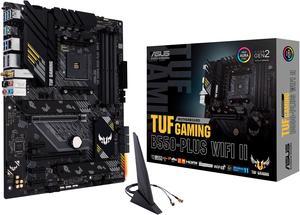
ASUS TUF GAMING B550-PLUS WIFI II AM4 ATX AMD Motherboard
- Brand: ASUS
- CPU Socket Type: AM4
- Chipset: AMD B550
- Serial ATA (SATA): 6 x SATA 6Gb/s
- Model #: TUF GAMING B550-PLUS WIFI II
- Item #: N82E16813119518
- Return Policy: 30-Day Return Policy
- $149.99
- $119.99 –
- Save: 20%
- More options from $79.31 - $1,000.00
- Free Shipping
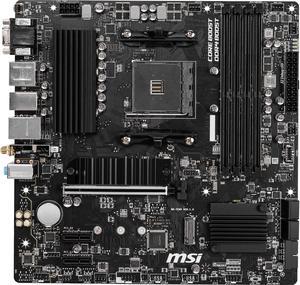
MSI PRO B550M PRO-VDH WIFI AM4 Micro ATX AMD Motherboard
- Brand: MSI
- Model: B550M PRO-VDH WIFI
- CPU Socket Type: AM4
- Chipset: AMD B550
- Model #: B550M PRO-VDH WIFI
- Item #: N82E16813144331
- Return Policy: 30-Day Return Policy
- $109.99
- $94.99 –
- Save: 13%
- More options from $81.99 - $266.84
- Free Shipping
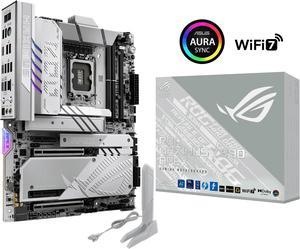
ASUS ROG MAXIMUS Z890 APEX Intel® Z890 LGA 1851 ATX motherboard, Advanced AI PC-ready, 22+2+1+2 stages, DDR5, WiFi 7, 5G LAN, 3x PCIe® 5.0 M.2, Thunderbolt™ 4, USB Type-C®, AI OC, Cooling & Networking
Unlock one game with purchase of Motherboard, limited to 1 per purchase
- Memory Standard: DDR5 4400 / DDR5 4800 / DDR5 5000 / DDR5 5200 / DDR5 5400 / DDR5 5600 / DDR5 5800 / DDR5 6000 / DDR5 6200 / DDR5 6400 / DDR5 6600 / DDR5 6800 / DDR5 7000 / DDR5 7200 / DDR5 7400 / DDR5 7600 / DDR5 7800 / DDR5 7900 / DDR5 7950 / DDR5 8000 / DDR5 8200 / DDR5 8266 / DDR5 8400 / DDR5 8600 / DDR5 8666 / DDR5 8800 / DDR5 8933 / DDR5 9000 / DDR5 9066 / DDR5 9200 / DDR5 9466 / DDR5 9500 / DDR5 9600
- Number of Memory Slots: 2x288pin (DDR5)
- Brand: ASUS
- CPU Socket Type: LGA 1851
- Model #: ROG MAXIMUS Z890 APEX
- Item #: N82E16813119690
- Return Policy: 30-Day Return Policy
- $599.99
- $399.99 –
- Save: 33%
- More options from $399.99 - $1,030.87
- Free Shipping
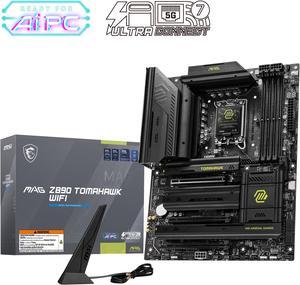
MAG Z890 TOMAHAWK WIFI Motherboard, ATX - Supports Intel Core Ultra Processors (Series 2), LGA 1851 - DDR5 Memory Boost 4 x DDR5 (9200+ MT/s OC), 1 x PCIe 5.0 x16, 1 x M.2 Gen5, Wi-Fi 7, 5G LAN
- Memory Standard: DDR5 4800 / DDR5 5000 / DDR5 5200 / DDR5 5400 / DDR5 5600 / DDR5 5800 / DDR5 6000 / DDR5 6200 / DDR5 6400 / DDR5 6600 / DDR5 6800 / DDR5 7000 / DDR5 7200 / DDR5 7400 / DDR5 7600 / DDR5 7800 / DDR5 7900 / DDR5 7950 / DDR5 8000 / DDR5 8200 / DDR5 8266 / DDR5 8400 / DDR5 8600 / DDR5 8666 / DDR5 8800 / DDR5 8933 / DDR5 9000 / DDR5 9066 / DDR5 9200
- Number of Memory Slots: 4x288pin (DDR5)
- Audio Chipset: Realtek ALC1220
- Brand: MSI
- Model #: MAG Z890 TOMAHAWK WIFI
- Item #: N82E16813144669
- Return Policy: 30-Day Return Policy
- $259.99 –
- More options from $227.88 - $699.00
- Free Shipping
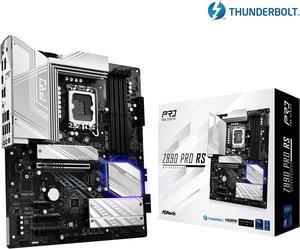
ASRock Z890 Pro RS LGA 1851 ATX Motherboard
Unlock one game with purchase of Motherboard, limited to 1 per purchase
- Memory Standard: DDR5 4400 / DDR5 4800 / DDR5 5000 / DDR5 5200 / DDR5 5400 / DDR5 5600 / DDR5 5800 / DDR5 6000 / DDR5 6200 / DDR5 6400 / DDR5 6600 / DDR5 6800 / DDR5 7000 / DDR5 7200 / DDR5 7400 / DDR5 7600 / DDR5 7800 / DDR5 7900 / DDR5 7950 / DDR5 8000 / DDR5 8200 / DDR5 8266 / DDR5 8400 / DDR5 8600 / DDR5 8666 / DDR5 8800 / DDR5 8933 / DDR5 9000 / DDR5 9066
- Number of Memory Slots: 4x288pin (DDR5)
- Audio Chipset: Realtek ALC897
- Brand: ASRock
- Model #: Z890 Pro RS
- Item #: N82E16813162176
- Return Policy: 30-Day Return Policy
- $219.99 –
- More options from $167.99 - $386.84
- Free Shipping
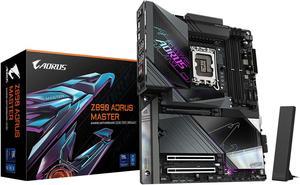
GIGABYTE Z890 AORUS MASTER Ultra Core (Series 2) LGA 1851, ATX, DDR5, 5x M.2, PCIe 5.0, Thunderbolt 4, WIFI7, 10GbE LAN, EZ-Latch
Unlock one game with purchase of Motherboard, limited to 1 per purchase
- Memory Standard: DDR5 5600 / DDR5 5800 / DDR5 6000 / DDR5 6200 / DDR5 6400 / DDR5 6600 / DDR5 6800 / DDR5 7000 / DDR5 7200 / DDR5 7400 / DDR5 7600 / DDR5 7800 / DDR5 7900 / DDR5 7950 / DDR5 8000 / DDR5 8200 / DDR5 8266 / DDR5 8400 / DDR5 8600 / DDR5 8800 / DDR5 8933 / DDR5 9066 / DDR5 9200 / DDR5 9466 / DDR5 9500
- Number of Memory Slots: 4x288pin (DDR5)
- Brand: GIGABYTE
- CPU Socket Type: LGA 1851
- Model #: Z890 AORUS MASTER
- Item #: N82E16813145523
- Return Policy: 30-Day Return Policy
- $499.99
- $349.99 –
- Save: 30%
- More options from $314.99 - $1,000.00
- Free Shipping
Related searches
| Learn about Motherboards | |
|---|---|
Motherboards: Your PC's Central HubYour computer's motherboard is the central hub of your system, responsible for connecting and facilitating communication between key components such as the CPU, graphics card, memory, SSD, power supply, case, and other devices—ensuring everything communicates smoothly for optimal performance. Choosing the right motherboard depends on your CPU platform, expansion needs, and budget. Key Considerations for Choosing a Motherboard
PC Desktop Motherboard Options: Intel PlatformIntel motherboards utilize chipsets that manage communication between the CPU, memory, and other components. Popular chipsets include the Z790 and B760, both supporting DDR5 and DDR4 PC RAM and compatible with Intel's 12th, 13th, and 14th Gen CPUs. PC Desktop Motherboard Options: AMD PlatformAMD motherboardss use chipsets to manage communication between the CPU, memory, storage, and other system components. On the latest AM5 platform, high-performance chipsets such as X870E , X870 , B850 , and B840 are designed for modern builds and support AMD Ryzen 9000, 8000, and 7000 series processors, along with DDR5 memory, PCIe 5.0 connectivity, and next-generation I/O like USB4 and Wi-Fi 7 on select models. Previous-generation AM5 600-series chipsets, including X670E , X670 , B650E, B650, and A620, remain widely available and continue to support current Ryzen CPUs, often with BIOS updates for newer processors. For budget or legacy builds, AM4 motherboards such as B550 and X570 still support Ryzen 5000 series processors with DDR4 memory, offering a cost-effective option for upgrading or building a mid-range PC. |
Planning Your Motherboard Layout & Upgrade PathWhen choosing a motherboard, think beyond today’s build. Consider how many PCIe slots, M.2 sockets, fan headers, and USB ports you might need two or three years from now. Form Factors & Expansion RoomATX boards provide the most expansion slots and headers, making them ideal for high-end gaming and creator rigs. Popular Motherboard Brands at NeweggNewegg carries a wide range of enthusiast-trusted motherboard brands, including ASUS. GIGABYTE. MSI.and ASRock. Essential Companion ComponentsPair your motherboard with an appropriate CPU, fast DDR4/DDR5 memory, a reliable power supply, and a case that supports your board’s form factor. Future-Proofing: PCIe, Networking & StoragePrioritize boards with multiple PCIe 4.0/5.0 M.2 slots, at least one PCIe x16 slot with Gen4/Gen5 support, and modern networking such as 2.5GbE and Wi-Fi 6E/7. Helpful Tools & Buying GuidesCheck out Choosing the Right Gaming Motherboard for a deeper guide.
Watch: How to Install a CPU Safely (Avoid Bent Pins)For a full step-by-step guide with photos, check out: How to Install a CPU on a Motherboard Without Damaging Pins . |
Last Updated: April 2026 | Newegg Content team: Motherboards Buying Guide .
Motherboard FAQs:
What is the difference between AMD and Intel motherboards?
AMD and Intel motherboards support different CPU sockets and are not interchangeable. On Newegg, start by selecting your CPU platform, then compare compatible chipsets and features within that ecosystem.
How do ATX, Micro ATX, and Mini ITX motherboards compare?
ATX boards offer the most expansion and connectivity, Micro ATX balances size and features, and Mini ITX is designed for compact builds. Use Newegg filters to match your case size and expansion needs.
What is the difference between entry-level and high-end motherboards?
Entry-level boards focus on essential features, while high-end models offer stronger power delivery, more connectivity, and better cooling. Compare specs on Newegg to match your performance needs and budget.
How do chipset tiers affect motherboard features?
Higher-end chipsets typically provide more PCIe lanes, USB ports, and overclocking support. Mid-range chipsets balance cost and functionality, making them a popular choice for most builds.
What is the difference between gaming and standard motherboards?
Gaming motherboards often include enhanced VRMs, better cooling, and additional connectivity for GPUs and peripherals, while standard boards focus on basic functionality and everyday use.
What does a motherboard do in a PC?
A motherboard connects your CPU, memory, storage, and expansion components, allowing them to communicate and function as a complete system.
What is a CPU socket and why does it matter?
The CPU socket determines which processors your motherboard supports. Always match the socket type with your CPU to ensure compatibility.
What is a motherboard chipset?
The chipset controls features like connectivity, expansion, and overclocking support. Different chipsets offer different performance and feature levels within the same platform.
What type of RAM do modern motherboards support?
Most current motherboards support DDR4 or DDR5 memory depending on the platform. Check the product page specifications on Newegg to confirm compatibility.
What connectivity features should I look for?
Look for USB ports, M.2 slots, PCIe support, and networking options like Wi-Fi or 2.5G LAN. Newegg filters make it easy to compare these features across models.
How do I choose the right motherboard?
Start with CPU compatibility, then consider chipset, RAM support, storage options, and expansion needs. Newegg’s filters and comparison tools help narrow down the best options quickly.
What factors matter most when buying a motherboard?
Key factors include CPU socket, chipset, form factor, memory support, and connectivity. Choose based on your build goals and upgrade plans.
Do I need a high-end motherboard for gaming?
Not always. Many mid-range boards offer excellent gaming performance. High-end models are useful if you need more expansion, overclocking, or advanced features.
How do I check compatibility with my CPU and RAM?
Verify the CPU socket and supported memory type on the Newegg product page. Compatibility details are listed under specifications.
Should I future-proof my motherboard?
Choosing a newer chipset and standards like DDR5 or PCIe 5.0 can extend upgrade options, but balance future needs with your current budget.
What are common issues when buying a motherboard?
Common issues include compatibility mismatches, outdated BIOS versions, and limited expansion. Always review specs and user feedback before purchasing.
How important are customer reviews?
Customer reviews provide real-world insights into performance, reliability, and ease of use. Use Newegg verified reviews to validate your choice.
Are budget motherboards reliable?
Budget boards can be reliable for basic builds but may have fewer features and weaker power delivery. Choose based on your performance requirements.
What risks should I avoid when building a PC?
Avoid mismatched components, incorrect installation, and insufficient cooling. Always follow compatibility guidelines and build instructions.
Are open-box or refurbished motherboards worth it?
They can offer savings, but check warranty and condition details on Newegg before purchasing to ensure reliability.
How do I install a motherboard?
Mount the motherboard in the case, secure it with screws, and connect power, CPU, RAM, storage, and front panel cables following the manual.
What components connect to the motherboard?
Key components include the CPU, RAM, GPU, storage drives, power supply, and case connectors. All system communication runs through the motherboard.
Do I need to update the BIOS?
Some motherboards require a BIOS update to support newer CPUs. Check the support list and update if needed before installation.
How do I install RAM and storage?
Insert RAM into the recommended slots and install SSDs into M.2 or SATA ports. Refer to the motherboard manual for correct placement.
What should I do after building my PC?
Enter BIOS to verify components, install your operating system, update drivers, and ensure everything runs properly before regular use.
Bestselling Motherboard Reviews:
Anonymous
6/2/2026 9:49:48 AM
Exactly What I Needed
“ I was happy to find a motherboard that would house all of the other parts I already have. ”
GIGABYTE B760M GAMING PLUS WIFI DDR4 LGA 1700 Intel B760 M-ATX Motherboard with DDR4, 2* M.2, PCIe 4.0, Front USB 3.2 Gen 1 Type-C, WiFi 6 GbE LAN, Q-Flash Plus, PCIe EZ-LatchPermainian Games
5/21/2026 9:10:37 PM
REALLY GOOD
“ BEST MOTHERBOARD IVE BOUGH INTO COMPUTER AND GAME DEVELOPMENT AND GAMING ”
GIGABYTE B650M GAMING PLUS WIFI AM5 LGA 1718 AMD B650 M-ATX, DDR5, PCIe 4.0 M.2, PCIe 4.0, USB 3.2 Gen 1 Type-C, Wi-Fi 6E, 2.5GbE LANJay
2/26/2026 4:54:16 PM
I'm super happy with this motherboard
“ I'm super happy with this motherboard. ”
GIGABYTE B760M GAMING PLUS WIFI DDR4 LGA 1700 Intel B760 M-ATX Motherboard with DDR4, 2* M.2, PCIe 4.0, Front USB 3.2 Gen 1 Type-C, WiFi 6 GbE LAN, Q-Flash Plus, PCIe EZ-LatchChristine S.
1/12/2026 5:46:59 PM
GIGABYTE Z790 GAMING PLUS AX LGA 1700 Intel Z790 ATX Motherboard with DDR5, Triple M.2, PCIe 4.0, USB 3.2 Gen2 Type-C, Realtek Wi-Fi 6, Realtek LAN, Q-Flash Plus, EZ-Latch
“ Very happy with this cooler, it's running on a GIGABYTE Z790 GAMING PLUS AX LGA 1700 Intel Z790 ATX Motherboard ”
GIGABYTE Z790 GAMING PLUS AX LGA 1700 Intel Z790 ATX Motherboard with DDR5, Triple M.2, PCIe 4.0, USB 3.2 Gen2 Type-C, Realtek Wi-Fi 6, Realtek LAN, Q-Flash Plus, EZ-LatchC. Reddy
12/23/2025 9:43:23 PM
A rare board that can run two GPUs AND not block needed PCIe 4.0 slots
“ I'd buy it again, and may even build another computer with it. ”
ASUS ROG MAXIMUS Z890 APEX Intel® Z890 LGA 1851 ATX motherboard, Advanced AI PC-ready, 22+2+1+2 stages, DDR5, WiFi 7, 5G LAN, 3x PCIe® 5.0 M.2, Thunderbolt™ 4, USB Type-C®, AI OC, Cooling & NetworkingAnonymous
12/21/2025 5:53:43 PM
Served me well
“ This mother board served me well as a server/ gaming computer. ”
GIGABYTE B550I AORUS PRO AX AM4 AMD B550 Mini-ITX Motherboard with Dual M.2, SATA 6Gb/s, USB 3.2 Gen 1, WIFI 6, 2.5 GbE LAN, PCIe 4.0Francois P.
9/26/2025 6:20:21 AM
Replacement board
“ Great experience building this computer. ”
GIGABYTE Z590 UD LGA 1200 Intel Z590 ATX Motherboard with Triple M.2, PCIe 4.0, USB 3.2 Gen 2, 2.5GbE LANPaul G.
9/3/2025 12:20:50 PM
No complaints, love this board!
“ Very good board for the price. ”
MAG Z890 TOMAHAWK WIFI Motherboard, ATX - Supports Intel Core Ultra Processors (Series 2), LGA 1851 - DDR5 Memory Boost 4 x DDR5 (9200+ MT/s OC), 1 x PCIe 5.0 x16, 1 x M.2 Gen5, Wi-Fi 7, 5G LAN