
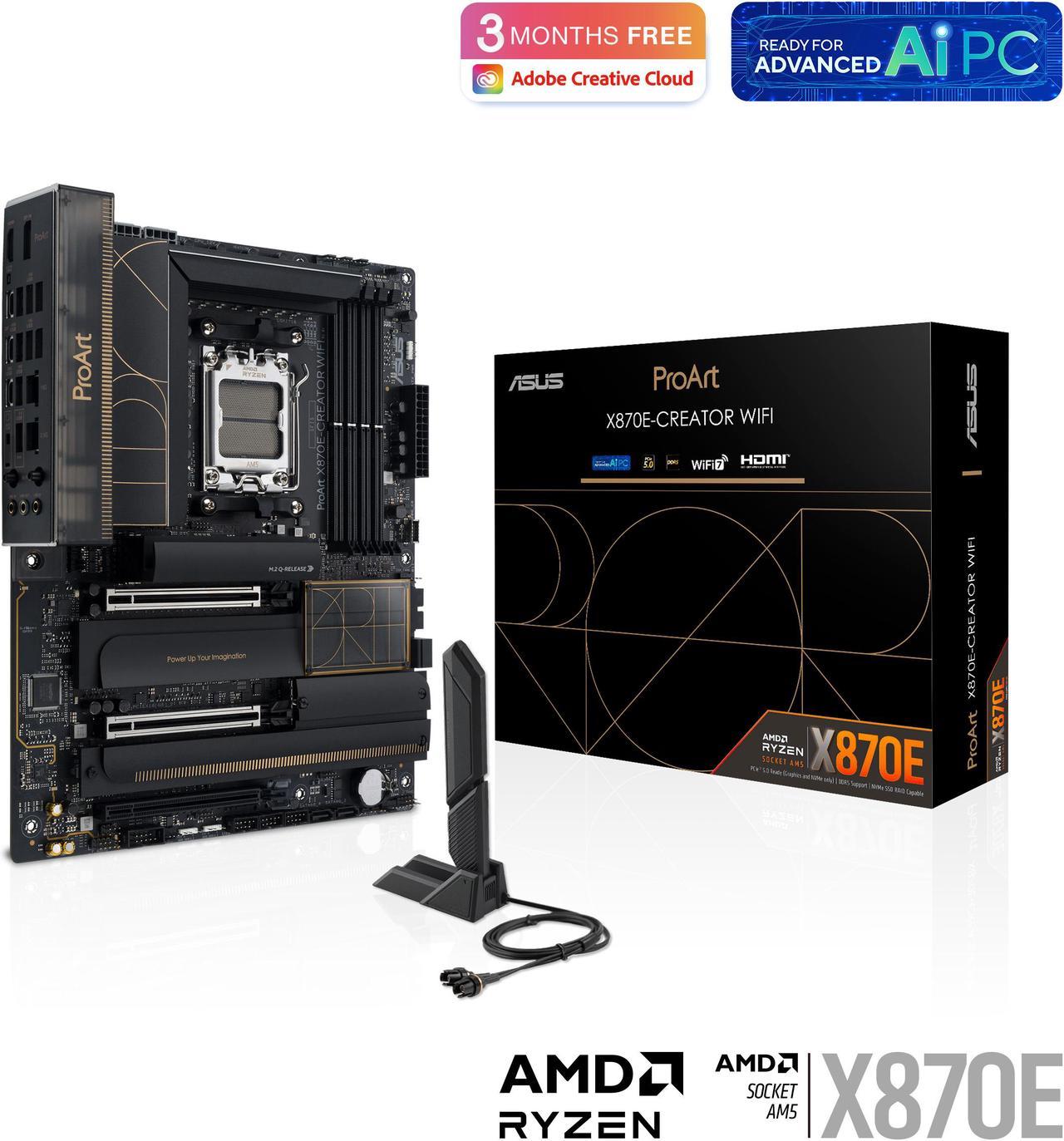
Ask what an ASUS ProArt motherboard is for, and the usual answer comes back: content creators, video editors, and 3D artists. That answer is correct — and incomplete. The ProArt Creator series has quietly become one of the most affordable foundations for a home AI workstation, the kind a regular end user builds to run small language models locally with Ollama or LM Studio. The same traits that serve a video editor — dual full-bandwidth GPU slots, huge memory ceilings, fast networking, and rock-steady power delivery — are exactly what local LLM inference asks of a motherboard.
This guide walks through what the ProArt series actually offers, compares the three current Creator boards on Newegg, and shows how a general user can turn one into a capable small-LLM machine without workstation-class spending.
What Makes a ProArt Board Different
An ASUS ProArt motherboard trades gamer styling for professional utility. Instead of RGB-heavy armor, the series concentrates its budget on four things that matter for sustained, serious workloads.
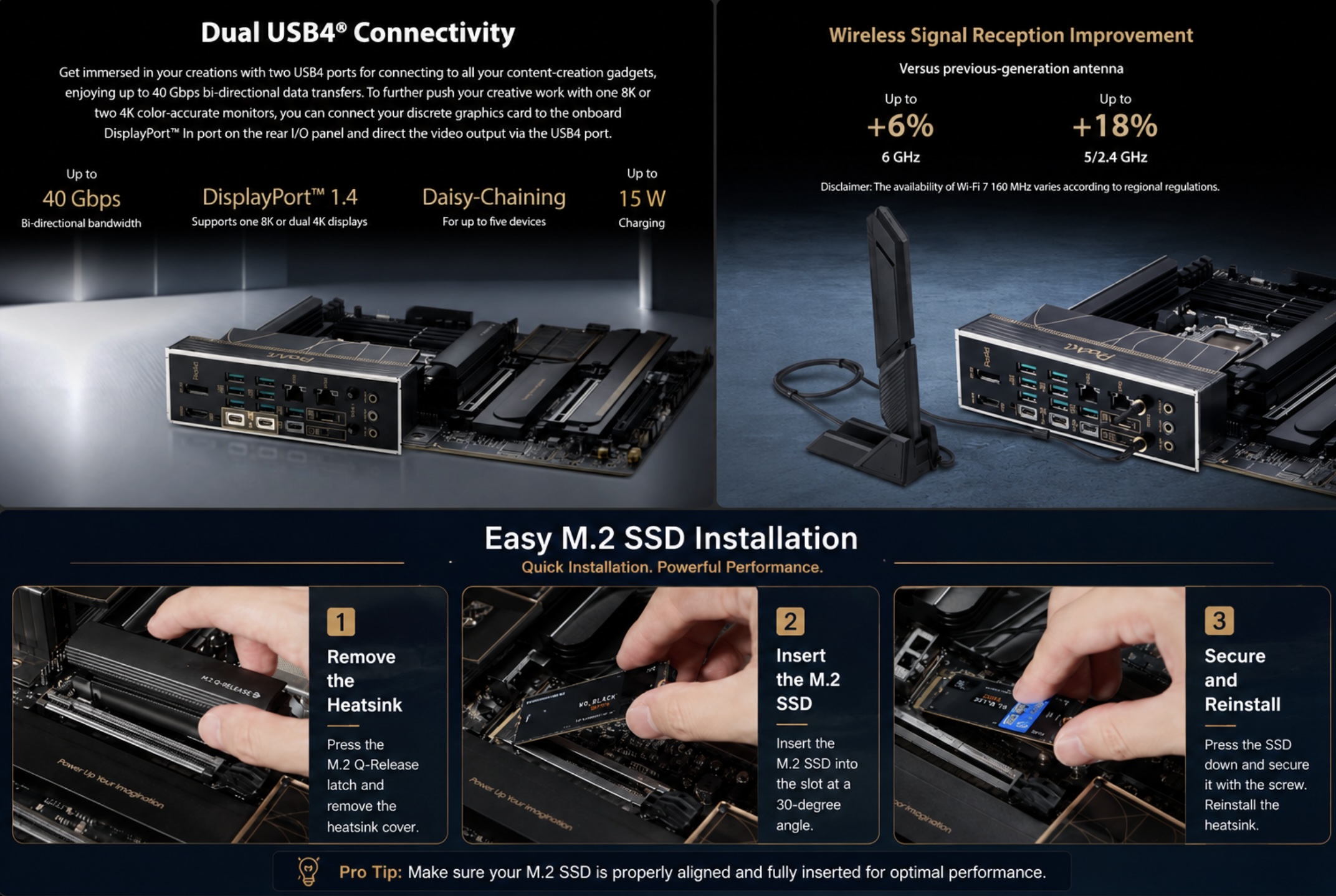
First, expansion: every current Creator board carries two PCIe 5.0 x16 slots that can run in x8/x8 mode, meaning two GPUs at full modern bandwidth — a feature normally reserved for far pricier platforms. Second, connectivity: 10 Gb or dual 5 Gb Ethernet, WiFi 7, and USB4 or Thunderbolt on every model, so large project files and model weights move at network speeds most consumer boards can’t touch. Third, memory headroom: up to 256 GB of DDR5 across four DIMM slots. Fourth, endurance-grade power design — 14 to 16+ teamed power stages with server-style protection — built for machines that render or serve models around the clock.
The result reads like a checklist from that Reddit r/buildapc consensus: not a raw gaming FPS boost, but high-end utility. For anyone browsing the broader motherboard market, that distinction is the whole reason this series exists.
Meet the Three Creator Boards
The current ASUS ProArt motherboard lineup spans both CPU ecosystems and three budgets. Here is how they compare as of mid-2026:
| Spec | ProArt B850-Creator WiFi | ProArt X870E-Creator WiFi | ProArt Z890-Creator WiFi |
|---|---|---|---|
| Platform | AMD AM5 (Ryzen 7000/8000/9000, EPYC 4005) | AMD AM5 (Ryzen 7000/8000/9000) | Intel LGA 1851 (Core Ultra Series 2) |
| GPU slots | 2× PCIe 5.0 x16 (x16 or x8/x8) | 2× PCIe 5.0 x16 (x16 or x8/x8) | PCIe 5.0 x16 (x8/x8 capable) |
| Max memory | 256 GB DDR5 | 256 GB DDR5 | 256 GB DDR5 |
| M.2 slots | 3 (2× PCIe 5.0) | 4 (2× PCIe 5.0) | 5 (1× PCIe 5.0) |
| LAN | Dual 5 Gb | 10 Gb + 2.5 Gb | 10 Gb + 2.5 Gb |
| High-speed ports | USB 20Gbps front panel | Dual USB4 (40 Gbps) | Dual Thunderbolt 5 |
| Street price (mid-2026) | ~$299 | ~$509 | ~$486 |
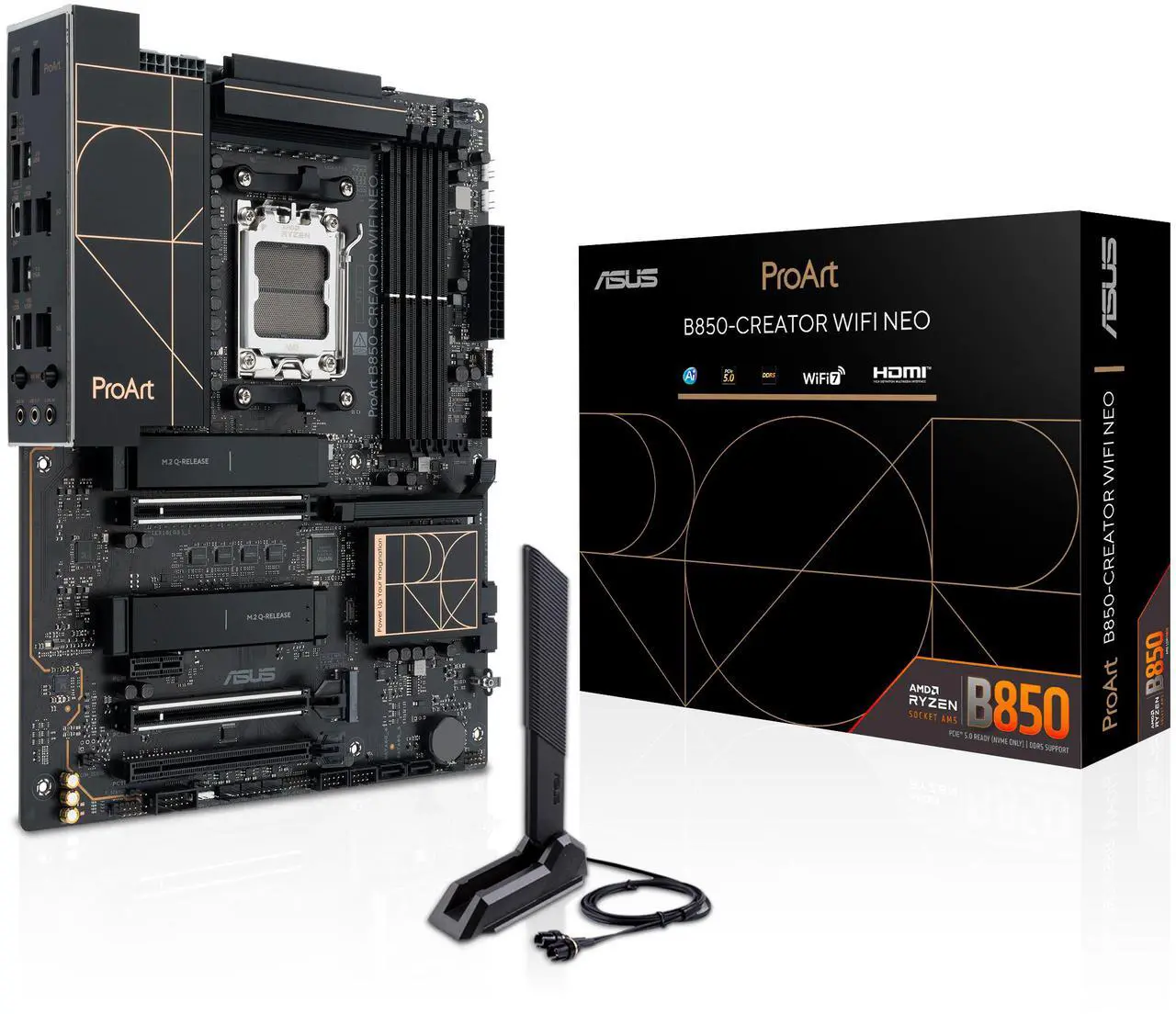
The headline is the B850-Creator at roughly $299: it keeps the series’ defining feature — two Gen5 x16 slots at x8/x8 — plus dual 5 Gb LAN and two PCIe 5.0 M.2 slots, at a price ordinary home builders actually pay for AMD motherboards. The X870E adds USB4, a 10 Gb port, and ECC-capable memory support for maximum reliability. The Z890 brings the same formula to Intel with Thunderbolt 5 and five M.2 slots for Intel-platform builders.
The Creator Story: Why Studios Pick ProArt
For its original audience, the pitch is throughput. Video editors move hundred-gigabyte footage libraries — 10 Gb Ethernet turns a NAS into a near-local drive, and Thunderbolt 5 or USB4 feeds cameras, capture cards, and RAID enclosures without a hub. 3D renderers park a render GPU beside a display GPU on the dual x8/x8 slots. Photographers and colorists get DisplayPort/HDMI passthrough, quiet tuned acoustics, and ProArt Creator Hub software for calibration and one-click workflow launching.
Just as important is what sustains those sessions: 80A-rated power stages, dedicated M.2 heatsinks with backplates, and ASUS’s Q-Design toolkit (Q-Release slots, Q-Latch M.2, BIOS FlashBack) that makes maintenance painless. In short, these are boards engineered for machines that work eight-hour days — which is precisely why they also suit the next use case.
The Overlooked Story: An Affordable Home LLM Workstation
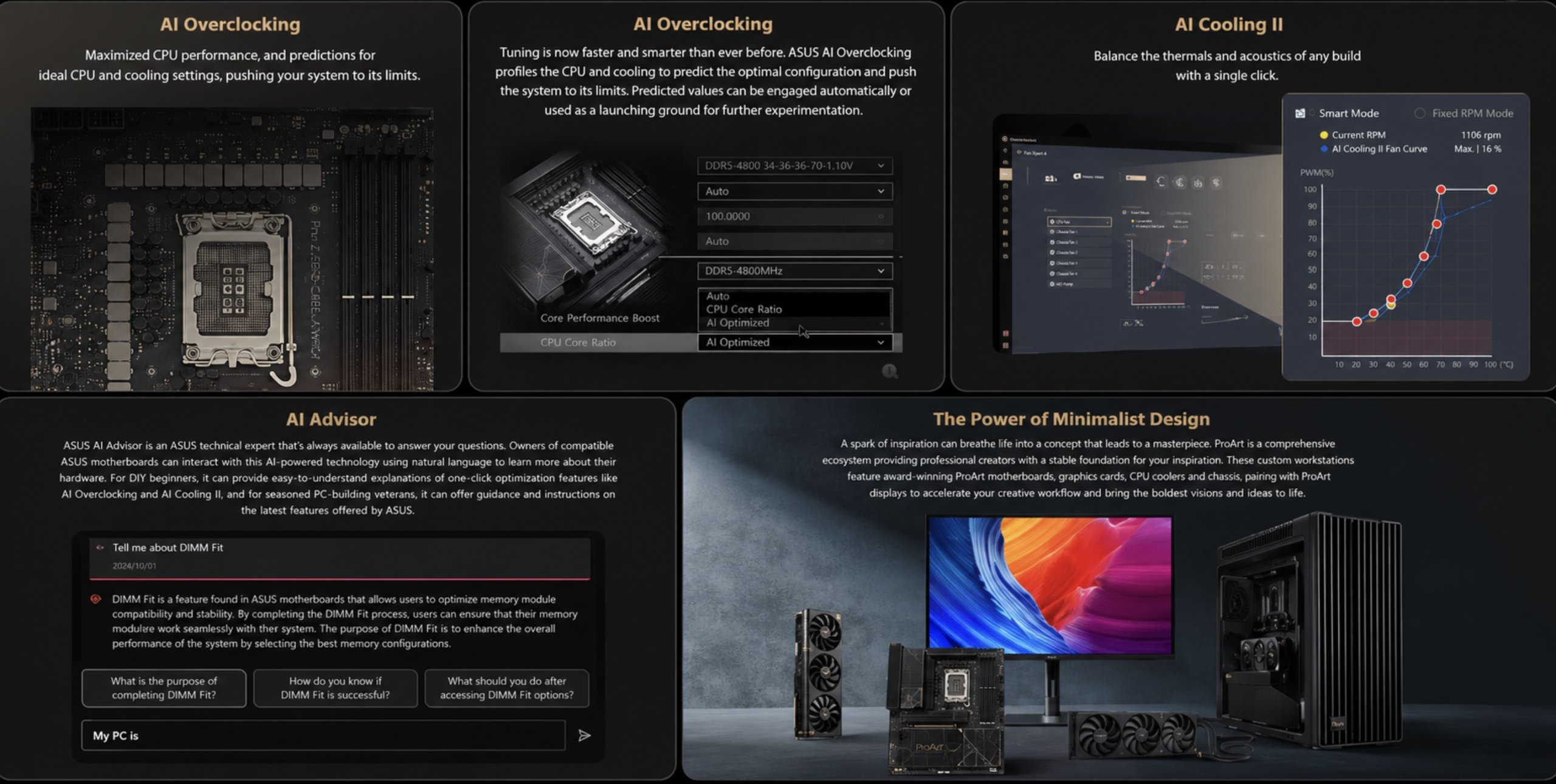
Here’s the part most buyers miss: an ASUS ProArt motherboard is one of the cheapest legitimate foundations for running small LLMs at home. Local models in the 7B–32B class — Llama 3.1 8B, Qwen 2.5 14B/32B, Mistral, Phi — run comfortably on a single consumer GPU, and tools like Ollama, LM Studio, and llama.cpp have made setup a one-evening project for a general end user. What the motherboard contributes is headroom, in four specific ways.
Two full-bandwidth GPU slots. Start with one graphics card today; when you want to run a bigger quantized model, add a second card and split layers across both. The x8/x8 PCIe 5.0 arrangement keeps inter-GPU traffic fast — the same electrical bandwidth as PCIe 4.0 x16 per card — where typical consumer boards drop a second GPU to x4 and starve it. That upgrade path usually requires a Threadripper-class platform; here it starts at $299.
256 GB of DDR5. System RAM is the safety net for models that exceed VRAM: llama.cpp offloads what doesn’t fit into GPU memory. A 4-DIMM, 256 GB ceiling means even a modest DDR5 memory kit today can grow into a configuration that handles surprisingly large quantized models tomorrow.
Gen5 NVMe for model libraries. Local AI users accumulate model files fast — a few dozen GGUF downloads easily crosses a terabyte. Two PCIe 5.0 M.2 slots (plus extras) keep a dedicated NVMe SSD for weights, so a 20 GB model loads in seconds.
Fast LAN for serving. With 10 Gb or dual 5 Gb Ethernet, the machine in your office can serve an Open WebUI chat interface to every device in the house — a private family ChatGPT with no subscription and no data leaving home.
A Realistic Small-LLM Build Around a ProArt Board
To make it concrete, here is what a sensible end-user AI build looks like on the $299 B850-Creator — the most affordable ASUS ProArt motherboard in the lineup:
| Component | Sensible pick | Why |
|---|---|---|
| Motherboard | ProArt B850-Creator WiFi (~$299) | Dual Gen5 x16 slots, dual 5 Gb LAN |
| CPU | Ryzen 7 9700X class | Plenty for tokenization and offload |
| GPU | 16 GB-class GeForce or Radeon card | Runs 7B–14B at high speed, 32B quantized |
| RAM | 64 GB DDR5 (2× 32 GB, two slots free) | Headroom for offload; upgradable to 256 GB |
| Storage | 2 TB Gen5 NVMe | OS plus a large model library |
That machine doubles as a first-class gaming and creative PC — the AI capability rides along free. The upgrade story is the differentiator: second GPU later, double the RAM later, all without replacing the platform. Pair it with any current desktop graphics card and you’re running local models the same afternoon. Meanwhile, buyers who want ECC memory validation, 10 Gb networking, or USB4 device chains step up to the X870E-Creator; Intel loyalists get the Z890-Creator’s Thunderbolt 5.
Setting Up Local AI on Your ProArt Build: A One-Evening Job
Turning an ASUS ProArt motherboard build into a working AI machine takes less time than installing your games. The workflow, start to finish:
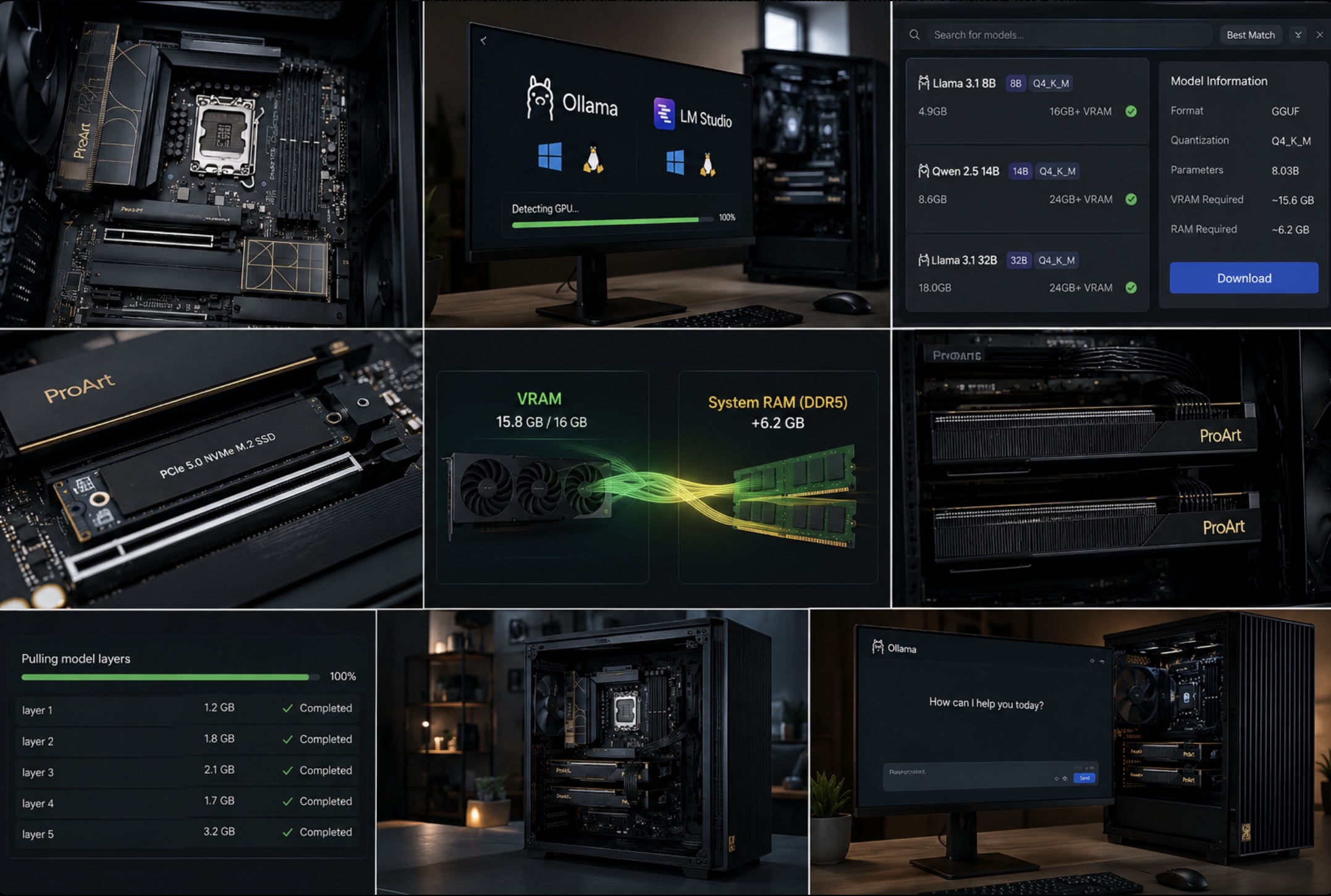
Install Ollama or LM Studio — both are free, both run on Windows or Linux, and both detect your GPU automatically. Pull a starter model: Llama 3.1 8B is the standard first download, small enough to fit comfortably in a 16 GB card’s VRAM and quick enough to feel like a cloud chatbot. From there, experiment upward: Qwen 2.5 14B for stronger reasoning, or a 32B model at 4-bit quantization if you stepped up to a 24 GB GPU. LM Studio shows exactly how much VRAM and system RAM each model needs before you download it, which takes the guesswork out entirely.
The ProArt platform pays off in the details of that workflow. Model files land on the Gen5 NVMe drive, so switching between models takes seconds rather than minutes. If a model slightly exceeds VRAM, llama.cpp spills the overflow into your DDR5 — and a board that accepts 256 GB makes that spillover a feature, not a wall. And when you eventually add that second GPU, Ollama simply sees both cards and splits larger models across them with no configuration.
None of this requires a command line beyond a single `ollama run` if you choose Ollama, and none of it requires a workstation budget. That’s the quiet appeal of an ASUS ProArt motherboard for ordinary users: it makes the entry point cheap and leaves the ceiling high.
Which ProArt Creator Board Fits You?
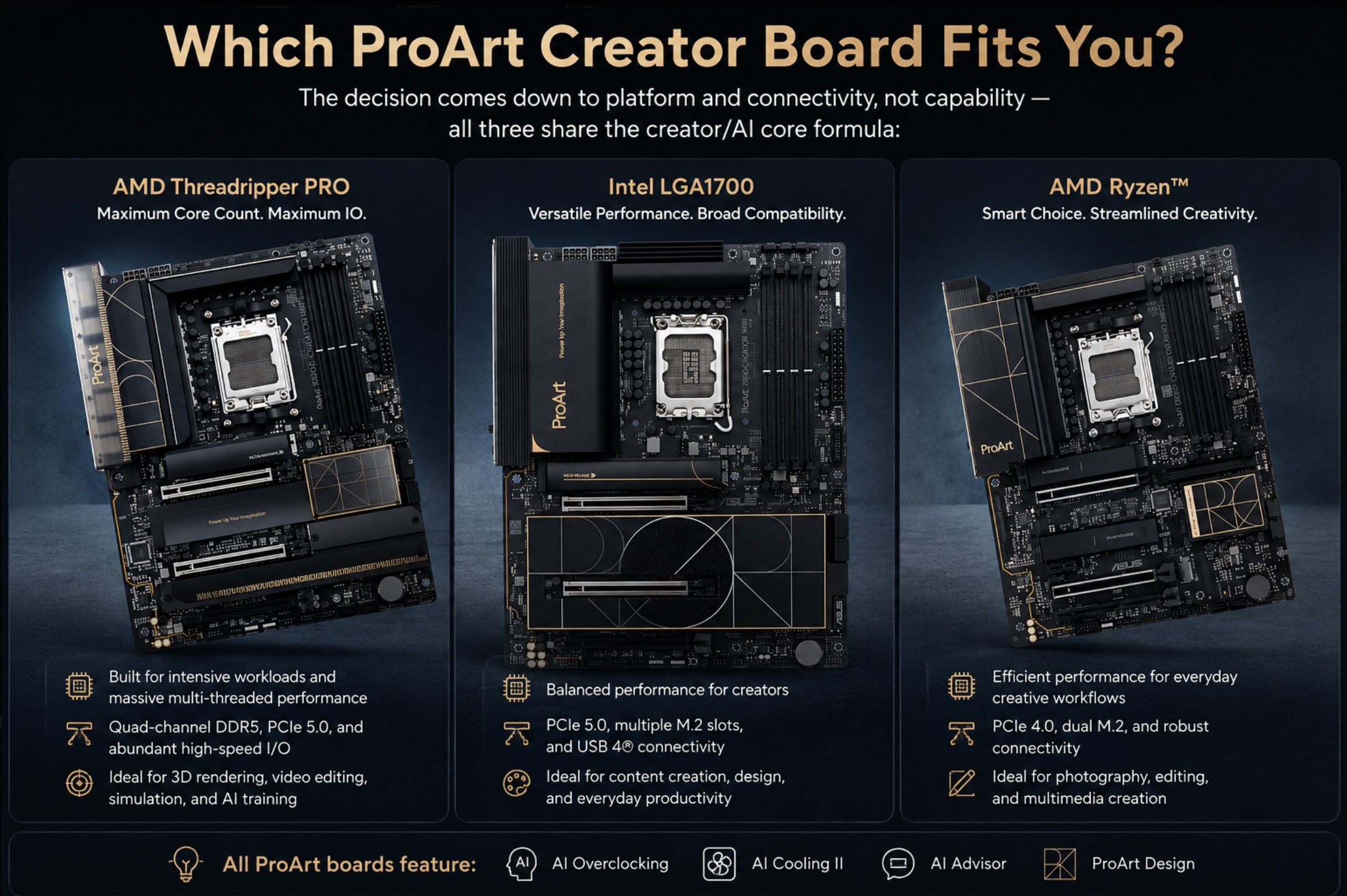
| You are… | Best fit | Why |
|---|---|---|
| A home user building a first AI-capable PC | B850-Creator | The full dual-GPU formula at mainstream cost |
| A creator with a NAS and heavy I/O | X870E-Creator | 10 Gb LAN, dual USB4, four M.2, ECC support |
| An Intel-platform builder or TB5 device owner | Z890-Creator | Thunderbolt 5, five M.2, Core Ultra support |
| A budget gamer with no AI or creator plans | Consider mainstream boards | You’d pay for utility you won’t use |
Conclusion
An ASUS ProArt motherboard earns its reputation with creators, but its best-kept secret is value for the everyday builder who wants a PC that can think locally: dual full-speed GPU slots, a 256 GB memory ceiling, and pro networking, starting near $299. If that describes your next build, compare the B850-Creator, X870E-Creator, and Z890-Creator side by side, or browse the full motherboard selection at Newegg to weigh alternatives. Local AI models get more capable every quarter — building on a board with room to grow means your PC grows with them.
Related Posts
- 5 Best Gaming Laptops for Casual Play, School, Work, and More
- Best Laptops for Performance, Battery Life, Portability, and Value
- Best Affordable Budget PC Guide: What to Buy, Check, and Upgrade
- Intel Xeon 600 Series Redefines the Professional Workstation
- What PC Hardware Do You Need for 1440p Gaming?
Frequently Asked Questions
Answers to common questions about ASUS ProArt Creator motherboards for content creation and home AI builds.