
The best monitor advice I ever got came from someone who sold them: decide the size first, because you cannot change your desk. Everything after that is negotiable.
I have found that to be true, and I have also found that most people do it in the opposite order. They pick a refresh rate off a review, then discover the panel is 32 inches and their face is 60cm from it. So here is the order I would actually go in, with eight screens slotted in where they belong.
Step One: Pick the Size, Then the Resolution
At a normal desk distance, 27 inches is the size that works for almost everyone, and 1440p is the resolution that suits it. Thirty-two inches wants 4K, or text starts to look soft. Ultrawide is a different decision entirely and I will come back to it.
Step Two: Decide Whether You Want OLED
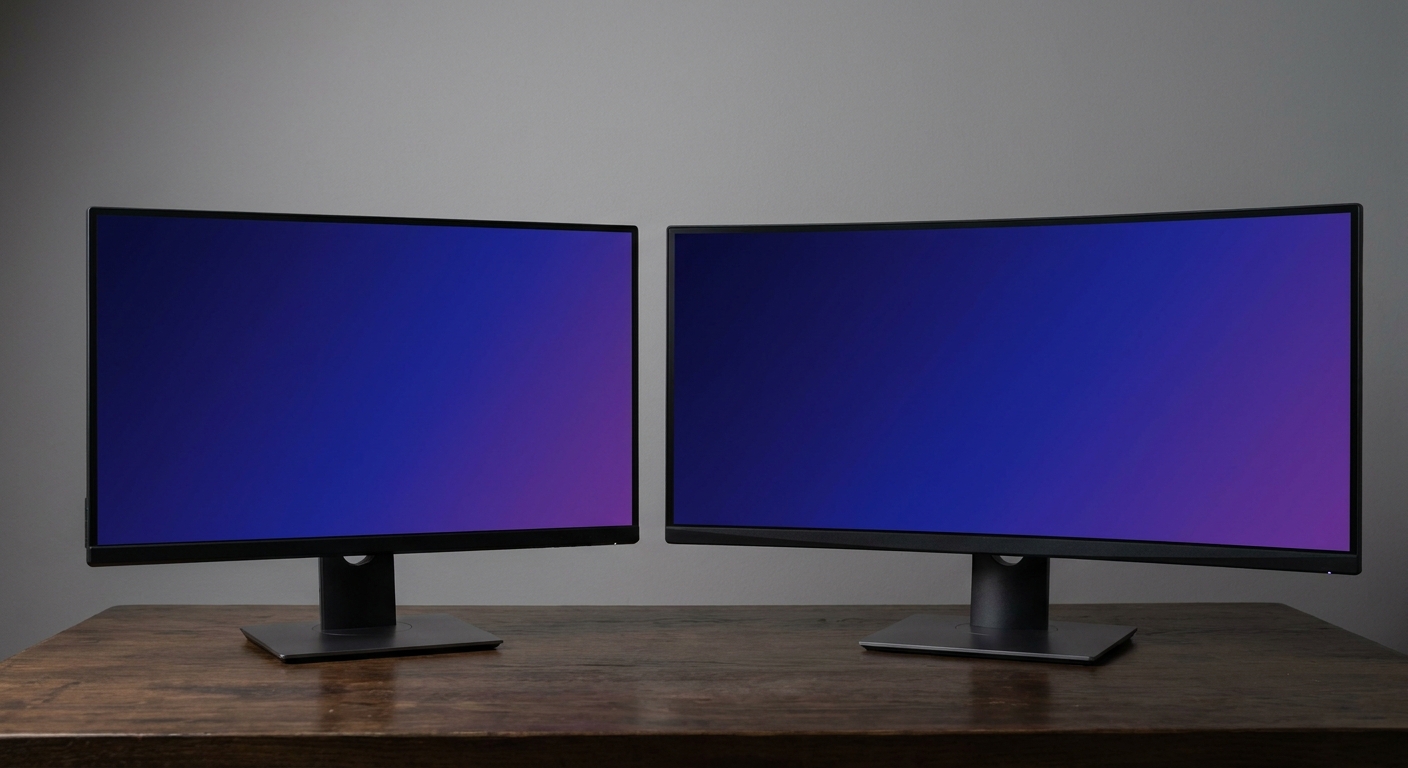
This is the real fork. OLED panels here quote 0.03ms response times and contrast ratios around 1,500,000:1, against 1,000:1 and 0.5ms on the IPS screens. In a dark room the difference is not subtle. In a bright room, the 250 cd/m2 typical brightness on several of these OLEDs is something to think about.
If you work on the same screen all day with static interface elements, IPS remains the lower-maintenance choice. If the monitor is mostly for playing, OLED is the upgrade you feel immediately.
Step Three: Match the Refresh Rate to Your Graphics Card
A 360Hz panel is wasted if your card delivers 110 frames per second in what you play. Adaptive sync matters more than the headline number, and every screen here supports it in some form.
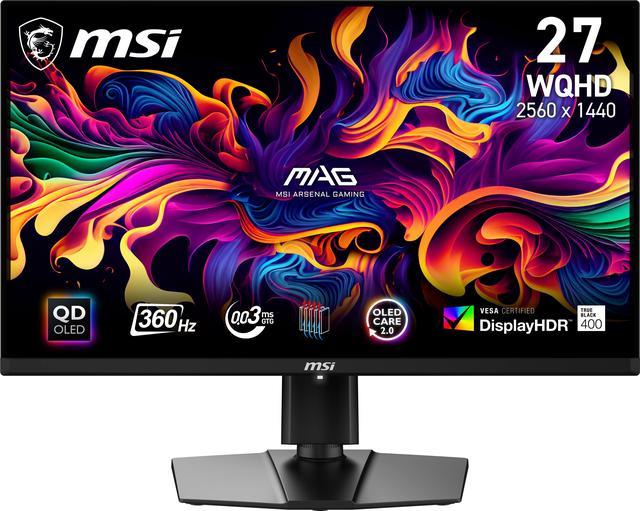
The MSI 27-inch 1440p 360Hz OLED is the one I would buy if competitive play is the point. 2560 x 1440, 360Hz, 0.03ms GTG, FreeSync Premium Pro, DisplayHDR True Black 400, 250 to 1000 cd/m2 depending on content, 99.1% DCI-P3, one DisplayPort 1.4a, two HDMI 2.1 and a USB-C input with 15W of charging. The stand tilts, swivels, pivots and rises 110mm.
If 240Hz is enough, the GIGABYTE GO27Q24A covers the same ground: 27 inches, 1440p, 240Hz OLED at 0.03ms, 1,500,000:1, 400 cd/m2, 99% DCI-P3, HDR10, two HDMI 2.1 and one DisplayPort 1.4, with a fully adjustable stand.
Step Four: If You Want 4K, Read the Ports
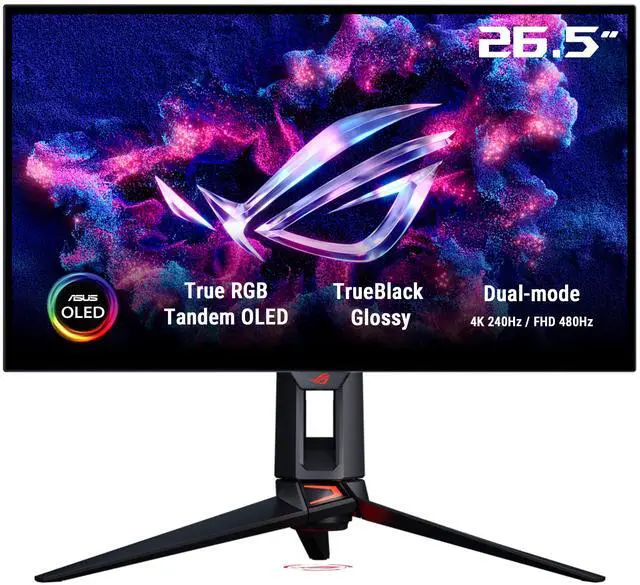
The ASUS ROG PG27UCWM is the most advanced screen on this list. A 26.5-inch Tandem RGB OLED at 3840 x 2160 and 240Hz, 0.03ms, 1,500,000:1 contrast, 250 cd/m2, DisplayHDR True Black 400, 99% DCI-P3, and dual mode that drops to 1080p at 480Hz. It carries DisplayPort 2.1, two HDMI 2.1, USB-C with DisplayPort alternate mode and three USB 3.2 Gen 1 Type-A ports.
The MSI 32-inch 4K 240Hz OLED is the bigger version of that idea, with 97% Adobe RGB and 99% DCI-P3 coverage, DisplayHDR True Black 400, and a USB-C input that supplies 90W. That 90W figure is the one to notice if a laptop will be on the other end of the cable. Its DisplayPort is 1.4a rather than 2.1.
For 4K without the OLED price, the MSI 27-inch Dual Mode Rapid IPS runs 3840 x 2160 at 160Hz and switches to 1920 x 1080 at 320Hz, with 0.5ms GTG, 400 cd/m2, DisplayHDR 400 and a stand that rises 130mm. Contrast is 1,000:1, which is the trade you are making.
Step Five: Or Spend It on Width Instead
The MSI 34-inch UWQHD OLED is 3440 x 1440 at 175Hz, 21:9, curved at 1800R, 0.03ms, 1,500,000:1, 250 nits in SDR and 1000 in HDR, 99.3% DCI-P3, with two HDMI 2.1, DisplayPort 1.4a and USB-C. It weighs 19.4 pounds with the stand and is just under 32 inches wide, so measure before you commit.
Ultrawide is worth it if you play games that support it and you spend a lot of time with two windows side by side. It is a downgrade if you play competitive shooters, where the extra width mostly adds things you are not looking at.
Two Screens That Do Not Need a Justification
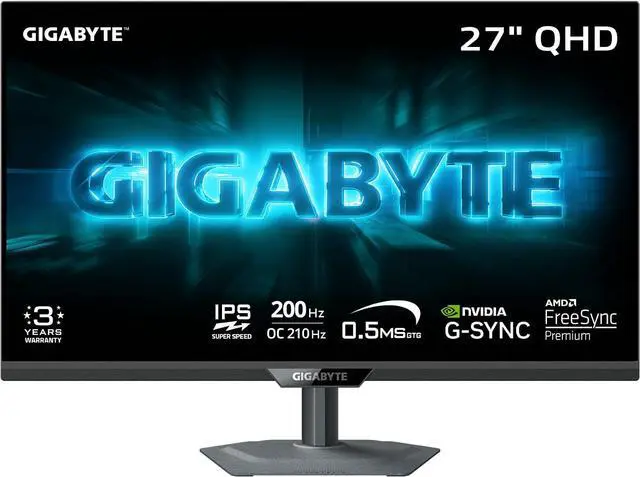
The GIGABYTE G27Q20 is the screen I would recommend to someone who does not want to think about this. 27 inches, 2560 x 1440, 200Hz with a 210Hz overclock, Super Speed IPS at 0.5ms, 350 cd/m2, 94% DCI-P3, FreeSync Premium and G-Sync Compatible, HDR10, one DisplayPort 1.4 and two HDMI 2.0, height, pivot, swivel and tilt, 100 x 100 VESA. Newegg listed it in August 2026.
The MSI MAG 274QF X24 pushes to 240Hz at the same resolution on a Rapid IPS panel, still 0.5ms, with FreeSync Premium and two HDMI 2.0b plus DisplayPort 1.4a. The catch is the stand: tilt only. Budget for a monitor arm and it is a strong buy.
Where I Would Land
Most people: G27Q20. Competitive play: the MSI 360Hz OLED. Single screen for work and games at 4K: the 32-inch MSI OLED for its 90W USB-C, or the PG27UCWM if you want the best picture at 27 inches. Wide instead of tall: the 34-inch MSI. Tight budget, high refresh: MAG 274QF X24 plus an arm.
Whatever you choose, turn off the factory picture mode on day one and check the refresh rate actually got set in Windows. I have lost count of how many people ran a 240Hz panel at 60Hz for a month. The full range is in Newegg’s 1440p gaming monitor listings.
Frequently Asked Questions
Is 1440p or 4K better for a 27-inch gaming monitor? At 27 inches, 1440p is the practical choice for most systems because it is far easier to drive at high refresh rates and still looks sharp at normal viewing distance. 4K at that size gives noticeably finer text and detail, but it asks a lot more of the graphics card. If you sit close or use the screen for detailed work as well as games, 4K earns its place.
Do I really notice the difference between 240Hz and 360Hz? Less than the jump from 60Hz to 144Hz, and only if your system actually produces that many frames. Competitive players tend to feel it in mouse movement and target tracking; most people would not identify it blind. Buy the refresh rate your graphics card can feed, not the highest one on the shelf.
Should I worry about OLED burn-in on a gaming monitor? Modern panels include pixel shifting and refresh routines, and typical mixed use is much less risky than it used to be. The situation that still needs care is leaving the same static interface on screen for many hours a day, which is worth thinking about if the monitor doubles as a work display. Hide the taskbar and let the maintenance cycles run.
What is dual mode on a monitor? It lets the panel switch between two configurations, typically a higher resolution at a lower refresh rate and a lower resolution at a much higher one. The MSI Rapid IPS screen here runs 4K at 160Hz or 1080p at 320Hz, and the ASUS OLED runs 4K at 240Hz or 1080p at 480Hz. It is a genuine convenience if you play both single-player and competitive games.
Does my monitor need DisplayPort 2.1? Only at very high resolution and refresh rate combinations where DisplayPort 1.4 needs compression to keep up. Several excellent screens here still ship with DisplayPort 1.4a and work perfectly, including at 4K 240Hz with display stream compression. Check which version your graphics card outputs before you treat it as a deciding factor.
Read More
- RTINGS: Best Gaming Monitors — Measured response times, contrast and brightness figures under consistent test conditions.
- Tom’s Hardware: Gaming Monitors — Hands-on reviews covering panel technology, colour accuracy and stand quality.
- ASUS ROG: Gaming Monitors — Official specifications for the PG27UCWM, including the Tandem RGB OLED panel and dual mode behaviour.
- MSI: Monitors — Manufacturer pages for the OLED and Rapid IPS screens here, with port and power delivery details.
- Newegg: 1440p Gaming Monitors — Filter by panel type, refresh rate, port selection and stand adjustment.