"Cloud gaming" has been showing up among trending gaming searches on Google heading into the holidays, and it makes sense. A streaming service lets a laptop, an older PC or a TV play games it could never run on its own.
What decides whether it feels great or laggy isn't the device. It's your home network. Here's how I'd set it up, depending on where you play.
What the services actually ask for
NVIDIA is the most specific. For GeForce NOW, it lists at least 15Mbps for 720p at 60fps and 25Mbps for 1080p at 60fps. The Ultimate tier needs at least 35Mbps for 1440p at 120fps or 1080p at 240fps, and 45Mbps for 4K at 120fps. It also requires under 80ms of latency to its data center, recommends under 40ms, and suggests Ethernet or a 5GHz router.
Xbox Cloud Gaming keeps it simpler: a high-speed connection, a compatible device and a compatible controller.
Most home internet plans have enough bandwidth. The usual problems are Wi-Fi congestion, distance from the router and other devices competing for airtime. That's what the gear below fixes.
If you play near the router: plug in
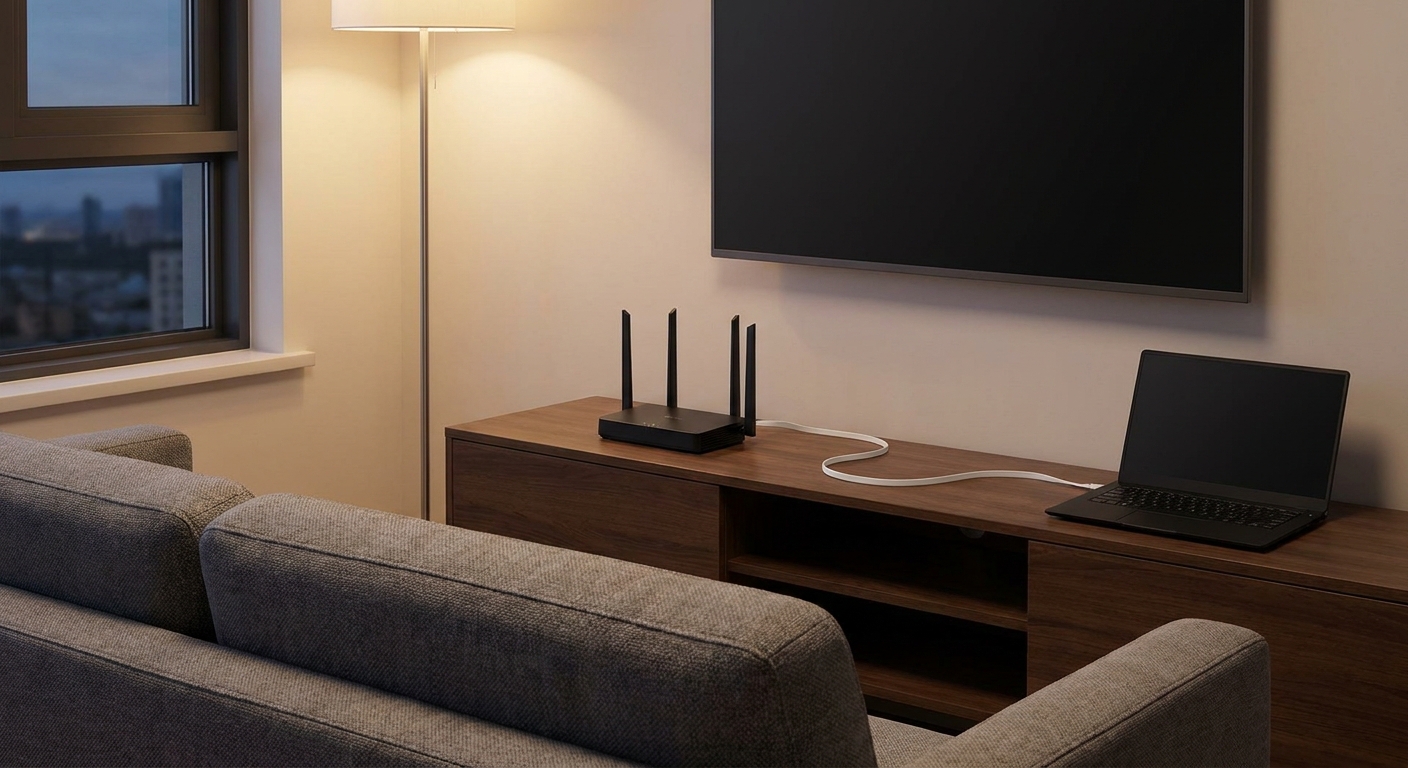
A cable beats any wireless setup for consistency. If your laptop doesn't have an Ethernet port, the StarTech 2.5GbE USB-C adapter adds one, with 100W power delivery pass-through so you can still charge through the same port. Run a Nippon Labs ultra-slim Cat6 patch cable to the router, and you've removed most of the variables.
If your router is old: upgrade it
An older router struggling with a house full of phones, TVs and laptops is a common cause of stutter. Two Wi-Fi 7 routers I'd look at:
The TP-Link Archer BE550 is tri-band, with 2.4GHz, 5GHz and 6GHz, plus a 2.5Gbps WAN port and four 2.5Gbps LAN ports. The 6GHz band is the cleanest place for a gaming device that supports Wi-Fi 6E or Wi-Fi 7.
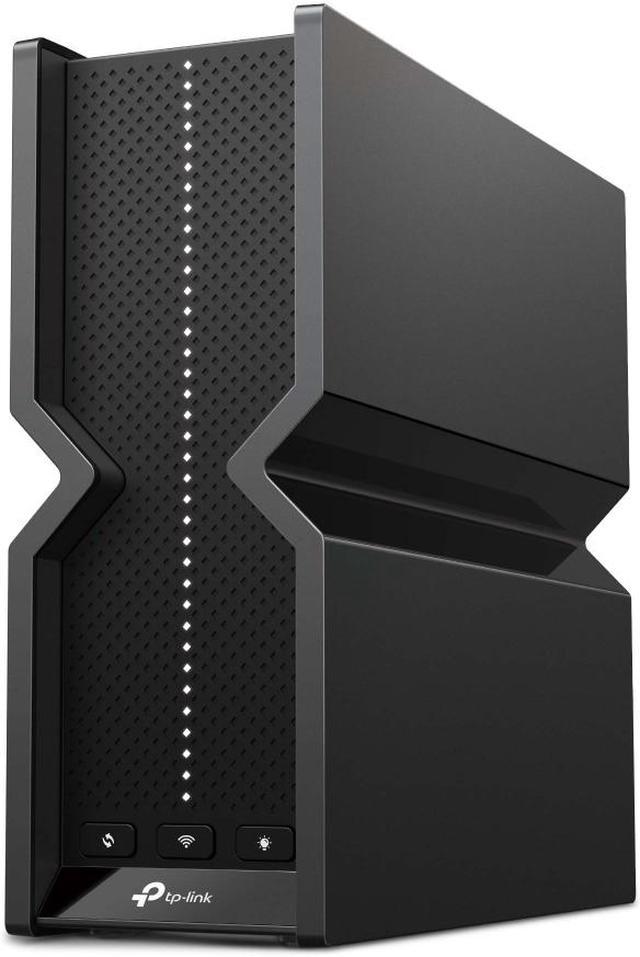
The ASUS RT-BE88U is dual-band, 2.4GHz and 5GHz only, but it has a 10G Ethernet port and a 10G SFP+ port, and it works with ASUS AiMesh. It's the better pick if you have fast wired gear and don't need 6GHz.
If you play on a TV across the house: go mesh
Distance is where single routers fall apart. The TP-Link Deco BE63 two-pack is a tri-band Wi-Fi 7 mesh system with four 2.5Gbps ports on each unit. Put one node in the room where you play. If you can run Ethernet between nodes, do it, because a wired link between them keeps more wireless capacity free for your devices.

If your desktop has no Wi-Fi
Some gaming desktops ship without wireless, or with an older card. The TP-Link Archer TBE550E is a tri-band Wi-Fi 7 PCIe card with Bluetooth 5.4 and a separate antenna base you can place up on the desk. The MSI Herald-BE Wi-Fi 7 MAX is another tri-band PCIe option with Bluetooth 5.4.

Don't forget the controller
Most cloud games are built around a gamepad. The Xbox Wireless Controller works with Xbox consoles, Windows PCs and phones, and Xbox lists it as compatible with Xbox Cloud Gaming. Bluetooth is convenient, but if you notice input lag, a wired USB connection is worth testing.
How to test your setup
Before you blame the service or buy new gear, measure. Run a speed test from the device you play on, not from your phone in another room, and note both download speed and latency. Then run the streaming service's own network test, since it measures the path to its servers.
If speed is fine but you see stutter, test again with a cable. If the cable fixes it, your Wi-Fi is the problem, and a better router, a mesh node or a move to the 5GHz or 6GHz band is the fix. If the cable doesn't help, the issue is more likely your internet connection or the route to the data center.
A few settings that help
- Connect to the 5GHz or 6GHz band, not 2.4GHz.
- Pause big downloads and cloud backups on the same network while you play.
- Run the service's built-in network test, and pick the closest server or data center if it lets you.
- Restart an old router that's been up for months before blaming the service.
My take
Cloud gaming doesn't need a fast gaming PC, but it does need a good home network. Start with a cable if you can. If you can't, a modern router or a mesh system with a node near your screen will fix more problems than a faster internet plan.
Frequently Asked Questions
How much internet speed do I need for cloud gaming? NVIDIA lists at least 15Mbps for 720p at 60fps and 25Mbps for 1080p at 60fps on GeForce NOW. Its Ultimate tier asks for at least 35Mbps for 1440p at 120fps and 45Mbps for 4K at 120fps.
What latency does cloud gaming need? NVIDIA requires less than 80ms of latency to its data center for GeForce NOW and recommends under 40ms for the best experience.
Is Wi-Fi good enough for cloud gaming? It can be. NVIDIA recommends a wired Ethernet connection or a 5GHz router. Avoid the 2.4GHz band, and keep the device close to the router or a mesh node.
Do I need a Wi-Fi 7 router for cloud gaming? No. Cloud gaming uses far less bandwidth than Wi-Fi 7 offers. A Wi-Fi 7 router helps most with congestion in busy homes, especially on the 6GHz band with devices that support it.
What controller works with Xbox Cloud Gaming? Xbox lists the Xbox Wireless Controller and Sony DualShock 4 among compatible controllers.
Read More
- GeForce NOW System Requirements (NVIDIA): NVIDIA's bandwidth, latency and router recommendations.
- Xbox Cloud Gaming (Xbox): What you need to play Xbox games from the cloud.
- Best Controllers for PC Gaming in 2026 (Newegg Insider): Controllers that work well for cloud and PC gaming.
- Best Handheld Gaming PCs in 2026 (Newegg Insider): Handhelds that can stream games as well as run them locally.
- One Desk, a PS5 and a Gaming PC (Newegg Insider): How to share one monitor between devices.