Homelab posts get a lot of attention on Reddit, and the diagrams can be intimidating: racks, VLANs, a dozen services with names you've never heard of. Most of those setups started much smaller.
If you want to run your own file storage, media server or a few test VMs at home, here's the order I'd do it in and the gear I'd start with.
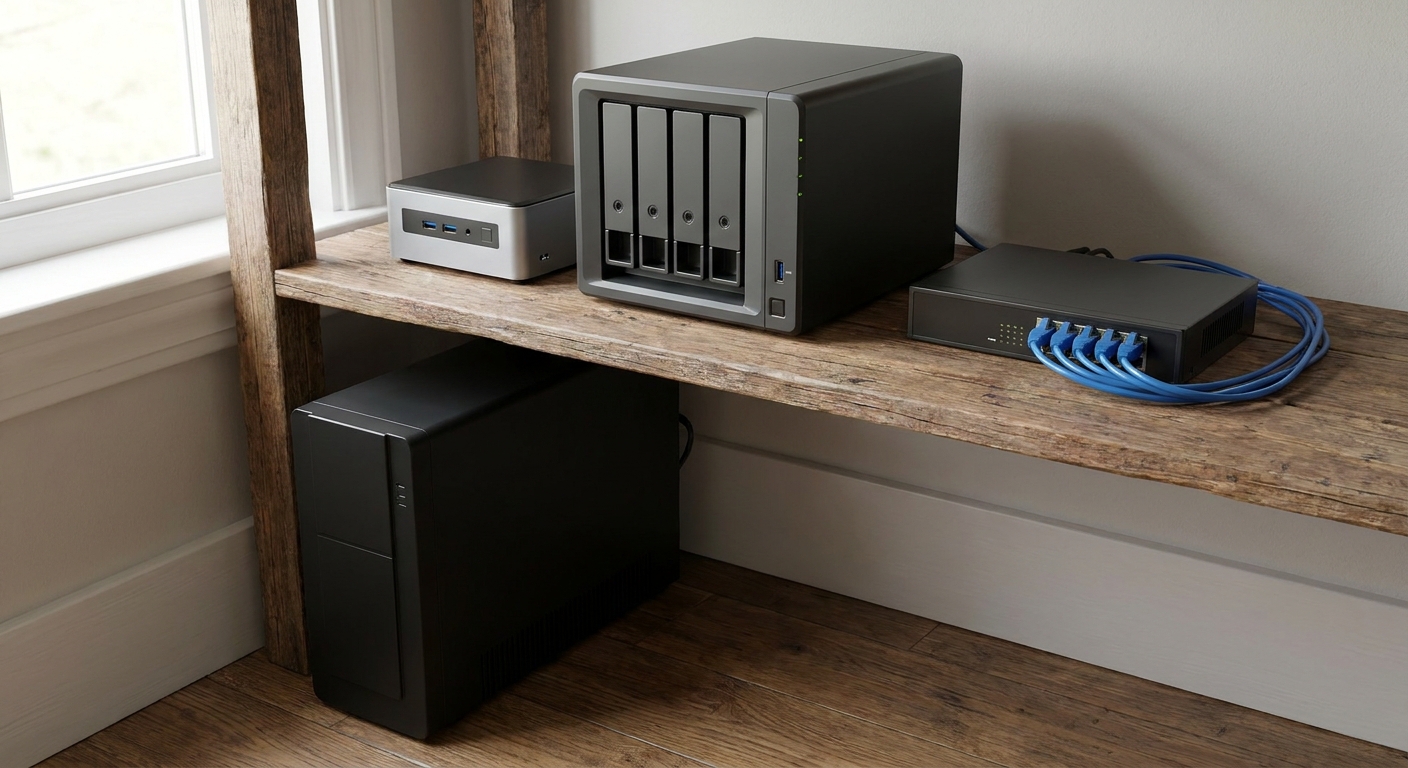
Step 1: Decide what you want it to do
Write down two or three real jobs. For example: back up the family's phones and laptops, stream your own media, and run a couple of containers like an ad blocker or home automation. That list decides whether you need storage first, compute first, or both.
Step 2: Pick a box for apps and VMs
A mini PC is a great first server. It's quiet, it doesn't use much power, and it can run Proxmox, Docker or plain Linux.
The GEEKOM A6 has an 8-core Ryzen 7 6800H, 16GB of DDR5 that's upgradeable to 64GB, a 1TB PCIe 4.0 SSD and a 2.5GbE port, plus USB4. For a starter homelab, that's plenty of room for a handful of containers and a VM or two. When you outgrow 16GB, add memory before you add another machine.

If you'd rather reuse hardware, an old desktop or laptop can do the same job to start. It'll use more power and make more noise, but it's a free way to learn whether you enjoy running your own services before you buy anything.
Step 3: Add storage with a NAS
If your main goal is storing and protecting files, start with a NAS. You get drive bays, RAID, snapshots and backup apps without building anything.
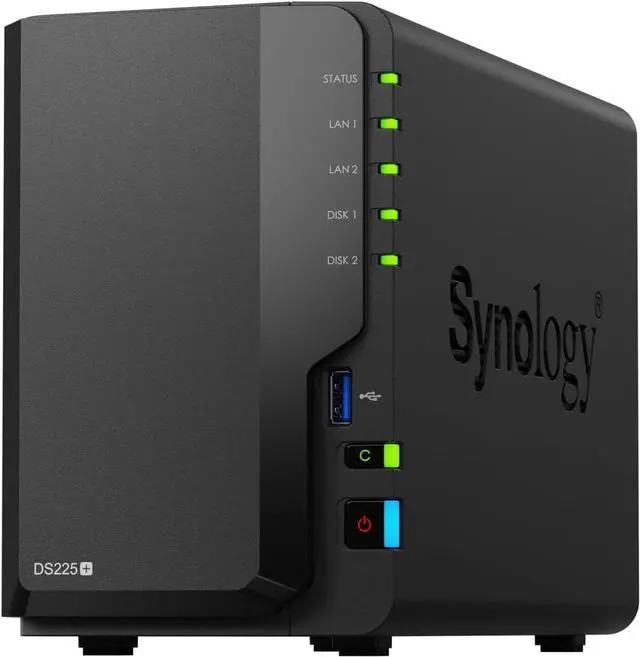
The Synology DS225+ is the simple two-bay option. It has an Intel Celeron J4125 and 2GB of DDR4, expandable to 6GB, and it's diskless, so you add your own drives. Two drives in a mirror is a sensible first setup.
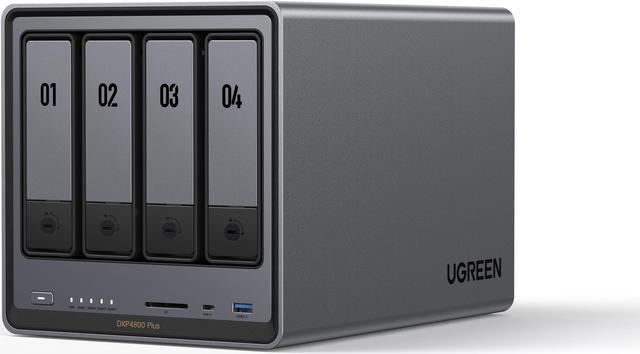
If you think you'll want more drives or more speed, the UGREEN NASync DXP4800 Plus has four bays, a 5-core Intel Pentium Gold 8505, 8GB of DDR5 (up to 64GB), two M.2 slots and one 10GbE plus one 2.5GbE port. It can run more apps on the NAS itself.
Step 4: Use NAS-rated drives
NAS drives are built for always-on use with other drives vibrating nearby. The WD Red Plus 8TB (5,640 RPM, 256MB cache) and the Seagate IronWolf 4TB (5,400 RPM, CMR) are both CMR drives, which I'd want in a NAS. Buy two of the same model for a mirror.
One rule I won't bend: RAID isn't a backup. It keeps the NAS running when a drive dies. It doesn't save you from deleted files or ransomware. Keep three copies of important data, on two kinds of media, with one copy off-site.
Step 5: Upgrade the network where it helps
The A6 and both NAS units have 2.5GbE ports, but many home routers only have gigabit ports. A small switch fixes that.
The TEROW 5-port 2.5G switch is unmanaged, fanless and plug-and-play, which is all most starter labs need. If you want VLANs later to separate smart home devices from your main network, the Omada ES210X-M2 is an easy-managed switch with eight 2.5G ports.
Step 6: Protect it from power cuts
A NAS that loses power mid-write can corrupt data. The APC Back-UPS Pro BX1500M is rated for 1500VA and 900W, with 10 outlets, five of them battery-backed. That covers a mini PC, a NAS, a switch and your modem. Connect its USB cable to the NAS so it can shut down cleanly when the battery gets low.
Step 7: Pick your first services
A few good first projects that use exactly this gear:
- Phone and laptop backups to the NAS, using its built-in backup apps.
- A media server on the NAS or the mini PC for your own movies and music.
- A network-wide ad blocker in a container on the mini PC.
- A test VM in Proxmox for trying Linux or new software without touching your main PC.
Step 8: Start small and document everything
Set up one service, get it working and back it up before you add the next one. Keep a simple text file with each box's IP address and what it does, and keep the passwords in a password manager. Future you will be grateful.
My take
A homelab grows best one useful service at a time. A mini PC, a two-bay NAS with CMR drives, a 2.5GbE switch and a UPS will cover a surprising amount of what people show in those big diagrams, without a rack in the closet.
Frequently Asked Questions
What is a homelab? A homelab is a small set of computers and network gear at home that you use to run your own services, such as file storage, media streaming, backups, home automation or test virtual machines.
Do I need a NAS and a mini PC? Not at first. Many people start with one device. A NAS is best at storing and protecting files, while a mini PC is better for running apps, containers and virtual machines.
Is RAID a backup? No. RAID helps a NAS keep running when a drive fails, but it does not protect against deleted files, ransomware or a failed NAS. Follow a 3-2-1 backup plan.
What hard drives should I use in a NAS? Use NAS-rated CMR drives such as WD Red Plus or Seagate IronWolf. They are designed for always-on use in multi-drive enclosures.
Do I need a 2.5GbE switch? If your NAS and computers have 2.5GbE ports, a 2.5GbE switch lets file transfers run faster than gigabit. If everything is gigabit, you will not see the benefit.
Read More
- DiskStation DS225+ (Synology): Synology's official specs for the two-bay DS225+.
- Proxmox: An open-source platform for running virtual machines and containers on a home server.
- TrueNAS: Open-source NAS software if you want to build your own storage server.
- The 3-2-1 Backup Strategy (Backblaze): A clear explanation of how to keep copies of your data safe.
- A Private AI Assistant for the Whole House (Newegg Insider): A homelab project for running AI locally.