A 1TB boot drive used to feel roomy. Now Call of Duty: Modern Warfare 4 asks for 115GB at launch, Call of Duty: Black Ops 7 lists 116GB, Borderlands 4 wants 100GB and Battlefield 6 recommends 80GB on an SSD. Add Windows, updates and everything else, and a handful of these fills a 1TB drive fast.
You don't need to reinstall Windows to fix that. Cloning your current drive onto a bigger NVMe SSD keeps everything exactly as it is, just with more room. I've laid out how I'd do it, including the two snags that catch most people: encryption and the recovery partition.
Background: What Cloning Actually Does
A clone copies every partition from your old drive to the new one, including the small hidden ones Windows needs to boot. Once it's done, you swap the drives (or change the boot order) and the PC starts up as if nothing happened. It's different from a backup image, which you'd restore later. For a drive upgrade, cloning is the faster route.
Step 1: Pick the New Drive and a Way to Connect It
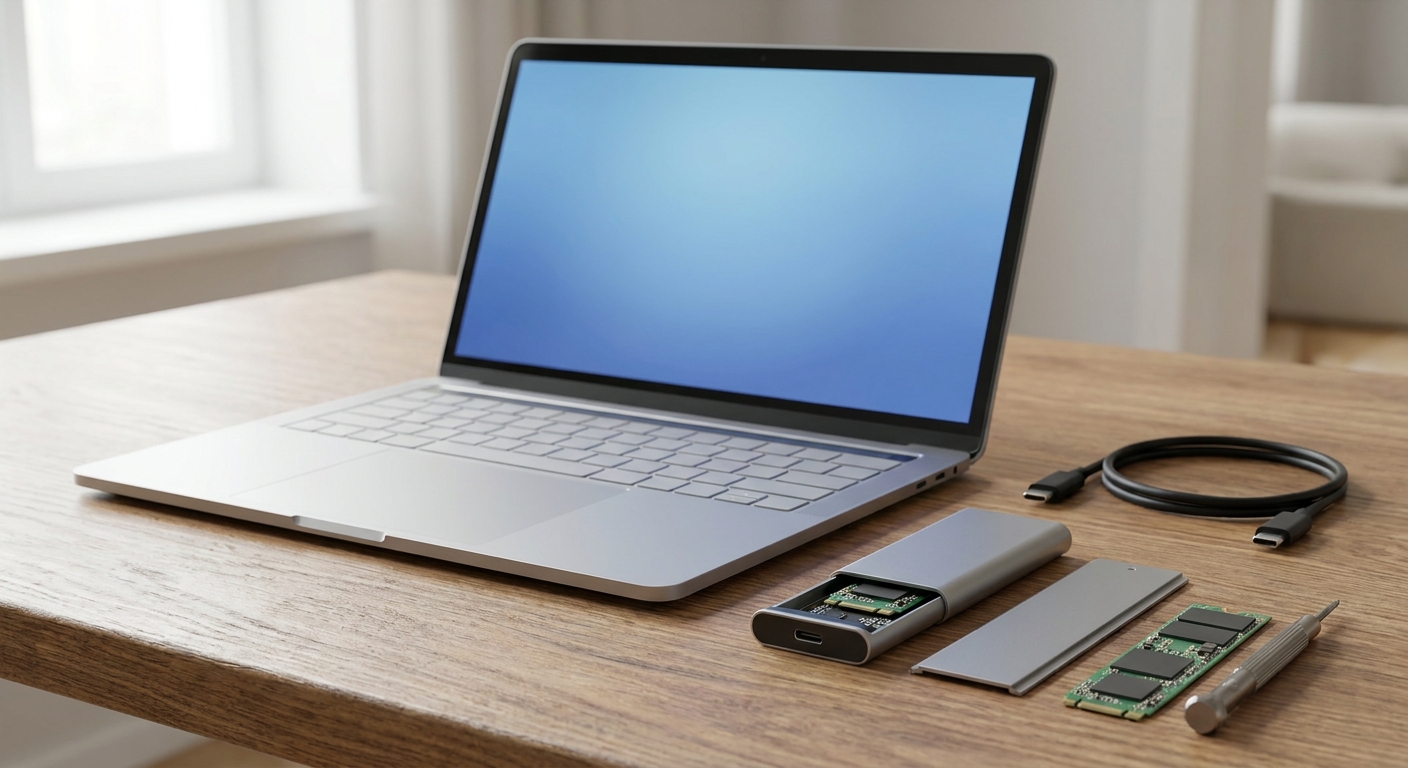
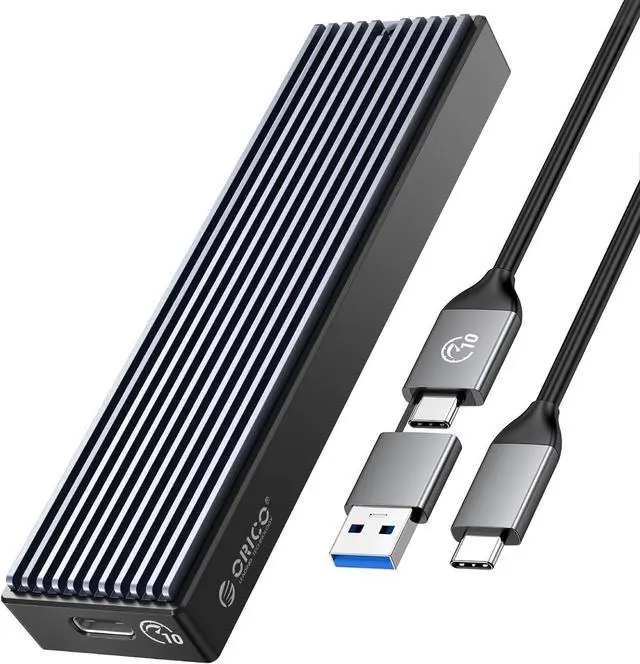
On a desktop with a free M.2 slot, install the new drive alongside the old one. On a laptop or mini PC with a single slot, put the new drive in a USB enclosure first. The ORICO M2PV M.2 NVMe enclosure uses a 10Gbps USB-C connection, fits 2230 through 2280 drives and supports 4TB NVMe SSDs. It doesn't work with SATA M.2 drives, so check what you're cloning to.
For the drive itself, 4TB is where I'd land for a gaming machine. And one practical tip: buying from a brand that offers free cloning software makes the job much simpler.
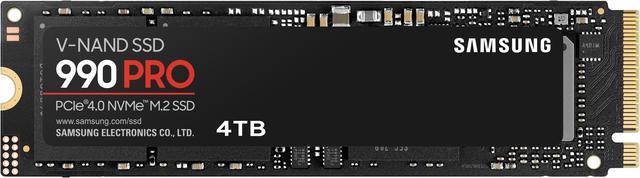
- Samsung 990 PRO 4TB: PCIe 4.0, up to 7,450MB/s reads. Samsung Magician's Data Migration moves your existing drive onto a new Samsung SSD.
- Kingston FURY Renegade G5 4TB: PCIe 5.0, up to 14,800MB/s reads. Kingston offers Acronis True Image for Kingston, which requires a Kingston SSD in the system.
Step 2: Deal With BitLocker Before You Start
Plenty of Windows 11 PCs have BitLocker or Device Encryption switched on, sometimes without the owner realizing. Microsoft lists changes to the NTFS partition table among the things that can trigger a recovery prompt. Before cloning, suspend BitLocker protection, and make sure you can find your recovery key at aka.ms/myrecoverykey. Suspended protection resumes automatically after the next restart, so if your cloning tool reboots the PC, suspend it with PowerShell's Suspend-BitLocker and a -RebootCount of 0, then resume it once the new drive boots. If you skip this, the PC may ask for a 48-digit key on the first boot from the new drive.
Step 3: Clone the Drive
Use the brand tool if your new drive qualifies. If not, two free open-source options work with any brand. Clonezilla is the long-standing disk cloning tool, and Rescuezilla puts a friendlier graphical interface on top of it, with version 2.6.2 released in May 2026. One thing I'd avoid: following older guides that recommend Macrium Reflect Free. Macrium ended security patches for it on January 1, 2024, and it's no longer available to download.
Pick the old drive as the source and the new one as the destination, then double-check before you click start. Picking them backward overwrites your data.
Step 4: Swap Drives and Boot
Shut down. On a desktop, disconnect the old drive for the first boot; once Windows is running from the new drive, you can reconnect the old one and wipe it. On a laptop, take the new drive out of the enclosure and install it in the internal slot. Boot up and check This PC to confirm everything is there.
Step 5: Claim the Extra Space
This is where people get stuck. Windows can only extend a partition into unallocated space that sits immediately after it, and on many installs the small recovery partition sits right after C:. The new space ends up stranded beyond it. Microsoft's KB5028997 shows the commands for disabling Windows RE with reagentc, deleting and recreating the recovery partition, and turning it back on. It was written to make the recovery partition bigger, so don't follow it word for word: skip its shrink step, delete the recovery partition, extend C: while leaving about 1GB free at the end (in Disk Management, enter a slightly smaller size than offered; in diskpart, use extend size=), recreate the recovery partition in that space, then run reagentc /enable. Some cloning tools can resize partitions as part of the clone, which sidesteps the problem, so look for that option before you start.
Other Drives Worth Considering
Other strong 4TB options, all of which work with Clonezilla and Rescuezilla:
- Samsung 9100 PRO 4TB: PCIe 5.0, up to 14,800MB/s reads and 2,400TBW. It also works with Samsung Magician.
- WD_BLACK SN850X 4TB: PCIe 4.0, up to 7,300MB/s reads and 2,400TBW.
- Corsair MP600 Elite 4TB: PCIe 4.0, up to 7,000MB/s reads. Its heatsink brings it to 9mm tall, so it's for desktop M.2 slots, not enclosures or laptops.
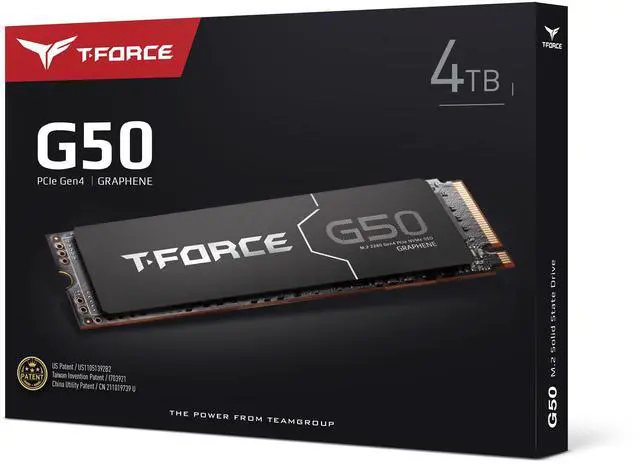
- Team Group T-FORCE G50 4TB: PCIe 4.0, up to 5,000MB/s reads and a 2,600TBW rating, with a thin heatsink that keeps it 2.25mm tall.
- Corsair MP600 CORE XT 4TB: a QLC drive for bulk game storage, up to 5,000MB/s reads.
A note on PCIe generations: a PCIe 4.0 drive in a PCIe 3.0 slot works fine, just at PCIe 3.0 speeds. A PCIe 5.0 drive only makes sense if your motherboard has a PCIe 5.0 M.2 slot. Check your board's manual before paying for one.
Summary
Suspend BitLocker, clone with your drive maker's tool or Rescuezilla, swap the drives and sort out the recovery partition if C: won't extend. It's an afternoon job, and you keep your Windows install, your settings and every game you've already downloaded.
Frequently Asked Questions
Can I move Windows to a new SSD without reinstalling? Yes. Cloning copies every partition from your old drive to the new one, including the hidden partitions Windows needs to boot. After cloning, you swap the drives or change the boot order.
What free software can clone an NVMe SSD? Samsung Magician's Data Migration works when the new drive is a Samsung SSD, and Acronis True Image for Kingston requires a Kingston SSD. For any brand, Clonezilla and its graphical front end Rescuezilla are free and open source.
Is Macrium Reflect Free still available? No. Macrium ended security patches for Reflect Free on January 1, 2024, and it is no longer available to download, so older guides that recommend it are out of date.
Why can't I extend my C drive after cloning to a bigger SSD? Windows can only extend a partition into unallocated space directly after it, and the recovery partition often sits right after C:. Microsoft's KB5028997 shows the commands to disable Windows RE, delete and recreate the recovery partition and re-enable it. Skip its shrink step, and leave about 1GB after C: for the new recovery partition.
Do I need to turn off BitLocker before cloning? Microsoft lists partition-table changes among BitLocker recovery triggers, so suspend protection before cloning and keep your recovery key from aka.ms/myrecoverykey handy. Suspension ends at the next restart unless you set a reboot count.
Read More
- Microsoft Learn: BitLocker Recovery Overview -- What triggers BitLocker recovery and how to avoid it for planned changes.
- Microsoft Support: KB5028997 Resize Your Recovery Partition -- Microsoft's steps for disabling, deleting and recreating the Windows RE partition.
- Microsoft Learn: Extend a Basic Volume -- Why unallocated space must sit directly after the volume you extend.
- Samsung: Magician Software -- Samsung's SSD tool, including Data Migration for moving to a new Samsung SSD.
- Rescuezilla -- The free, open-source graphical disk imaging and cloning tool.