When Sam Altman suggested that RAM in personal PCs would be better used in AI data centers, the comment drew a lot of pushback from PC users. I'm on the side of keeping some AI at home for one specific use: a private assistant the whole household can use for homework help, recipes, summarizing documents and drafting emails, without every chat going to a cloud service.
It's a much simpler project than it sounds. Here's how I'd do it.
Background: what you're actually building
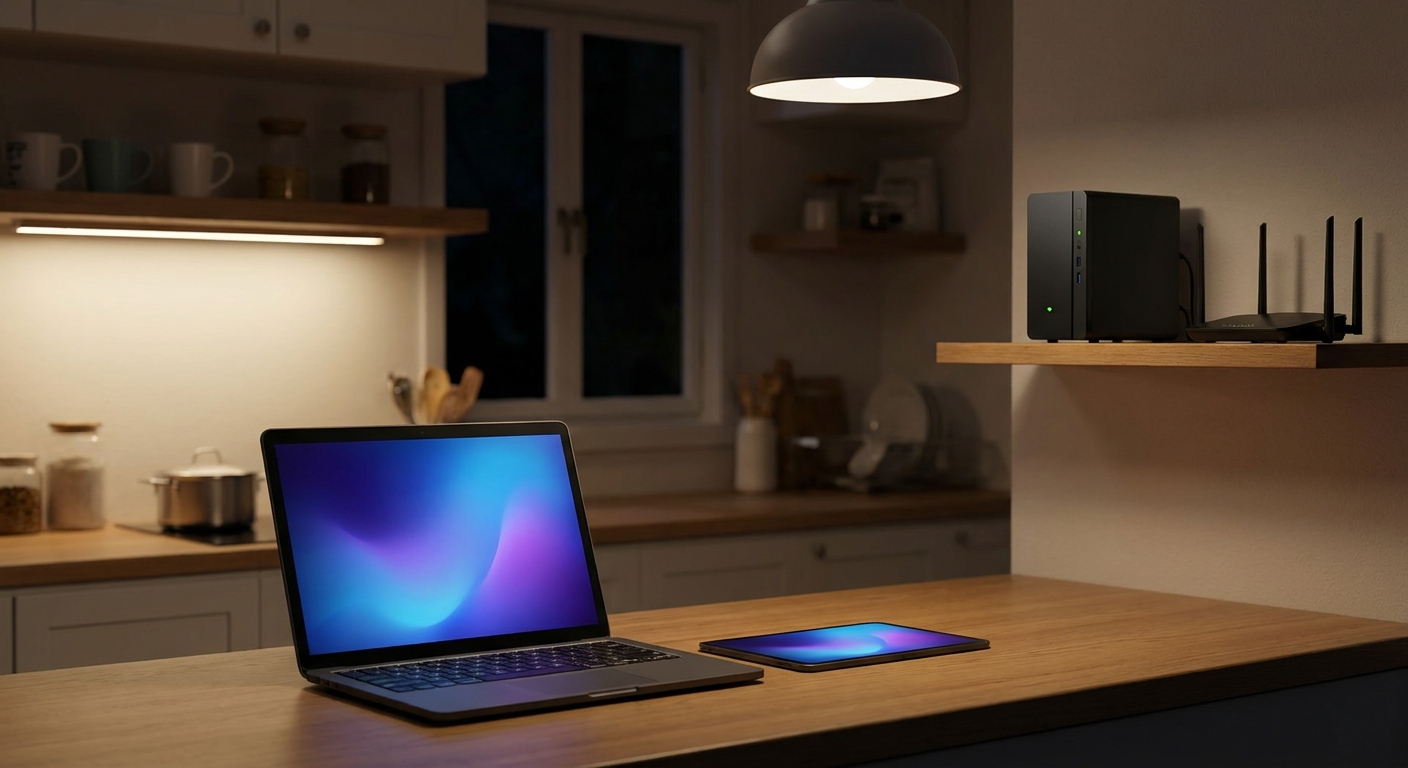
You need three things. First, hardware with enough memory to hold a language model. Second, Ollama, which downloads and runs open-weight models locally. Third, Open WebUI, a browser-based chat interface with user accounts, so everyone in the house gets their own login and chat history from a laptop, tablet or phone on the home network.
Step 1: Decide between a dedicated box and your gaming PC
If you already have a desktop, adding a 16GB card such as the MSI Ventus RTX 5060 Ti 16G is the lowest-cost way to start. The catch is that the PC has to be on whenever someone wants the assistant, and it's tied up while you're gaming.
For a household, I prefer a small dedicated box that stays on, uses less power than a gaming tower and sits quietly next to the router.
Step 2: Size the memory for the models you want
Models are sized by parameters, and memory needs grow with them. Smaller models run comfortably in 16GB. Bigger, more capable models need far more. That's where 128GB unified-memory machines come in: CPU and GPU share one large pool, so much bigger models fit than on a typical graphics card.
On the AMD side, the MINISFORUM MS-S1 Max pairs a 16-core Ryzen AI Max+ 395 and Radeon 8060S graphics with 128GB of LPDDR5x and a 2TB SSD. It also has two 10G Ethernet ports and Wi-Fi 7, which is nice if several people connect at once.
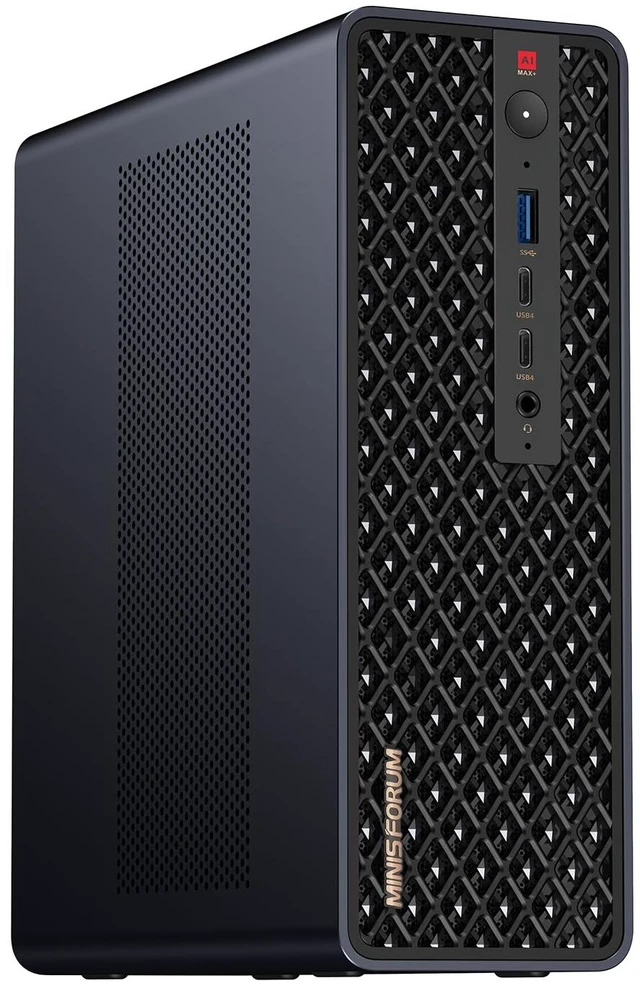
The GMKtec EVO-X2 uses the same chip with 128GB of LPDDR5X-8000 and a 2TB SSD. If you want a business-class option with Windows 11 Pro and 10GbE, there's the HP Z2 Mini G1a with the Ryzen AI MAX PRO 395 and 128GB.
On the NVIDIA side, GB10-based machines run NVIDIA's DGX OS. The GIGABYTE AI TOP ATOM lists 128GB of LPDDR5X on a 256-bit interface at 273GB/s, a 20-core Arm CPU, a 4TB SSD and 10GbE. The MSI EdgeXpert is another GB10 system with 128GB of unified memory and a 4TB Gen5 SSD.

Which one? If your household is mostly on Windows and you want to tinker, I'd lean toward a Ryzen AI Max+ box. If you want NVIDIA's CUDA software stack and are comfortable with Linux, a GB10 machine is the more natural fit.
Step 3: Install Ollama, then Open WebUI
Install Ollama on the box and download one model to start with. Test it locally first. Then install Open WebUI, point it at Ollama, and create an admin account for yourself. Add one account per person. Open WebUI lets you control which models each user can see, which is handy if you have kids.
Step 4: Keep it on your home network
The whole point is privacy, so don't expose the box to the internet. Give it a fixed address on your router, use the browser interface over the local network, and turn off any connectors to outside services you don't need.
Step 5: Protect it like a small server
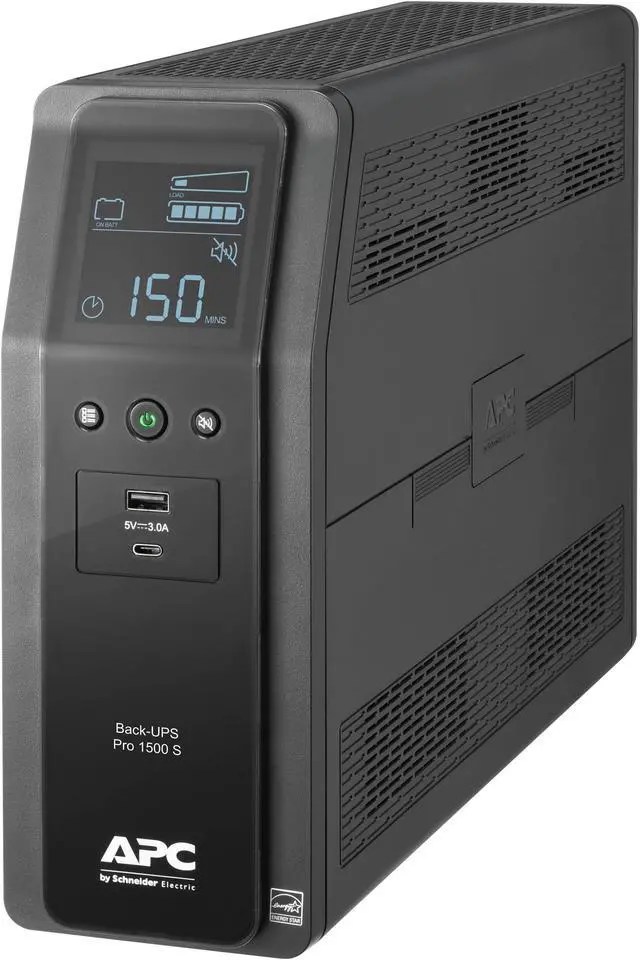
An always-on box should be on a UPS. The APC Back-UPS Pro BR1500MS2 is rated for 1500VA/900W with automatic voltage regulation and six battery-backed outlets, enough for the AI box, router and modem.
Models take up a lot of disk space, so plan for storage too. If you're adding to a desktop, a 4TB drive like the Corsair MP600 Elite 4TB gives you room to try several models without constantly deleting them.
Summary
Pick a 128GB unified-memory box if you want bigger models and an always-on assistant, or start with a 16GB GPU in the PC you already own. Run Ollama with Open WebUI, give everyone an account, keep it off the open internet and put it on a UPS. It won't replace every cloud tool, but for everyday questions and documents, a private assistant is very doable at home now.
Frequently Asked Questions
Can I run a ChatGPT-style assistant at home without the cloud? Yes. Tools like Ollama run open-weight language models on your own hardware, and Open WebUI gives everyone in the house a familiar chat interface in a browser.
How much memory does a home AI box need? It depends on the models. Smaller models run comfortably in 16GB of GPU memory, while larger ones need much more. A 128GB unified-memory system such as a Ryzen AI Max+ 395 mini PC or a GB10-based machine gives you room for bigger models.
Can several people use one local AI box at the same time? Yes. Open WebUI supports multiple user accounts, so each person gets their own chat history. Responses slow down when several people send requests at once.
Is a local AI box private? Your prompts stay on your hardware as long as you keep it on your home network and do not connect it to outside services. Do not expose it directly to the internet.
Should I use a mini PC or add a GPU to my gaming PC? A mini PC is quieter, uses less power and can stay on all day. Adding a 16GB GPU to an existing PC is cheaper to start, but the PC has to stay on whenever someone wants to use the assistant.
Read More
- Ollama: Run open-weight language models locally on Windows, macOS and Linux.
- Open WebUI Documentation: A self-hosted chat interface with user accounts that works with Ollama.
- AMD Ryzen AI Max+ 395 (AMD): AMD's official specs for the chip inside many 128GB AI mini PCs.
- NVIDIA DGX Spark (NVIDIA): NVIDIA's page for the GB10 personal AI computer platform.
- 128GB for Local AI: DGX Spark, Strix Halo or RTX Spark? (Newegg Insider): Our comparison of the main 128GB local AI platforms.