
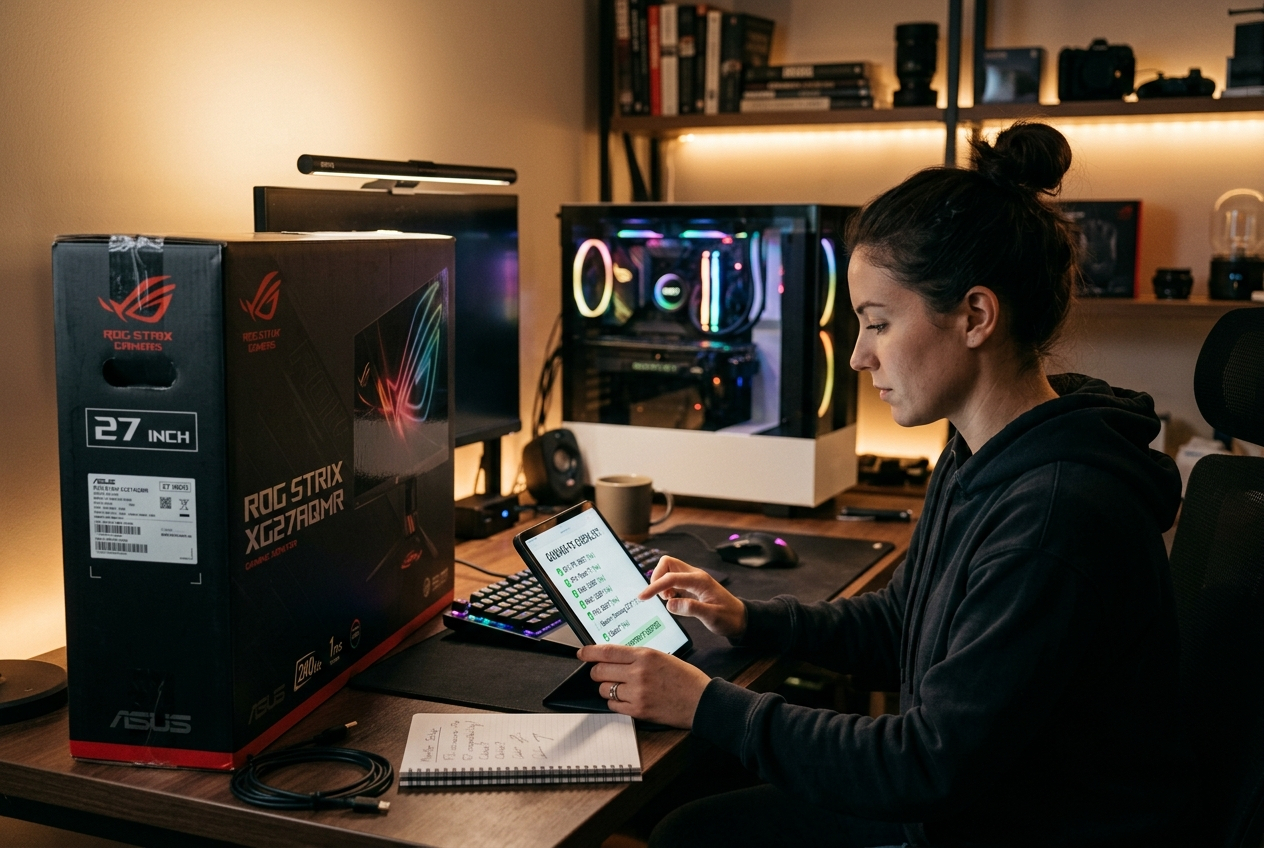
Buying a gaming monitor without checking compatibility is one of the most common and avoidable mistakes in PC gaming. You can order what looks like a perfect display — the right size, resolution, refresh rate — and then discover that your GPU doesn’t support the right cable standard, your system can’t drive the panel at its rated specs, or the VRR technology doesn’t work the way you expected.
This guide covers every compatibility dimension worth checking before you commit to a gaming monitor purchase in 2026.
1. GPU and Resolution Compatibility
The first and most fundamental check: can your GPU actually drive your target monitor at its rated specifications?
Resolution and frame rate are linked to GPU performance. A monitor rated for 240Hz at 1080p Full HD will only deliver that experience if your GPU can sustain 240 frames per second in your games. A 4K gaming monitor connected to an entry-level GPU will display correctly — but at low frame rates that negate the high-resolution experience.
Before buying:
- Check GPU benchmark data for your specific GPU at the monitor’s target resolution and refresh rate
- Look for GPU reviews that test your target games at the monitor’s resolution
- Remember that AI upscaling (DLSS, FSR, XeSS) can help bridge GPU-to-resolution gaps, but won’t fully substitute for native rendering headroom
2. VRR Technology Compatibility
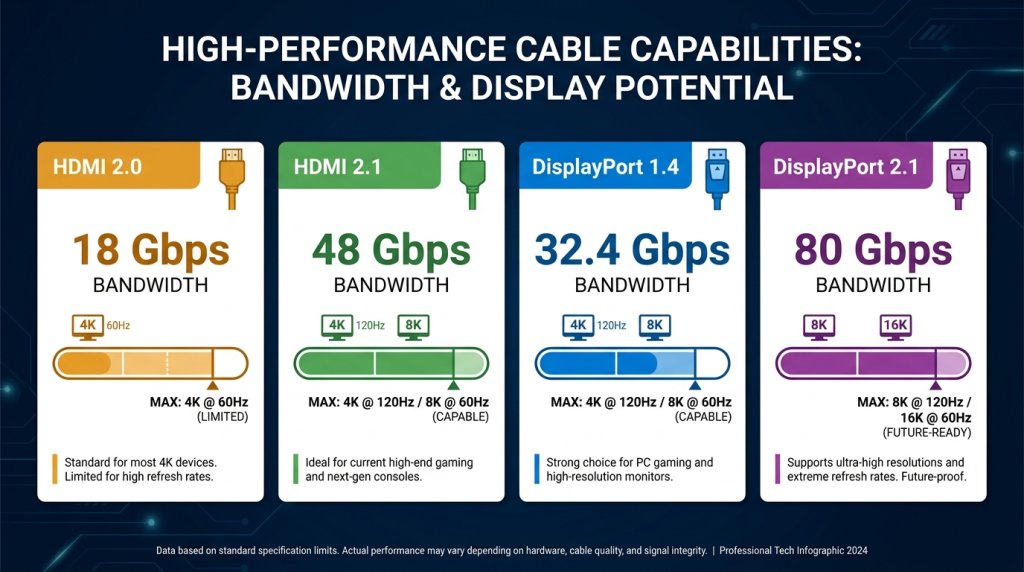
Variable refresh rate is one of the most valuable features on a modern gaming monitor — but it requires matching technology between your GPU and monitor.
G-Sync works natively with NVIDIA GPUs. G-Sync Compatible monitors (which use VESA Adaptive-Sync) also work with NVIDIA GPUs without the proprietary hardware module.
FreeSync works natively with AMD GPUs. FreeSync monitors also work with NVIDIA GPUs via Adaptive-Sync, though not all features are guaranteed without the G-Sync Compatible certification.
In 2026, cross-compatibility has improved significantly — most FreeSync Premium monitors work acceptably with NVIDIA GPUs and vice versa. However, for guaranteed VRR performance, matching GPU brand to monitor certification remains the safest approach. Always verify that the specific monitor model you’re considering has been tested with your GPU brand.
3. Cable and Port Compatibility
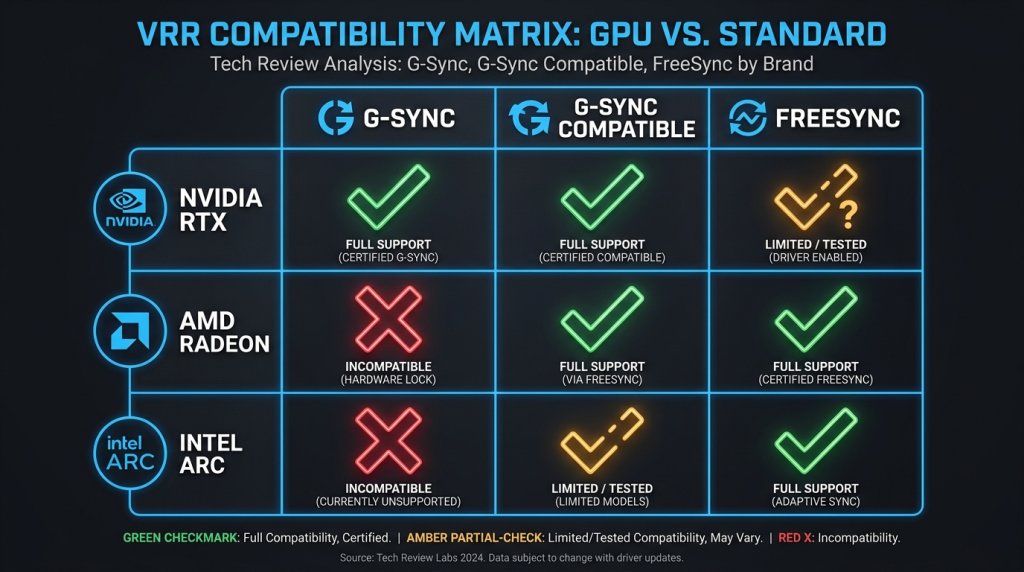
This is the most frequently overlooked compatibility issue — and one of the most practically disruptive. Different cable standards carry different maximum bandwidth, which limits the resolution and refresh rate combination they can support.
| Connection | Max Bandwidth | Max Resolution @ Refresh |
|---|---|---|
| HDMI 2.0 | 18 Gbps | 4K @ 60Hz / 1440p @ 144Hz |
| HDMI 2.1 | 48 Gbps | 4K @ 144Hz / 8K @ 60Hz |
| DisplayPort 1.4 | 32.4 Gbps | 4K @ 120Hz / 1440p @ 240Hz |
| DisplayPort 2.1 | 77.4 Gbps | 4K @ 240Hz / 8K @ 120Hz |
| USB-C (DP Alt Mode) | Varies (up to DP 2.1) | Depends on implementation |
Practical example: A monitor rated for 1440p @ 240Hz connected via HDMI 2.0 may be limited to 144Hz or lower — not because the monitor can’t do 240Hz, but because the cable can’t carry that bandwidth. Always connect via the highest-bandwidth port available, and verify which ports on your specific monitor and GPU support which specifications.
Check:
- Which ports are on your GPU (HDMI version, DisplayPort version)
- Which ports are on the monitor (some monitors have HDMI 2.0 and DisplayPort 1.4 on the same panel)
- Whether you need a new cable — not just an adapter
4. Refresh Rate Achievability at Target Resolution
Linked to the cable check above: even if your GPU can render at the target frame rate, your connection must have the bandwidth to transmit it. This is particularly relevant for:
- 4K Gaming Monitors at 120Hz or 144Hz — requires HDMI 2.1 or DisplayPort 1.4 minimum
- Ultrawide monitors in 33-inch and larger at high refresh — higher pixel counts eat bandwidth faster
- 39+ inch ultrawide configurations at full resolution and refresh — may require DisplayPort 2.1
HDR color depth also consumes bandwidth. A 4K @ 120Hz signal in 10-bit HDR mode requires more bandwidth than the same signal in 8-bit SDR mode. If bandwidth is marginal, enabling HDR may force a refresh rate reduction.
5. HDR Compatibility and Ecosystem
HDR gaming monitors deliver their best experience when the entire signal chain supports HDR:
- GPU: Must support HDR output (all modern GPUs from NVIDIA and AMD do)
- Cable: Must have sufficient bandwidth for HDR color depth (10-bit) at target resolution
- Operating System: Windows HDR must be enabled and calibrated
- Game / Application: Must support HDR rendering (not all games do in 2026)
HDR certification tiers also matter. DisplayHDR 400 (the entry tier) delivers a noticeably different experience than DisplayHDR 1000 or the Dolby Vision / VESA DisplayHDR True Black standards found on OLED/QLED monitors. Verify the HDR tier — not just whether HDR support is listed.
6. Physical and Ergonomic Compatibility
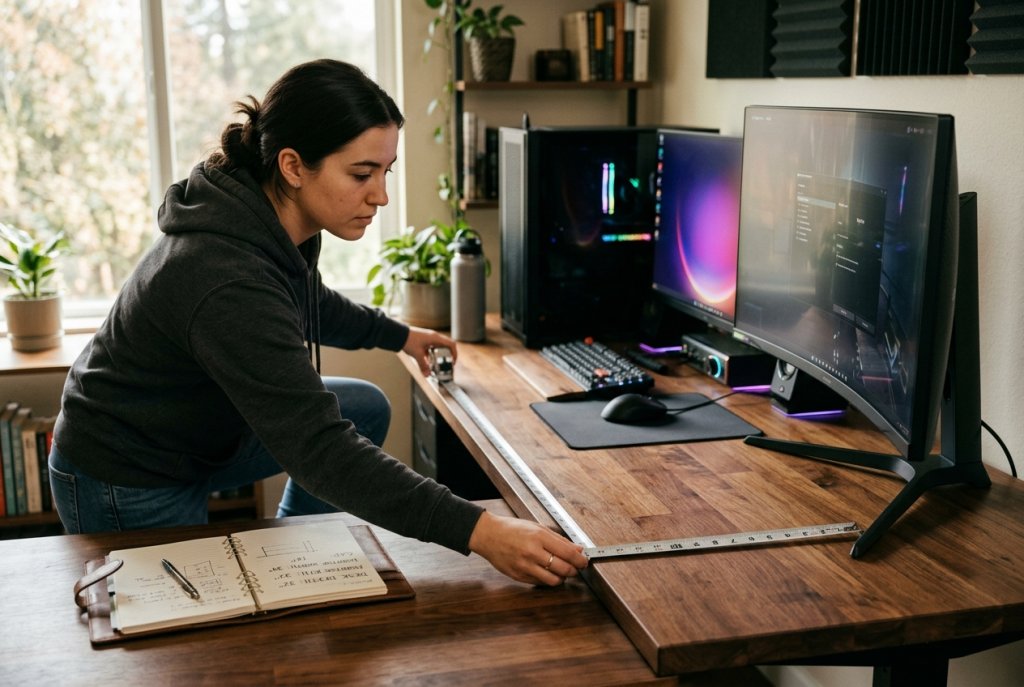
Desk and space: Measure your desk depth and width before ordering. A curved 39-inch ultrawide requires significant desk real estate. 33-inch and larger flat monitors also need depth clearance for comfortable viewing distance.
VESA mount compatibility: If you use a monitor arm or wall mount, verify the monitor’s VESA pattern (common: 75×75mm, 100×100mm, 200×200mm). Not all monitors include VESA mounting compatibility — some ultrawide stands don’t detach for third-party arm mounting.
Height and tilt adjustment: Check whether the included stand offers adequate height adjustment, tilt, and pivot for your desk setup. Ergonomic flexibility varies significantly between models.
7. Laptop and Console Compatibility
Not all gaming monitors are optimized for laptop or console input:
Laptops: Verify whether your laptop’s GPU outputs via DisplayPort Alt Mode (USB-C/Thunderbolt) or HDMI, and match the monitor’s inputs. Some thin laptops lack full-size HDMI 2.1 or DisplayPort 1.4 outputs, limiting max resolution or refresh rate.
Consoles (PS5, Xbox Series X): Both support HDMI 2.1 for 4K @ 120Hz. Verify the monitor has HDMI 2.1 input — many gaming monitors marketed as “4K 144Hz” have DisplayPort 1.4 for PC use and only HDMI 2.0 for console input, limiting consoles to 60Hz at 4K.
Your Pre-Purchase Compatibility Checklist
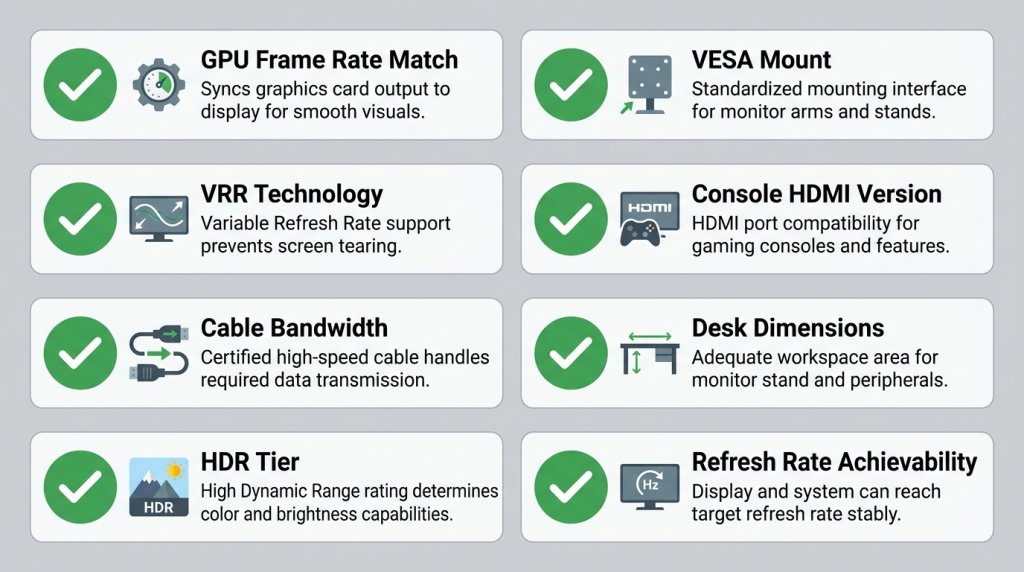
Before finalizing any gaming monitor purchase, verify:
- [ ] GPU can sustain target frame rate at monitor’s resolution
- [ ] GPU supports monitor’s VRR technology (G-Sync / FreeSync)
- [ ] GPU output ports match monitor input ports (HDMI version, DP version)
- [ ] Cable bandwidth supports target resolution + refresh rate + HDR
- [ ] HDR tier meets your expectations (400 vs. 600 vs. 1000 vs. True Black)
- [ ] Monitor fits your desk (measure depth, width, and viewing distance)
- [ ] Stand includes VESA mounting if you use a monitor arm
- [ ] Console HDMI input version confirmed if gaming on PS5/Xbox
The Bottom Line
Compatibility issues are preventable — but only if you check before you buy. The most common pitfalls are cable bandwidth mismatches (connecting a 240Hz monitor via HDMI 2.0 and wondering why it maxes at 144Hz) and VRR ecosystems that don’t quite match (buying a FreeSync-only monitor with an NVIDIA GPU without confirming Adaptive-Sync support).
Take 15 minutes to verify each item on the checklist above. It’s far less painful than discovering a mismatch after your new monitor arrives.