


Your Browsing History
BEST SELLERS


BEST SELLERS
In Inkjet Printers
Our most popular products, based on sales and updated frequently.Shop Department
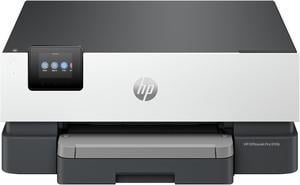
HP OfficeJet Pro 9110b Wireless Printer with PDL Page Descriptive Language Support
- Part Number: 5A0S1A#B1H
- Color Print Speed: Up to 22 ppm
- Black Print Quality: 1200 x 1200 dpi
- Time To First Page (seconds): 12 sec
- Model #: 5A0S1A#B1H
- Item #: 9SIAPH0KNS5965
- Return Policy: View Return Policy
$199.89
Free Shipping
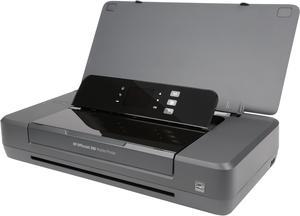
HP OfficeJet 200 (CZ993A) Mobile Wireless Portable Color Inkjet Printer
- Recommended Use: Mobile
- Black Print Speed: ISO: On AC: Up to 10 ppm, On Battery: Up to 9 ppm Draft: On AC: Up to 20 ppm, On Battery: Up to 18 ppm
- Black Print Quality: Up to 1200 x 1200 rendered dpi (when printing from a computer)
- Cartridges Compatible: HP 62 Black Original Ink Cartridge HP 62 Tri-color Original Ink Cartridge HP 62XL High Yield Black Original Ink Cartridge HP 62XL High Yield Tri-color Original Ink Cartridge
- Model #: CZ993A
- Item #: 9SIAPH0KNP8215
- Return Policy: View Return Policy
- Great quality - Battery life - Wifi abilities - Quick printing
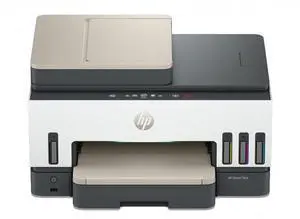
HP Smart Tank 7603 Wireless All-in-One Ink Tank Printer - Print, Copy, Scan, Fax, ADF and Wireless - Up to 3 years of vibrant ink included - 3.0" Touchscreen display - 250-sheet input tray - 100-
- Black Print Speed: Print speed up to 15 ppm (black) and 9 ppm (color)
- Black Print Quality: 1200 x 1200 dpi
- Brand: HP
- Part Number: 9B5D1A#B1H
- Model #: 9B5D1A#B1H
- Item #: 9SIAR0TM111425
- Return Policy: View Return Policy
$319.99
$469.99
Free Shipping
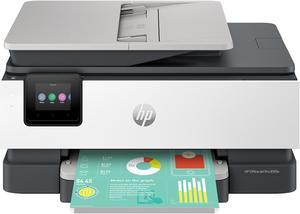
HP OfficeJet Pro 8135e All-in-One Printer w/ bonus 12months Instant Ink through HP+ 40Q35A#B1H
- Part Number: 40Q35A#B1H
- Color Print Speed: Up to 20 ppm
- Black Print Quality: 1200 x 1200 dpi
- Time To First Page (seconds): 15 sec
- Model #: 40Q35A#B1H
- Item #: 9SIAS4WKXM0566
- Return Policy: View Return Policy
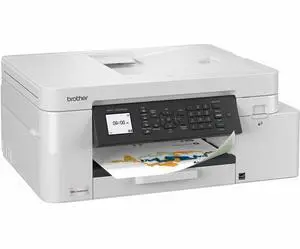
Brother MFC-J4355DW Wired Inkjet Multifunction Printer Color
- Brand: Brother
- Model #: MFC-J4355DW
- Item #: 1E4-000D-009S1
- Return Policy: 30-Day Return Policy
$214.99
$249.99
$4.99 Shipping
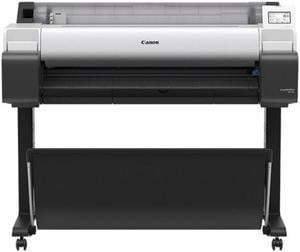
Canon imagePROGRAF TM-340 Color 36" Width Output Large Format Printer
- Color Technologies: 5 Colour Pigment Inks: MBK/BK/C/M/Y
- Max. Print Speed: 2.7 D/min, 21 Seconds
- Number of Nozzles: 15,360 nozzles (MBK 5,120 nozzles, Other Colours 2,560 nozzles each)
- USB Ports: Yes
- Model #: 6248C002AA
- Item #: 9SIACB0KD59942
- Return Policy: View Return Policy
$2,695.00
Free Shipping
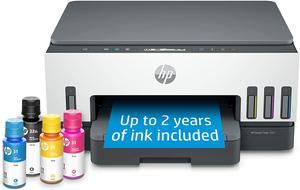
HP Smart Tank 7001 Wireless All-in-One Cartridge-free Ink Tank Printer
- Output Capacity, std.: 100-sheet
- Black Print Quality: 1200 x 1200 dpi
- Cartridges Compatible: HP 32 90-ml Black bottle (~4000 pages) HP 32XL 135-ml Black bottle (~6000 pages) HP 31 70-ml Cyan bottle (~8000 pages) HP 31 70-ml Magenta bottle (~8000 pages) HP 31 70-ml Yellow bottle (~8000 pages)
- Part Number: 28B49A#B1H
- Model #: 28B49A#B1H
- Item #: 9SIA6ZPKUE3507
- Return Policy: View Return Policy
$436.63
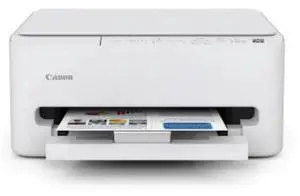
Canon PIXMA TS4320 Wireless Duplex All-in-One Inkjet Color Printer
- Model #: 7181C002
- Item #: 9SIA4P0KMW9962
- Return Policy: View Return Policy
$59.00
$107.99
$26.60 Shipping
Can use USB printer cable if you want, instead of wireless, and do all your printing and scanning without being exposed to the internet.
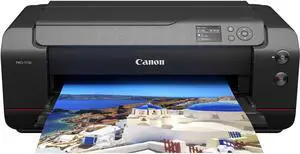
Canon imagePROGRAF PRO-1100 17" Pro Wide Format Wireless Inkjet Printer
- Model #: 6856C002
- Item #: 9SIA4P0KB71130
- Return Policy: View Return Policy
$1,134.00
$1,403.99
Free Shipping
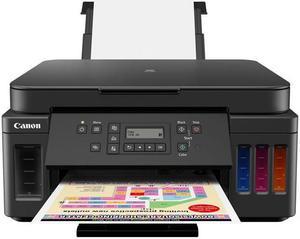
Canon PIXMA G6020 Wireless High Volume Business Printer AIO Supertank Printer
- Model #: 3113C002
- Item #: 9SIAE1AKVX2113
- Return Policy: View Return Policy
$355.99
Free Shipping
I've had this printer for just over 3 years and I'm still using the ink that came with it. I don't do a lot of printing but I think even with heavy printing the savings would show.
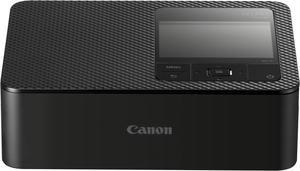
Canon SELPHY CP1500 Wireless Compact Photo Printer, Black
- Brand: Canon
- Series: Canon SELPHY
- Model: Canon SELPHY CP1500
- Model #: 5539C001
- Item #: 9SIA4P0K613738
- Return Policy: View Return Policy
$159.00
$179.99
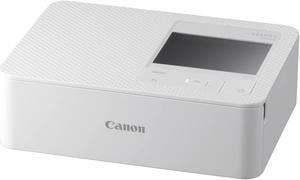
Canon SELPHY CP1500 Wireless Compact Photo Printer, White #5540C002
- Brand: Canon
- Series: Canon SELPHY
- Model: Canon SELPHY CP1500
- Model #: 5540C002
- Item #: 9SIA4P0K613737
- Return Policy: View Return Policy
$159.00
$179.99