Local image generation has gone mainstream, and local video generation is following close behind. The question I get most is simple: "How much VRAM do I need?" The honest answer depends on whether you mostly make images or video, because the gap between the two is huge.
Here's how I'd size a card, using what the model makers themselves publish where I can.
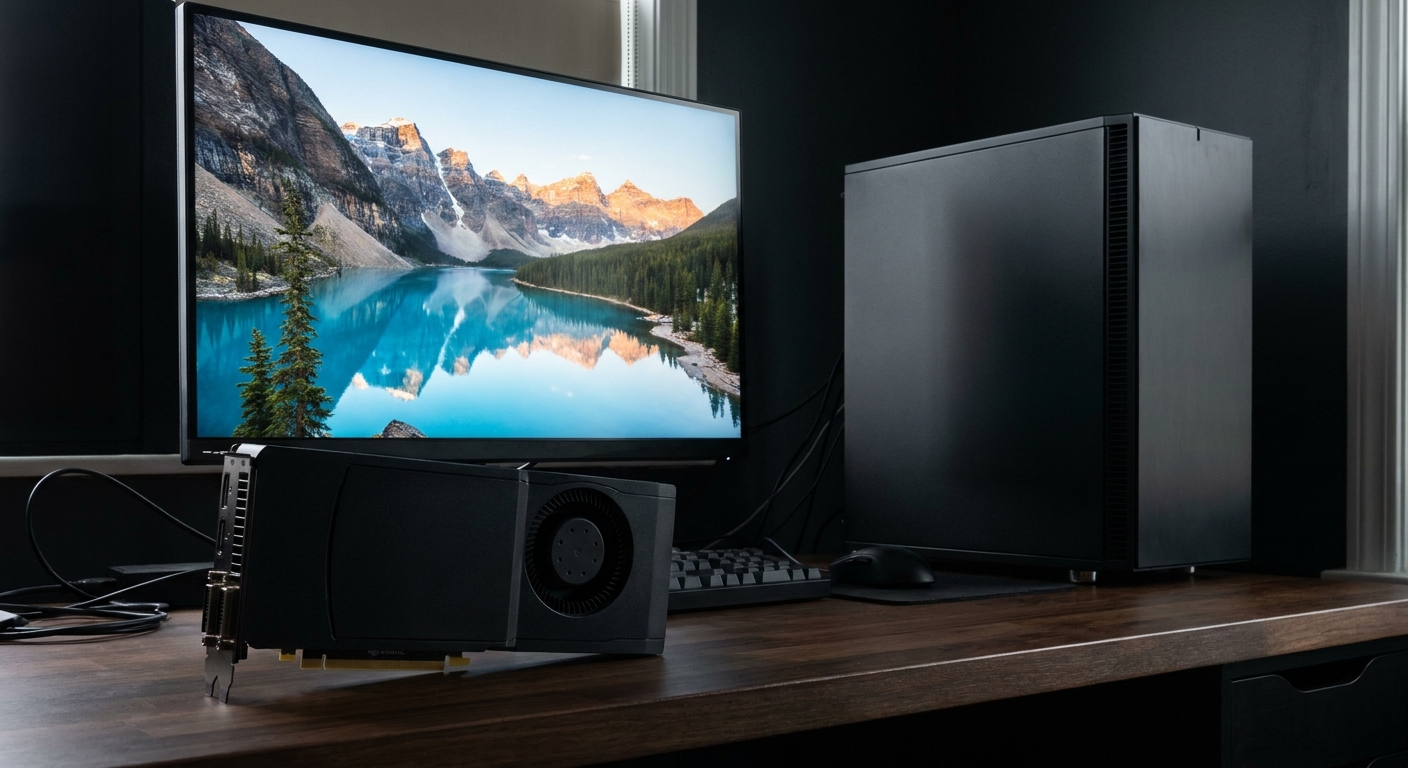
The contenders, by memory tier
| Card (per listing) | VRAM | Memory bus | Form factor |
|---|---|---|---|
| RTX 5060 Ti 16GB | 16GB GDDR7 | 128-bit | 2 slots |
| RTX 5070 Ti | 16GB GDDR7 | 256-bit | About 3 slots |
| RTX 5080 | 16GB GDDR7 | 256-bit | 3 slots |
| RTX PRO 4000 Blackwell | 24GB GDDR7 ECC | 192-bit | Single slot |
| RTX 5090 (AORUS liquid-cooled) | 32GB GDDR7 | 512-bit | 2 slots plus radiator |
| Radeon AI PRO R9700 | 32GB GDDR6 | 256-bit | 2 slots |
| RTX PRO 4500 Blackwell | 32GB GDDR7 ECC | 256-bit | Dual slot |
| RTX PRO 6000 Blackwell Max-Q | 96GB GDDR7 ECC | 512-bit | Dual slot |
Images vs. video: why the numbers diverge
An image model generates one frame. A video model generates many frames that have to stay consistent with each other, so it holds far more in memory at once. That's the whole story behind why video eats VRAM.
The Wan2.2 project makes the gap concrete. Its 5B text-and-image-to-video model is described as generating 720p at 24fps on consumer-grade cards like an RTX 4090, a 24GB card. Its larger A14B model's single-GPU example notes that it needs a GPU with at least 80GB of VRAM, with offloading options for smaller cards.
Deep dive: 16GB cards
For image generation, 16GB is a real starting point. The GIGABYTE RTX 5060 Ti 16GB Gaming OC is the entry ticket. If you want more speed with the same capacity, the PNY RTX 5070 Ti 16GB and the PNY RTX 5080 16GB both move to a 256-bit bus. For video, 16GB means smaller models, lower resolutions and leaning on offloading, which slows things down a lot.
Deep dive: 24 to 32GB
This is where I'd aim if video matters to you. The GIGABYTE AORUS RTX 5090 pairs 32GB of GDDR7 with a 512-bit bus, and it's the fastest consumer option here. This AORUS version is liquid-cooled with a 2-slot card, so plan a spot for its radiator. Blackwell's FP4 support is also useful for image models that ship in that format.

The GIGABYTE AI TOP Radeon AI Pro R9700 also offers 32GB, in a two-slot design. Many popular tools support Radeon, but CUDA is still the most widely supported path, so I'd check that your exact workflow runs well before choosing it.
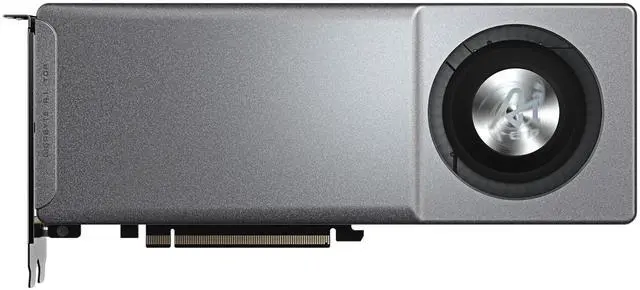
If you're putting a card in a workstation, the NVIDIA RTX PRO 4500 Blackwell gives you 32GB of ECC GDDR7 in a dual-slot card. The RTX PRO 4000 Blackwell fits 24GB into a single slot, which is useful for compact or multi-GPU builds.
Deep dive: 96GB
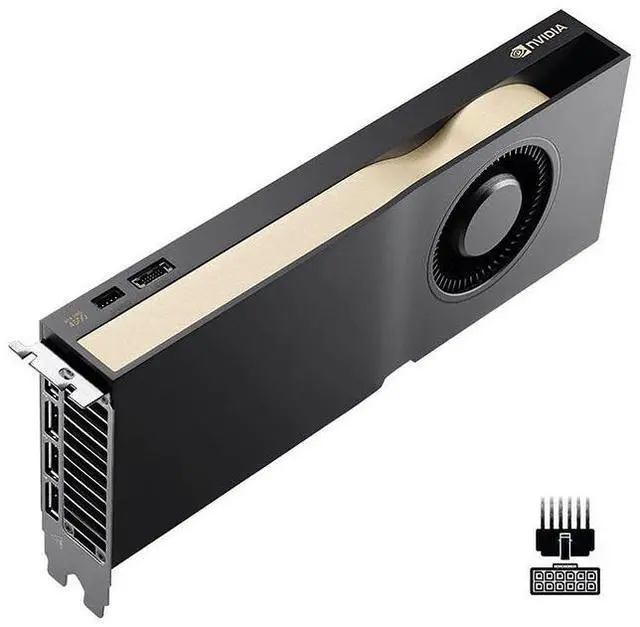
The NVIDIA RTX PRO 6000 Blackwell Max-Q has 96GB of ECC GDDR7 on a 512-bit bus in a dual-slot card. That's the one card here that clears the 80GB figure Wan2.2 gives for its larger model on a single GPU. It's overkill for images, but if you produce video seriously, it removes most of the juggling.
What else in the PC matters
VRAM is the main constraint, but it isn't the only one. When a model doesn't fit, tools like ComfyUI can offload parts of it to system RAM. That keeps the job running, so 64GB of system memory is a good companion to a 16GB or 24GB card if you plan to push past its limits. It'll be much slower than keeping everything on the GPU, but slow is better than out of memory.
Storage fills up fast too. Image and video model files, plus their add-ons, can easily take hundreds of gigabytes once you start experimenting. I'd put them on a fast NVMe drive separate from your game library.
And plan for power and heat. A high-end consumer card in a long video render will run at full load for a long time. Make sure your power supply and case airflow can handle that, not just a short gaming session.
Winner by use case
- Images, learning the tools: RTX 5060 Ti 16GB.
- Images, faster iteration: RTX 5070 Ti or RTX 5080.
- Images plus serious video experiments: RTX 5090 or a 32GB RTX PRO 4500.
- Radeon-friendly workflows: Radeon AI PRO R9700.
- Large video models without offloading: RTX PRO 6000 Max-Q.
My rule of thumb: buy the most VRAM you can justify, because you can wait a few extra seconds for a slower card, but a model that doesn't fit is a wall.
Frequently Asked Questions
How much VRAM do I need for local AI image generation? 16GB is a workable starting point for many image models, especially with optimized or quantized versions. 24 to 32GB gives you room for larger models, higher resolutions and more add-ons without constant offloading.
How much VRAM do I need for local AI video generation? More than for images. Wan2.2's 5B text and image-to-video model is described as running at 720p on consumer cards like an RTX 4090 with 24GB, while its larger A14B model's single-GPU example needs at least 80GB.
Is an RTX 5090 or an RTX PRO card better for AI generation? The RTX 5090 has 32GB and strong performance for the money. RTX PRO cards add ECC memory, workstation drivers and, at the top, 96GB on the RTX PRO 6000, which matters when models will not fit in 32GB.
Can Radeon cards run local image and video generation? Yes, many tools support AMD GPUs, and the Radeon AI PRO R9700 offers 32GB. NVIDIA's CUDA ecosystem is still the most widely supported, so check your specific tools first.
What happens if a model does not fit in VRAM? Tools like ComfyUI can offload parts of a model to system RAM. That keeps it running but is much slower, so VRAM capacity still sets your practical limits.
Read More
- Wan2.2 (GitHub): The official repository, including hardware notes for the 5B and A14B video models.
- ComfyUI (GitHub): The node-based interface most local image and video workflows run on.
- FLUX.1 Official Inference Repo (Black Forest Labs): The reference code for the FLUX.1 image models.
- RTX PRO 6000 Blackwell Workstation Edition (NVIDIA): NVIDIA's official page for the 96GB workstation card.
- 96GB on One Card: RTX PRO 6000 vs RTX 5090 (Newegg Insider): Our deeper comparison for language model workloads.