

Buying a gaming laptop is a significant investment. Whether you’re spending $700 or $2,500, the last thing you want is to discover a critical problem after the return window has closed. The good news: most common issues are predictable and avoidable if you know what to look for. This guide covers the most frequent pitfalls buyers encounter — from overheating and misleading GPU specs to display defects and poor build quality — so you can make a confident purchase.

1. Thermal Throttling and Overheating
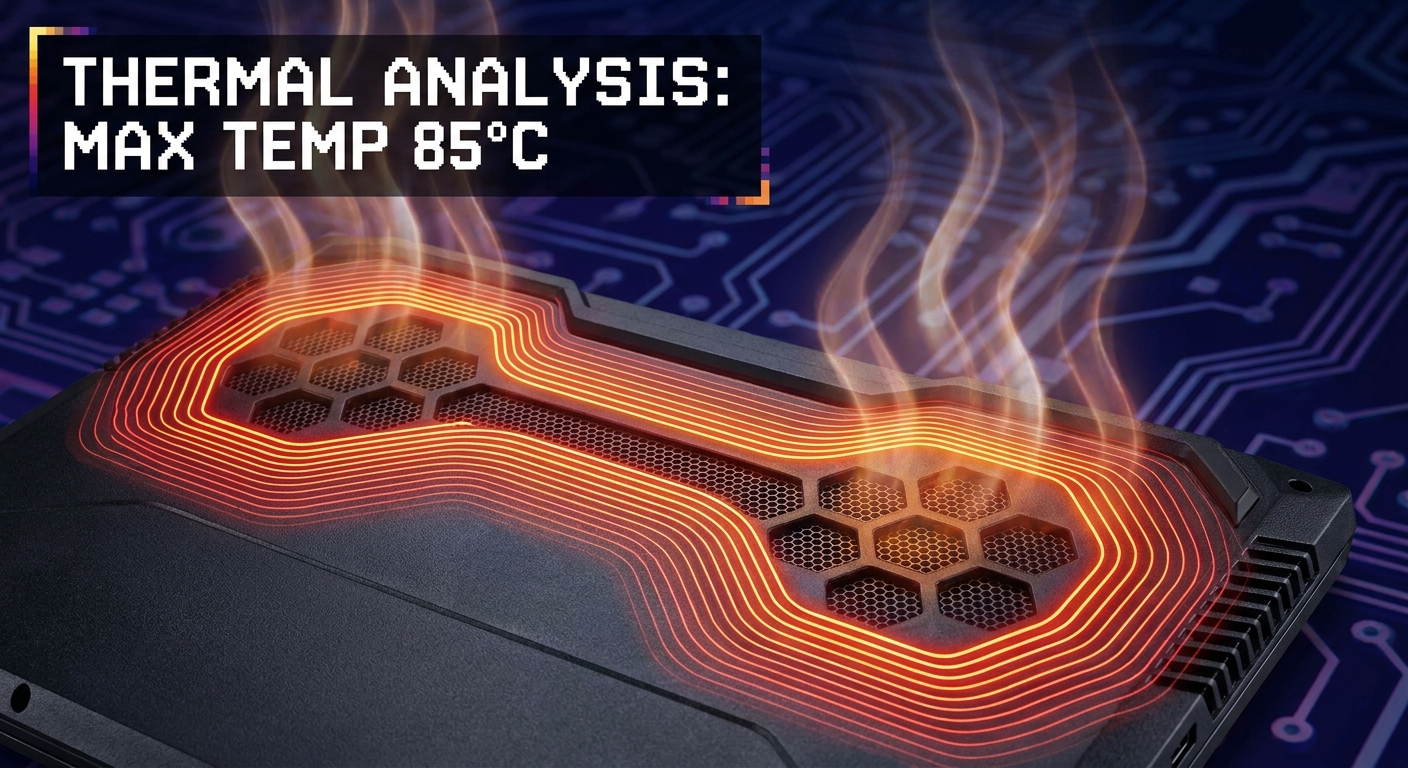
This is the single most common complaint among gaming laptop owners. Thermal throttling happens when a laptop’s CPU or GPU gets too hot and automatically reduces its clock speed to cool down — directly tanking your performance mid-game. Signs include sudden FPS drops, stuttering, and inconsistent benchmark scores.
Before buying, look for reviews that include thermal benchmarks, laptops with multiple heat pipes and dual-fan cooling systems, models with user-accessible bottom panels for dust cleaning, and manufacturer performance mode software that lets you tune fan curves. At home, monitor temps using HWMonitor or Core Temp — sustained CPU/GPU temps above 90–95°C under load are a red flag.
2. Misleading GPU TGP (Total Graphics Power) Specs
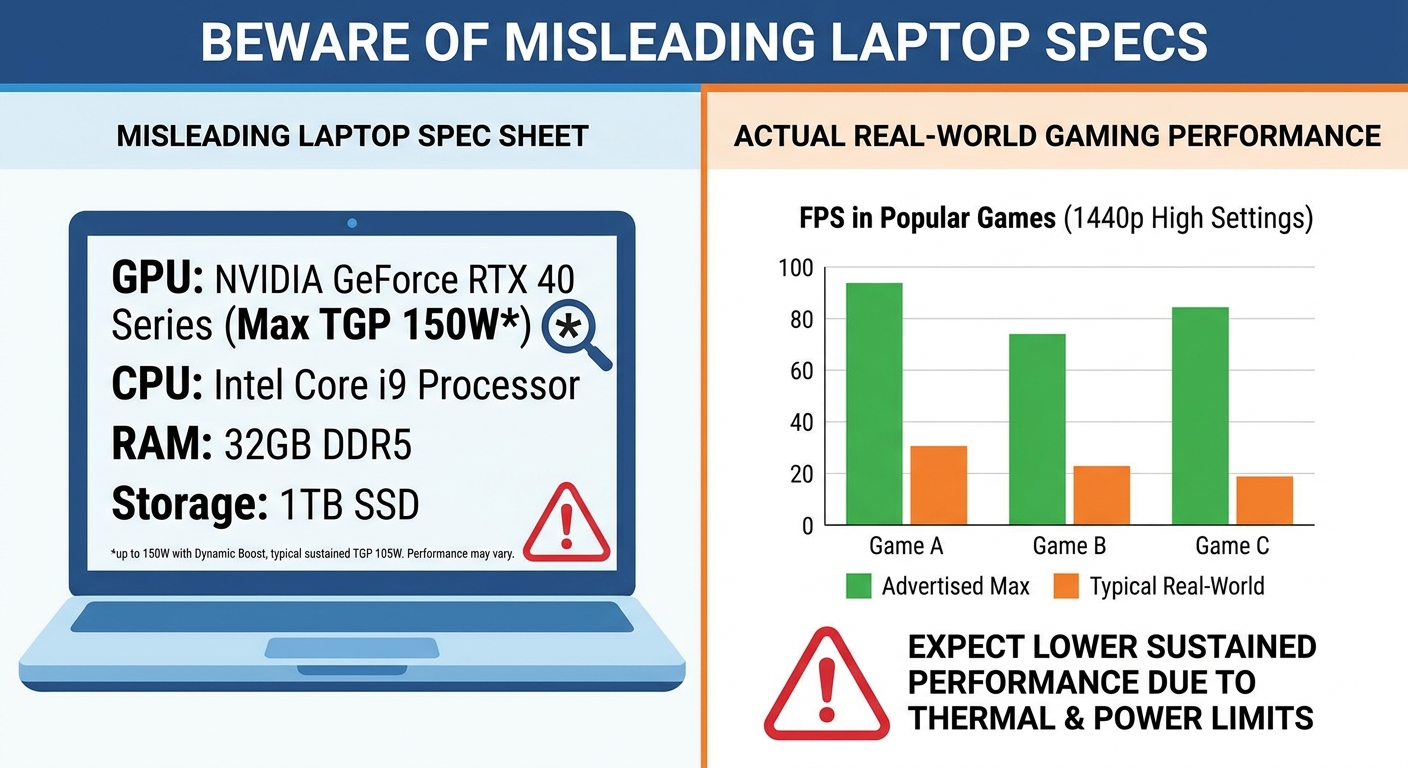
Laptop GPU names can be deeply misleading. An “RTX 4070” in one laptop and an “RTX 4070” in another can perform very differently — because NVIDIA allows manufacturers to configure GPU power limits (TGP, Total Graphics Power) across a wide range. A laptop RTX 4070 can be configured anywhere from 35W to 115W. A 35W RTX 4070 may perform worse than a properly configured RTX 4060 at 80W.
Always check the GPU TGP in watts (look in detailed specs or third-party reviews), whether the laptop includes a MUX switch (adds 10–15% more GPU performance), and gaming benchmarks from trusted reviewers like Notebookcheck, Jarrod’s Tech, or Dave2D.
3. Display Quality Issues
Panel Lottery
Manufacturers sometimes source panels from multiple suppliers, meaning the same model can ship with noticeably different displays depending on production run. Check reviews from multiple sources and look for measured color accuracy (sRGB coverage), brightness (nits), and response time data.
Backlight Bleed and IPS Glow
IPS panels commonly exhibit some degree of backlight bleed — light leaking from the edges visible against dark backgrounds. A small amount is normal; excessive bleed is a defect. Inspect your laptop in a dim room within the return window.
Dead or Stuck Pixels
Power on the display and check a solid black, white, red, green, and blue screen. Dead pixels (permanently black) and stuck pixels (permanently lit) should both trigger a warranty exchange.
4. Bloatware and Software Issues
Gaming laptops from major brands often ship with pre-installed software trials and promotional apps that slow down the system at startup. After purchase, run a clean Windows installation if you’re comfortable doing so, or open “Apps & features” in Windows Settings and uninstall any trial software and unnecessary OEM utilities. Keep only manufacturer tools that are genuinely useful: GPU control panel, fan/performance management software, and driver update tools.
5. Build Quality and Keyboard / Trackpad Problems
- Flex in the display lid: Press lightly on the back of the screen — excessive flex can indicate a thin panel prone to cracking
- Keyboard inconsistency: Some keys may feel mushy or inconsistent — type extensively within your return window
- Trackpad accuracy: Gaming laptops are often designed for mouse use, and trackpad quality varies greatly
- Hinge wobble: Hinges that feel loose out of the box often worsen with time
6. RAM and Storage Limitations
Single-Channel RAM
Some gaming laptops ship with a single RAM stick (e.g., one 16GB stick) instead of two 8GB sticks in dual-channel. Single-channel memory can reduce gaming performance by 10–20% versus dual-channel. Check whether RAM is soldered or uses SODIMM slots, and whether the spec sheet mentions “single channel” or “dual channel.”
eMMC or Slow SATA Storage
Entry-level laptops sometimes use eMMC storage, which is soldered on and significantly slower than NVMe SSDs. Always verify the storage type before purchase. For gaming, NVMe Gen 3 is the minimum recommended in 2026; Gen 4 is preferred.
7. Port Selection and Connectivity
Check what ports are included before buying. In 2026, look for at least one HDMI 2.1 output, USB-A ports (at least 2), USB-C with Power Delivery for charging on the road, and Wi-Fi 6E or Wi-Fi 7 for fast wireless connectivity.
Key Specs Comparison: What to Check Before Buying
| Issue | What to Check | Red Flags |
|---|---|---|
| Thermals | Review thermal benchmarks, cooling design | Sustained temps above 95°C, single fan design |
| GPU Performance | GPU TGP in watts, MUX switch presence | TGP below 80W for RTX 5060/5070 class GPUs |
| Display Quality | sRGB coverage, brightness (nits), response time | Below 250 nits brightness, under 72% sRGB |
| RAM Configuration | Check if dual-channel or single-channel | Single-channel 16GB (one stick only) |
| Storage Type | Verify NVMe vs. SATA vs. eMMC | eMMC storage for any gaming use case |
| Build Quality | Hinge feel, lid flex, keyboard feel | Obvious flex, creaking, loose hinges out of box |
| Ports | HDMI 2.1, USB-A count, USB-C PD | Only USB-C, no HDMI, no USB-A |
Recommended Gaming Laptops with Strong Overall Quality on Newegg
ASUS ROG Strix G16 (2025) — RTX 5060, AMD Ryzen 9 9955HX
The ROG Strix G16 is known for its robust cooling system, dual-fan design, and solid build quality. It ships with a MUX switch and ASUS Armory Crate for fan control.
View on Newegg →
ASUS ROG Strix G16 — RTX 5070 Ti, QHD+ 240Hz Nebula Display
Features the premium ROG Nebula display with validated color accuracy, dual-channel 32GB DDR5, and full MUX switch support — a top choice for buyers who won’t compromise on display quality.
View on Newegg →
HP OMEN 16 — RTX 4060, 144Hz Display, 16GB RAM
HP’s OMEN line offers a reliable balance of performance and build quality at mid-range prices, with a respectable thermal solution and sturdy chassis.
View on Newegg →
Final Checklist Before You Buy
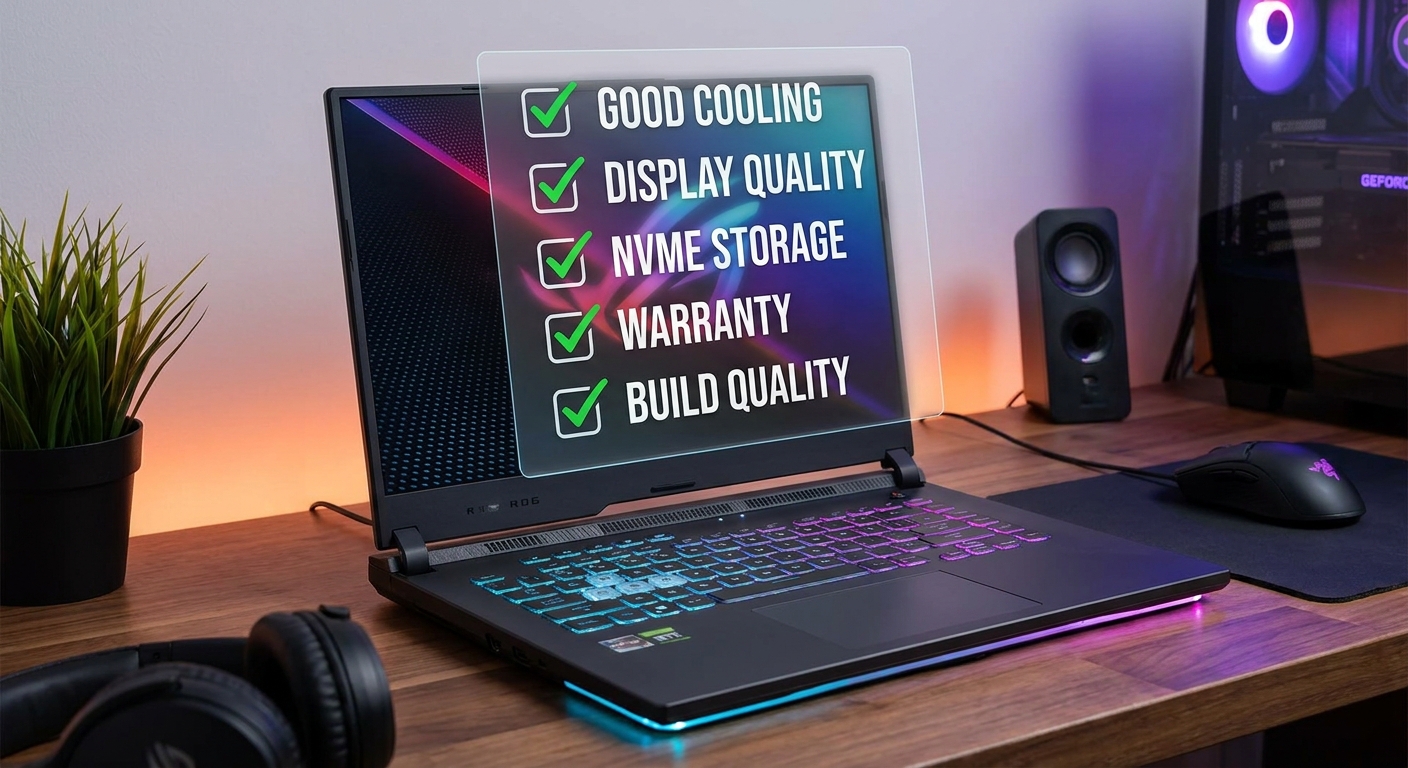
- ✅ Read at least two independent reviews (not just the product page)
- ✅ Verify GPU TGP (watts) — not just the GPU model name
- ✅ Confirm storage type is NVMe (not eMMC or SATA)
- ✅ Check if RAM is dual-channel
- ✅ Confirm the return/exchange policy covers display defects
- ✅ Look up whether the warranty covers thermals and hardware defects in your region
- ✅ Check port selection matches your needs (HDMI, USB-A, USB-C PD)
A little research before purchase saves a lot of frustration afterward. Browse reliable gaming notebooks from trusted brands on Newegg’s Gaming Laptops section, and use customer reviews and Q&A sections to catch real-world issues that spec sheets don’t reveal.
Related Posts
- What Storage Type Should I Choose in a Laptop?
- How Important Is Battery Life When Choosing a Laptop?
- Best 32-Inch 4K Gaming Monitors 2026: OLED vs QD-OLED vs IPS — Which Should You Buy?
- Best Budget Gaming PC Build Under $1,500 in 2026: RTX 5060 Ti Builds That Punch Above Their Weight
- RTX 5070 Ti FAQ: Everything You Need to Know Before Buying