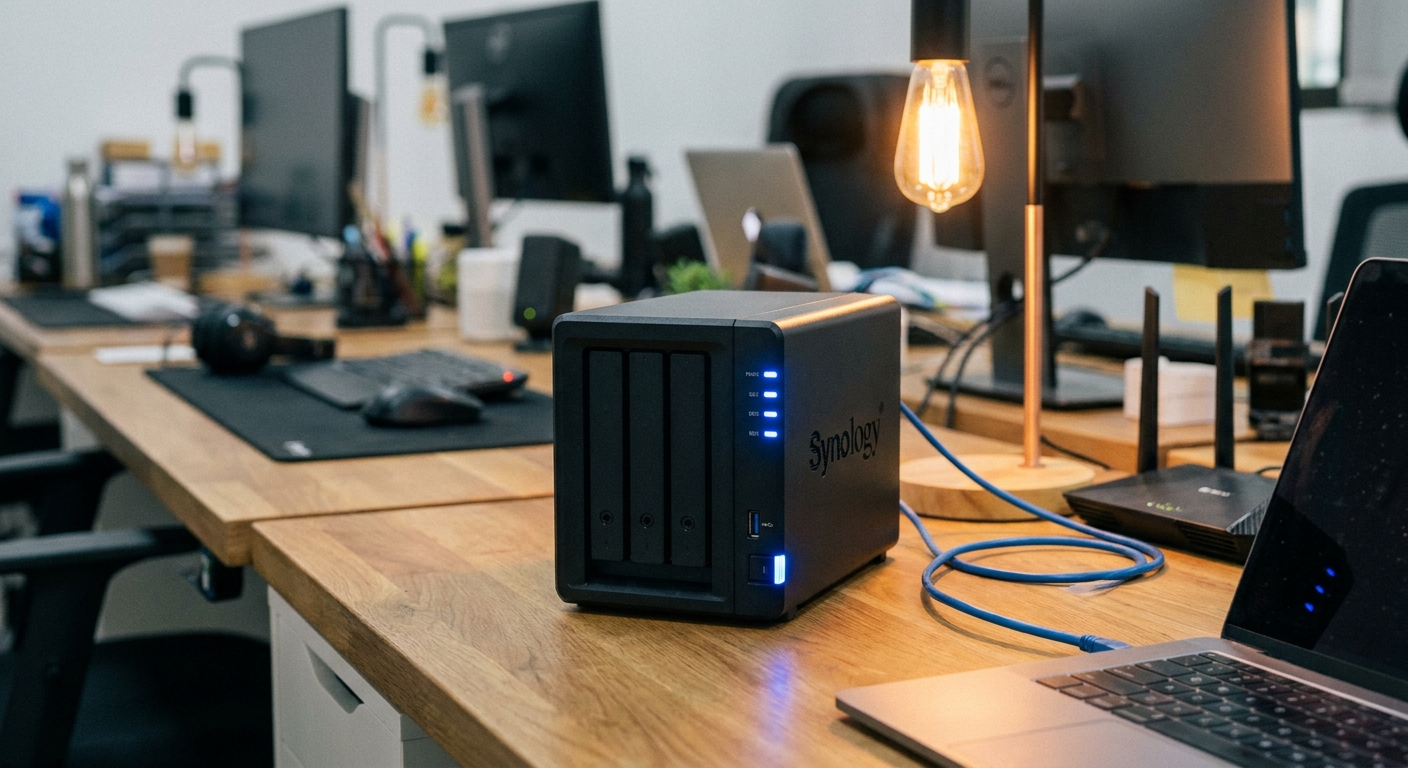
What Does NAS Stand For?
NAS stands for Network Attached Storage. At its most basic level, it's a box with hard drives inside that connects to your router. But unlike a simple external hard drive plugged into one computer, a NAS is accessible by every device on your network — and often from anywhere in the world via an internet connection. Modern NAS systems from brands like Synology, QNAP, and TerraMaster run their own operating software. They're essentially small, specialized computers designed to store and serve data. The better ones can simultaneously act as a media server (streaming 4K video to your TV), an automatic backup target for all your devices, a security camera recorder, and even a platform for running apps like Plex, a VPN server, or cloud sync services — all in a device about the size of a small book.What Does a NAS Actually Do?
The most common reasons people buy a NAS at home fall into a few clear categories.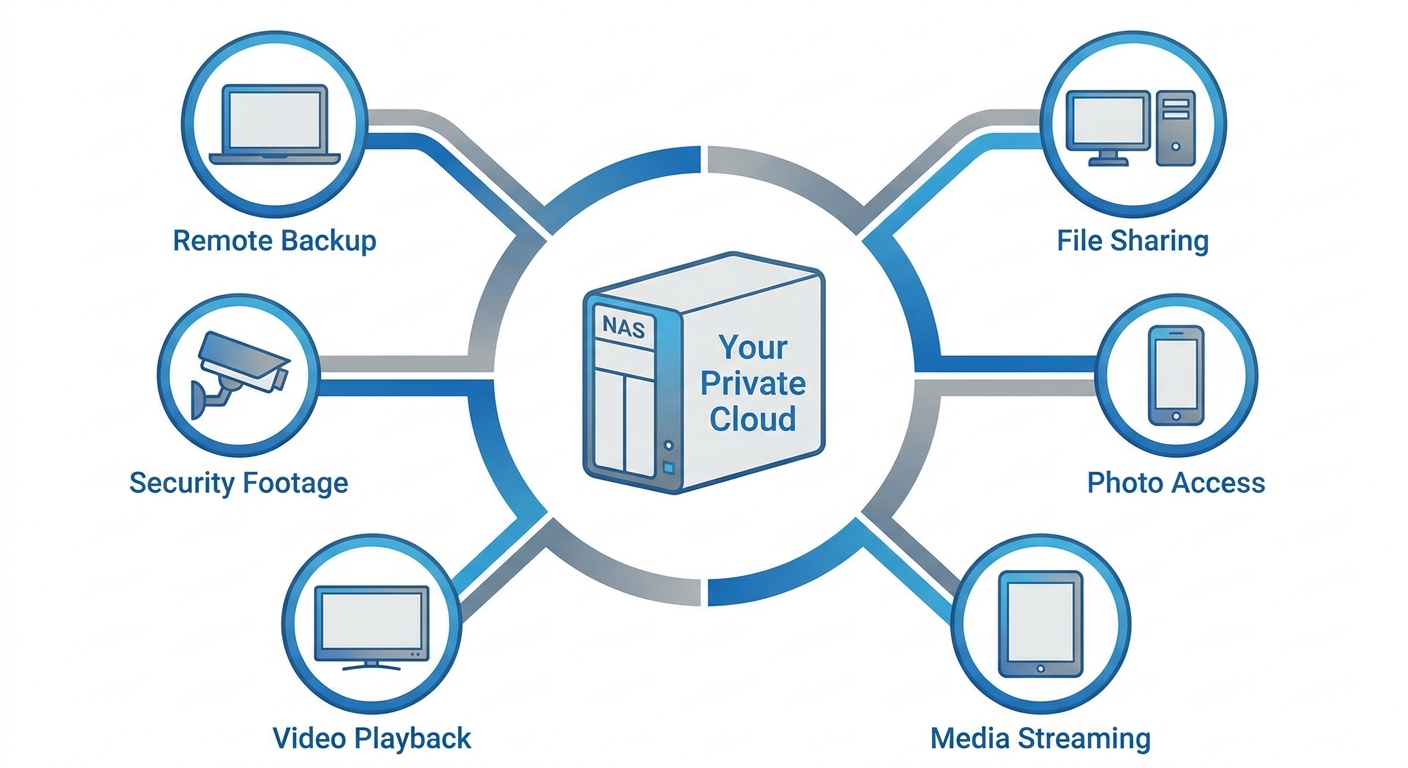
NAS vs. Cloud Storage: What's the Real Difference?
People often ask why they should bother with a NAS when services like Google Drive, OneDrive, or iCloud exist. The honest answer: it depends on how much data you have and how much you value privacy.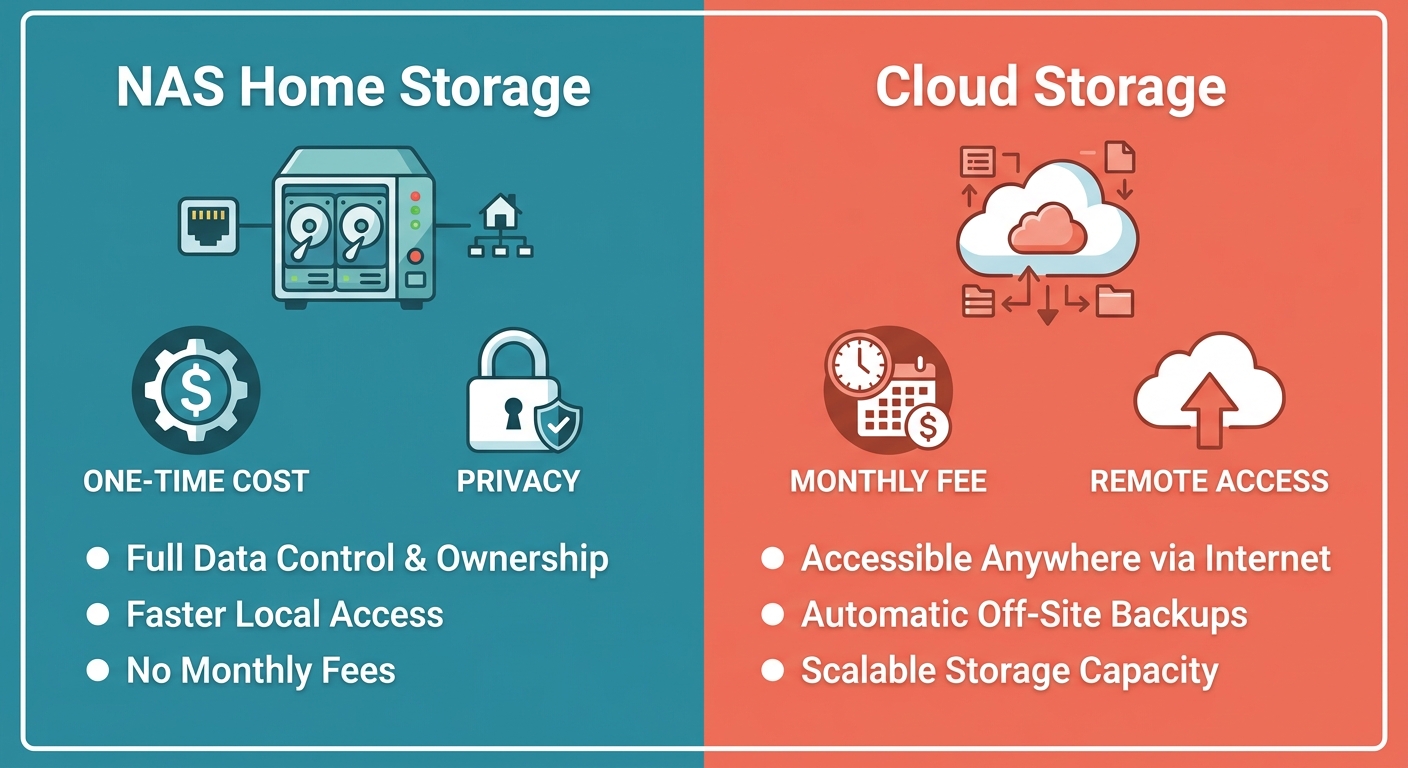
| NAS (Home Storage) | Cloud Storage | |
|---|---|---|
| Cost | One-time hardware cost + drives | Monthly subscription, ongoing |
| Storage capacity | As large as you make it (up to 100+ TB) | Typically capped without major cost jump |
| Privacy | Your data stays on your device | Data stored on third-party servers |
| Access speed (local) | Very fast (Gigabit Ethernet) | Limited by internet upload/download speed |
| Remote access | Yes, via NAS apps | Yes, from any browser or app |
| Setup complexity | Moderate (initial setup required) | Very easy |
| Data redundancy | RAID options available (2+ drive units) | Built-in (handled by provider) |
How Many Drive Bays Do You Need?
NAS devices come in different sizes, defined by the number of drive bays — slots that hold hard drives. Most home users start with a 2-bay or 4-bay unit. A 2-bay NAS is the most popular starting point. You can run the two drives in RAID 1 (mirroring), where one drive is an automatic copy of the other — meaning you won't lose data if one drive fails. Or run them independently for maximum storage capacity. Two-bay units are compact, quiet, and affordable. A 4-bay NAS makes sense if you have a large media library, plan to add storage over time, or want more sophisticated RAID configurations (like RAID 5, which survives a single drive failure while using storage more efficiently than RAID 1). For most families and home offices, 4 bays is the upper limit of practical need. The drives themselves matter too. Standard desktop drives will work in a NAS, but NAS-specific hard drives — like WD Red or Seagate IronWolf — are designed for always-on operation and handle the vibration and heat of multi-drive enclosures better over the long term. You can browse NAS-optimized hard drives on Newegg to find compatible options for your unit.Is NAS Hard to Set Up?
Modern NAS systems are significantly more user-friendly than they were five years ago. Synology's DiskStation Manager (DSM) operating system, for example, features a web-based interface that most people find intuitive to navigate without technical expertise. Initial setup — inserting drives, connecting to your router, and running through the guided setup wizard — typically takes under an hour. The Synology DS223 and TerraMaster F2-425 Plus are two of the most consistently recommended 2-bay models for home use in 2026, praised for their balance of software quality, performance, and ease of setup. If you want to explore options, Newegg's NAS Builder tool lets you configure a complete NAS setup — enclosure, drives, and networking — in one place.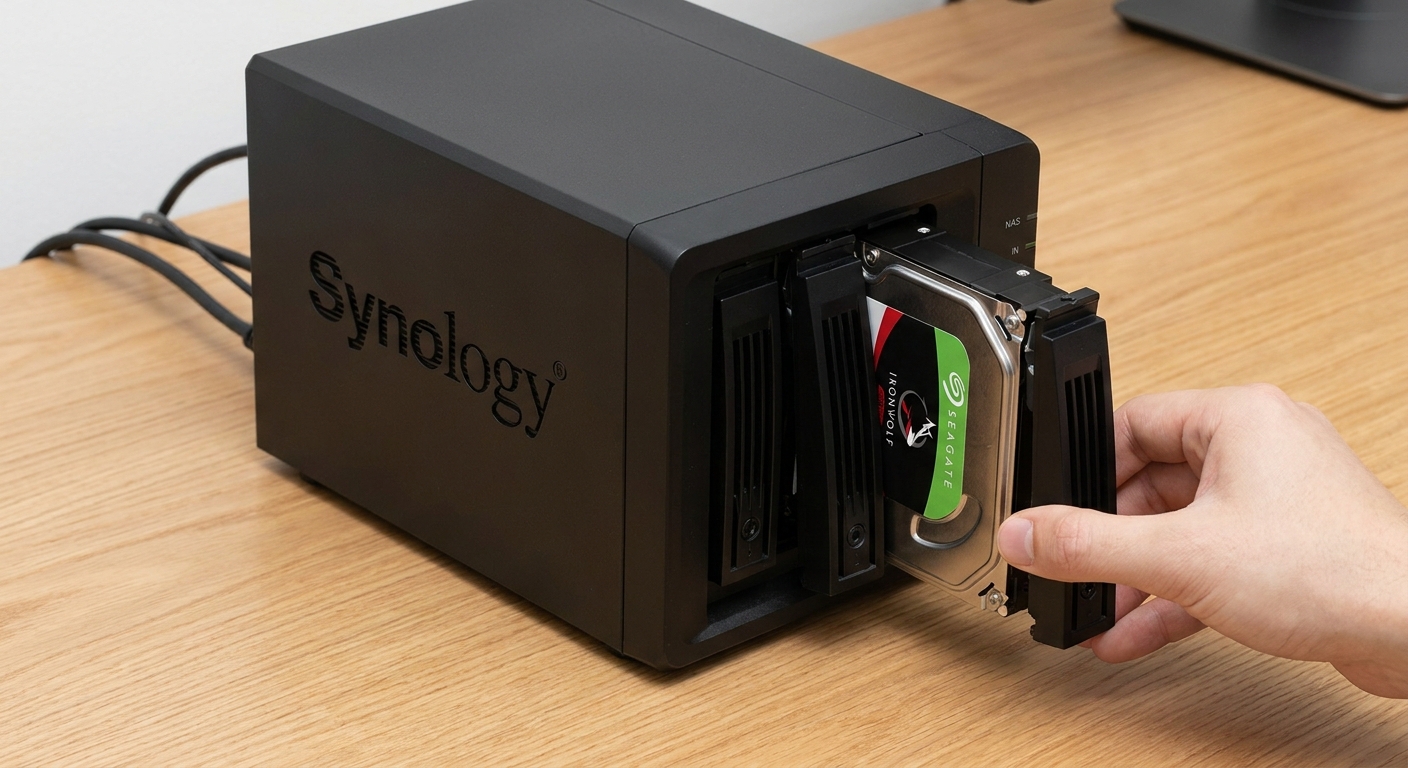
Which NAS Should You Consider?
If you're new to NAS and want a reliable, easy-to-manage system for home backups and media streaming, a 2-bay desktop NAS is the natural starting point. For users with a larger collection or who want to run more apps simultaneously, a 4-bay model from the full NAS catalog on Newegg offers more room to grow. And if you're running a small business or home lab that needs rack-mounted deployment, rackmount NAS options are available as well.Do You Actually Need One?
Honestly — not everyone does. If your photos live in iCloud and you don't have a large media collection, a cloud subscription is simpler and perfectly adequate. But if any of these sound familiar — your photo library is measured in terabytes, you want your home security footage stored locally, you're tired of paying growing cloud bills, or you want a reliable backup system for your family's computers — a NAS is worth a serious look. Once it's set up, it largely takes care of itself, quietly protecting your data in the background. That peace of mind is difficult to put a price on.Read More
Want to learn more about NAS before buying? Here are specific resources worth checking out:- Synology NAS on Newegg — Browse Synology's full lineup of home and business NAS units available at Newegg, with customer reviews and current pricing.
- — A detailed video guide covering which Synology NAS model to choose based on your storage needs, budget, and use case.
- — An honest look at how the NAS market has evolved and whether the top brands still offer the best value.
- Synology NAS 2026 Reviews — NAS Compares — In-depth technical reviews of the latest Synology NAS models, with detailed comparisons and buying recommendations updated for 2026.
- 6 Things I Wish I Knew Before Setting Up a NAS — XDA Developers — Practical lessons from real users that help you avoid common first-time NAS setup mistakes.
Frequently Asked Questions
Answers to the most common questions about this topic.
What is NAS?
NAS stands for Network Attached Storage. It is a small, always-on device with hard drives inside that connects to your home router, allowing all devices on the network to access stored files, stream media, and run automatic backups.
Do I need a NAS at home?
A NAS is worth considering if you have a large photo or video library, want to store home security footage locally, have multiple computers that need backing up, or want to reduce ongoing cloud storage costs. For users with small data needs, cloud services are simpler.
What is the difference between NAS and cloud storage?
NAS stores your data locally on your own hardware with a one-time cost, while cloud storage keeps your data on third-party servers with a monthly subscription fee. NAS offers faster local access, greater privacy, and lower long-term cost for large storage needs.
How many bays does a home NAS need?
A 2-bay NAS is the best starting point for most home users, supporting RAID 1 mirroring for data protection. A 4-bay NAS is better for large media libraries and more advanced RAID configurations like RAID 5.